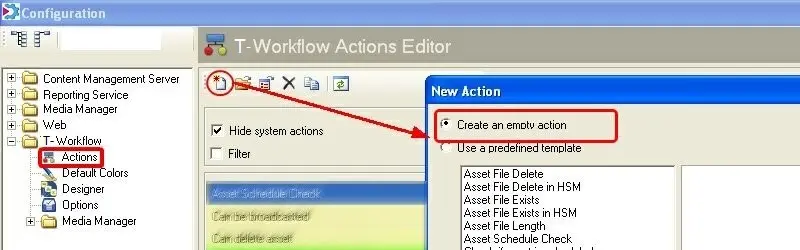
59.3.9.3 Create a new empty action
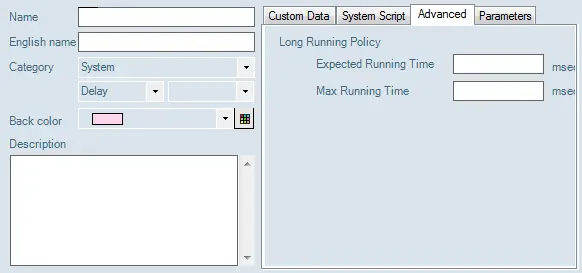
Each time the user creates a new action by pressing the [New] button, it will be required to compile the fields listed below:
Create_an_empty_action
3733_configuration_editor_new_workflow_action
Action
Name - Assign a name to the action. This is the name that will be displayed throughout.
English name - Insert a Westernized version of the action name for better recognition purposes.
Category - Select from the drop-down list the category (and subcategory if required) you wish to associate the new action with.
Back colour - Choose the colour of the action as it will appear in the Editor and the graphic T-workflow
Description - Insert a description of the action if additional information is required.
States are an essential part of an action because this is how the action will inform of its result to the following action. Once the name and category have been defined, the 'add state' button in the toolbar is activated; it can be set as follows:
1 - Click to add a new state, which will appear in the 'States' section at the bottom right of the Editor screen.
2 - Press the +button to edit. By default, the State is allocated State N.1, N.2, etc, but these titles can be changed in the first field.
3 - The colour of the State can also be changed, and a Westernized name can be assigned to it.
4 - A description of the State can be added as a T-SQL activation script.
5 - This activation script launches a procedure to take the action through the sequence and onto the next step.
Custom Data - Customized commands are inserted in this section; the "XML data" field is where the action and its parameters are specified in XML format.
System Script - The system script that triggers a specific SQL store procedure.
Advanced - As the execution of slow actions (e.g. web server, linked server, etc.) may take longer time, causing other fast activities (e.g. file exist) to get unnecessarily stuck, the parameters below allow setting the criteria for the management of the execution queue:
Long-running policy
Expected running time - If lower than 3000ms, the action will be placed in the "today queue".
If greater than 3000ms, the action will be placed in the "slow queue".
Maximum running time - If greater than 0ms, the action will be "parked" (halted) if its execution takes longer than the specified time.
Parameters - The Parameter tab displays the properties of the T-workflow action, such as Device (e.g. HIRES), Codec (e.g. Seachange BMC), delete from the Device, set current metafile, HSM Archive, HSM Restore, HSM File Exist, HSM File Online, HSM File Delete, etc.
Among the action properties, the user can edit the following actions:
•File exists: check for the existence of a file
•Set current metafile: set the reference metafile of a T-workflow instance. (You can only edit new T-workflow actions; editing previous Ones is prohibited.)
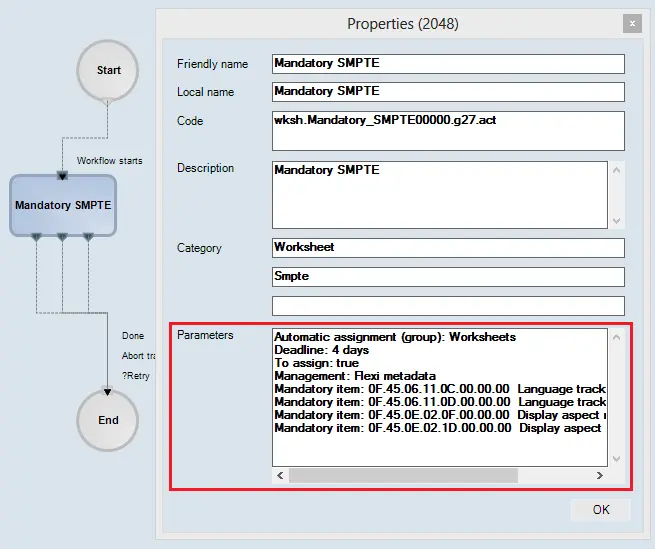
Action Properties
The action properties form also shows the parameters for some actions, including conforming, T-workflow, worksheets, etc.
Name - Assign a name to the action. This is the name that will be displayed throughout.
Action_Properties
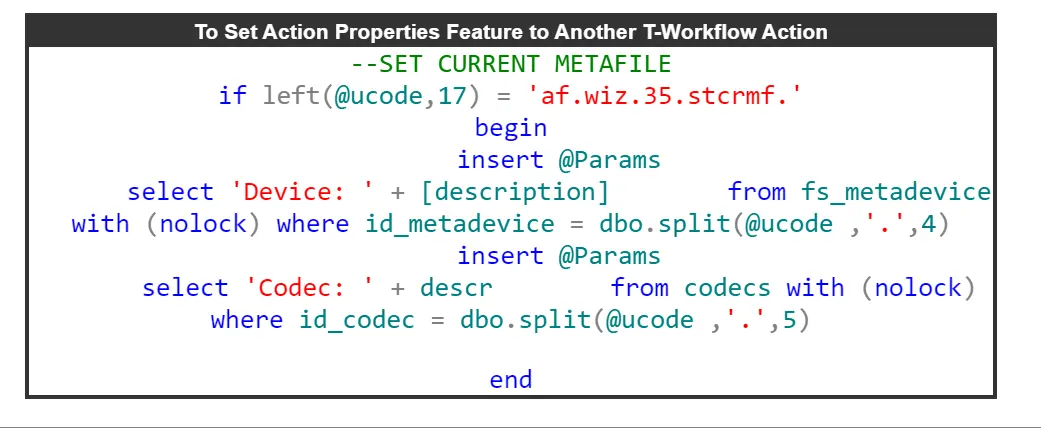
To add this feature to another action, you must edit the dbo.wf_admin_actionParameters procedure by setting the parameters list in the @Params table.
For Example
To_Set_Action_Properties_Feature_to_Another_T-Workflow_Action
Once all fields have been compiled, it will be required to press the [Save] button.
Attach Virtual Document to T-workflow
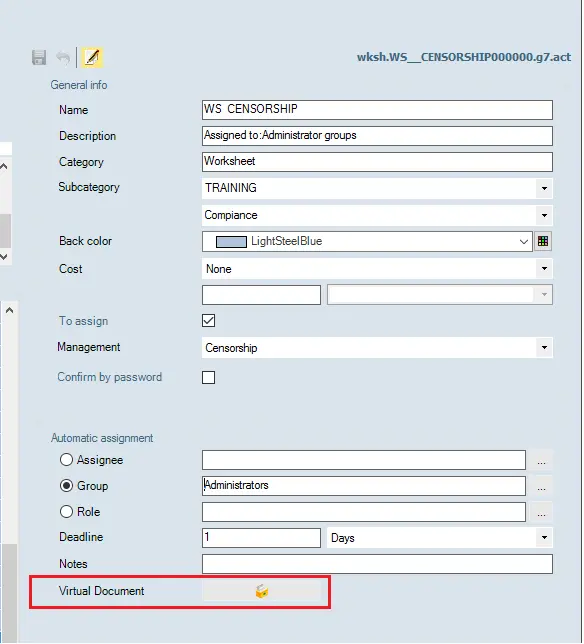
When creating a T-workflow action, you can attach a virtual document for users to download into the local workstation. In the T-workflow creation template, click the Virtual Document icon at the bottom to upload a virtual copy to the T-workflow.
3734_Virtual_Document
A File Explorer window would be set up to select virtual documents in a network drive or local workstation to upload into the T-workflow.
 Create_an_empty_action
 Action_Properties
 To_Set_Action_Properties_Feature_to_Another_T-Workflow_Action
 configuration_editor_new_workflow_action
 Virtual_Document