84.3.2.3 Creating Cartwalls
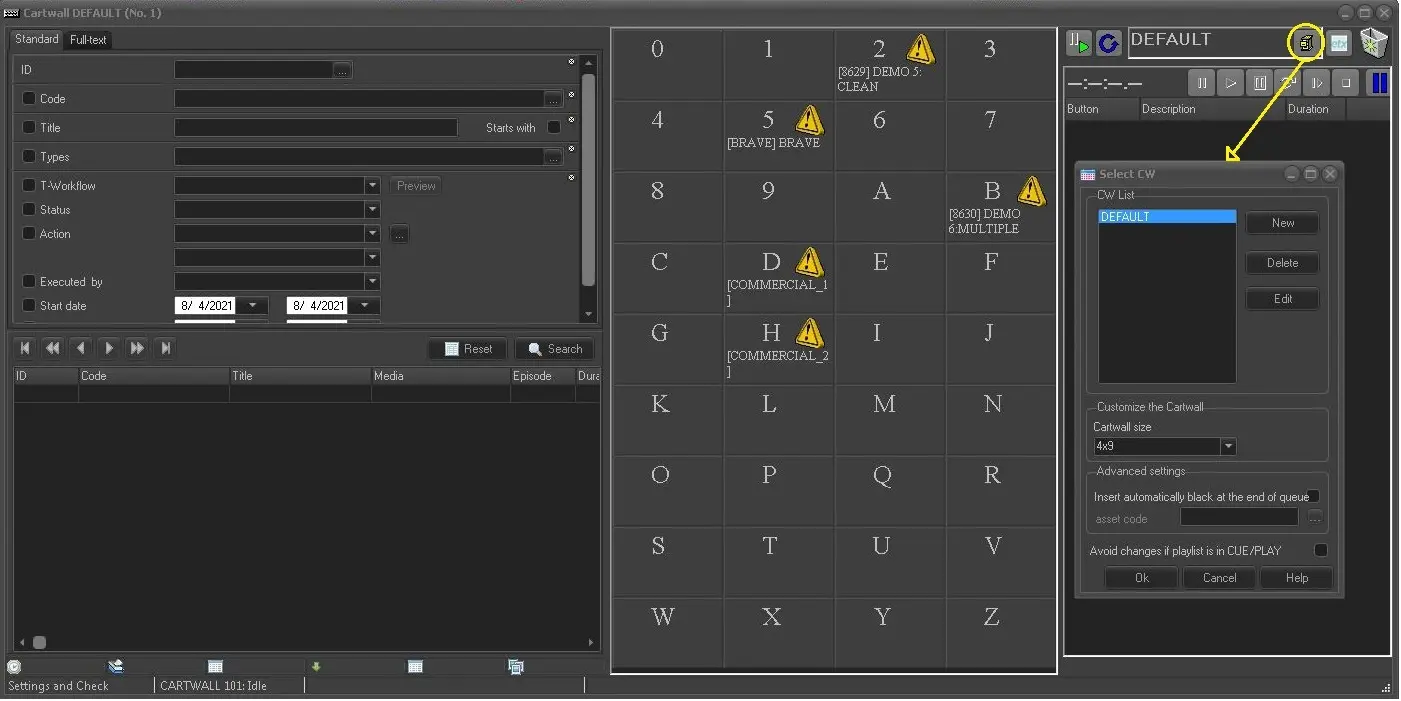
Under the Playlist section, you are allowed to create as many CW's (Cartwalls) as you need, each CW can be customized accordingly (name, size, etc). There are three icons positioned beside the playlist:
•Play / Cue & Play: this icon switch the playlist functioning mode between Play (assets will be immediately played) or Cue&Play (assets will be put in cue before they can be played).
•Asset Loop: Indicates if the asset is being reproduced normally (blue icon) or if it's looped (red icon).
•Select CW: Allows creating a new CW or modify its main properties:
5050_Cartwall_Default
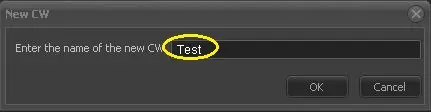
•New: Creates a new CW (e.g. playlist01).
5049_New_CW
Enter the cartwall name and click <OK>.
•Delete: Delete a CW from the list.
•Edit: Modify the CW's name.
•Cartwall size: Set the keyboard size, you can choose between the predefined options or insert a personalized value (e.g. 3x3)
•Insert automatically black at the end of the queue: Select to enable or disable this option.
•Asset code: Select an asset that will be automatically played at the end of the queue
•Avoid changes if playlist is in CUE / PLAY: Enable this option to lock the playlist during the Cartwall playout.
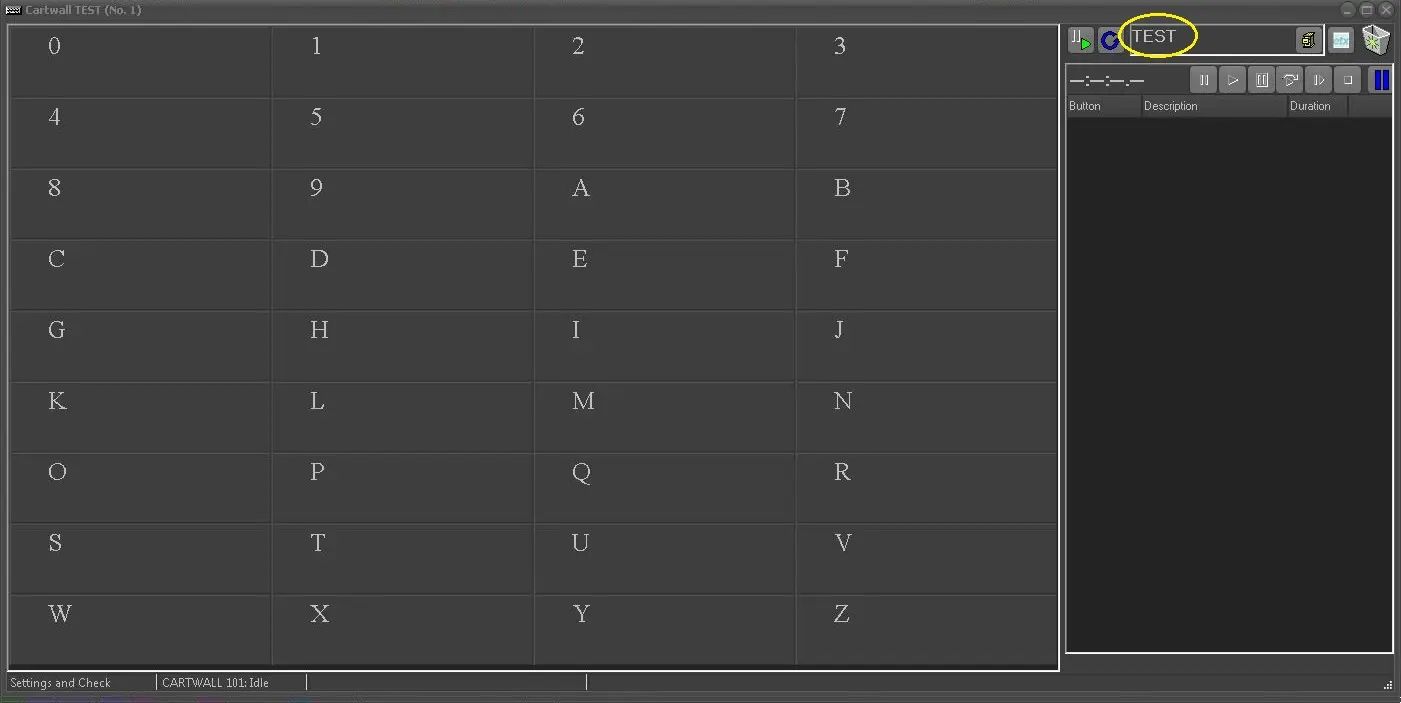
When you click the <OK> button to create the new cartwall, a new instance of cartwall would be launched.
5051_Cartwall_test
 5050_Cartwall_Default
 5049_New_CW
 5051_Cartwall_test