82.1 How to use Query Manager
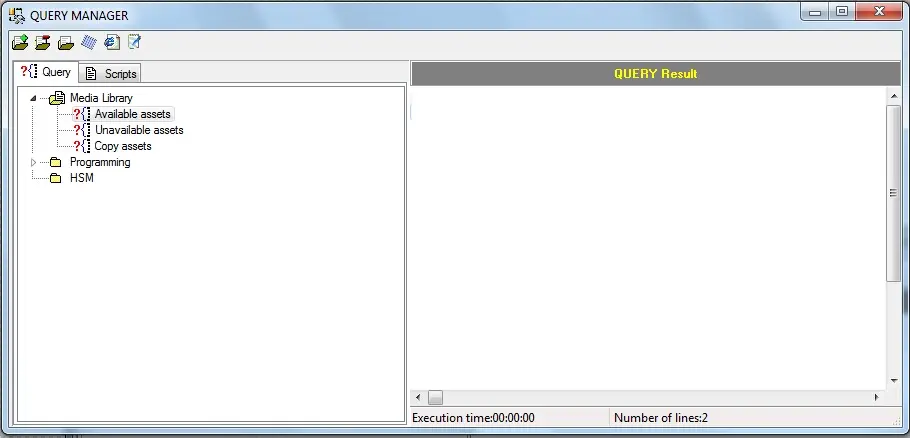
The main window of Etere Query Manager is divided into two parts: the left part, where all queries are listed and can be managed, and the right part, where results are displayed once a query is executed.
Toolbar
Queries can be categorised in subjects (i.e. containers for a series of queries) through the following functions:
Query_manager_2
•Add subject: Creates a new category for organising queries.
•Delete subject: Removes the selected subject (category) from the list.
•Rename subject: Allows to change the name of a certain subject (category).
Displayed query results can be exported as CSV, XML and TXT files by pressing the proper export key from the toolbar.
Managing queries
Existing queries can be opened by making double-clicking on them; once opened, it will be possible to view and modify them:
Query_manager_3
•Run: Executes the query to retrieve results in the form's right panel.
•Stop: Interrupts the query execution without waiting for its completion.
•Cancel: Undo all changes performed to the query.
•Apply: Saves all changes performed to the query.
If the user intends to create a custom query, just right-click on the query section and select the "Add query" option. A name will be requested for the new query, and the Query Wizard will be opened to define it. Created queries can be deleted and renamed by using the related option of their right-click menu.
Query Wizard
The Query Wizard allows the visual creation of Customized Queries that will be used afterwards in programs where Etere Query Manager is also in use. Please note that the query text created using Etere Query Wizard may not be compatible with the Transact-SQL language (e.g. if some parametric values are inserted). To create a new query, just follow the next procedure:
1. Select Tables and columns
All tables are shown in this window, as well as related columns. This way, you can select the tables to run queries and fields (columns). After selecting, press "Next" to go to the following window.
2. Parameters selection
In this window, you can specify one or more conditions (max 6). First, you must select the field for the selection and the operator (=, <=, etc...) and then insert a value. This value can be requested as a parameter for the execution.
Finally, select the logical connector, and a new condition will be added (AND, OR) or end selection of parameters (END). Press "Next" to go to the following window.
3. Order condition
In this window, you can order the query result. If there isn't any arrangement, it will result in undefined, and the selection could order items according to different standards. Press "Next" to go to the last window.
4. Query string
The Query String window displays the obtained query in only-read text mode, allowing it to be modified by pressing the 'change query' button (e.g., to paste an existing query). Once done, press the "Finish" key to confirm the query and return to the main window.
The Query String window can be called at any step by pressing the 'String / Query' button, which permits to switch between the Query String and the Query Wizard windows.
 Query_manager_2
 Query_manager_3