84.4.4.56 CUSTOM > CINEGY CSV
Export Scope
The export Custom Cinegy export to a CSV file containing the data of a one-day or multiple day schedules, data exported includes primary events and secondary events. The CSV file name format is: Cinegy_Station_yyyymmdd_yyyymmdd.csv
Export Parameters
The following parameters are required in order to export the file:
Export_custom_cinegy_new
Period to export:
•From date: select a date from the calendar to indicate the start date for export.
•To date: select a date from the calendar to indicate the end date for export. This date can be the same as “From date” to export one-day schedule.
Parameters:
•Export path: indicate the directory path where the CSV file would be created after exporting. You can use the browse button to locate the path in the network.
•Export Filename: Enter the file name of the CSV file to be created upon completion of export. The file name format is “Cinegy_Station_yyyymmdd_yyyymmdd.csv” where both “yyyymmdd” can be in date range or the same date.
Parameters for managing Live:
•Device: Select an alternate device where the secondary events would be managed.
•Level: Indicate the scheduling level of the Live secondary events.
•Command: Enter a type string to manage Live as secondary event. The command string is “type, offset, offsetFrom, name, description, device, command, option1, option2, option3”, for example: “S, 00; 00; 15; 00, E, Secondary, VIKINX, crosspoint, 001.015”, where “S” indicate the generic secondary event type.
•Main output channel of the router: Enter the main output channel for broadcasting the secondary event.
•Offset negative for Live: Specify a negative offset value (seconds) for execution of commands before the arrival of Live clip.
For example:
•Set the value as “0” when offset is not required, offset would remain as “00: 00: 00: 00”.
•To offset 30 seconds (as “-00: 00: 30: 00"), set the negative value as “-30”.
Click <Save> to save the parameters.
NB: In the exported file, the single quotation (‘) and double quotation (“) marks in the "Name" field and “DESCRIPTION” field would be removed.
Launch the export
Once all the above parameters are fulfilled, click the <Export> button to start exporting schedule from the database to a CSV file.
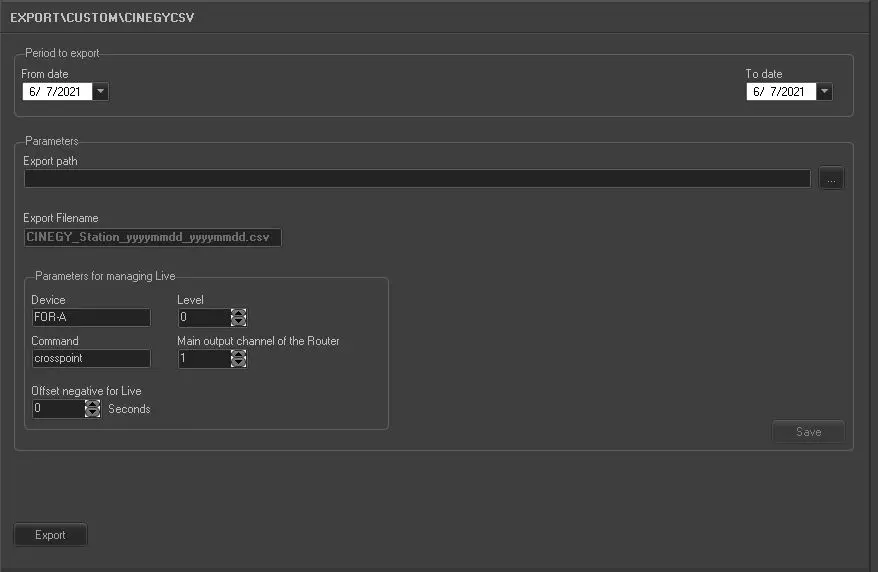 5142_Export_custom_cinegy_new