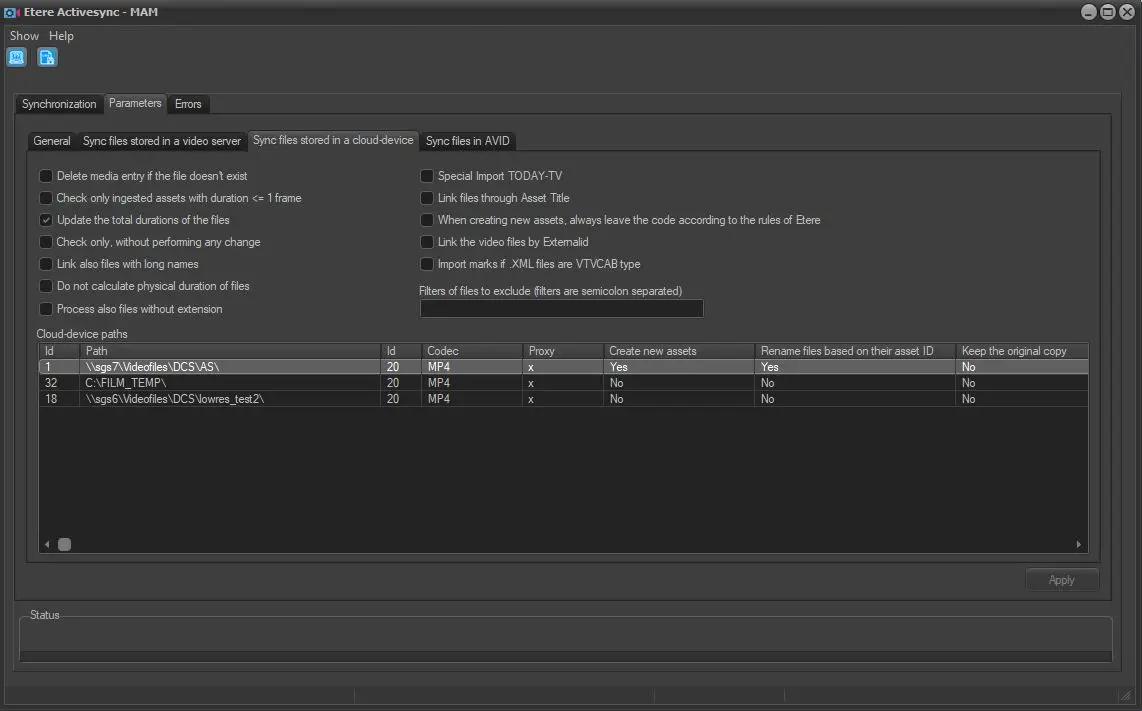
51.1.2 Sync Files Stored in a Cloud-device
This tab consists of all parameters related to synchronising high and low-resolution video files stored on certain metadevice.
The maximum number of cloud devices to manage is set at 200.
Delete media entry if the file doesn't exist: If enabled, all the asset forms associated with video files stored in the path are processed during the synchronisation. The association will be removed if the asset form is associated with a non-existent video file.
Check only the ingested assets with duration <= one frame: Enable this option to process and update those asset forms with an unspecified duration (i.e. duration <= one frame) currently associated with a low-resolution video file.
Update the total duration of the files: If enabled (suggested), the duration of video files would be read and updated within the database. If disabled, video files durations won't be read, thus speeding up the synchronisation process.
Note: Please note that even if this parameter is disabled, the duration of newly created assets will be read anyway.
If the asset SOM and EOM durations are shorter than the actual duration of the imported file, the asset duration would not be updated. You can insert a "Reset logical marks" action after the MediaInfo action in the relevant T-workflow to align the asset SOM and EOM to the physical marks of the asset.
Check only, without performing any change: Enable this option to display the number of video files found without synchronizing the files. This option helps identify the inconsistencies between stored durations and actual durations.
You can also use this option to locate orphaned files (files not linked to any asset) in the database before synchronization. This option checks the data fields "ID_PATH" and "FULL_PATHNAME" of the file in the same metadevice and identifies orphaned files in the database.
Moreover, with only this option enabled in the "Sync files stored in cloud-device" tab, you can identify all files in Etere's database that are not linked to any asset or assets with attached file that no longer exist by specifying the volume in the cloud-device path. Repeating the same steps by changing the respective volume in the cloud-device path you can extract all files in Etere volumes that are not linked to any asset.
Link also files with long names: If enabled, files with filenames longer than the system restriction would be synchronized. The length restriction depends on whether automation is used:
automation is used / maximum length is 32 characters
automation is not used / maximum length is 250 characters
Note: Please note that in addition to this option, a renaming option (e.g. ID, leading characters, unique code) can also be used to rename files exceeding the maximum length with shorter names.
Do not calculate the physical duration of files: If enabled, Etere ActiveSync will not attempt to retrieve the duration of synchronized files.
Note: This option is useful when the duration retrieval takes too long or the duration -and other data- is imported from a descriptive XML file.
Process also files without extension: If enabled, Etere ActiveSync would attempt to calculate the duration of files without extension.
Link files through asset title: If enabled, the synchronisation process would link asset files through the asset title or file name without a file extension. If there is no asset in the archive, the asset tab would be created with the asset description as the file name.
Note: To link assets with a filename longer than 32 characters, the option "Link also files with long names" must be enabled.
When creating new assets, always leave the code according to the rules of Etere: When this option is enabled, new assets are created following Etere's rules, ensuring that asset codes are created correctly. The rules can be set in Etere configuration > Settings > Media library > Codes.
Link the video files by External id: During files synchronization, enable this option to link video files to assets through the External ID. This option is useful when synchronizing asset files for disaster recovery. The import process would sync asset files based on the asset's "External ID" field in the Asset Repository table exported in "Export standard XML Assets Full".
Import marks if XML files are VTVCAB type: The XML file extension is no longer marked as upper case. It would be left as it is.
Filters of files to exclude: Enter the names of files to ignore when synchronizing files from any cloud device. Multiple filters can be specified separated by semicolons: *.MOV; *.AVI
Note: Filters can also be entered for specific cloud-device paths, as explained in the next chapter.
 cloud_device