71.9 Cart ingest
What is Cart Ingest?
The Cart Ingest module is the solution for digitally ingesting assets (e.g., commercials) stored inside a Cart Machine (i.e., cartridge/tape playback machine) and scheduled to go on air. Cart Ingest will automatically search for all those events scheduled to be broadcasted which does not count as digital media but are stored on a Cart Machine's tape or cartridge, thus allowing the operator to either manually or automatically ingest the mentioned assets into a video server to prepare them for broadcast.
➢Automatic ingest: Ingest all scheduled but non-ingested assets automatically from a Cart Machine
➢Manual ingest: In manually ingest all scheduled but non-ingested assets from any device.
What's the difference between Cart Ingest and Multifunction Ingest?
The Cart Ingest module differentiates from the Multifunction Ingest one because it directly searches for non-ingested events on the automation playlist (i.e. tpal), automatically updating (publishing) it once the ingest process is completed.
Using Etere Cart Ingest
As usual, the first thing to do is to set the configurations by pressing the 'Config' button or going to the proper section within the 'Parameters' module. Once parameters have been correctly set, you are ready to launch Cart Ingest. It will be possible to proceed with the ingest process -using the seven available tabs- as shown in the procedure below:
The main window of Cart Ingest consists of seven tabs, along which you will be able to set, control, test and ingest scheduled operations:
1. Cart
Set under this tab the communication port to be used by the Cart Machine, which also makes it possible to visualize its state and edit its slots:
Cart
2. Wrong tapes
This is a sort of blacklist which contain all the tapes that, for any reason, have failed during the ingest process; however, if you want to use them, right-click on the one you intend to use and select the 'delete from the list' option.
Wrong tapes
3. VTR Test
Test the configured VTR by sending test commands to it. Just start the test to begin and press stop when you have finished.
VTR Test
4. Test Rack
Under this tab, it is possible to 'activate' the module, which will read the current position on the tape and display its content.
Test Rack
5. List 1 / List2 / List3 / List4
This tab shows all the configured profiles related to the VTR contained within the cart machine; these profiles are used for caching. The 'reactivate the resources' option, available by right-clicking on this window, will activate the selected profile.
List 1
6. Search Scheduled Ingest Operations
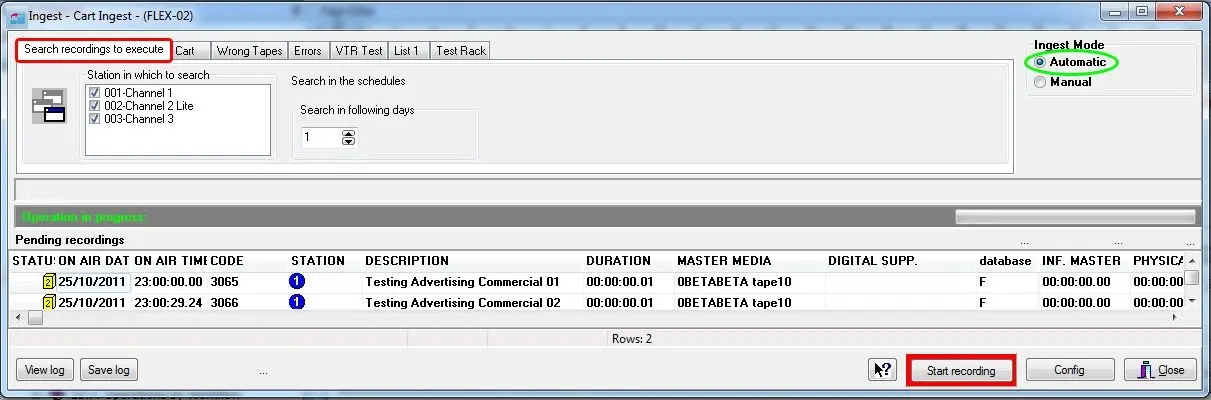
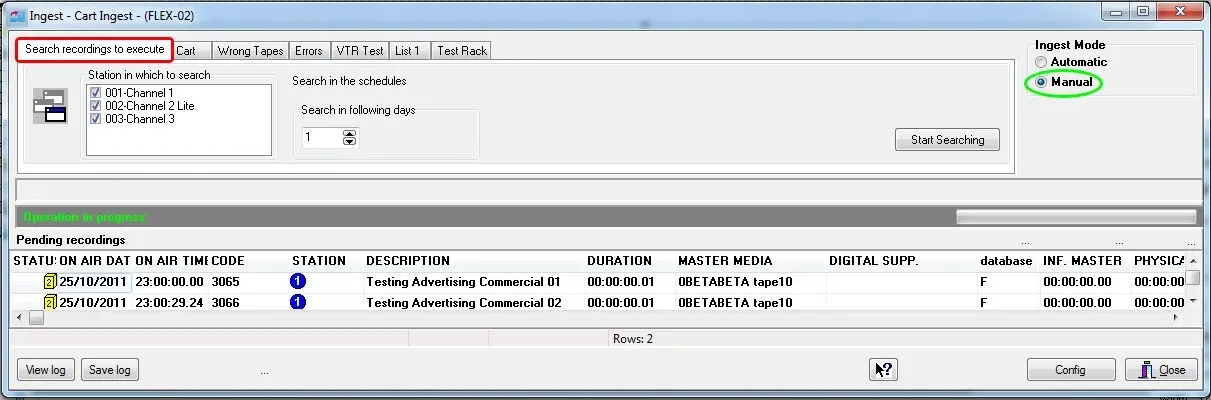
The main tab of the "Cart Ingest" module is mainly composed of two areas: a bottom panel on which are listed all assets matching the filtering criteria and an upper panel on which said filters can be defined as well as the ingest mode to be used for ingesting, available ingest modes include:
Automatic
In case a Cart Machine has been configured and loaded with all the required tapes, the "automatic" ingest mode will allow to automatically search and ingest all assets matching the set filters, with the following steps:
Automatic
i. Select the station(s) in which assets will be transmitted as well as the number of future television days to be checked,
ii. Press the [Start recording] button to check the automation playlist (i.e. tpal) for scheduled events matching the set criteria,
iii. New ingested media will be updated on the asset form and across all the eventual broadcast schedules on which the assets are scheduled.
Manual
The "manual" ingest mode allows users to manually search and select the assets to be ingested, following the following procedure:
Manual
i. Select the station(s) in which assets will be transmitted as well as the number of future television days to be checked,
ii. Press the [start searching] button to list in the bottom panel all those non-ingested assets which are scheduled to go on-air,
iii. Select the asset to be ingested by double-clicking on it; the Multifunction Ingest window will appear to perform the ingest process. If the selected assets are linked to more than one tape, the operator will be prompted to choose the exact tape media to use for the ingest process.
v. The new ingested media will be updated on the asset form and across all the eventual broadcast schedules on which the assets are scheduled.
To be detected, assets must be associated with a "Master Media", that is, to a barcoded tape with a valid mark in/out points. The Master Media column will display all linked tapes using the "0BETAxxxx yyyyy" format (e.g. 0BETAbeta tape13).
NB: Please note that viewing all performed ingest process operations is possible by selecting the [View log] button.
7. Errors
This tab lists all errors encountered during the ingest process (e.g. 'driver not valid', 'CART not activated', etc).
CART not activated
 List_1
 Test_Rack
 Automatic
 Manual
 CART_not_activated
 VTR_Test