72.18.2.18 Adobe Integration and Etere Panel Plug-in Installation
The installation of Adobe Integration on Etere system is included within the common EtereWeb installation. Further information on EtereWeb setup can be found at chapter "EtereWeb Setup"
It is only needed to install the Etere Panel plugin to be used on the Adobe interface, and it can be done following those steps:
- Extract the content from the AdobePlugin.zip provided within EtereInstall package into C:\program files(x86)\Common Files\Adobe\CEP\extensions of all the workstations where Adobe PR is installed.
- Edit the common.js file from C:\Program Files (x86)\Common Files\Adobe\CEP\extensions\Etere\js folder in order to configure the panel:
var SERVICEDOMAIN = "[insert here the EtereWeb address]"
const EDITING_EDL = '[type of EDL assigned to adobe segments (by default is '__ED')]'
const DEFAULT_TYPE = '[type to be assigned by default to asset when they're created thruogh EterePanel]'
const PATH_TRANSLTE_FUNCTION = 'ADOBE'
const ASSET_SPMTEMETADATA = '[item of the fleximetadata if needed]'
At this point the extension panel is installed and ready to be displayed by going to the "Window > Extensions" menu and selecting "Etere panel":
Etere panel
Now you can login to Adobe Extension and configure it as explained in the next chapter.
Please Note the settings as not global but per each Etere user\login
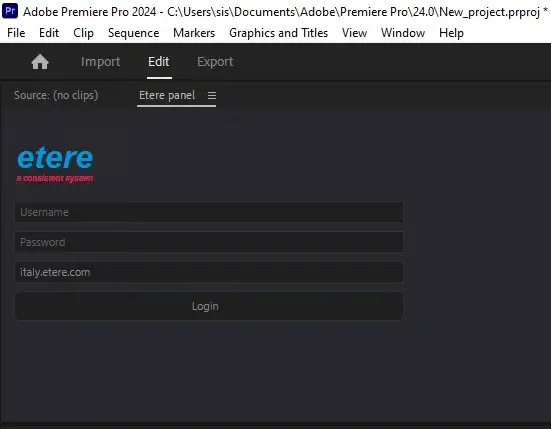 Etere_panel