59.2.23.1 Database settings
The Database section allows configuring the SQL server, database, and parameters to manage data. In Windows 7 or 2008 OS, this section will be available only for administrators with full elevated permissions (see security considerations).
SQL Main Server
SQL Server - Enter the name of the SQL server. This parameter is only active if Etere is in SQL Server Mode.
Database Name - Indicate the SQL database (e.g. MyDatabase) as the main database for holding the entire system's data (the whole system functioning will be based on the database set here). Suppose it's the first time the database is used for Etere. In that case, it is highly suggested to launch the System Maintenance function to create a proper structure based on Etere's organisation tables and procedures.
NB: Please note that Etere does not create the database but should be created after installing the SQL Server.
Do.Ma. Database - Specify the database (e.g. MyDatabase_doma) to store Etere Do.Ma. documents outside the main database and thus improve the overall system performance.
If it's the first time the database is used for Etere, it is highly suggested to launch the System Maintenance module for the "check main database structure" and "full-text search" functions.
The DO.MA database stored all result files generated from the MediaInfo action; you can disable the "Save result file on DB" option in the MediaInfo action to reduce the orphaned file stored in DO.MA database.
NB: Notice that each time a Do.Ma. The document is consulted; it will be redirected through a synonyms table to the database.
Historical Database - Specify the database (e.g. MyDatabase_historical) for archiving data no longer used by the system. Please refer to the Historical chapter for further information regarding the archiving procedure.
Log database - Specify the database (e.g. MyDatabase_log) to store the logging data of Etere modules. Please refer to Configuration Editor > Logs chapter for more information.
SQL Server Disaster Recovery
SQL Server - The name of the backup SQL Server where the disaster recovery database would reside.
Database name - Indicate the database (e.g. MyDatabase_dr) as a backup if a failure occurs on the main SQL Server Database. It is highly suggested to use a different SQL Server as a disaster recovery database to prevent single-point-of-failure.
Database Failover - Indicate the database name configured as a disaster recovery database, where the database name should be defined as "database_name.Failover". This database name cannot be changed.
Search database - Use it to view all the databases present on a certain server using specific authentication credentials; an existing database can be selected, or create a new database using the "Database settings" button.
Network parameters
Network provider - Indicate the access API to be used when establishing a connection to SQL Server; the available provider are "SQL Native Client" (SQLNCLI), "SQL OLE DB" (SQLOLEDB), and "MS OLEDB SQL" (MSOLEDBSQL), where "MS OLEDB SQL" provider is updated with most recent server features.
The default settings are defined in the following Windows Registry:
[Computer\HKEY_LOCAL_MACHINE\SOFTWARE\WOW6432Node\ETERE\sql]
String "Provider" with value starts with prefix "SQLNCLI……….. = True", or "SQLOLEDB………. = True", or "MSOLEDBSQL……….. = True".
Important:
The "SQL OLE DB" and "SQL Native Client" provider are deprecated; it is not recommended to be used for new development work.
NB: From Etere released version 30.3 onwards, network provider "MS OLEDB SQL" would be the default provider when Etere is installed. To use the new "MS OLEDB SQL" for existing applications, you must convert the connection strings from "SQLOLEDB" or "SQLNCLI" to "MSOLEDBSQL".
Network protocol - Select the network protocol between TCP/IP (default) and NAMED PIPES (used only in some local connections).
Authentication
Set the authentication method to be used for connecting to the SQL Server database:
Windows Authentication - If selected, all users will be authenticated through the currently logged in Windows username and password.
This method is suggested when there's an Active Directory domain in the workplace.
SQL Server Authentication - If selected, all users will be authenticated through the SQL Server's Username and Password specified in the SQL server.
This method is suggested when there's no Active Directory in the workplace, and it's not needed to manage specific access permissions.
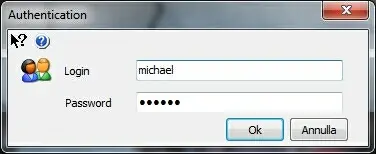
Use SQL Server Login - If selected, all users will be prompted for their authentication credentials (SQL Server's User ID and Password) every time they start an Etere module:
User_ID_and_Password
This method is suggested when there's no Active Directory in the workplace, and it's required to manage different accounts for specific users (e.g. for using the Agenda View).
NB: Users must have write permissions for the HKLM registry key since Etere PC credentials are stored in "HKLM\Software\Etere\SQL\".
NB: Since Etere version 23, Windows authentication identifies users in the system (e.g. for rights management). In previous Etere versions, identification was performed depending on the authentication set.
Commands
Connection/Command timeout - Indicate the maximum waiting time for a response to connection attempts and sent commands, respectively. The recommended timeout value is:
Connection timeout = 15 (sec)
Command timeout = 0 (no timeout)
Use of Transactions - Enables the use of transactions to operate on the database; it is enabled by default and is mainly used by Etere Air Sales.
 User_ID_and_Password