Crawling Ticker
66.4.8.2 Add Subtitles in Crawling Ticker
Add Subtitle in Crawling Ticker
There are three methods to add subtitles in the crawling ticker; follow the steps described here to add subtitles for each method.
- Manual input subtitle via ETX CG Enabled > ETX CG Props Configuration
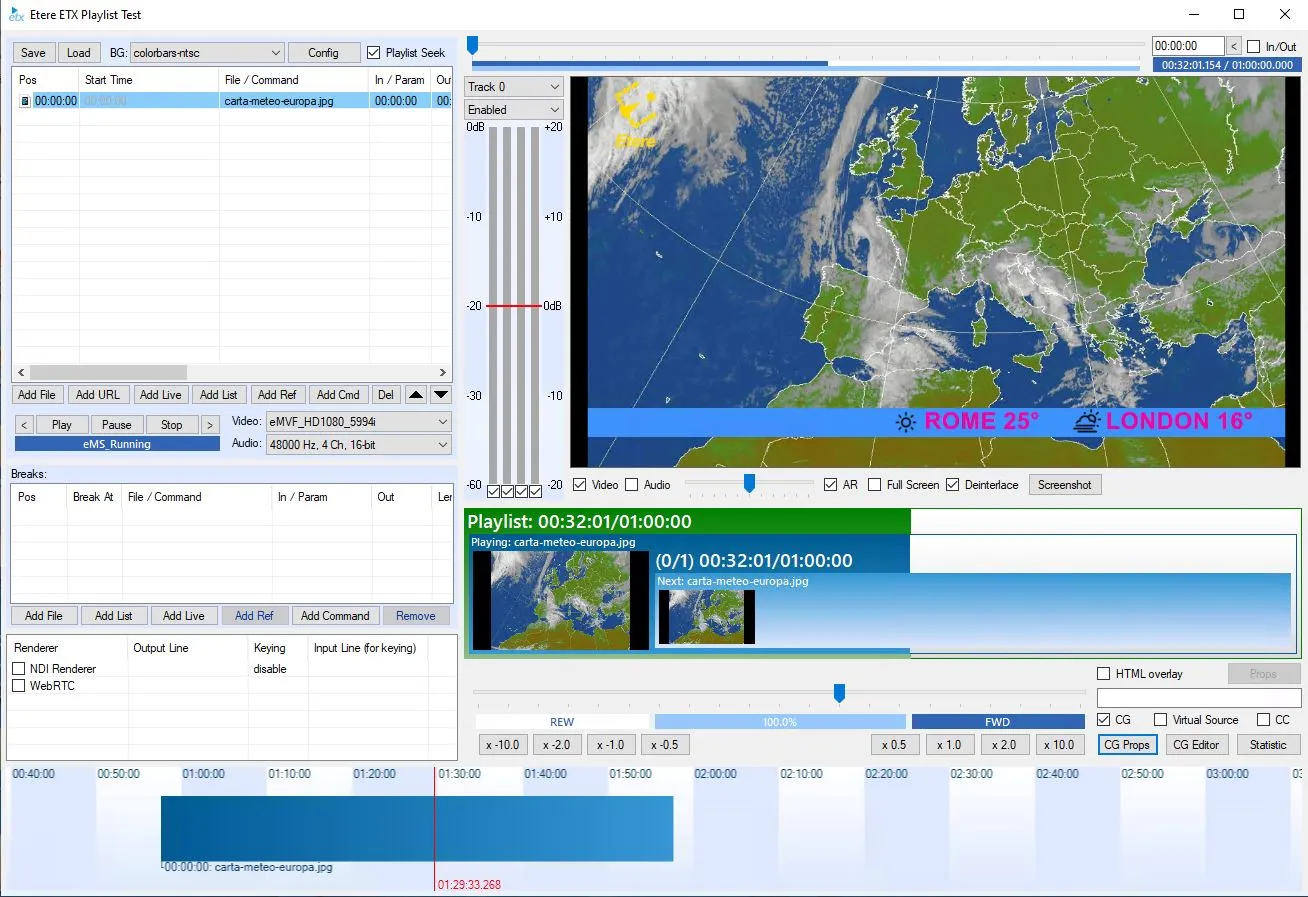
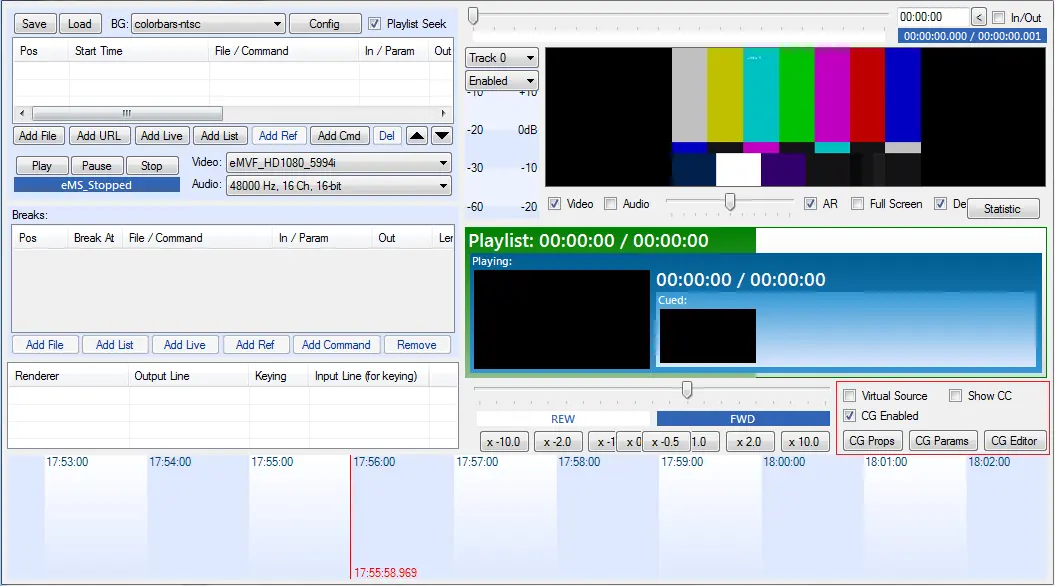
- Launch the ETX module, enable the ETX <CG Enabled> checkbox and click on <CG Props> to enter the Properties page.
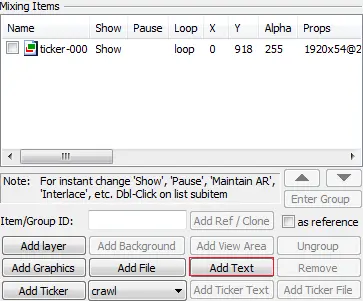
Etx_launch - On the Properties page, click the <Add Text> button to bring up the <Add new text item> page.
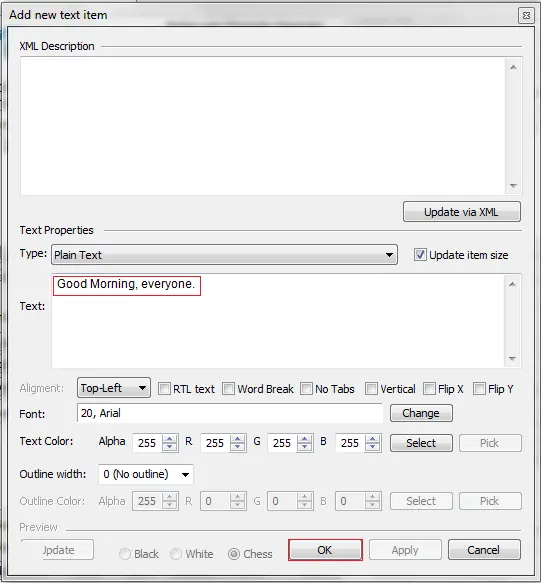
Etx_ticker_addtext - Enter the Text to be displayed as a subtitle. Click <OK> to close the page.
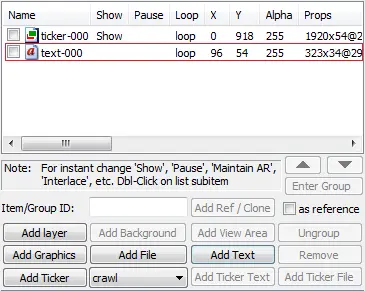
Etx_ticker_addtext1 - The newly added text item appeared in the Mixing Items windows—Double-click on the <Show> column to change the status from blank to <Show>.
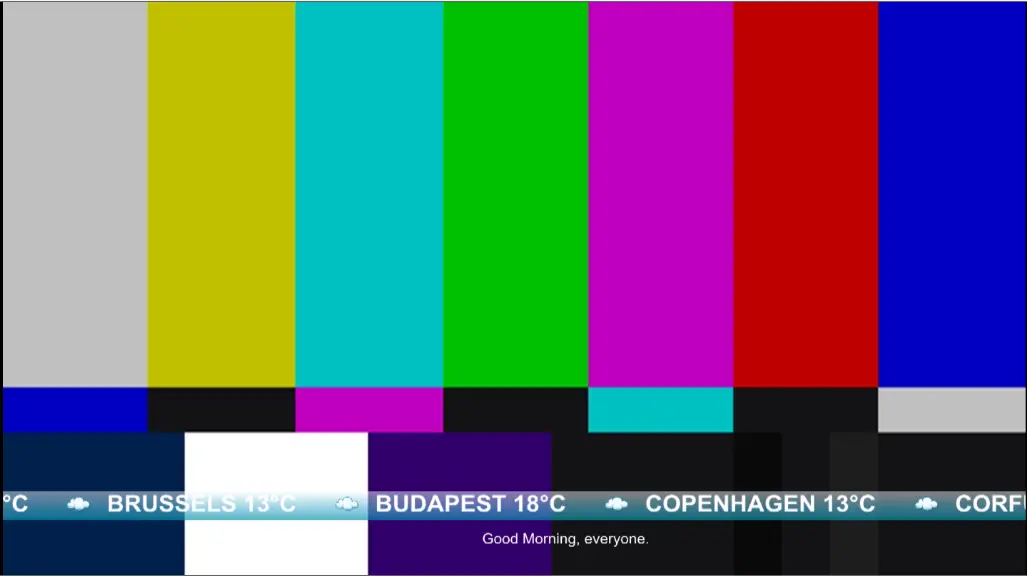
Etx_ticker_addtext2 - The subtitle appeared on the preview page's top-left position (the default position).
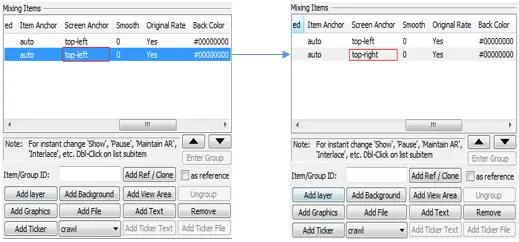
Etx_ticker_addtext4 - The positioning of the subtitle can be simply modified to suit the environment. For instance, you can change the subtitle positioning from top-left to top-right by double-clicking on the <Screen anchor> field.
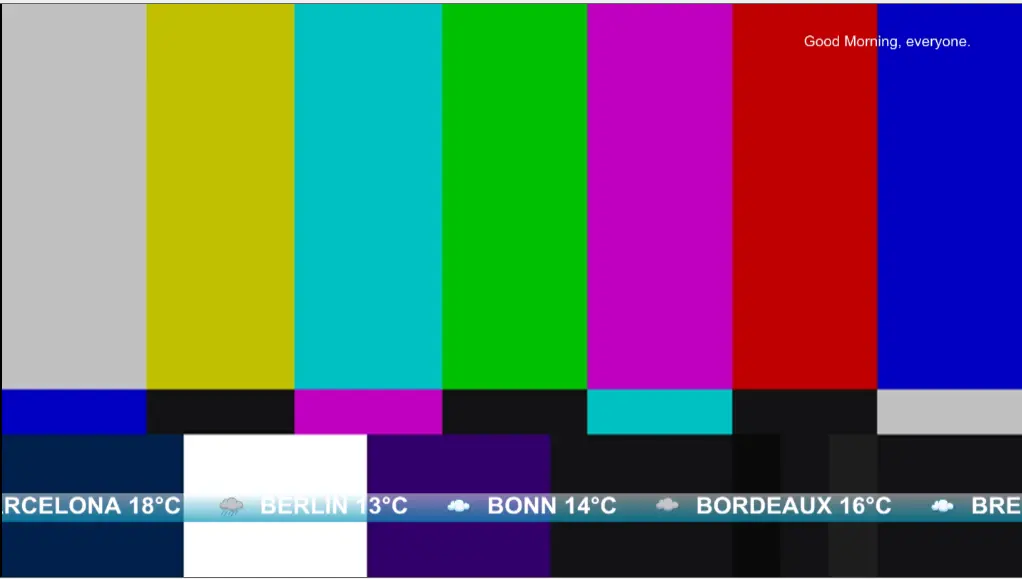
Etx_ticker_addtext5n6 - The Subtitle position has moved from top-left to top-right.
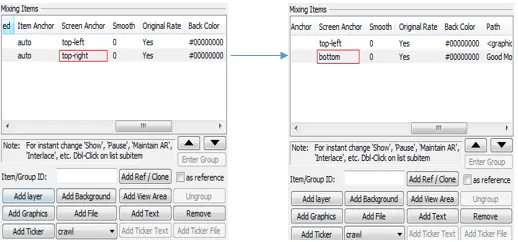
Etx_ticker_addtext7 - Now, move the subtitle to the most common position to display the subtitle at the centre of the bottom frame.
Etx_ticker_addtext8 - The Subtitle position has moved from the top-right to the bottom-center position.
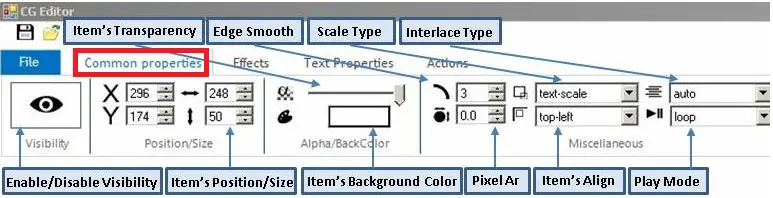
Etx_ticker_addtext9 - After the positioning of the subtitle is fixed, you can use the modification keys in the <Common Properties> tab to fine-tune the subtitle. The features in this tab are self-explanatory.
Etx_ticker_common_tab
- Launch the ETX module, enable the ETX <CG Enabled> checkbox and click on <CG Props> to enter the Properties page.
- Manual Add Subtitle via ETX CG Enabled > ETX CG Editor Configuration
- Launch the ETX module, enable the checkbox <CG Enabled> and click on <CG Editor> to enter the ETX CG Editor page.
Etx_launch_1 - Before proceeding, delete the subtitle previously added.
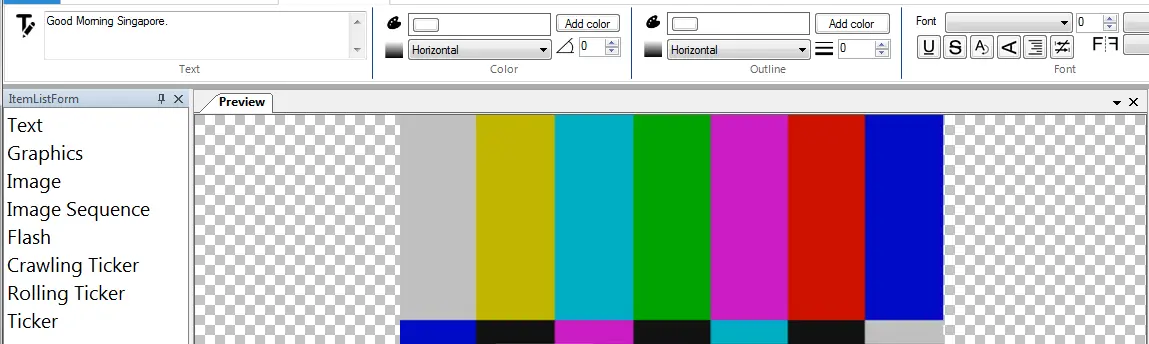
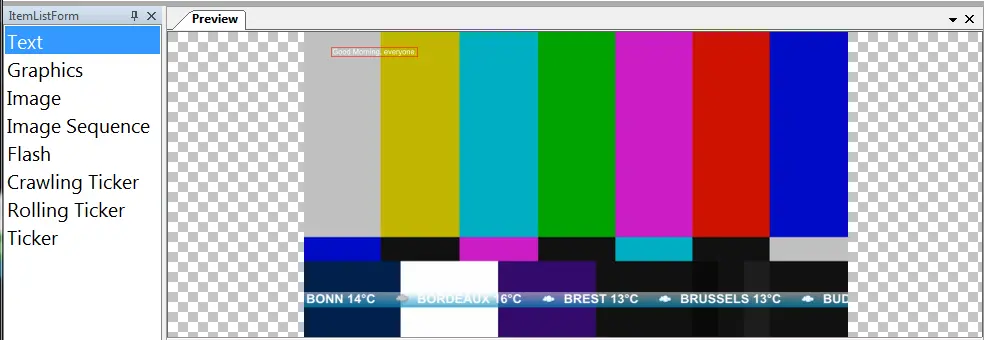
Etx_ticker_addtext11 - From the ETX CG Editor page, click on < Text> from the "Item List Form" selection, drag and drop the < Text> into the top-left position of the preview screen, and it will appear as <Sample Text> in the preview. A new tab named <Text Properties> was also added to the ETX CG Editor page.
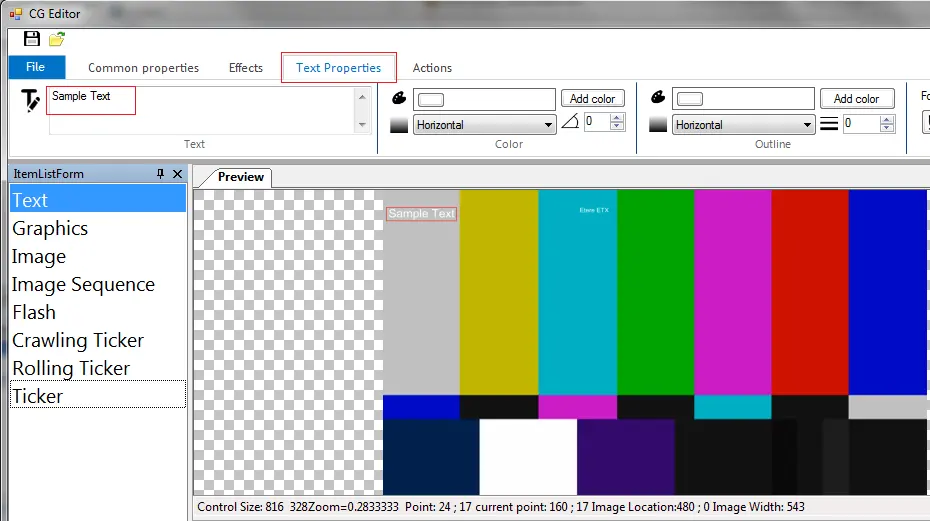
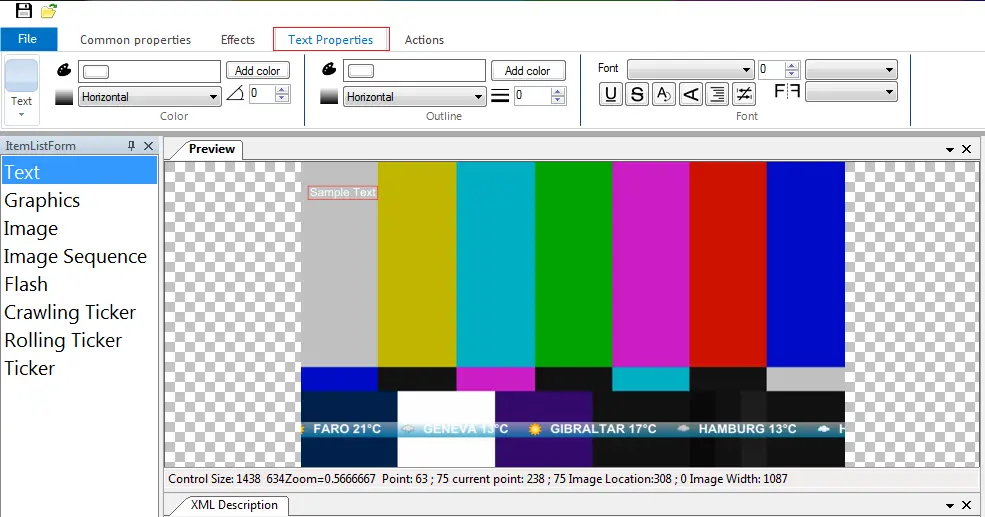
Etx_ticker_addtext12 - Double-click on the <Sample Text> in preview to launch an input box in the <Text Properties>.
Etx_ticker_addtext13 - Enter the text message to appear as a subtitle and close the ETX CG Editor page.
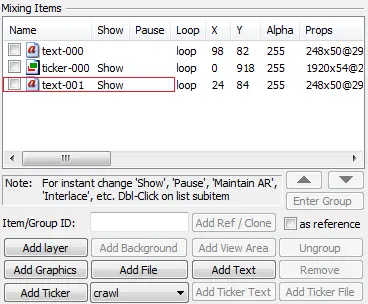
Etx_ticker_addtext16 - When you enter the properties page of CG Props, the new subtitle appears in the Mixing Items windows.
Etx_ticker_addtext14 - The new subtitle appeared in the preview when the status was changed to <Show>.
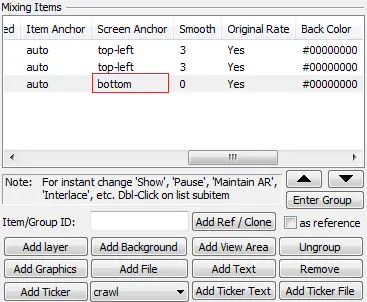
Etx_ticker_addtext17 - Double-click the <Screen Anchor> column to reposition the subtitle to the centre of the bottom frame and preview.
Etx_ticker_addtext23
Etx_ticker_addtext18 - If the subtitle is too long to fit into the frame, use the "Word Wrap" feature in the Text Properties tab to wrap the subtitle into multiple lines.
Etx_ticker_addtext24
- Launch the ETX module, enable the checkbox <CG Enabled> and click on <CG Editor> to enter the ETX CG Editor page.
- Add Subtitle Using the Add File Function
- Launch the ETX module, enable the checkbox CG Enabled and click on CG Props to enter the Properties page.
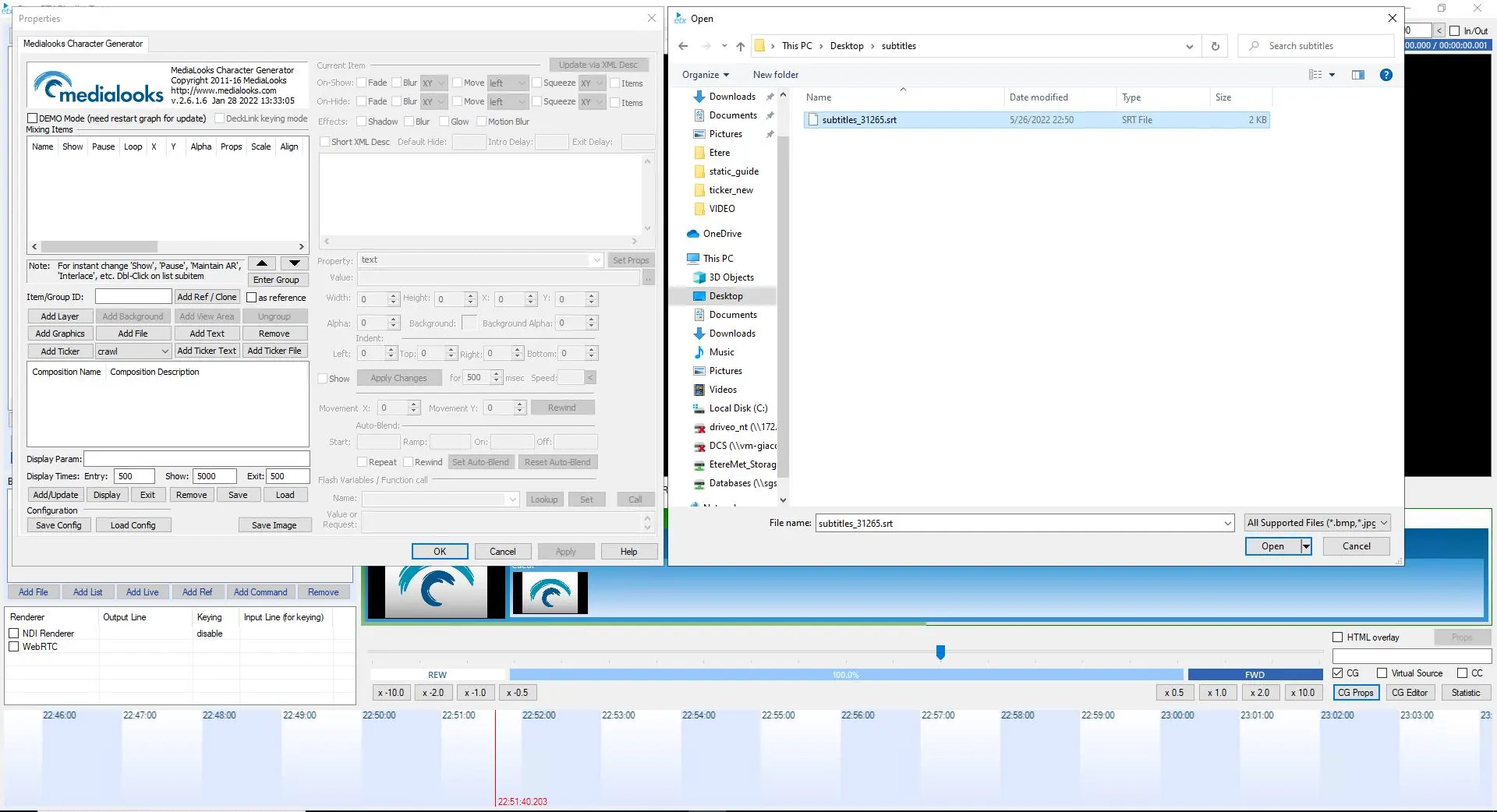
Etx_launch_2 - Click on <Add File> and select the path containing a subtitle source file (.srt). Click <Open> to complete the add file function.
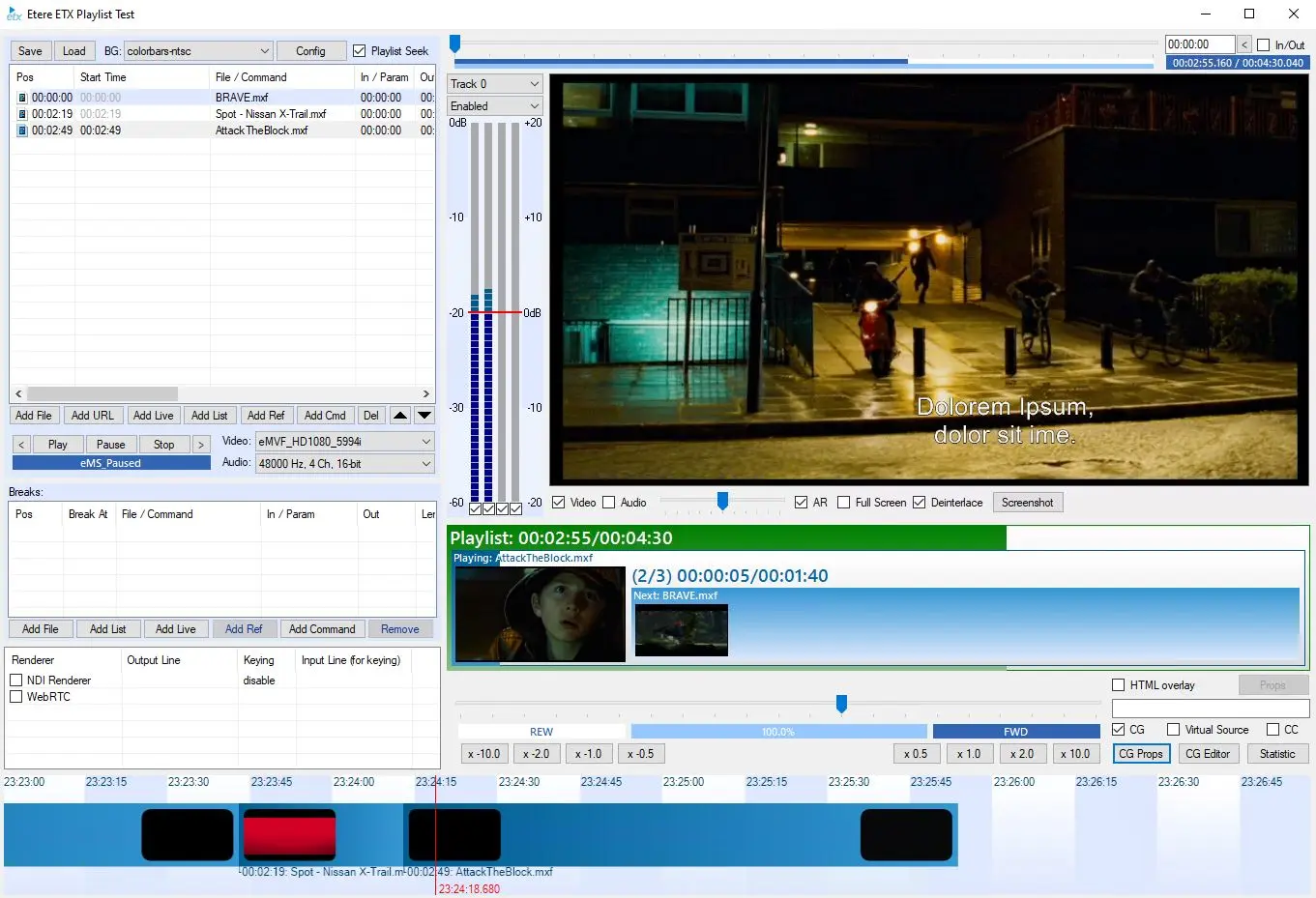
add_subs_file - At the ETX CG Props page, change the status to <Show> and verify the subtitle added to the preview page.
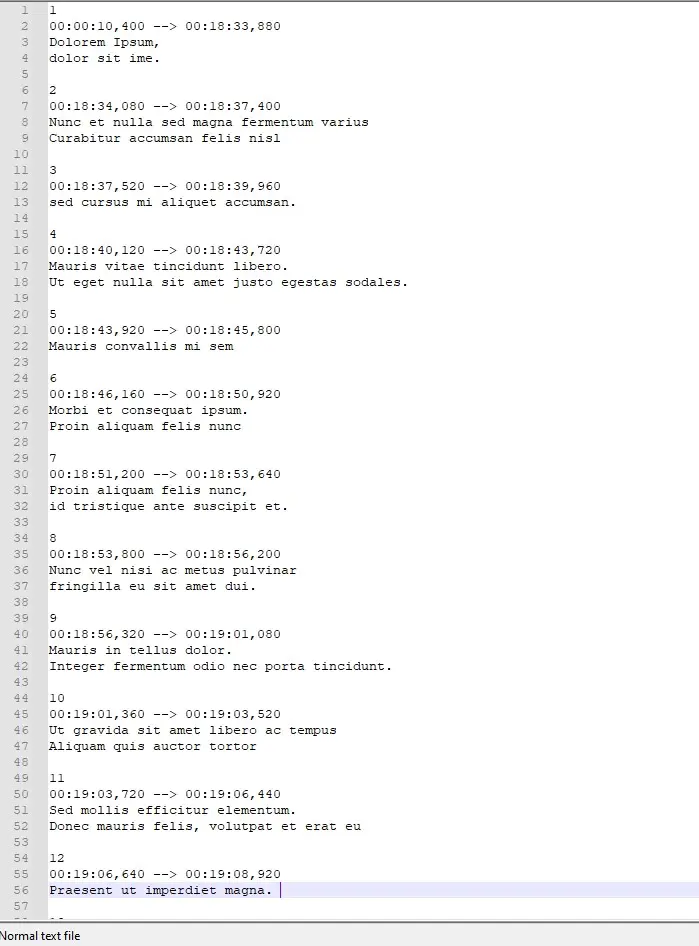
render_subs - Here is a glance at the subtitle source file where the content was retrieved.
subs_file
- Launch the ETX module, enable the checkbox CG Enabled and click on CG Props to enter the Properties page.
 Etx_ticker_addtext23
 Etx_ticker_addtext16
 Etx_ticker_addtext24
 Etx_ticker_addtext17
 Etx_ticker_addtext18
 Etx_ticker_addtext14
 Etx_ticker_addtext1
 Etx_ticker_addtext
 Etx_ticker_common_tab
 Etx_ticker_addtext2
 Etx_ticker_addtext9
 Etx_ticker_addtext4
 Etx_ticker_addtext5n6
 Etx_ticker_addtext11
 Etx_ticker_addtext13
 Etx_ticker_addtext12
 Etx_ticker_addtext8
 Etx_ticker_addtext7
 open_etx_gc_props
 Etx_launch
 add_subs_file
 render_subs
 subs_file