58.2.4 Load Cluster From Etere
Before loading the cluster from Etere, the SQL database must be configured to establish the connection—the SQL configuration required to login as a “sa” user using SQL server authentication. After setup, click the <Connection Test> button to establish the connection to the SQL database.
Censormx_connect_cluster
To load the cluster from Etere, launch CensorMX from the workstation with CensorMX installed and click the <Open Schedule> button to view clusters.
Censormx_open_schedule
As shown in the display above, the spots marked in red are without video files; you can select the cluster to load those spots by right-clicking on the mouse and selecting <Load this cluster in the Censor>. Upon completion, the areas of the cluster in red would be loaded into Playlist 3 (as shown below) and ready for schedule and timeline.
Censormx_load_schedule
The spots of the cluster would be transmitted into the schedule and timeline. If the transmission fails, you can revert the transmission status for the areas of the cluster by right-clicking on the spots and selecting the <Set cluster not transmitted> to set the cluster status as not transmitted.
Censormx_set_schedule
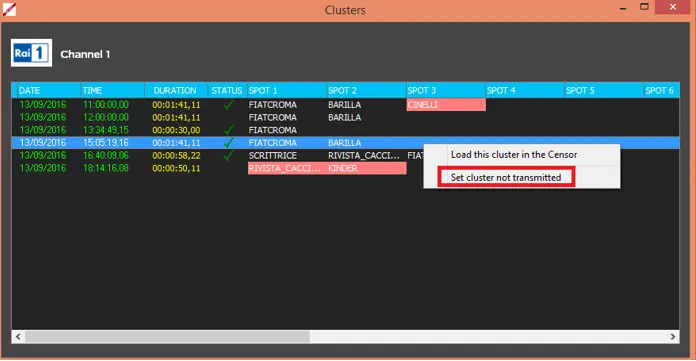 Censormx_set_schedule
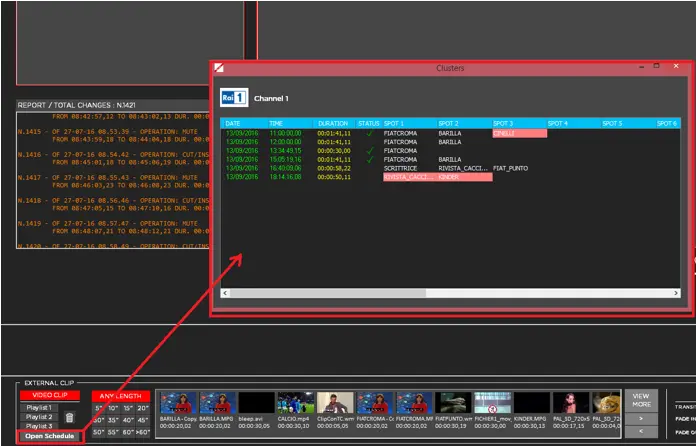 Censormx_open_schedule
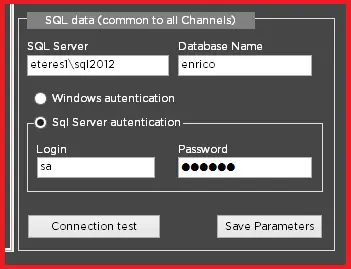 Censormx_connect_cluster
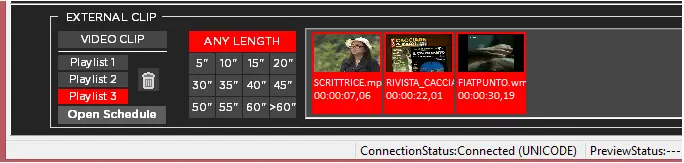 Censormx_load_schedule