59.2.2.2 EPG Data
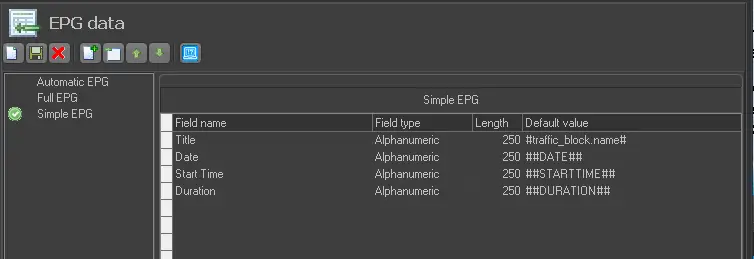
This option, located under the Air Sales Parameters tab, allows you to create functional pre-defined EPG schemas, which Etere Air Sales used in the Weekly Schedule module. As shown in the picture below, EPG data are presented in two panels; the left panel is the EPG Schemes List, and the right panel consists of EPG Fields belonging to the currently opened EPG schema:
EPG_Data
By clicking on the relative buttons present in the 'Toolbar' section, the user will be able to:
•Create new EPG schemas.
•Save the currently opened EPG schema.
•Delete the currently opened schema.
•Add a new field to the EPG schema.
•Remove an existing field from the schema.
•Move the currently selected field up within the schema.
•Move the currently selected field down within the schema.
Note:
Please note that in the case of using the Lite version of Etere, this section won't be available due to the capabilities and limitations of Lite channels.
Opening an existing Schema
To open an existing EPG schema, double-click on a certain one in the 'EPG Schemes List.' When you open or create a new schema, fields present are automatically loaded on the 'EPG Fields' section, where you are allowed to set the following fields:
•Field name: It is the field identifier in the current schema.
•Field type: It indicates whether the field will hold alphanumeric or numeric data.
•Length: Set the maximum length allowed for data insertion within the field.
•Default value: Set a default value when the EPG schema is assigned to a block. Optionally, by inserting any of the following values: ##STARTTIME##, ##DATE## or ##DURATION##, the field will retrieve the relative property of the block automatically.
For example, if the default value is set as ##DURATION## and assigned to a block, it will automatically display the block's duration (e.g. '02:00:00').
•Tag: Use this option to associate the selected field to an external system; this value is especially useful when exporting EPG data.
•View value: By enabling this option, the field will be shown within the block which contains the currently opened schema.
Among the fields, only the 'field name', 'value' and 'type' fields will be visible on the Etere Air Sales module.
Creating a new EPG Schema
To create a new schema, click on the 'New' schema button, give it a name, and add fields to the bottom list. To add a field, you have to click on the 'Add' button and define the name, type, length and optionally a default value; there are two ways to determine the default value:
•Manual Default Value: Add a simple user-defined field to be compiled when added to a block:
1. Insert a new field.
2. Specify its properties according to your preferences.
3. If desired, enter a default value for the current field, or leave it blank.
•Automatic Default Value: Add a new field that will be linked to Etere's database field:
1. Insert a new field.
2. Specify its properties according to the table field to which it will be linked.
3. Insert the table and field to be linked to the current field enclosed in hashes (#). For example, the string #traffic_block.name# refers to a field called 'name' located within the 'traffic_block' table. You can insert any field from any Etere's table; the ones that regard the 'traffic_block' table are:
•Name: The title of the block (e.g. Weekend Morning).
•Notes: Descriptive text regarding the block (e.g. For Saturday and Sunday from 06 am to 12 pm).
•Types: Asset types allowed within the block (e.g. CLIP, FILMS).
•Duration: The length of the block expressed in frames. Remember that in PAL format, each second has 25 frames (e.g. 45000=30 minutes),
•Expired: Indicate if the block is expired (e.g. false).
•Assigned Color: It contains the block's colour (in RGB format).
Setting a Default EPG Schema for New Blocks
By right-clicking on a schema from the 'EPG schemes list' and selecting the set as the default option, you can configure that schema to be the EPG schema assigned by default to new blocks created in the Etere Air Sales module.
NB: Once you have created an EPG schema and have pressed the 'OK' button, all fields can be modified at any time, except the "Name" field
 EPG_Data