72.6.2.2 Recording Audio Segments
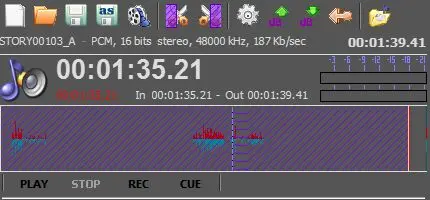
The Audio Recorder located in the bottom right hand of the window allows to insert audio tracks into the segments list as well as edit them. The Audio Recorder counts with the following features:
Audio Recorder
Asset form selection
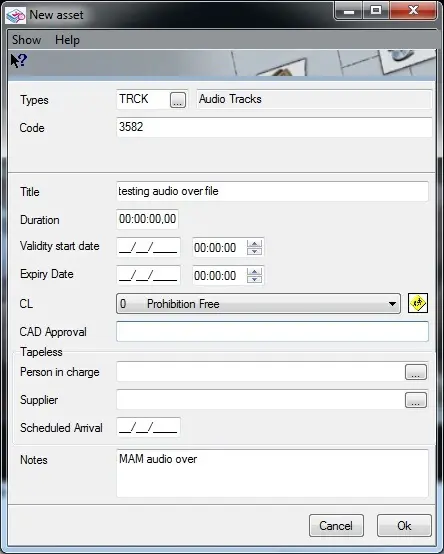
•New: Opens the extended asset creation form that will permit the operator to quickly define the asset form that will hold the audio to be recorded:
New asset
When the asset is defined and the [OK] button is pressed, it will be possible to start recording the audio track; and once recorded, a wave audio file will be generated (within the path defined in the parameters), named as the asset form's code and linked to the asset form.
•Open: Launches the asset form module for allowing the operator to search for an asset which have an audio file -with wave codec- stored in the audio over path set in the parameters, once the asset is selected (making double-click on it), the audio track will be inserted in the Segments list and loaded in the Audio recorder.
•Save: Applies all changes performed to the audio track.
•Save as: Displays the extended asset creation form for defining the asset form that will hold the recorded audio track, after which, the recorded audio is saved in the audio over path and then linked to the asset form; and inserts the audio track into the Segments List (if not yet done),
•Asset form: In case the current audio track is already linked to an asset form, this button will open it; otherwise, it will open the asset form module for searching an asset form to which link the audio (e.g. in case it's imported).
•Import audio file: Allows to replace the audio file currently linked to the asset form, this, by browsing a new audio (.wav) file and storing it within the path defined in the parameters using the same name as the asset form's code.
Editing tools
•Cut at top / bottom: Use these buttons to mark the start and end of an audio segment,
•Normalize: In case the audio is not normalized (e.g.: new recording), it makes its entire amplitude uniform, maximizing the signal level while not changing the signal to noise ratio,
•Increase / Decrease level: It allows to increase and decrease the decibels sound level of the audio track,
•Cancel changes: Undo all changes performed to the audio track.
Recording tools
• Play : It plays back the audio track.
• Stop : It stops the audio playback.
• Rec : It starts recording the audio track (from the Pc's configured audio source) until the [Stop] button is pressed,
• Cue: It simply puts the recorder ready to start recording the audio track.
Editing Audio Segments
Once audio tracks are inserted into the Segments List (by either opening or saving them), it is always possible to edit them (i.e. load their audio in the recorded) by making double click on them. Please note that only audio segmen
 Audio_Recorder
 New_asset