Etere ETX-G Graphic Management
66.6 ETX-G Scenes Editor
You can switch from Graphics Editor to Scenes Editor by simply click on the Scenes Editor tab.
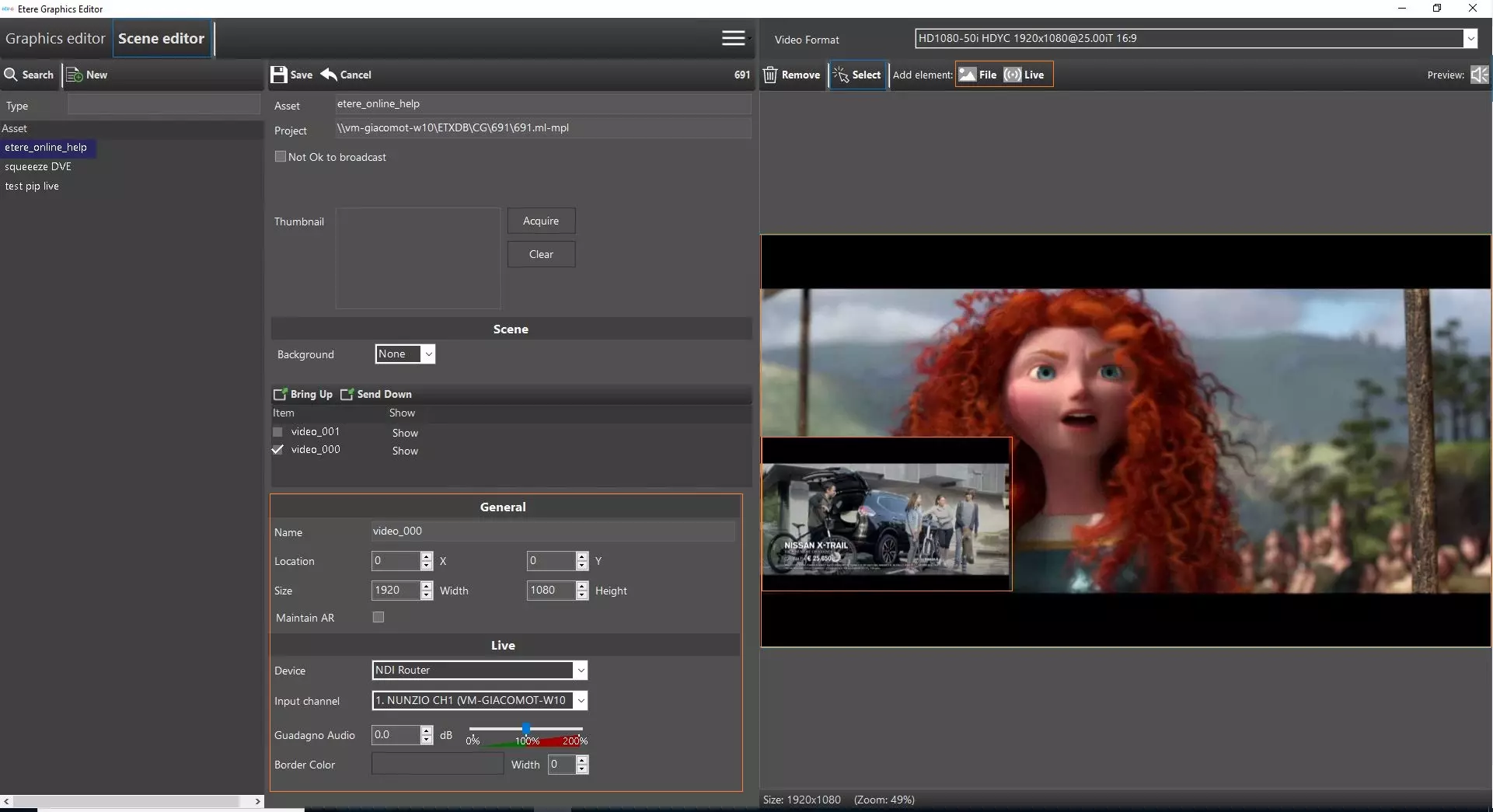
Etx_scene_editor_pip
In Scenes Editor, you can create new scenes asset or modify existing asset in similar way as described in Graphics Editor. Prior to creation, an asset type property "ETXS" must be defined in the "Type" properties.
After the scene creation, it's possible to set the related asset as Not ok to broadcast, selecting the proper flag, below the asset properties.
NB: The asset code can be changed after the creation.
- Manage Thumbnail
In the Thumbnail panel, you can create thumbnail and add thumbnail to asset.
etx_scene_editor_thumb- Use the<Acquire> button to get thumbnail from current preview window.
- Use the <Clear> button to remove the selected thumbnail from thumbnail window.
- Upon selected thumbnail, use the Save button in top bar to save thumbnail and apply to asset, or click Cancel button to undo the selected thumbnail.
WARNING: When saving the scene, the saved thumbnail would be copied to the scene folder.
- Add New Scene
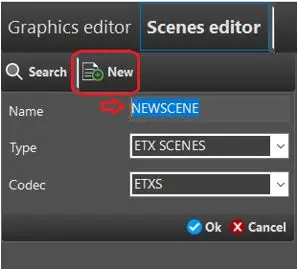
Simply click on the “New” menu to create a new scene.
Etx-g_scenes_editor_new
•Name: Enter a name for the new scene object.
•Type: Select the asset type as “ETX Scenes”. Only object types with property ETX Scene and ETX Graphics would be listed. .
•Codec: Select a supported codec “ETXS” as defined in Type properties. Only codec with type ETXS and ETXG would be listed.
Click <Ok> button to confirm the creation of scene asset.
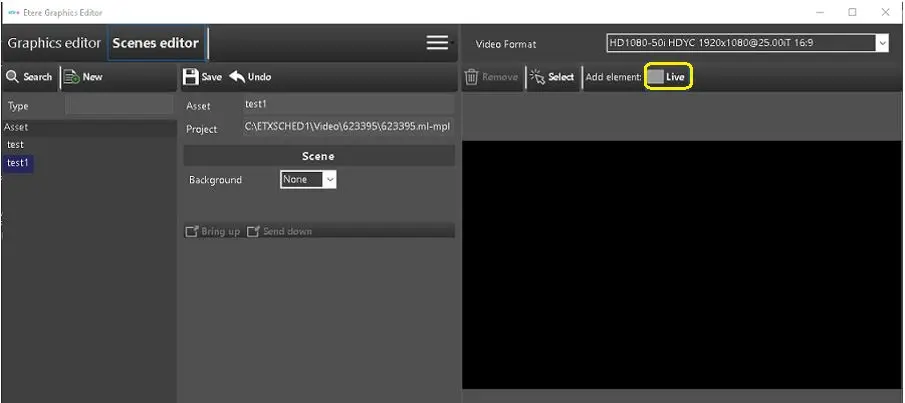
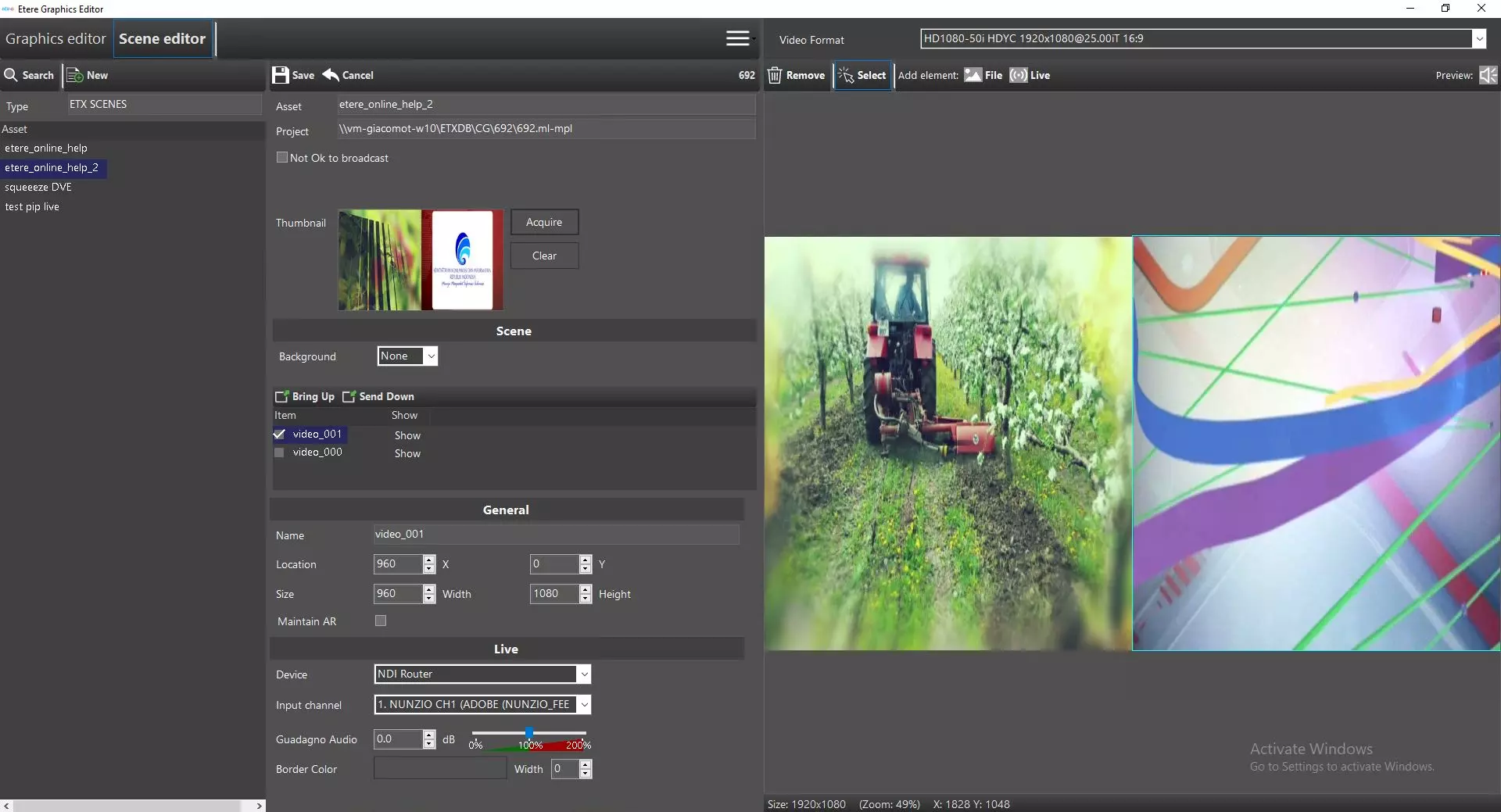
If you click on the Live button on the right panel, you can set the size of the first picture that would be added to the program.
Etx-g_graphics_scene_editor_set_live
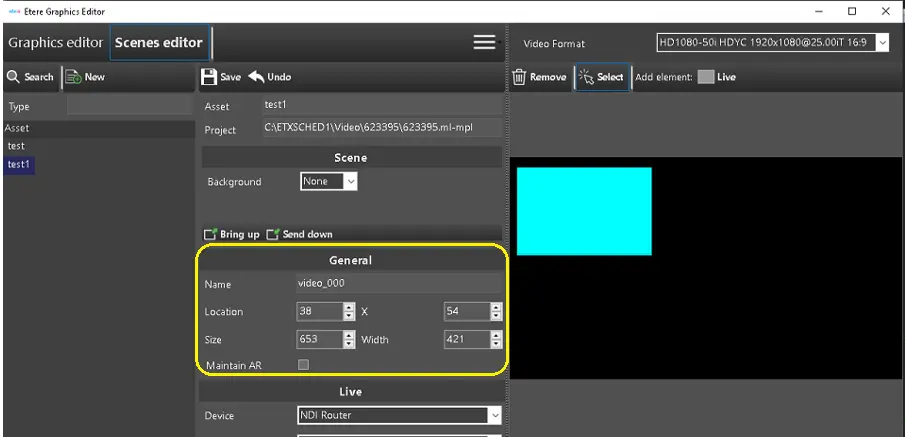
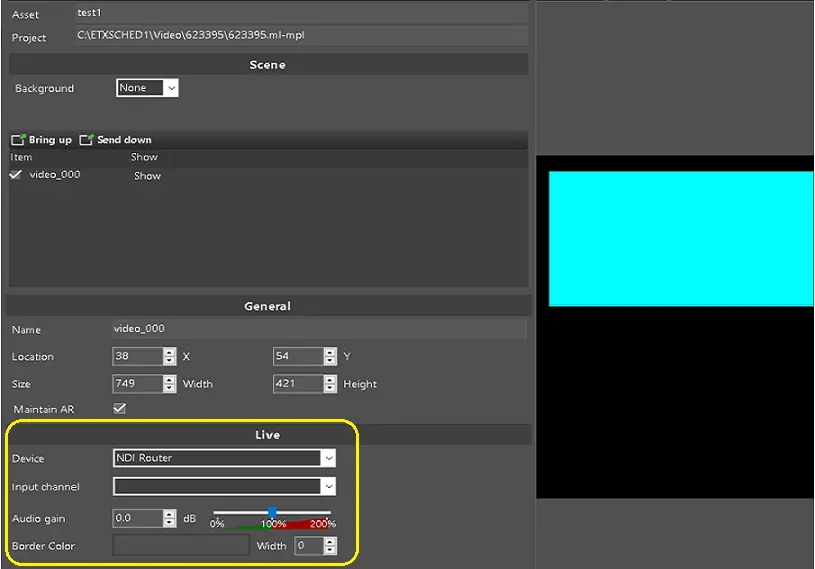
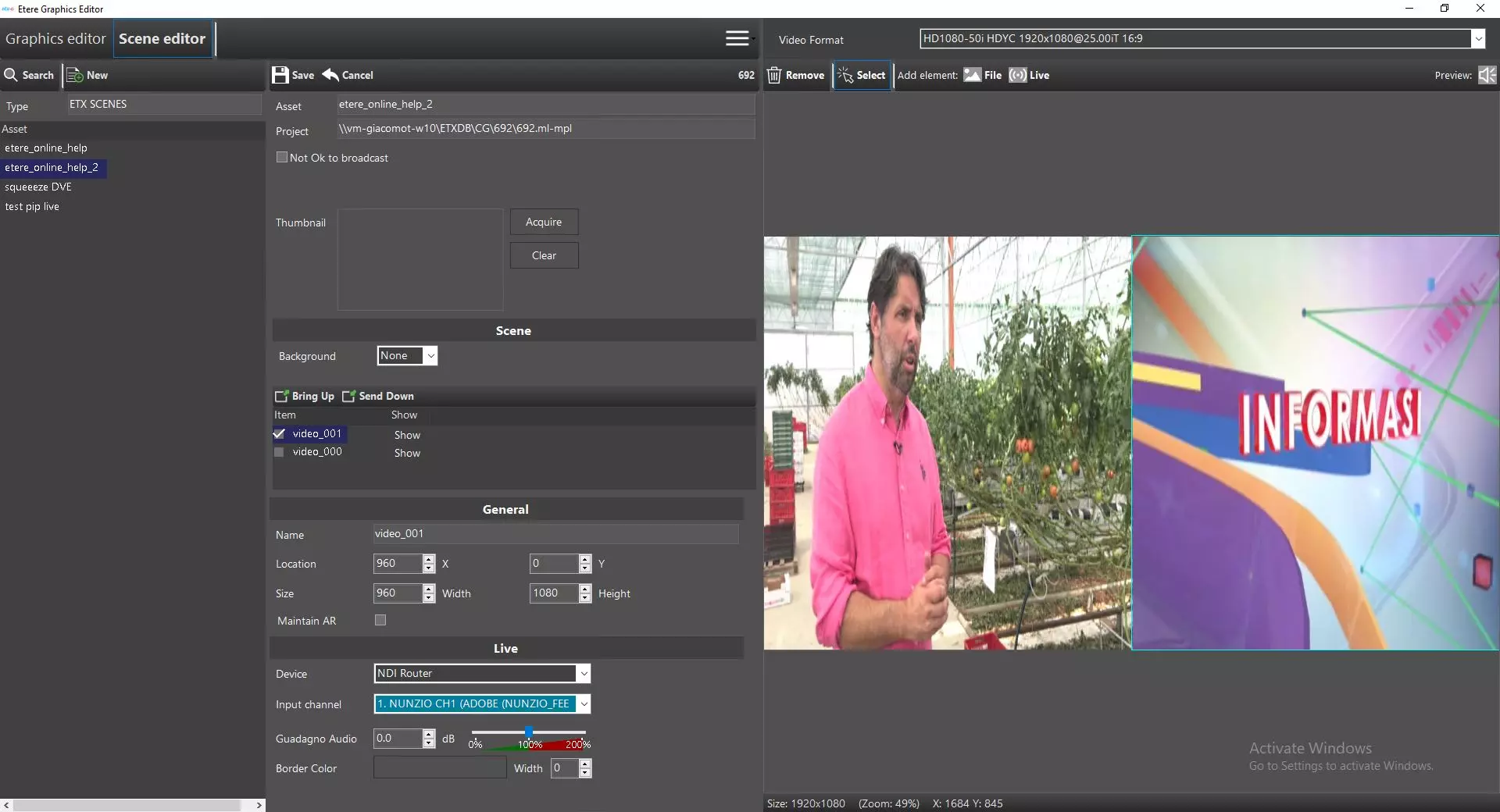
In General and Live section, set the display size and the position of the live window PiP, the Live Source and the Audio Level.
Etx-g_graphics_scene_editor_general
Etx-g_graphics_scene_editor_live
In Device source, you can also select a local hardware device as input source, e.g. Decklink SDI, other than selecting NDI Router.
- Schedule Scenes
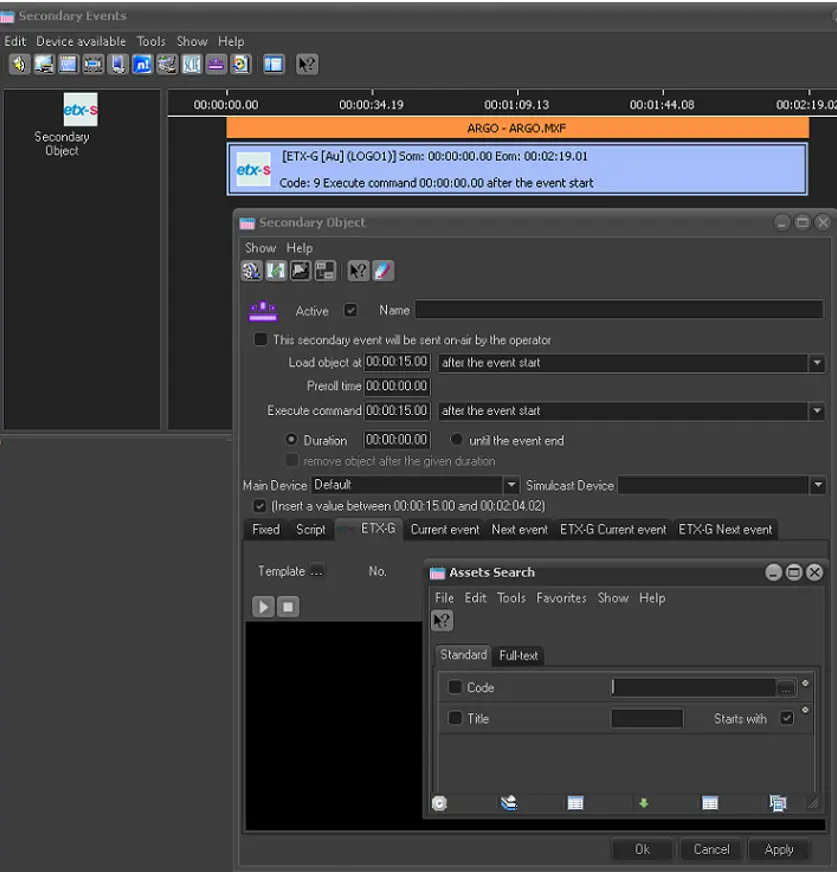
Before you can add scenes into schedule, STMan feature Secondary Events plug-in must be running to support the transmission.
In Etere Scheduling or Media Library, simply add scenes to the playlist with add secondary events function in ETX-G tab as explained in Executive Editor.
Etx-g_graphics_scene_editor_ee_add - Manage Image File
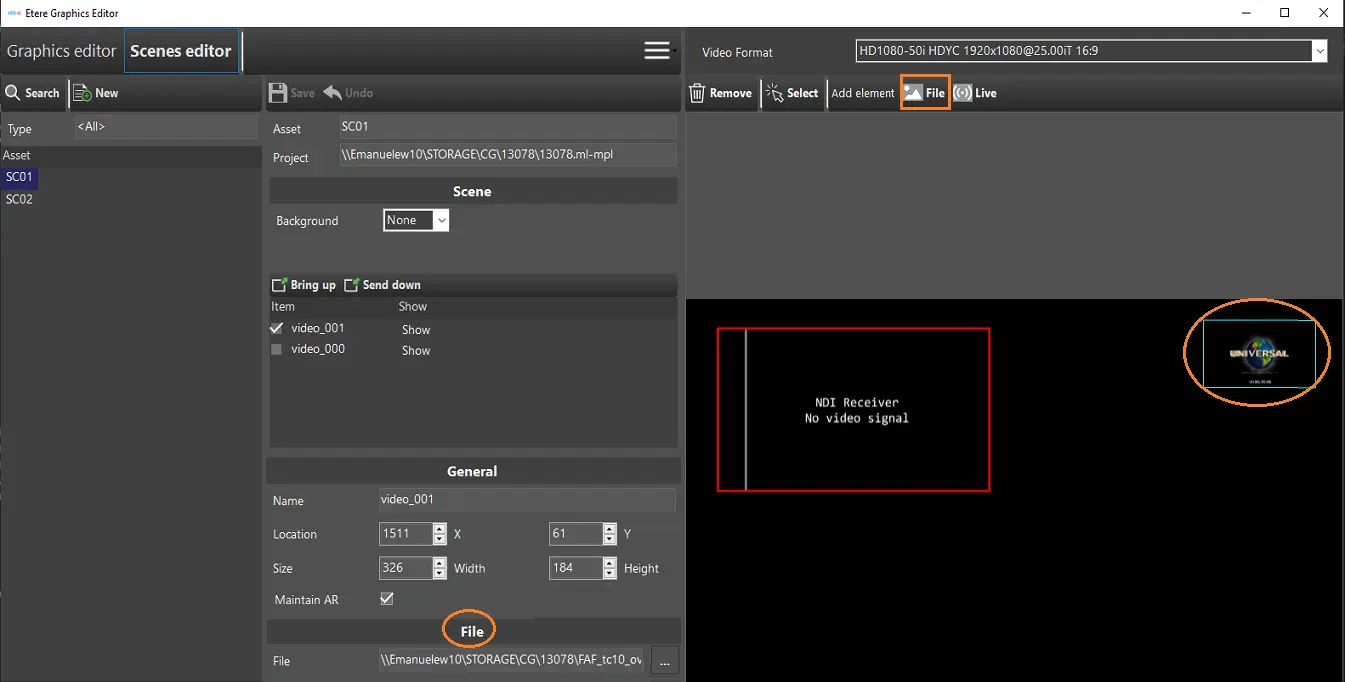
Similar to Graphics Editor, you can also manage or edit the images in Scenes Editor.
Etx-g_scenes_editor_file
In the File section, locate the image file stored in local or network folder.
In the right panel, click on the button and start editing the image file.
 Etx-g_graphics_scene_editor_ee_add
 Etx-g_scenes_editor_new
 Etx-g_scenes_editor_file
 Etx-g_graphics_scene_editor_general
 Etx-g_graphics_scene_editor_live
 Etx-g_graphics_scene_editor_set_live
 etx_scene_editor_pip
 etx_scene_editor_breakinlive
 etx_scene_editor_thumb