59.5.9.6 Scheduled Rights
Report Description
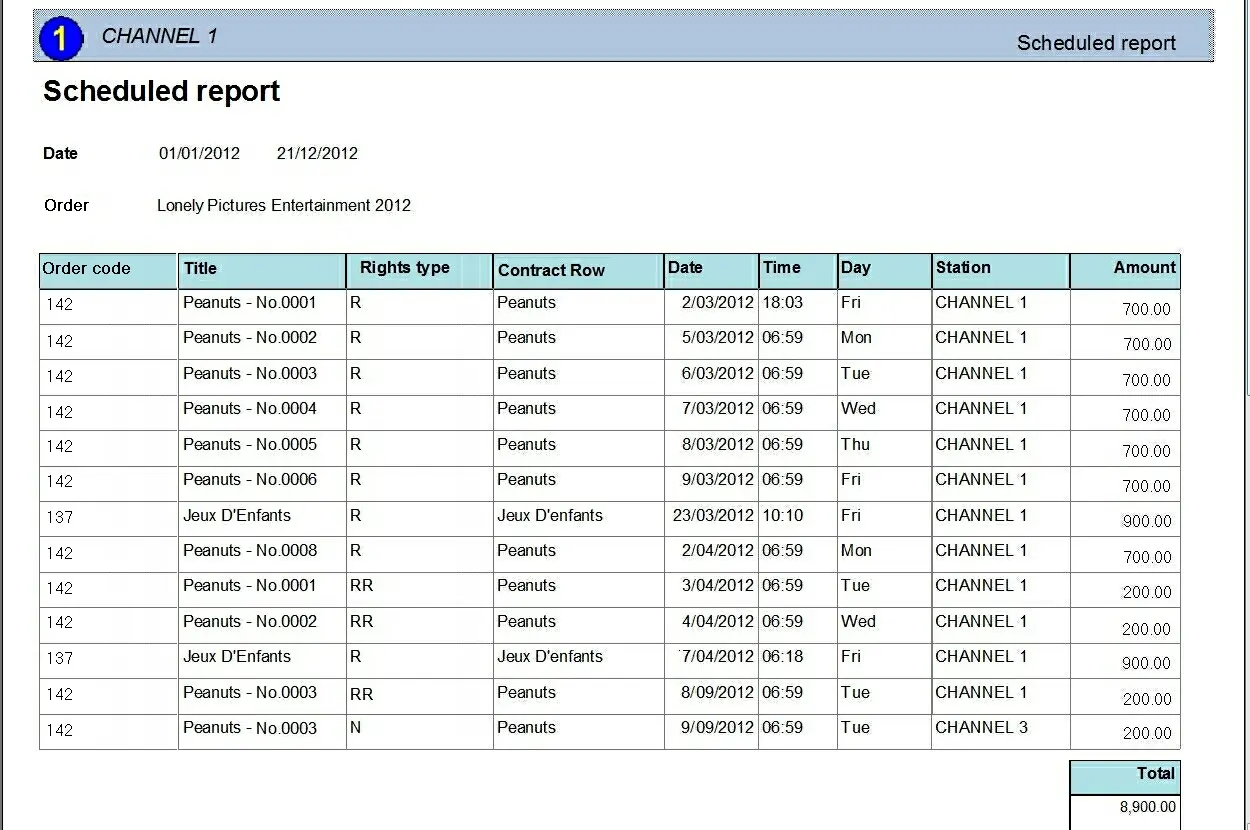
The Scheduled Rights report allows to generation of a document containing all rights currently used across broadcast schedules, that is, all the scheduled performances derived from purchase orders. This report provides filtering scheduled events by source order and scheduled period.
Report Filters
All the parameters that permit a detailed report generation have been spread across seven different tabs to allow a more manageable configuration. By default all filters are disabled (i.e., they are either blank or unselected); to enable them, it is enough to configure at least one parameter on their inside. Available filters include:
•Order: Select the purchase order for generating the report. Leave this blank to have all orders.
•Data range (from date - to date): Indicate the time range from which scheduling data will be retrieved.
•Order type (sort by): Specify how to order all rights performances displayed in the reported list. Available criteria include:
•Scheduling date and time
•Order line
•Order code
Report Preview
The [Settings] permits the configuration of the page layout of the outgoing document; once filters and settings have been set, it will be possible to select between displaying a preview using the related [Preview] button or printing the document directly using the [Report] button:
Scheduled_Rights
Columns legend
Order code - Code of the order related to the program
Title - Title of the program's scheduled asset (e.g. episode)
Rights type - R=Run; RR=ReRun; N=Not-scheduled-from-order
Order line - Description of the program's related order line
Date - The date on which the program is scheduled
Time - The time at which the program is scheduled
Day - Weekday on which the program is scheduled
Station - The station on which the program is transmitted
Amount - Cost of the program transmission
Total - Sum of all the individual cost amounts
Please note that some reports permit the export of the generated document in the most common formats (PDF, CSV, doc, xls, XML, etc) just by using the [Export] button.
 Scheduled_Rights