84.11.2 Import Ticker File Folder
The import function allows you to import all ticker files in the same folder and open file content in the News Ticker edit box, replacing the previous files. This function does not support file level import, you need to place the files in a folder and select the folder to import the ticker files.
The following rules applied when using the import function:
•The import function is not available when no file in opened in the News Ticker edit box.
•If there are 4 files already opened in the edit box and you import a folder containing 6 files, only 4 files would be imported into the edit box, replacing the existing 4 files. (Example #1)
•If there are 6 files already opened in the edit box and you import a folder containing 4 files, all 4 files would be imported into the edit box replacing the existing 4 files, the other 2 files initially opened would remain in the News Ticker edit box. (Example #2)
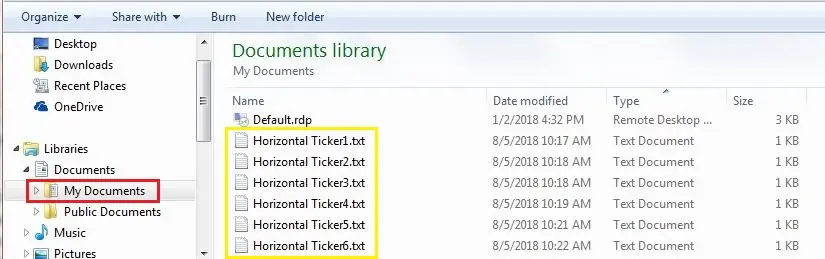
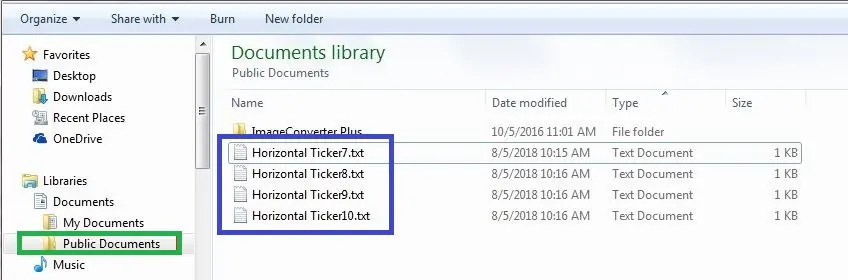
In following examples, we import ticker files in My Documents folder (6 files) and Public Documents folder (4 files).
Scheduling_news_ticker_my_doc
Scheduling_news_ticker_public_doc
Example #1
Select Public Documents folder in the News Ticker edit box to open all 4 ticker files, select the Import function from the Edit menu.
Scheduling_news_ticker_import
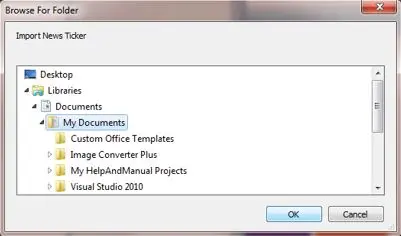
Next, select My Documents folder to import the files (6 files) in this folder into News Ticker edit box. Click <OK> to confirm.
Scheduling_news_ticker_import_1
The content of 4 text files in News Ticker edit box are replaced with the 4 files from My Documents folder. Take note that only 4 files from My Documents folder are imported, the other 2 files remains closed as mentioned in point #2 of the import rules.
Scheduling_news_ticker_import_2
After import, you can start editing the ticker files.
For reversion, select “Cancel” from the Edit menu to revert to the status before executing the import function.
NB: It is important to note that the import function only import the file content into the edit box, the file names (in blue) in the top bar remains unchanged.
Example #2
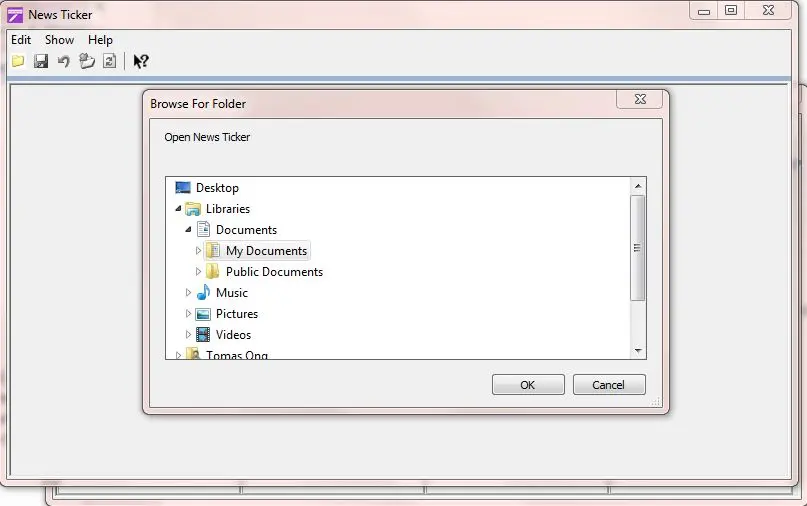
Launch News Ticker module from Scheduling to open a new session. Click on Edit and open My Documents folder (containing 6 files).
Scheduling_news_ticker_import_3
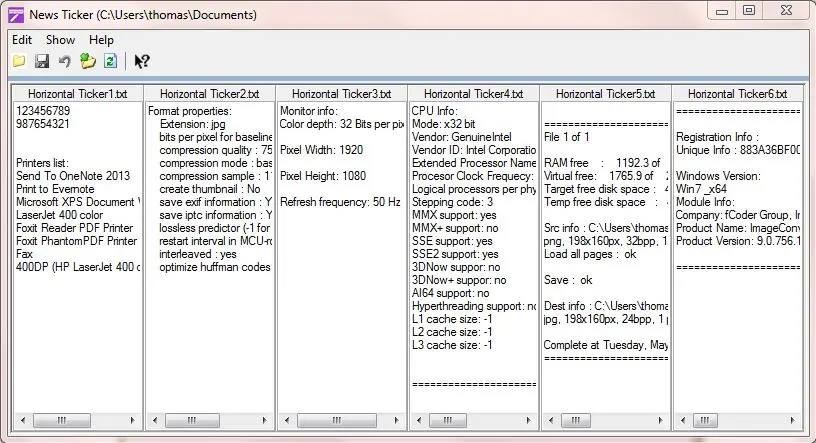
The content of all 6 files in My Documents folder are displayed in News Ticker edit box.
Scheduling_news_ticker_import_4
You can start editing the content of the ticker files, or import other ticker files in another folder.
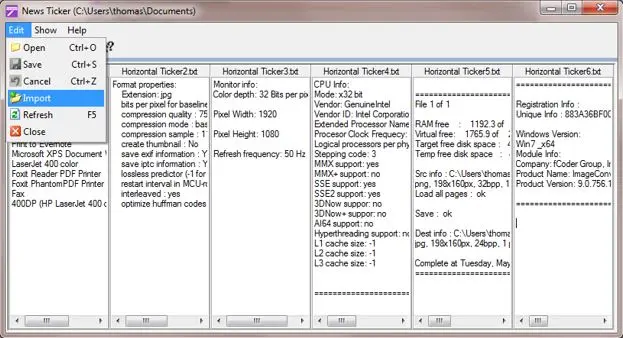
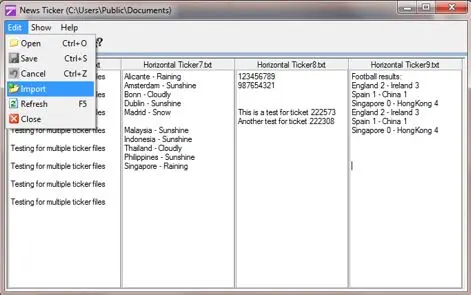
Now click the Edit menu and select Import function.
Scheduling_news_ticker_import_5
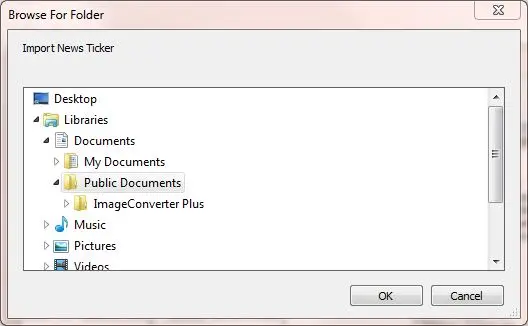
From the File Explorer select Public Documents folder (containing 4 files) and click <OK> to start import the ticker files in this folder.
Scheduling_news_ticker_import_6
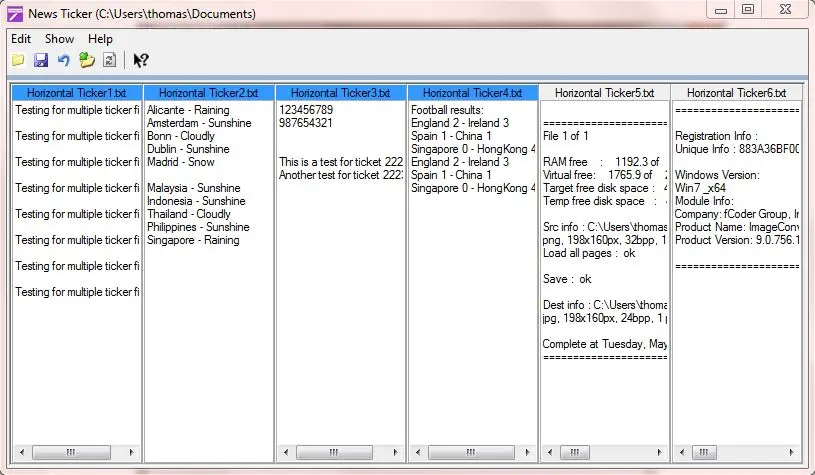
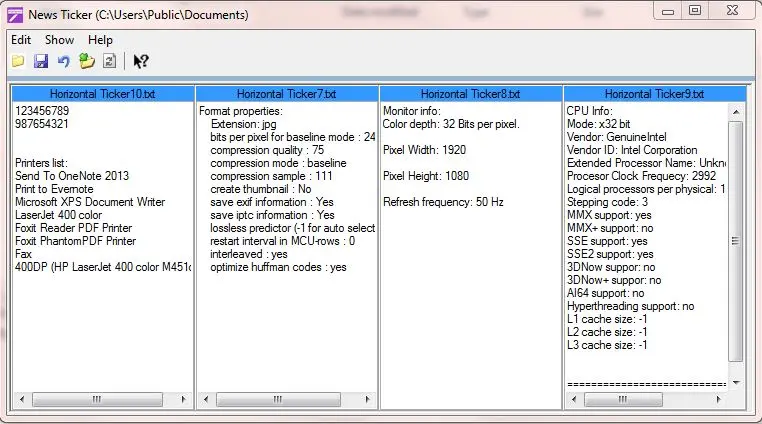
The content of all 4 ticker files in Public Documents folder are displayed in the News Ticker edit box.
Scheduling_news_ticker_import_7
From the editor box, you would noticed that:
- 4 files from My Documents folder had been replaced by imported files from Public Documents folder.
- The replacement files are displayed in blue in the top bar.
- Only the content are imported, the file names in top bar remains unchanged.
- Last 2 files initially opened in the edit box had not been replaced.
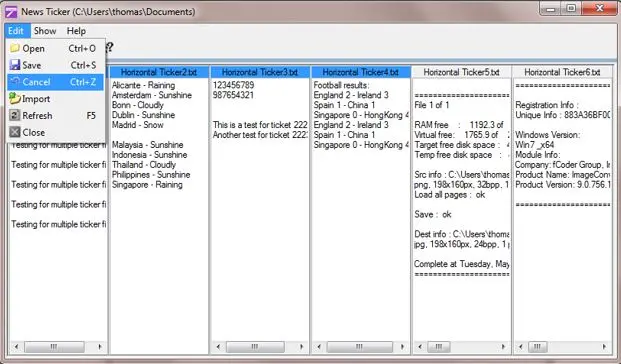
For reversion, select “Cancel” from the Edit menu to resert to the status before executing the import function.
Scheduling_news_ticker_import_8
The status in the edit box would revert the import function and return to initial state.
By doing the reversion, all changed made to the imported files would not be saved.
Scheduling_news_ticker_import_4 (1)
.webp "5393_Scheduling_news_ticker_import_4_(1)") 5393_Scheduling_news_ticker_import_4_(1)
5393_Scheduling_news_ticker_import_4_(1)
 5392_Scheduling_news_ticker_import_7
 5391_Scheduling_news_ticker_import_6
 5390_Scheduling_news_ticker_import_8
 5394_Scheduling_news_ticker_import_5
 5395_Scheduling_news_ticker_import_3
 5396_Scheduling_news_ticker_import_4
 5399_Scheduling_news_ticker_import_2
 5398_Scheduling_news_ticker_import
 5397_Scheduling_news_ticker_import_1
 5401_Scheduling_news_ticker_my_doc
 5400_Scheduling_news_ticker_public_doc