59.1.1 Startup license check
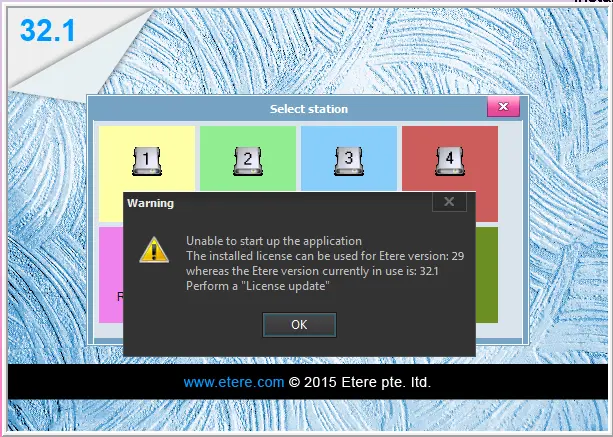
From version 21 onwards, each time an Etere module is launched, it checks the license installed against the current license, and a warning message is prompted at the station if the discrepancy is found.
license_warning
Click the [Ok] button to launch the Licence Update module and browse the license file to be used.
Warning
It is important to note that in case you have a license for a certain Etere version (e.g. 20) and update your system to a greater version (e.g. 21), Etere is unable to start up until a NEW proper license (provided by Etere's customer support service) is loaded.
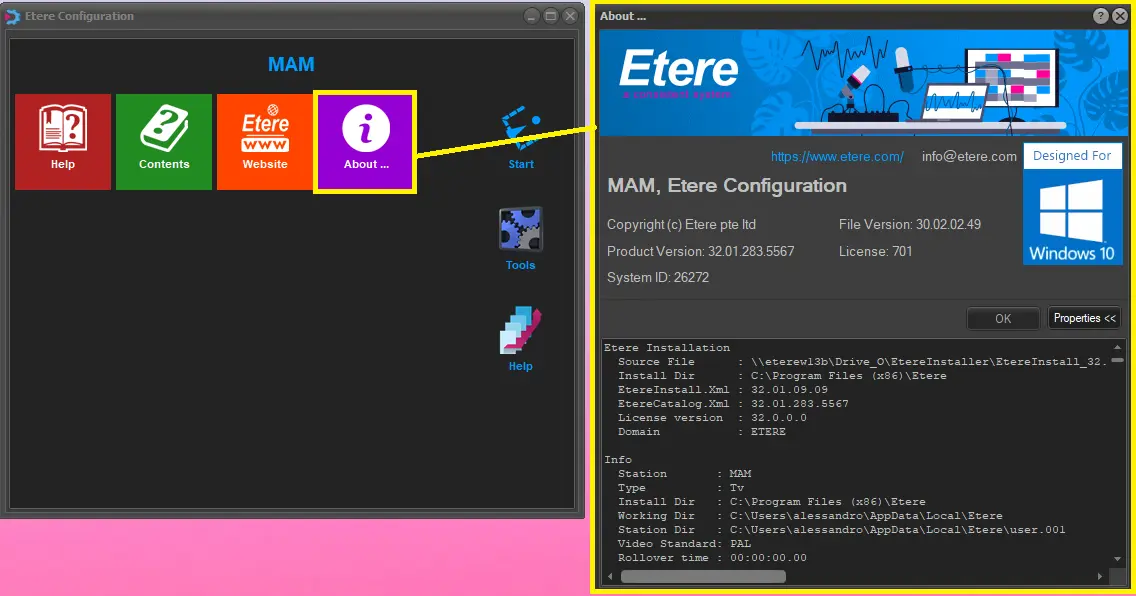
The version of an Etere installation and the license codes for all Etere modules and resources can be viewed by clicking on the About icon and Properties button:
about_properties
License Validity Check
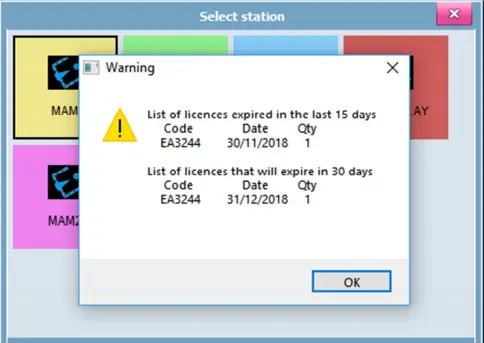
When an Etere module is launched, it checks the license validity dates in the station against the current date (e.g. 14/12/2018) and notifies the customer of the following scenarios:
•List of Etere license codes that expired in the past 15 days and their quantity.
•List of Etere license codes expiring in the next 30 days and their quantity.
Select station
Upon notification, the customer can click <OK> to close the popup warning message and resolve it with the appropriate action. The warning message would be auto-closed after 10 seconds.
Refer to chapter "License Update" for information to update Etere license in the station.
Disabling the Popup Warning Message
From a customer perspective, you can disable the popup warning message to certain users accessing Etere modules. For example, the warning message is irrelevant when the workstation client login to Etere modules via the Terminal Server.
Add the following Windows Registry to the client workstation to disable the popup warning message.
[HKEY_CURRENT_USER \ Software \ Etere]
Add a new DWORD key, “NoExpireDisplay”, and set the key value as “00000001”.
Note: For information about updating Etere license, see chapter WINDOWS APPS > Etere Configuration > License Update.
 Select_station
 license_warning
 about_properties