59.4.20 Rhozet RZCP Transcoder
What is the Rhozet RZCP Transcoder?
The Rhozet RZCP Transcoder is a powerful encoding/decoding process that permits to transcode media files including pre-charge values.
Transcoding operations are requested via T-workflow to the Carbon Server as "carbon tasks" (i.e. jobs initialized and controlled via API).
How to configure a Rhozet RZCP Transcoder?
In order to configure this process, it is required to set the following parameters under the carbon task builder area:
Sources
Indicate if the transcoding process will be performed for either all the media files linked to the asset or only one of them:
Multiple modules, use physical file names
Enable this option to process all the media files defined -in the Etere's database- for the asset to be transcoded. For instance, in case an asset (e.g. ID=12345) is linked to multiple files (e.g. 12345.MXF, 12345.MOV, 12345.WMV), all of them will be transcoded.
Additional files
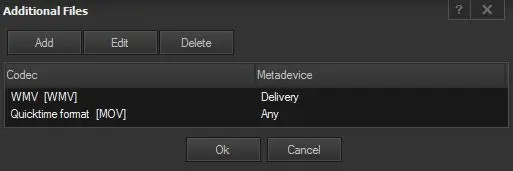
This function allows transcoding more files besides from the ones specified (on the source cloud-device and source codec), this, adding more target files to the following list:
Additional_files
Files: Add
Additional: Add an extra file. It's possible to specify the codec to be added as well as the metadevice from which it will be taken, or leave any (i.e. for all codecs / from all metadevices).
Files: Edit
Additional: Change the selected extra file.
Files: Delete
Additional: Removes the selected extra file.
Single module, use the following file name
Enable this option to process a unique source file corresponding to a specific path and filename schema (which can include environment variables).
The path and filename schema allows the Transcoder to identify the file to be transcoded within the metadevice. For instance, to process the MPG version of source files (e.g. 12345.MPG), the single module must be set as below:
%5:s%1:s.MPG
Custom
Use this option to specify a user-defined input module based on environment variables supported by Etere DataMover. Make double-click on the box for editing the text, for example:
<Module_0 Filename="%1:s" />
NB: For a detailed list on runtime data available for use, please refer to the Runtime variablesclickHere chapter.
Output filename
The output filename (name + extension) allows defining which transcoded file(s) should be linked to an asset in the database, this, depending on whether this parameter is set or not:
not set (i.e. empty) - Etere will search in the destination path for all files which name starts with the metafile name (i.e. metafile*.*), linking all found files to the asset in the database.
For instance, if the metafile name is md795, it will be linked to the asset all files matching this name: md795.wmv, md795_1.wmv, md795_2.wmv, md795.mov, md795.avi, etc.
NB: Leaving this parameter empty may cause unwanted files to be linked to the asset, specially on systems where metafiles have short names.
set (e.g. %6:s.mov) - Etere will search in the destination path for a file named exactly as the output filename (e.g. md795.wmv); in case said file exists it will be linked to the asset in the database, otherwise no file will be linked to the asset and an error message will be returned in the T-workflow log.
For instance, if the metafile name is md795 and the output filename is md795.wmv, it will be linked to the asset only the file named md795.wmv (if exists).
Setting this parameter is useful when transcoding "multiple modules" (i.e. all files of an asset stored in a certain location), it will allow linking to the asset only the right transcoded file. Moreover, in case transcoded files have the same extension, use the %6:s variable (in the metafile name, destination name and output filename) to support storing them all in the same location with unique names.
NB: In case of using an output filename, it must be set the same as the metafile name (Basic > Destination metafile), otherwise transcoded files won't be matched and no file will be linked.
Metadevice path selection
Specify how to choose the output path in which transcoded files will be stored:
None (default) - The output path will be the first on the destination cloud-device with available space.
Random - The output path will be randomly selected among the ones available on the destination cloud-device.
Fixed - The output path will be manually fixed as one selected among metadevices or manually entered as a path.
NB: Cloud-device paths can be defined using the DataMover's support Runtime variables (e.g. %5:s\xcoded\).
Destination
This section allows to specify the transcoded file destination by selecting any of the following types:
Standard, using the following Profile GUID
Specify here the GUID (e.g. {EA968263-7DF4-431C-Bf48C2-A9AC15F2C9}) of the destination module. The GUID specified here will be passed to the transcoding server as an XML tag:
< Destinations >
<Module _0 ModuleGUID ="{EA968263-7DF4-431C-Bf48C2-A9AC15F2C9}" />
</ Destinations >
For details on how to manage Carbon Coder profiles, please refer to the Rhozet profiles chapter.
Custom
Specify here the XML tag (i.e. <Destinations> </Destinations>) that contains a set of configuration parameters for custom transcoding process. Make double-click on the box for editing the text, for example:
< Destinations >
<Module_0 ModuleGUID ="{EA968263-7DF4-431C-Bf48C2-A9AC15F2C9}"
PresetGUID ="{EA968263-7DF4-431C-Bf48C2-A9AC15F2C9}">
<ModuleData CML_P_BaseFileName ="%1:s_ENG" CML_P_Path ="\\mediaserver\lowres\"/>
</ Module _0>
</ Destinations >
For more information on Rhozet's supported parameters (e.g.CML _P_ Path) refer to the Rhozet parameters chapter.
Other Settings
Path to Carbon command line tool (rzcp.exe)
Indicate the location (path only) of the Carbon executable, for example, the default Rhozet's installation directory (i.e. c:\program files\rhozet\carbon coder\).
Command line options
Optionally, specify here the command line options (e.g. - queuewait) to be included in the execution of the rzcp tool.
For detailed information on available options please refer to the "Rhozet command line options" section.
Job output path
Specify the folder within which there will be created rhozet xml command files (e.g. 2571.xml, 2571.sbt.xml) to be used by the destination (i.e. Rhozet Transcoder) to process the transcoding action.
NB: By default, the path used is the windows user's local app data folder (i.e. %LocalAppData%\Temp\Etere\).
Generate custom name
Use it to generate a custom name for the physical file based on free text and database references (e.g. Flexi-metadata). The custom name cannot be write here directly but it requires using the following buttons:
Open the editor to define a custom name. Use the [Insert Flexi-metadata] button or the the "INS" key to insert available Flexi-metadata fields (i.e. configured in the media library), being also possible to optionally combine it with strings.The preview of the name will be displayed in the bottom, it will be automatically updated as data is inserted.
Use the key to create the custom name as specified in the Basic Settings > Destination metafile > Use rule parameter.
NB: This name will be available for being used through the %7:s variable, for example, from the "Destination > Custom" section
Trim file according to the pre-charge value
If enabled, Etere will try to detect the MXF pre-charge (i.e. SMPTE-377M-2009) value to be used for trimming the processing file.
NB: "Trimming pre-charged headers" is used to maintain synchronization when adding audio to media clips that have been generated by reference to raw track files.
Physical path and name of the source file
Specify here the path to the source file from which the pre-charge will be calculated. It's possible to use any of the environment variables supported by Etere DataMover.
NB: For a detailed list on runtime data available for use, please refer to the Runtime variablesclickHere chapter.
Subtitles GUID and Language
In case it is intended to transcode video files including subtitles, configure here the following data:
GUID - Set/select the GUID of the destination's video filter module to be used for inserting subtitles from the exported rhozet xml file. Otherwise, leave this blank to do not include any subtitle.
The default filter used by Etere is the XML titler which GUID is {303EC062-9997-4975-9FED-228798D36687}.
Language - Select the language (e.g. italian) of the subtitles to be exported in the rhozet xml subltitles file.
Available languages are those enabled in Etere Configuration > Settings > Basic > Languages.
Notes for subtitles:
1: Subtitles are exported including the visualization parameters set in Configuration > Conf. Editor > Subtitles > Parameters.
2: Exported parameters are mapped between Etere and ProMedia as specified in the Export mapping for ProMedia chapter.
3: Subtitles are temporary exported in the job output path (set above); named with a .sbt.xml extension (e.g. 2571.sbt.xml).
4: It's worth mentioning that subtitles can be also inserted as part of conforming operations, from the News Story Creator.
5: The default filter embeds subtitles imprinted on video, for more information on this topic see How to embed subtitles.
Once compiled, click the [SAVE] button to store the Rhozet RZCP transcoding action in the database and make it available as an action block ready to be included within T-workflows.
How to use it
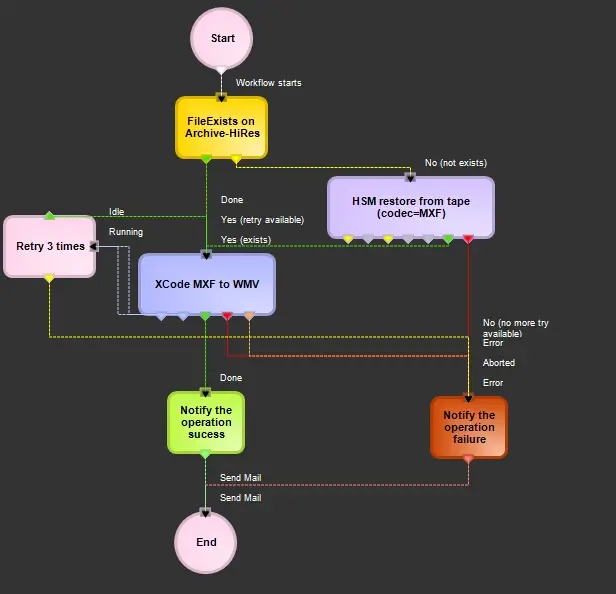
Actions based on the Rhozet RZCP Transcoding process type can be included -under the T-Workflow Editor- in any transcoding T-workflow:
•Simple transcoding:
Simple_transcoding
•Subtitles embedding: Refer to the How to embed subtitles section of the Subtitles Management chapter for information on this topic.
 Additional_files
 Simple_transcoding