70.2.4 Tape Drive Configuration
In order to use a tape drive in Etere HSM, it should be configured as follows:
1. Set the Drive tape resource
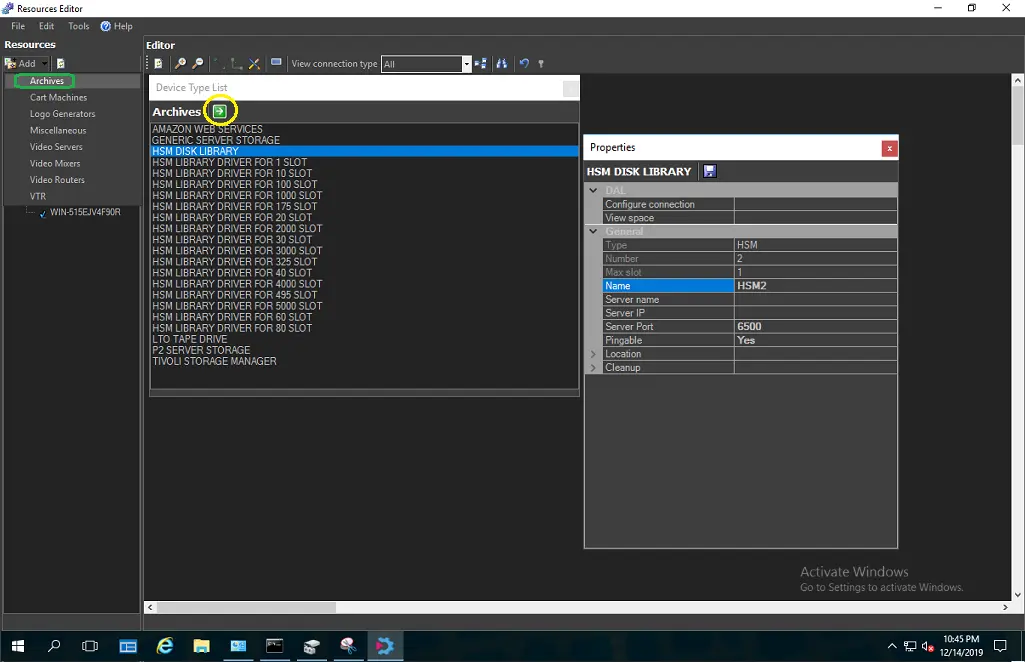
Before start configuring an Etere Data Pump, it is required to configure its cache. The cache is a folder within the Etere Data Pump server used to archive files in case the source/destination is a remote path, the use of a cache allows to not compromise the writing/reading speed of the tape drive with the network transfer-speed. The cache can be configured in the following ways, both of them will create a metadevice within the system:
•Using the 'HSM cache' property of the Etere PC where Etere Data Pump is installed:
Resource Editor 1
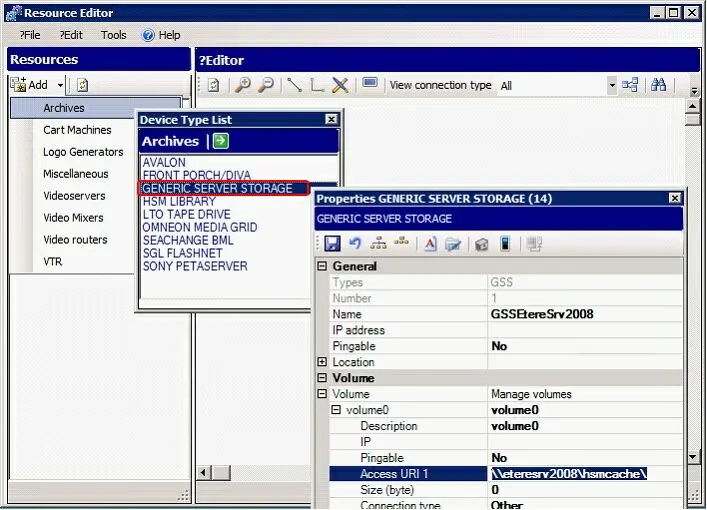
•Creating a dedicated 'Generic Server Storage' for the HSM Cache:
See also:
Resource Editor 2
ODA Disk Drives
2. Configure the HSM Data Pump parameters
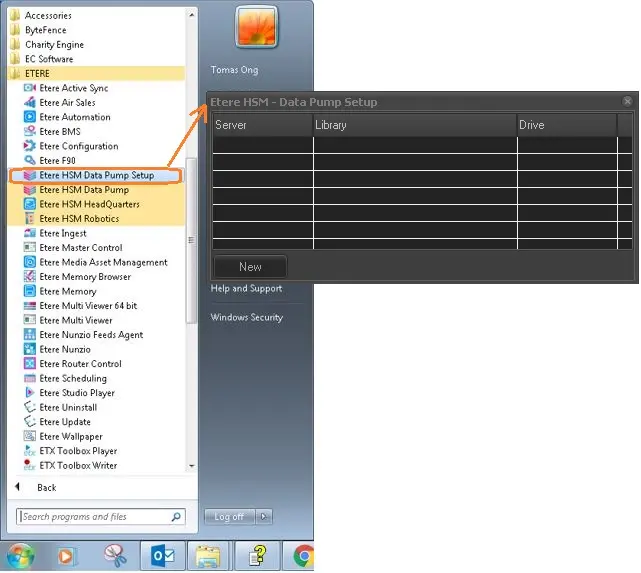
The Etere Data Pump server(s) must be configured in the PC where the tape drive is connected. In order to configure a new Etere Data Pump, simply launch the Etere HSM Data Pump Setup from desktop Start Menu:
Etere HSM - Data Pump Setup
From Etere HSM – Data Pump Setup dialogue, click the <New> button to add a new Data Pump service.
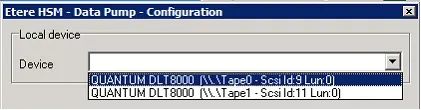
1.Select the tape drive already installed in windows:
Data Pump Setup - Configuration 1
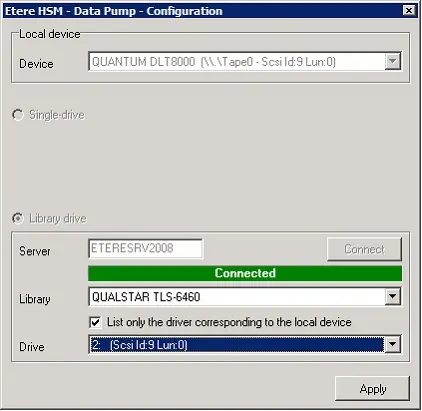
2.Insert the name of the Robotics server that manages this tape drive, make click on connect, select the library and the relative Drive
Data Pump Setup - Configuration 2
NB: By ticking the 'List only the driver corresponding to the local device' option, only the drive will be installed (verify that the SCSI ID is the same as the windows installed SCSI ID to make sure that it is the right device). This check doesn't work if the Tape Library is controlled via 'SCSI Pass-through' (i.e.: without installed driver) because (in this particular case) the library will not show the SCSI ID of its drives.
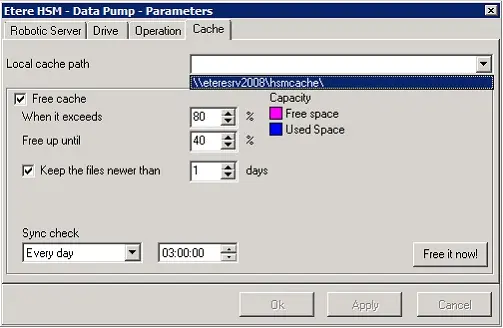
3.Finally, under the Data Pump parameters, set the local cache path (there will be listed only those metadevices related to the current PC):
Data Pump Setup - Parameters
Configure Metadevice Cleanup
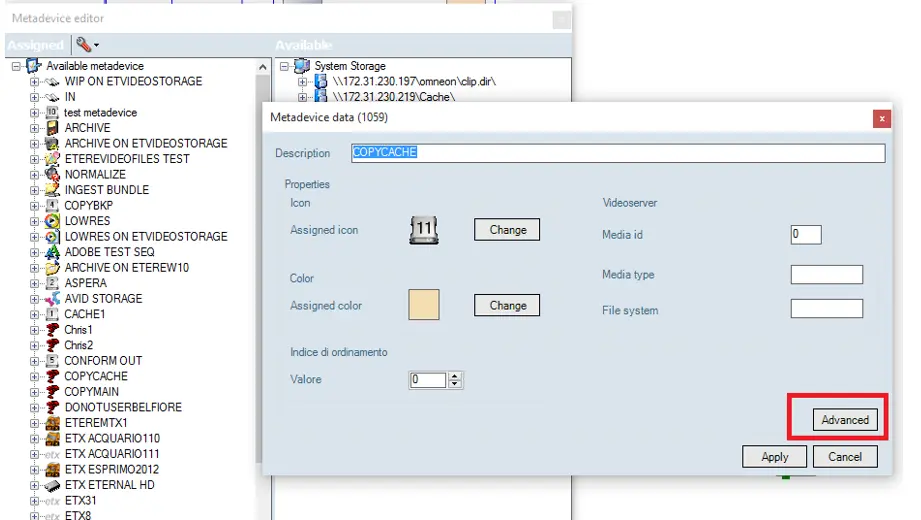
In the Metadevice Editor module, if it is a HSM metadevice, an “Advance” button would be visible to allow access to device cleanup properties to configure the cleanup options.
Metadevice Data
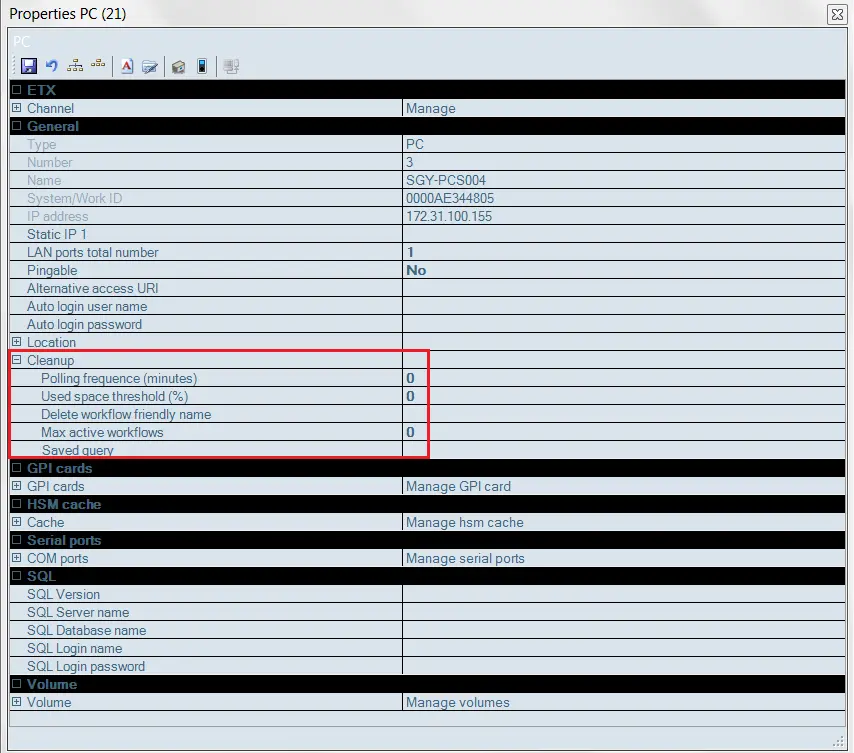
Click on the “Advance” button, the cleanup feature would launch the metadevice cleanup properties as shown in the image below, where you can:
•Set polling frequency (by minutes)
•Set used space threshold
The used space calculation for LTO tape would take into consideration of:
Occupied space = includes ‘active’ files and logical deleted files
Free space = space actually free in the LTO tape.
•Customize the deletion T-workflow
•Set maximum of T-workflows allowed
•Cleanup based on saved query (*)
Properties PC
* Saved query: From the Search form, based on specific conditions (i.e. expired assets) you can save the search query as query object and assign a name to the saved query. By specifying the saved query name in this parameter the cleanup would delete the assets based on the condition in the saved query (i.e. only delete expired assets). If leave as blank, the cleaunp would delete all assets in metadevice.
The mediapools cleanup function has been included in Monitoring Console > Device Space Cleanup feature. Refer to Configuration > Monitoring Console > Monitoring tools > Space Monitor > Device Space Cleanup > Configure the Cleanup Parameters for more details information on how to set the cleanup options.
Note: If the Metadevice is LTO tape, the cleanup would only logically delete the used space from the LTO tape, the deleted space in the LTO tape would only free up after you perform a tape defragmentation. In HSM Headquarters Tools > Maintenance Time, you can enable the “Automatic defrag” option to configure automatic defrag of LTO tape to be performed during the predefined maintenance time if the logical deleted space is greater than a specific percentage value.
Note: If more tape drives needs to be configured, repeat the steps described above, plus the steps described in Data Pump > Initial Setup to configure the additional tape drives.
 Metadevice_Data
 Resource_Editor_1
 Data_Pump_Setup_-_Configuration_1
 Data_Pump_Setup_-_Parameters
 Properties_PC
 Data_Pump_Setup_-_Configuration_2
 Resource_Editor_2
 Etere_HSM_-_Data_Pump_Setup