84.4.4.9 STANDARD > EPG > TXT
Export Scope
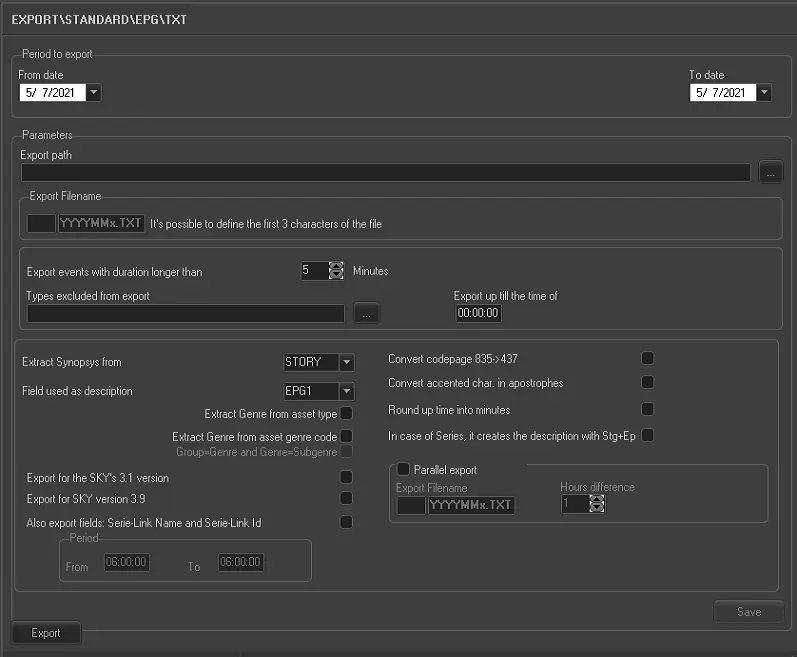
The EPG -> TXT option allows the user to export the daily list of scheduled programs, thus, by creating one file in text format (with a .txt extension) containing the schedule for each day from a specified range of time.
Export Parameters
This procedure is divided in two main fields:
5069_Export_standard_epg_txt
•Range to export
Here we can select the interval of days (from date - to date), from where the schedule will be taken.
•Parameters
In this section the user is able to select the content of the file:
•Export path: Specify the PC's path where the file will be saved
•Export filename: The name of the exported file will have the format 'xxxYYYYMMx.TXT', where xxx are 3 characters that will go at the beginning of the file's name, these characters are used, for example, to indicate the station (f.e. MTV2009031.txt).
•Export events with duration longer than: You can also select to export events with a longer duration than X minutes (default set at five), this parameter is very useful is you want to exclude events with a short duration (e.g. commercials).
•Types excluded from export: From the Select Type prompt, you can exclude asset types to be excluded during export.
• Export up till the time off: Indicate a specific time in hh:mm:ss to stop the export.
•Extract Synopsis from: Here you can select the asset field to be used as a synopsis of the event and if that field should also be used as the description/title.
The Story, EPG1 and EPG2 fields are specified through 'Asset Form -> Metadata tab', is good to know that if the description was inserted with the format 'Description # Synopsis' where the character '#' acts as a separator (e.g. 'Oasis Live 2009#First concert of the year, has taken place on London on 24th February 2009').
•Field used as description: Select Story, EPG1 or EPG2 field as the field to extract the asset description during export.
•Extract Genre from asset type: The genre and sub genre information will be extracted from the asset type where the 'space' character will separate the genre from the sub genre (e.g. 'Movie Horror').
•Extract Genre & sub genre from asset genres code: The genre is extracted from the 'Asset Form -> Season Manager Tab -> Genres List' located at the bottom of the window. In this case the '.' character will also act as a separator (e.g. 'Music.Rock').
These Genres can be defined from 'Etere Configuration -> Settings -> Basic Configuration -> Genres' (e.g. Group 'Music' which contains genres as 'Rock', 'Pop', etc).
•Export for the SKY's 3.1 version: Enable this option to export the text file applicable SKY 3.1 version.
•Export for SKY version 3.9: Enable this option to export the text file applicable SKY 3.9 version.
•Also export fields: Season-Link Name and Season-Link ID and indicate the time frame for export.
•Convert codepage 835>437: Enable this option to delete all characters with an ASCII code not included between 32 and 126.
•Convert accented char. in apostrophes: When convert accented characters, all characters will be replaced with the letter plus an apostrophe. For example, the è character will be exported as e'
•Round up time into minutes: Enable this option to round up the time between program in order for the programs to run consecutively.
•In case of seasons, it creates the description with Stg+Ep: When exporting seasons, add episode number to the description.
•Parallel export: Enable this option to create a alternate export file, you can enter a character set to be append to the file name and specify the number of hours apart to execute the export.
Note
Grouping multiple events as one program is possible (e.g. from Executive Editor) through the insertion of an EPGI event and an EPGO event before and after the group respectively, in this way all events in between them will be considered as one program. Each grouped program must have a specific EPGI event since its description is extracted from it whereas the duration is calculated as the sum of all grouped durations:
Simpson (duration: 00:29:14)
EPGI
Simpson (part1)
Spots break
Simpson (part2)
Spots break
Simpson (part3)
EPGO
Moreover, it's worth mentioning that EPGI and EPGO events are based on EPGI and EPGO types set in Configuration > Settings > Types.
Launch the export
Once the export has been configured, it can be started just by pressing the <Export> button.
Summary of exported fields
Exported Field Extracted from
•Starting Time Scheduled time
•Event title Scheduled title
•External ID Scheduled ID
•Duration Scheduled duration
•Seasons' title Not exported
•Program Type Not exported
•Genre (depending on parameters)
•Sub genre (depending on parameters)
•Audio format Asset audio property
•Video format Asset video property
•Display format Asset aspect's ratio
•Subtitle presence Asset subtitles
•Deaf Subtitle presence Always exported as 0
•Parental rating Asset rating property
•Promotional Message Not exported
•Description (depending on parameters)
•Synopsys (depending on parameters)
 5069_Export_standard_epg_txt