56.2.1.4 VTR Control
The VTR Control tool is specially designed to provide operators with a quick management interface for controlling the various automation-enabled VTR and VTR Decks (using Cart Manager) without exiting the automation. Functions available under the main interface includes:
VTR_Control
•Show/hide automation events: Display a playlist in the bottom panel showing the time, date, tape and description of all the events scheduled to be played from a VTR.
•View VTR windows: Display the VTR window of all configured VTR.
•Pre-load events in VTR: Launch the 'load on VTR' function (which associates and loads an event's marks to a VTR) for all the events scheduled to be played from a VTR.
•Open barcode recording window: In case a barcode reader has been configured along with the automation, this function will open Etere's reading interface.
•Status bar: Indicate the last task performed for a VTR.
VTR window
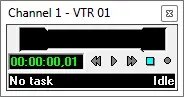
The VTR window is a useful tool that permits remote monitoring of the status of a VTR automation resource (e.g. VTR01, VTR02, etc.) as well as managing it through the following functions:
VTR01
•Activate: Use it to open the selected VTR and make it ready for use. Once activated, it will be initially 'idle' and with 'No task'.
•Deactivate: It releases an opened VTR and disables the VTR.
•Preview: It browses the selected events by putting the VTR in play for the specific time code.
•Download task: This function removes all queued tasks except the one currently playing. Each time an operation is assigned to a VTR, it is queued as a new task, thus allowing the device to automatically perform different consecutive tasks.
•Eject: Use it to expel the tape currently in the VTR device.
•Reset: It will reset the VTR to its initial state. This function cancelled all currently performed actions.
At the bottom panel, the VTR window will indicate the task status (e.g. no task, loaded. Still, cue failed, etc.) and the playback status (e.g. idle, fault, play, etc.) currently in charge of the device.
Moreover, events presented in the automation playlist can be played in a VTR by selecting the event, right-click and selecting the 'Load to VTR -> n' function (it will associate and load the marks of an event to a VTR via UDP protocol).
 VTR_Control
 VTR01
VTR01