71.4.4 XDCAM scheduled ingest
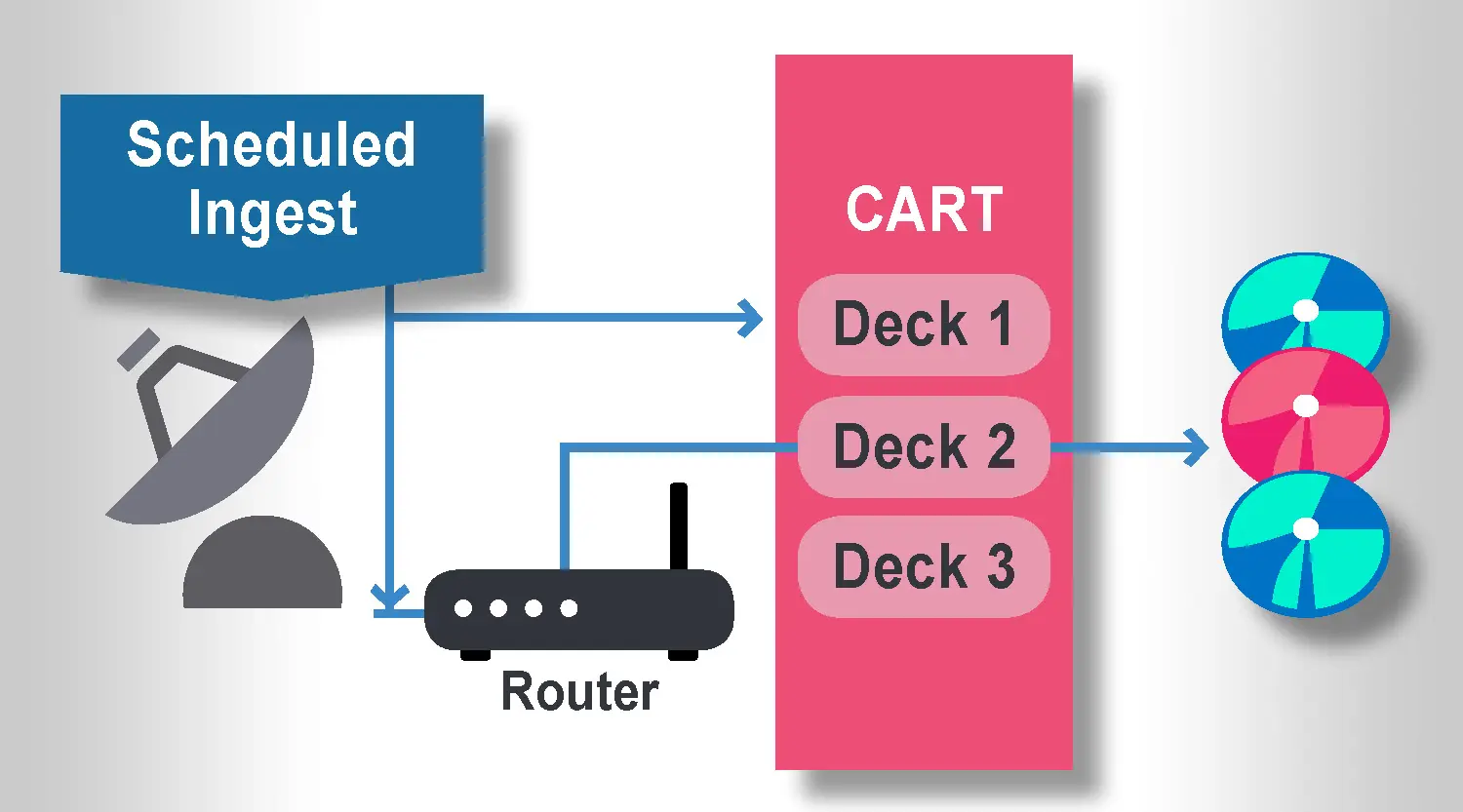
The XDCAM system allows the operator to schedule a single ingest operation onto a high professional disc (or discs depending on the length of the footage), once the ingest of this footage is finished the disc is moved back into the Cart, where will be ready to be accessed when needed.
Scheduled ingest 1
If you have a Cart Machine system which allows you to ingest Media Content from professional XDCAM discs, you can also perform a scheduled ingest of its contents, in order to do it just follow the next procedure:
Settings
1. The first thing to ensure is that the XDCAM system is correctly configured (Etere Configuration > Resources).
2. In the Settings section of Etere Ingest module you need to specify to use the Cart for ingesting under the General 3 tab by activating 'Use the Cart'.
3. If you are creating new discs it is necessary to 'add' them with their respective barcodes, and this can be done both manually and automatically. For manual creation go to Tape Library > New and specify the disc type, format etc. Using Etere Cart you can however create discs automatically. Once you have inserted the new discs, the discs are scanned and barcodes read and registered automatically using default properties that are configured in Etere Cart under the Parameter tab | General tab.
4. If you want to confirm the location of these new discs and general available space this can be done in Etere Configuration > Settings > Racks. You are hereby able to view both the discs in the Cart and also in the Deck and by double clicking on any individual disc you can view what media clips are stored on that particular disc.
Scheduling an ingest operation
1. Create a new asset and assign it a new code inputting all the relevant information (description, type etc).
2. In Etere Ingest open Scheduled Ingest and create a new 'Single Ingest'. In the 'Linked asset ' field select the previously created asset.
3. Input all relevant information (the start date, time, duration, etc) and in the Media link box right-click to pull up the list of all the current discs in the cart and the available space on them. Select a disc as required making sure that there is enough space left to accommodate the ingest operation. Only those discs compatible with the configured deck will be evident in the list. If the duration of the ingest operation exceeds the available space on the chosen disc a message will appear and you will need to choose a second disc for the remaining part of the ingest operation.
4. Select the Destination Channel (which deck to use).
5. Your scheduled ingest operation is now set up. It is often the case that you would have the same application running on 2 or more PCs, the first being the 'serve side' and the second being the 'Server side'. The schedule request is predominantly created on the Client side, initiating the ingest process. This request is then fulfilled on the server side following such a request.
6. It is on the server side that you activate the ingest and manage the actions of the XDCAM cart. This is done through the planning tab and by clicking [Start Recording]. While this ingest process is taking place, on the Client side you can also continue to schedule other ingest operations should you wish (use this client to view only).
7. Once the ingest process has been activated, a new window appears displaying a countdown to when the ingest process is due to start. Where only 1 disc is being used, 30 seconds before the ingest operation is due to commence (as this is the approximate time it takes for a disc to be taken from its bin and loaded into the deck), Etere Ingest sends a message to the cart to move the relevant disc into the deck so that the ingest process can commence at the scheduled time.
8. When the ingest operation starts, the countdown will change to be a countdown to the end of the process.
9. The disc will be ejected once the ingest process is complete and the automated arm will move it back into its location in the cart.
Further Operations
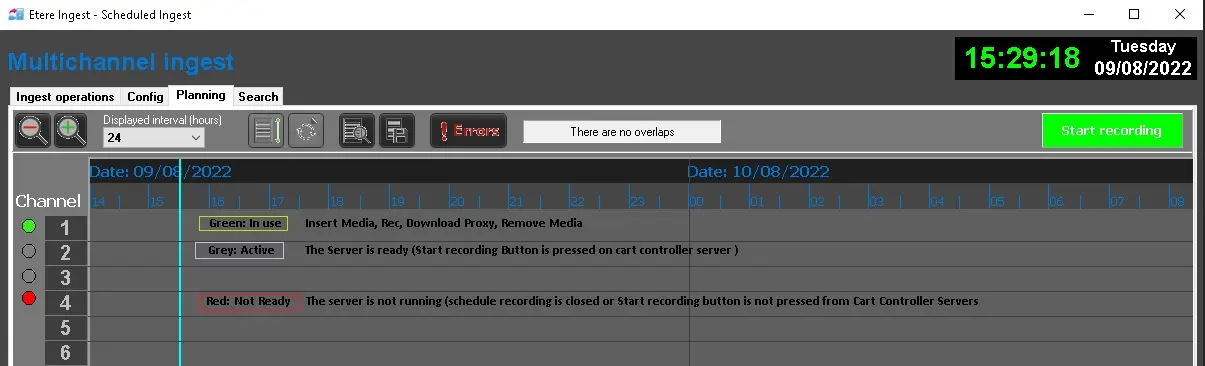
Monitoring the ingest process: In the planning tab, the status of each ingest operation can be identified by a colored circle beside the channel number:
Scheduled ingest 2
• Green circle: the media is correctly inserted or the ingest operation is running or the proxy is in progress or the media can be removed.
• Grey circle: the "start recording" button has been pressed on the cart and it is waiting for an event to be scheduled.
• Red circle: the "start recording" button has not been pressed or there have been errors in the ingest process or in the inserting of a disc.
During the ingest process, do NOT open the door to the XDCAM - always check the status of each deck. Note that the loading time of 4 discs is approximately 4 minutes and if the door is opened even during this time, the scheduled ingest operation will fail.
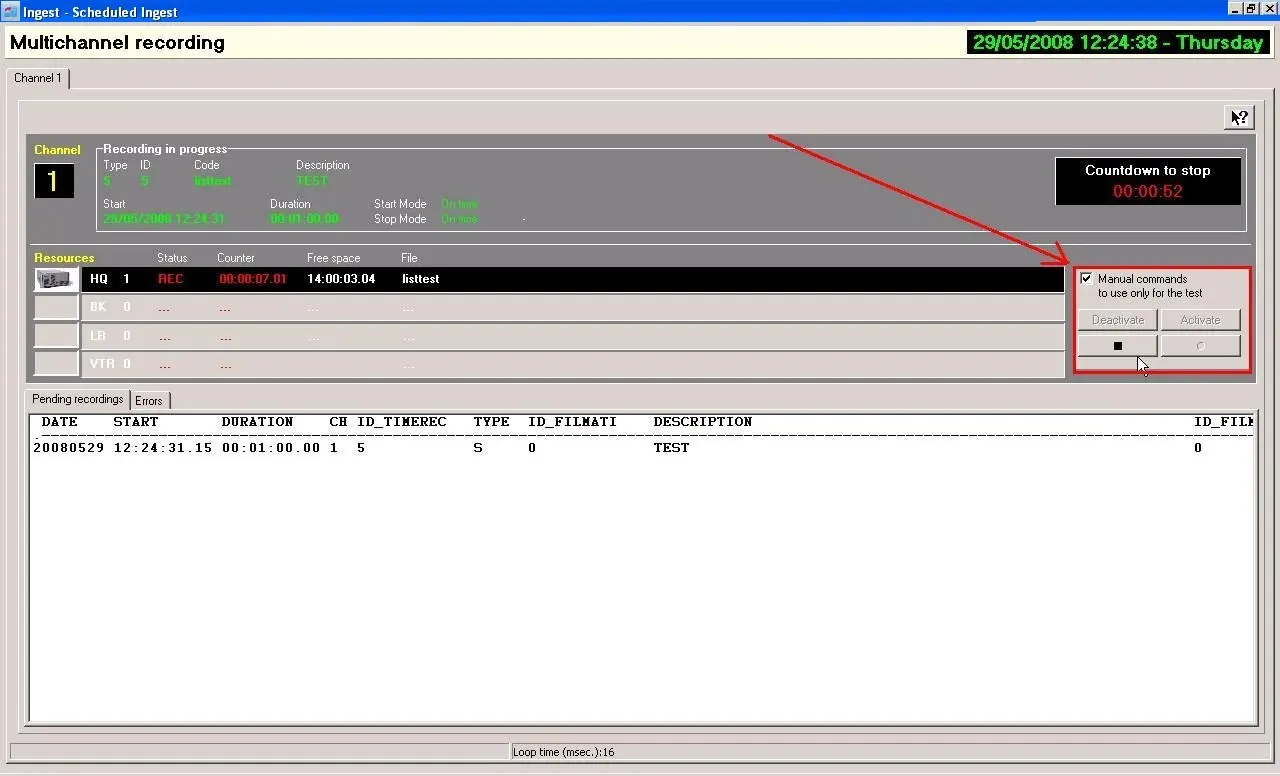
Manual ingest termination: In an emergency situation (change of request etc) the ingest process can be stopped manually by activating the manual command option.
Scheduled ingest 3
Potential Error Messages during scheduled ingest
Overlaps: if the operator has scheduled two ingest operations that overlap (overlap time in same deck with same disc) Etere Ingest will give a warning message 'There are Overlaps'. Other scheduled ingest operations will continue but the operator needs to amend the incorrect schedule eliminating the need to stop and restart the ingest process.
Conflicting Operations: If an ingest operation is followed by a second scheduled ingest operation in the same deck but with a start time too close to the end of the previous scheduled operation an error message will appear:
Scheduled ingest 4
To calculate enough time the following must apply: start time of second ingest operation = end time of previous ingest operation + timeout rec (180) + 1/10 of previous ingest operation duration (time to download proxy file). For example, if the first ingest operation has a start time of 17:50:00.00 and a duration of 10 minutes, the second ingest operation will have a start time of 18:00:00.00 + 3 minutes + 1 minute = 18:04:00.00.
Automatic Proxy Generation: A proxy version of the ingested file is automatically produced by the deck and the transfer of said proxy file to a proxy file storage takes a maximum of 10 minutes. A consequent ingest operation with the same deck is not possible until the transfer is complete.
Ingested File Confirmation: You can view the ingested file in the asset form by viewing the respective form and under the Media tab/Media list you will find the relevant professional disc icon and file name. If you right click over the professional disc icon you can call up the details of the file including its location.
INGEST INTO TWO DISCS
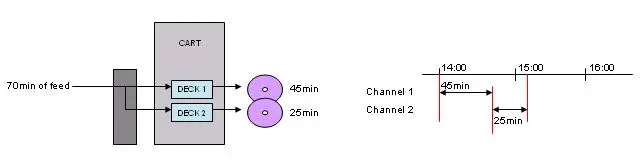
In a situation where the "single ingest" is longer than the available space on a single disc, you can allocate 2 discs (or more) again in the "Linked media" field so the footage spans across the 2 discs. Etere will automatically assign 2 decks to this ingest operation and, with a set overlap time of 2 seconds, a seamless ingest process will take place.
Single ingest
Disc 1 should be loaded onto Deck 1, Disc 2 onto Deck 2 etc. As mentioned previously, it usually takes approximately 30 seconds to load each disc into the respective deck and it is important to set the 'Timeout Scheduled Ingest (sec.)' parameters based on the number of decks to be used: 30 seconds for 1 Deck, 60 seconds for 2 decks, 90 seconds for 3 decks and 120 seconds for 4. These timeouts represent how many seconds before the scheduled start of the ingest operation, the discs will be moved from their slot into the cart.
Multichannel ingest
 Scheduled_Ingest_1
 scheduled_ingest_3
 scheduled_ingest_2
 Single_ingest
 scheduled_ingest_4