57.1.1 General
General_parameters
Overall processing
Specify the method to determine the file to be analyzed by the CMS action:
Source
Current metafile - The CMS action will analyze the metafile activated for a T-workflow instance through a "current metafile" action.
Codec to process - The CMS action will analyze the file matching the codec with the higher priority (list upper position) among the ones enabled in this section, and if an asset doesn't have a file with that codec the next codec will be selected.
NB: CMS on MP4 is executed only on audio, the video is not processed.
Video will only contain the option to extract the thumbnail.
NB: Drag & drop codecs up or down to increase or decrease their priority respectively. ..
Content Check is able to analyze file formats such as wmv, mp4, mxf.
codec (default)
Media Reader
Windows Media: This supports backward compatibility. This works with asf (wmv) files.
Etere Player: This is default for new installations. The device with several file formats such as wmv, mp4, mxf, etc.
Windows Media
Analyze only audio when video is unable
If enabled, audio checks (e.g. loudness) will be performed even when video checks are unable (e.g. unknown video codec), it is done by extracting the audio tracks and analyzing them separately.
NB: Mixed audio/video checks are performed at a speed of 20x; audio only checks are performed at 250x. In case only audio checks are required it's suggested to disable all video checks.
disabled (default)
Do not use media folders even if configured
If enabled, the path of files to be processed will be read from the main path (i.e. "media folder for the assets") of the metadevice (e.g. \\mserver\files\).
If disabled, the path will be read from the media folder ("etereweb path") set for the metadevice (e.g. ftp://mserver/files/).
enabled (default)
Concurrent processes
Increase/decrease the number of simultaneous instances allowed by Etere DataMover for executing the CMS action from the same server.
NB: Refer to Distributed Parallel Processing for further information on parallel processing.
1 (default)
Processing timeout - Set the maximum waiting time for a content check operation before terminating the T-workflow action in error.
120 (default)
Maximum number of segments per detect
Specify the maximum number of segments to be pointed out for each check type (e.g. scene change, loudness, etc.).
This option prevents the creation of a multitude of segments related to the same defect (e.g. black frame, loud signal, etc.) when files are almost fully defective (e.g. black, loud, etc.); thus speeding up the overall control by avoiding the extraction of unnecessary thumbnails.
50 (default)
Set quality in case of audio/video faults
Set the quality value (0-9) to be assigned to the asset in case defective segments (black or freeze frames) are detected during the content check.
Changing the quality when audio/video defects are encountered is useful to determine whether an asset has successfully passed the content check.
0 (default)
Insert "audio/video faults" in the EDL No.
Select the EDL (i.e. 1,2,3,...9) on which audio and video faults detected during the check process will be marked.
9 (default)
Insert "scene changes" in the EDL No.
Select the EDL (i.e. 1,2,3,...9) on which scene changes detected during the checking process will be marked.
9 (default)
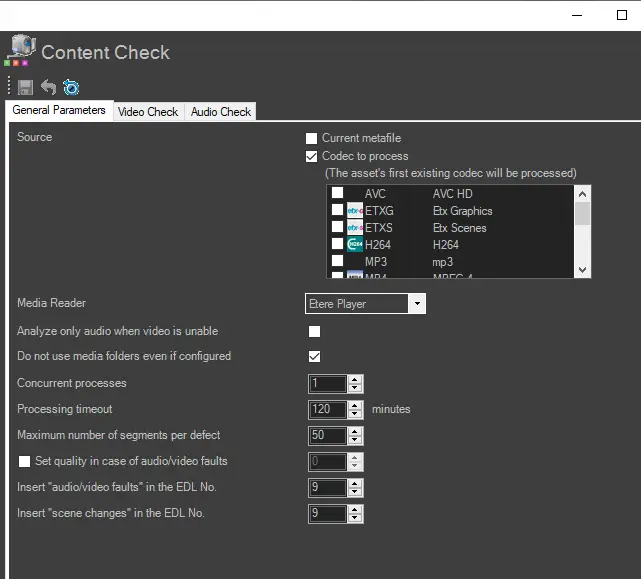 content_check_-_general