5.2 Schedule
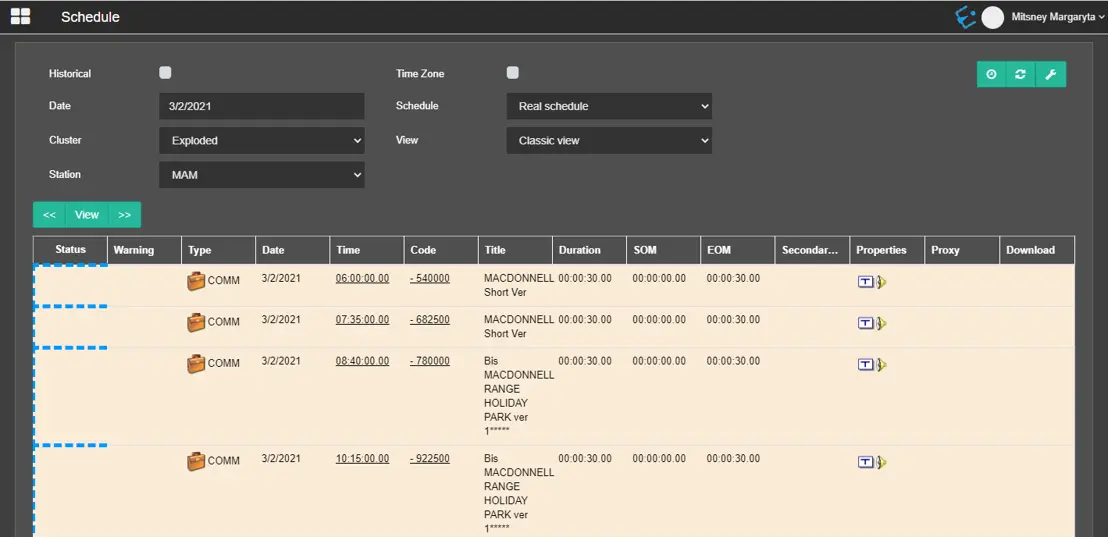
In this page, it's possible to display any level of the broadcasting schedules, past, present or future, for any licensed station.
schedule_view
FILTERS
• Historical: Enable this option to search schedules archived in the historical database.• Date: Select the schedule date.
• Cluster: In this parameter, you can choose to view the events as exploded or compressed in a cluster.
• Station: Select which station the schedule to display belongs to.
• Time Zone: If enabled, in the schedule will be displayed also the time zone set in Etere Configuration > Settings > System > Local time.
• Schedule: From the list, select the schedule level to display: real schedule, schedule for verification, change approval schedule or alternative schedules.
• View: You can choose how the schedules should be displayed. Select "Classic" to view all events in a standard layout, or select "Play in evidence" to show the on-air event always at the top of the schedule.
FUNCTIONS AND USAGE
• Reload: Enable this option to reload the schedule based on the interval time value set in User preferences > Schedule options. This option is invisible if the Reload time value is set to zero.
• Show countdown: If the schedule is in play, use this button to show/hide the countdown to the next event. Setting a type in User Preferences > Schedule options, it is possible to have also a countdown that shows the time left to a specific event type. Refer to chapter 18.1.2.0 Schedule options for details.
• Countdown next live: Shows a countdown to the next live in the displayed schedule on a new browser page.
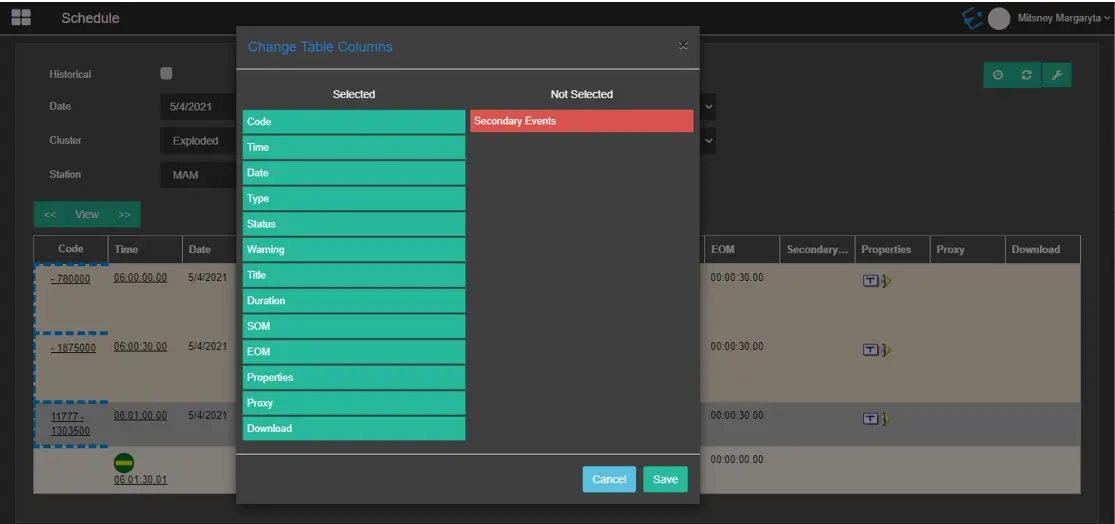
• Column setting: It allows to show/hide and arrange the columns in the schedule displayed.
Change_Table_Columns
Note: It's possible to modify the default set of columns by changing the Web Schedule template in Etere Configuration > Settings.
Use these buttons to browse the schedules:
- The "<<" button moves the view 1 day backward.- The ">>" button moves the view 1 day forward.
- The "View" button displays the schedule of the selected date.
When you click on an asset code in the schedule, a new tab will be opened to display the asset form.
Clicking on the start time, it's possible to search and preview the memory files recorded on that specific time and day, if available. Etere Memory Browser section will be opened with the filters already set and the search is launched automatically.
If the ► icon is present under the Proxy column, it means the asset has a lowres file linked. It's possible to preview it clicking on the ► icon.
If an icon is present under the Download column, it means a metafile with a codec enabled for download is linked to the asset. Clicking on the icon allows to start the download process.
 schedule_view
 Change_Table_Columns