84.2.2.5 FUNCTIONS menu
The Functions menu allows users to access to general utilities regarding the current opened schedule.
The operations present in this menu are:
Daily crowding: Calculate and display the commercial crowding statistics of the currently open television day. Refer to Daily crowding chapter for more information.
Loudness statistics: Calculate and display the loudness statistics of the currently open television day. See Loudness statistics chapter for details.
Edit playlists locked by another user: Edit the schedule of the day you are working on in case this is being used by another user in another workstation. When unlocking schedules locked by users on multiple dates (e.g. during deletion of past schedules) the schedule must be unlocked one date at a time.
Apply transitions table: Activates the preconfigured (in Etere Configuration | Settings | Transitions) transitions (i.e. effects, logos and GPI) set to occur between two events. Transitions are secondary events (always referred to master control or a video mixer) which are associated to primary events to be executed at the end of their on-air transmission.
NB: Transitions take place only if the two events are on two different Master Control inputs.
Apply secondary events as default: Apply secondary events to the current playlist according to the following criteria:
▪ Secondary events as default: Secondary events will be applied according to the rules defined in the Etere Configuration > Settings > Executive Editor > Schedule parameters.
▪ Planned secondary events: Secondary events will be applied according to the plans defined in the Secondary events planning section.
NB: You should avoid apply two "Fixed" and "Fixed / Manual" secondary events consecutively to start at fixed on-air time, in such scenario, the second secondary event would be converted to "Manual" secondary event. Refer to Etere MAM | Media Library | Media features | Secondary events - Event type chapter for more information.
Set repeater audio: Defines the output audio; mono or stereo.
Set encrypting: Activates program encryption so that only qualified users can decrypt the content.
Manual check of transmitted events: Manually confirms an event has been transmitted. This can be used for example: if an event has been sent on air manually instead of automatically and as such does not appear 'transmitted' on the schedule as this then also needs to be done manually. There are 3 options available:
• Check manually the selected events: Select this option to perform duration check on manually-scheduled transmitted events.
• Disable manual check for selected events: If you need to update the duration of the already transmitted events, this option must be used.
• Recalculate the start time of the events checked manually: After the “Check manually the selected events” operation has been done, use this option to recalculate the start time of the selected manually-scheduled events. If there is an empty event in the schedule, you can select the event preceding it and use this function to remove the empty-frame line from the schedule.
NB: When “Check manually the selected events” is performed on event, the event is treated as “Transmitted" event and publishing would starts from next event after the modified event. This situation can be prevented by using the “Reset transmitted events” function in Scheduling Tools to reset the transmitted status before publishing the playlist.
Break in live: By pre-setting the parameters in Etere Configuration | Settings | Executive Editor | Schedule Parameters, you can create a separate screen during a live event where the live event is still broadcast but on the same screen in a separate window a commercial, for example, is also broadcast generally as the larger image, allowing you to continue broadcasting the live event whilst also allowing for commercial space. By opting for the 'enable' option or the 'enable No F90' it relates to whether the dual broadcast is registered in the log as a single event or two individual events.
Update non-ingested events: Perform an 'Update Duration of secondary events' on all scheduled events which are not recorded.
Run 'update duration' for events that doesn't have to be checked: Perform Update duration action for all those events scheduled in the current day which are flagged as 'must still be checked' (see the On-Click Event Operations chapter for information about how to set this flag). Please note that once the operation is performed all previous selections will be reset (i.e.: no event will be selected in the schedule).
Check ingest status: Check all enabled warnings (consult Event icons for information about warnings). In case no issues have been found during the checking a message will be prompted (i.e.: No problems have been found), otherwise, a message will detail the found issue.
Explode selected events: Explode all events selected by the operator (either manually or automatically).
Explode events with video faults starting from the selected one: Automatically explode all events (after the currently selected one) which contains a 'video faults' (e.g.: set during their ingest) flag, this, according to the EDL interruption points.
\NB: This function does not notify operator if there is discrepancy in duration after explode events. You can insert “Notify Asset Change” action in T-workflow to trigger the alert for any unnoticed changes made in the scheduled event.
Explode visible segments on selected events: By using this function, you can explode all visible segments from multiple events that already been scheduled in the playlist.
Use this function as alternative to the global options “When launching F6 also perform F8 for exploded events” in Schedule Parameter where F8 would produce unexpected result by adding seconds between exploded events and create new segment.
Alternative Schedules: Functions available in this menu provides quick access to some features related to alternative schedules including:
• Copy selected events to an alternative schedule: Copy with just one click all selected events into a certain alternative schedule, overwriting (if confirmed by the operator) the destination schedule in case it already contains scheduled events
NB: Scheduled times of copied events are automatically recalculated based on their priority.
• Move selected events on alternative schedules: Remove all selected events from the current schedule and place them (at the same time if possible, otherwise based on their priority) into the first alternative schedule.
• Delete all events from all alternative schedules: Cleans out the events from all the alternative schedules of all television days, this, by moving them into a trash scheduling level.
Deleted contractual events can be easily moved into the Black List through the "Insert in black list all events deleted from the schedule" function.
Note: Events can be also copied and moved from one schedule (e.g. real one) to another (e.g. an alternative one) by opening both schedules simultaneously and performing the required operations as explained in Managing Events chapter.
Memory export of selected events: This function allows to export a memory segment from the scheduled events. Specify a destination folder to save the exported segments. A progress bar would be displayed to indicate the process, which you can terminate clicking on the Stop button beside it.
The export function is based on the settings defined in the Encoder configuration section in Memory module. After export, the Windows Explorer would be launched to display the destination folder.
In case there is no memory file for the range of time selected, the warning "Period is not covered by memory files" will be prompted.
Note: This function is only available if the main and backup recording paths are defined in the Configuration\Ingest Settings.
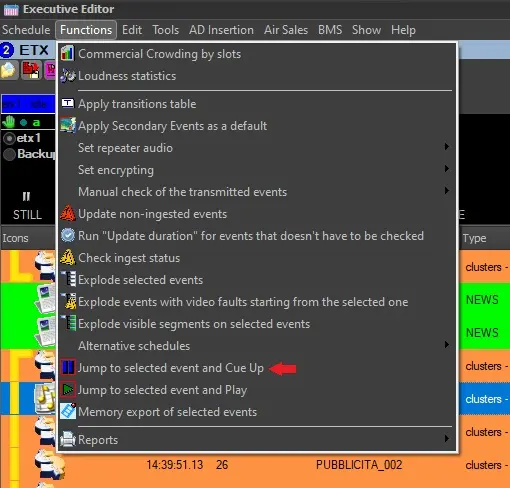
Jump to selected event and Cue Up: The schedule from selected event will be put under onair event and the schedule will be placed in line to be published. The event selected will be placed in line to go on air.
Functions
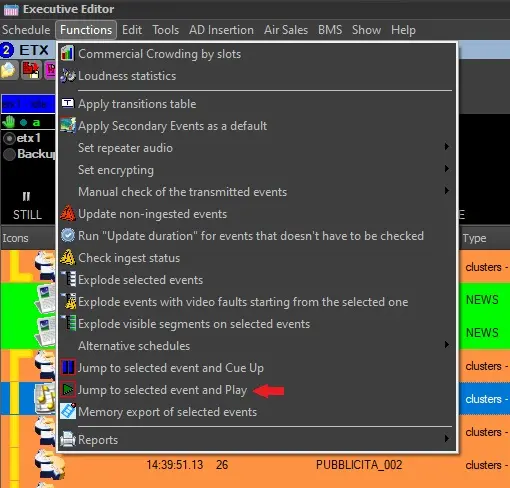
Jump to selected event and Play: The schedule from selected event will be put under on air event and the schedule will be published. The event selected will go on air.
Jump_to_selected_event_and_Play
Synchronized Playlists - Unbind events synchronized across other schedules: Turn synchronized events¹ into single-channel events. In this way, the changes performed to those events will be applied only on the current schedule. Further information on this topic can be found in the Synchronized Playlists chapter.
¹ : Synchronized events are those scheduled across different stations featuring the same value in "event" field.
Reports: Allows to visualize and print specific data records depending on the user selection:
• Production Guide: Shows the current schedule divided across time segments.
• Manual Emergency: Shows the current schedule exactly as it will be broadcasted by Automation in case of emergency (e.g. events without any media linked to them).
• Schedule: Shows a report containing events scheduled on the currently open schedule.
• For Newspapers: Shows the current schedule suitable for newspaper distribution, taking the information inserted in the Etere Scheduling | Media Library | Metadata | STORY field of the assets scheduled in it.
• Other Reports: Open the main Reports Module that will allow the operator to choose between more than 150 reports the one that suites it needs.
• Customized Reports: It allows you to create through a simple user-friendly wizard, custom reports based on user-defined queries which search for specific data into the database.
Snipes: Open the Snipes window for the currently opened schedule day. For more information on this feature please refer to the Snipes chapter.
Note: This function is available only for the customer license 1345.
Push: By selecting this function you can display and change the properties of the imported event, its properties includes object type, push type (e.g. push_banner, push_squeeze, etc), estimated time, etc.
OTT Restart System: This function generates a detailed notification list about the start time and end time of each program executed in the system. The generated list would be send to OTT Restart System via Web services.
Parental Guidance: From the Executive Editor you can view the Parental Guidance programs indicated by their icons in the Properties column. This function displays the PG programs scheduled in the day and commands list used by STMan to manage the Web service.
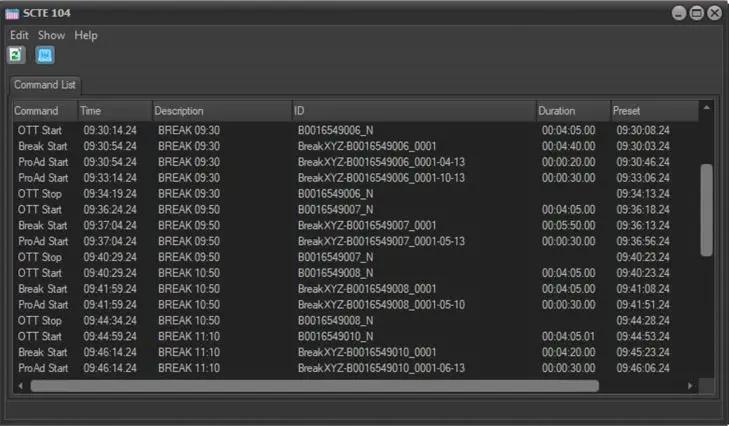
SCTE 104: This function displays the list of SCTE 104 commands sent to the schedule.
SCTE_104
Run workflow to delete subtitles: Executes, in the assets selected, the wf set in Etere Configuration > Configuration editor > Default t-workflow > Subtitles: delete all items. It allows to remove the subtitles imported through the Secondary events > DSK tab in media library. This function is visible only once the default workflow has been set.
 SCTE_104
 Functions
 Jump_to_selected_event_and_Play