84.4.4.18 STANDARD > GENERIC > XML ASSETS FULL
Export Scope - The XML Asset Full export allows exporting an XML file containing all database information related to an asset.
The database information includes asset main data fields, secondary data fields, as well as EDL data would be exported.
Specifications
This export includesthe following nodes:
▪<Filmati> (asset properties)
▪<FSerie> (related seasons)
▪<FUsers> (related stations)
▪<Tipologie> (related type)
▪<TipologieProp> (properties of related type)
▪<FArtisti> (related artists)
▪<Artisti> (full info of related artists)
▪<Ruoli> (related roles)
▪<FGeneri> (related genres)
▪<Generi> (full info of related genres)
▪<TipoGeneri> (types of related genres)
▪>FRegistrazioni> (related tapes)
▪<FSupporti> (related files)
▪<FS_Xfilefilm> (related files)
▪<FS_Metafile> (related metafiles)
▪<FParentalAdvice> (related classifications)
▪<ParentalAdvice> (full info of related classifications)
▪<FEDLDescription> (related EDL lists)
▪<Finterruzioni> (EDL points contained within EDL lists)
▪<SmpteDictionary> (related flexi-metadata)
▪<SmpteMetadata> (values of related flexi-metadata)
▪<Installations> (related Etere sites)
It's worth mentioning that before and after the export certain conditions are checked and some actions taken:
After export
The "Export to federated sites" Flexi-metadata of exported assets is set to "false".
Exported fields:
Detailed information on the fields managed by the XML Asset Full function can be found in the Etere tables and fields and Sample file chapters.
Export Parameters
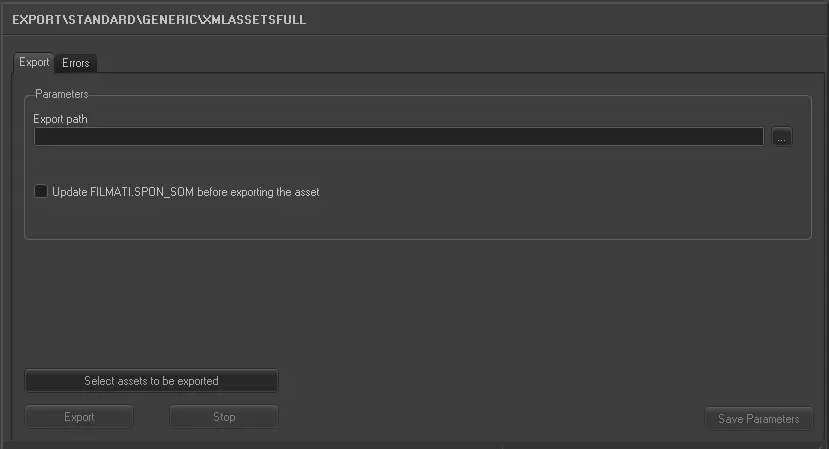
In order to use this export function the following fields must be compiled:
Export path - Data of exported assets will be written in single XML files created with the following name format:
Etere.Asset.[SiteID]_[AssetID]_[yyyymmdd]_[hhmmss].xml
[SiteID] - ID of the source site (e.g. 701)
[AssetID] - ID of the exported asset (e.g. 12345)
[yyyymmdd] - Date on which the asset was exported (e.g. 20130831)
[hhmmss] - Time at which the asset was exported (e.g. 102245)
NB: The date (yyyymmdd) and time (hhmmss) of exported files is always in UTC format (GMT +0).
For instance: Etere.Asset.456_4235_20130721_215513.xml
Select assets to be exported
Open the Media Library's search engine for selecting the assets intended to be exported. Assets can be searched using the filters listed below and pressing the [Search] button:
Filters groups
Base - Id, code, title, type, stations, sites, genre, artist, etc
Media - Duration, metadevice, codec, video file, workflows, worksheets, etc
Dates - Production, ingest, creation, arrival, scheduling, validity start, expiry, etc
Flags - Ok to broadcast, live, expired, ingested, archived, inactive, not tapeless, etc
With - Edl, video tape, data tape, subtitles, cad approval, detected blacks, etc
Full-text - Title, segments, artists, genres, roles, metadata, subtitles, documents, etc
Retrieved assets can be selected by clicking on them while holding the [SHIFT] key (consecutive selection) or the [CTRL] key (discontinuous selection), then double-clicking on the entire selection.
Update FILMATI.SPON_SOM before exporting the asset - If the option is enabled, the start time of sponsored asset (FILMATI.SPON_SOM) would be updated in Asset Repository’s table in database to retain the logical start time before exporting the asset.
Launch the export
Once the export has been configured, it can be started just by pressing the <Export> button, a xml file will be created for each selected asset within the indicated folder.
NB: In case some problems are encountered during the export process, under the 'errors' tab it will be possible to consult them in order to override them.
Sample exported file - Please refer to the "supported asset fields" chapter.
 5082_Export_standard_generic_xml_asset_full