Basic Operations
70.3.3.8 Adding a HSM Disk Library
For HSM Headquarters to communicate with the HSM Disk Library assigned to the Server, the HSM Disk Library needs to be added to the Server tree.
1. Launch HSM Headquarters from the monitor console right right-click Server in the Headquarters tree select “Add,” and select “Etere Disk Library” from the list.
Etere HSM - Headquarters 1
2. Click <Connect> to establish a connection to the disk library. Upon connection, the HSM Disk Library would be added to the Server tree for communication with HSM Headquarters.
Etere HSM - Headquarters 2
NB: When a Disk Library is added to HSM Headquarters, Windows assigns Disk ID “0” to the disk, the Disk “0” does not represent the position of the disk in Disk Library.
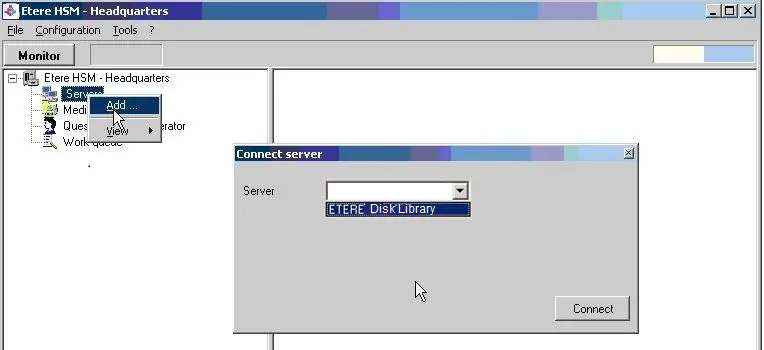 hsm_add_disklibrary
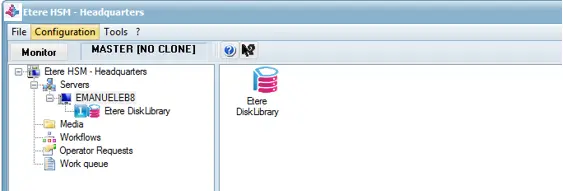 hsm_disk_library