71.16.3.2 Preview Channel Configuration
This section describe configuring an ETX resource as ingest preview channel.
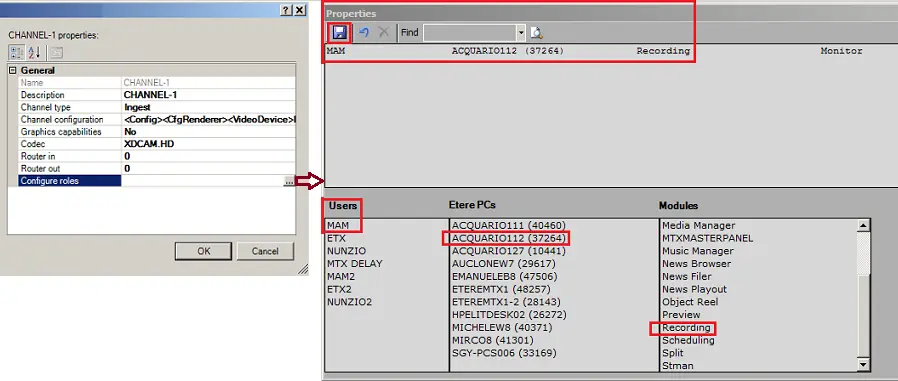
Properties
❖Name: Enter a channel name.
❖Description: Enter a short description to identify the Preview channel.
❖Channel Type: Select “Preview” as the type of channel.
You can click the ETX_Channel_Configuration_Add icon to add new channel, or click the ETX_Channel_Configuration_Remove icon to delete the selected channel.
•When new channel is added, the channel number would be created progressively after the last channel number, e.g. "Channel -5" in the instance above.
•When deleting a channel (e.g. "Channel -4") the configuration dialogue would reposition to the previous channel (e.g. "Channel -3") upon deletion. You would need to respond (click “Yes”) to the warning message to confirm the deletion.
•If you delete a channel in middle position (e.g. "Channel -3") and create a new channel, the new channel number would reuse the last deleted channel number, which is "Channel -3".
Once the Channel configuration is completed, click the ETX_Channel_Configuration_Confirm icon to confirm and save the channel settings.
❖Channel Configuration: Click on the arrow to launch the Channel Configuration dialogue.
Playlist
•Video format: Select a video format from the list.
•Audio format: Select an audio format from the list.
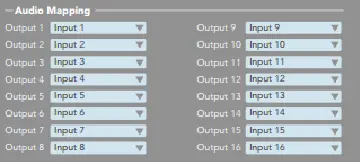
Audio Mapping
•Audio mapping: The Audio Mapping allows to define up to 16 audio channels.
Audio Mapping
NB: In Audio Mapping, default audio channels would be inserted if the mapped audio channels are not presence in the file.
Loudness normalization:
•Enable/Disable the Loudness normalization feature
•If loudness normalization is enabled, set a loudness unit to normalize the loudness to a target level. For example, when the reference normalize level is set at -14.00 LUFS, if a program is analyzed to be -10.00 LUFS, the level would be lower by 4 dB to match the target loudness of -14.00 LUFS.
Output
•Render: Specify a render of the output device, e.g. NDI Renderer, if NDI is selected as input source.
•Channel: Select the output channel.
•Output stream: Click on the arrow and select the type of output stream as indicated in the screenshot below.
Streaming format
Options
•Cue on TC: Use this option to prevent seeing black frame during video clip preview
- If the parameter is set to “True” clips are cued using timecode.
- If set to “False” (default) clips are cued using clips from start offset (TC requested in - clips 1st frame timecode).
•Fade duration (ms): Specify the duration (in millisecond) for applying the fade effects.
NB: Warning message would be prompt if configuration GUI is close (using the "X" button) without saving the settings.
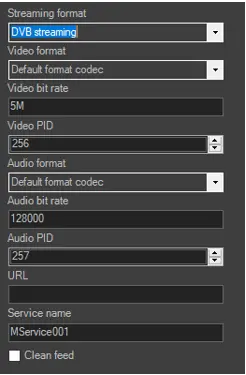 Streaming_format
 Properties
 Audio_mapping