59.2.6.5 Codes
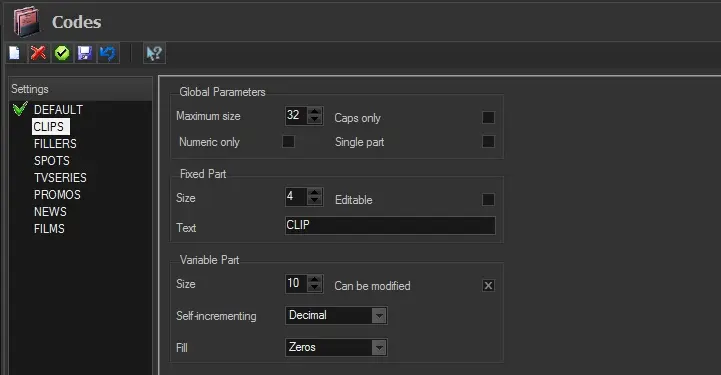
The "Codes" section allows the creation of custom layouts to generate codes for assets and seasons automatically. Code layouts can be created, for instance, for specific asset types:
Codes
Automatically generated codes are made up as described in the following example
Fixed part
Example 1: Fixed part - C; L; I; P
Example 2: Fixed part - C; L; I; P
Example 3: Fixed part (modified) - C; L; I; P
Variable part
Example 1 : - 0; 0; 0; 0; 0; 0; 0; 0; 0; 1
Example 2 : - 0; 0; 0; 0; 0; 0; 0; 0; 0; 2
Example 3 : - B; L; A; C; K; B; I; R; D
Each layout can be defined by configuring the following parameters:
Global parameters
Maximum size - Indicate the maximum number of characters the code can have.
Numeric only - Specify the code should only consist of numerals.
Caps only - Select the option allowing the code to appear in upper-case letters only.
Single part - Specify if the code should be a single part. (otherwise, it will be made up of a fixed and variable.
Fixed part
Size - Specify the number of characters to be considered "fixed" (i.e. the same for all generated codes).
Text - Specify the leading text (prefix) to be put at the start of the code.
NB: If the text comprises ten characters and the size has been specified as eight, only the first eight characters will be fixed; the remaining will be variable.
Editable - Select this parameter if the fixed part of the code should be editable when required by the user.
Variable part
Size - Specify the number of characters considered "variable" (i.e. different for all generated codes).
Self-incrementing - Select whether the code should be in decimal, hexadecimal, alphabet, ID or date increments.
Fill - Specify whether gaps should be filled with zeros or spaces.
Can be modified - Select this parameter if the variable part of the code is adjustable when required by the user.
NB: The variable part of codes cannot be manually set during an asset creation, only when modifying existing asset code.
Enabling the use of automatic codes
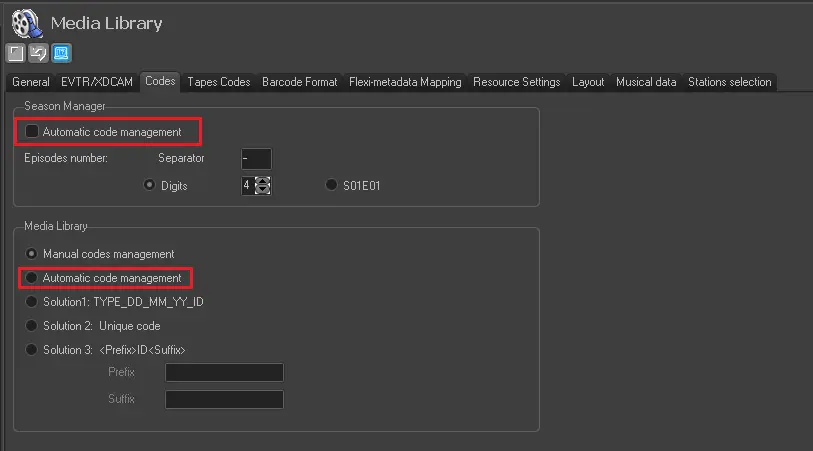
1. First of all, the automatic code generation (based on layouts defined here) needs to be enabled for season assets (managed by the Season Manager) and single assets (managed from the Media Library) under the "Etere Configuration > Settings > Basic > Media Library > Codes" section:
automatic_codes
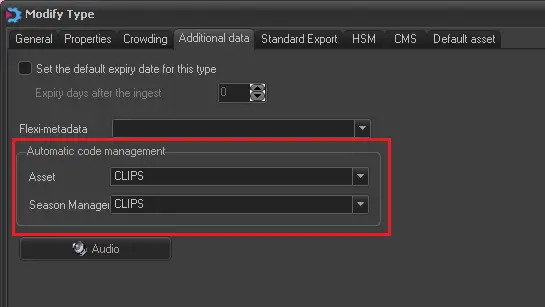
2. Then, Code Layouts need to be assigned on each asset type (e.g. clips, trailers, spots, etc.) for which the automatic code generation is intended to be used under the "Etere Configuration > Settings > Types > Additional data > Automatic code management" section:
Asset type
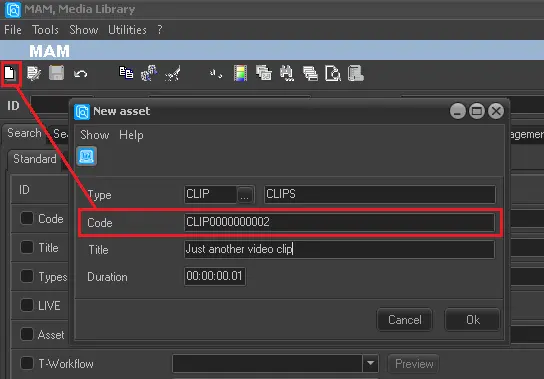
3. Once the system is configured, code layouts will be automatically used when creating new assets, either automatically or manually:
code_layouts
 automatic_codes
 code_layouts
 Codes
Codes
 Asset_type