User Messages
14.3.1 Create New Message
Creating messages in the User Messages module is a straightforward task; it would take just a couple of minutes to complete the task.
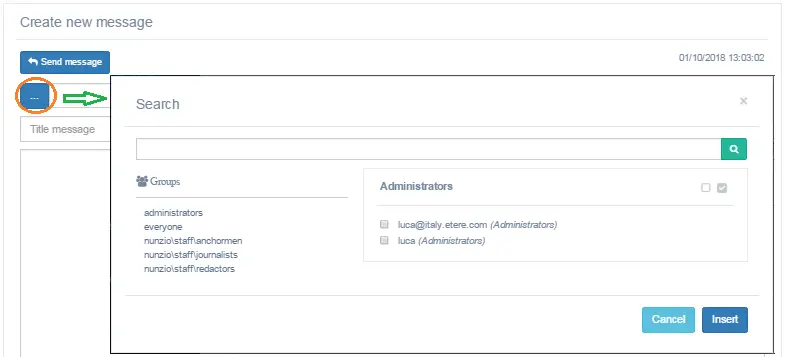
- First, click the <Search group and user> button to lunch the Search panel and select the recipient group and user to whom you intend to send the message.
Create New Message 1
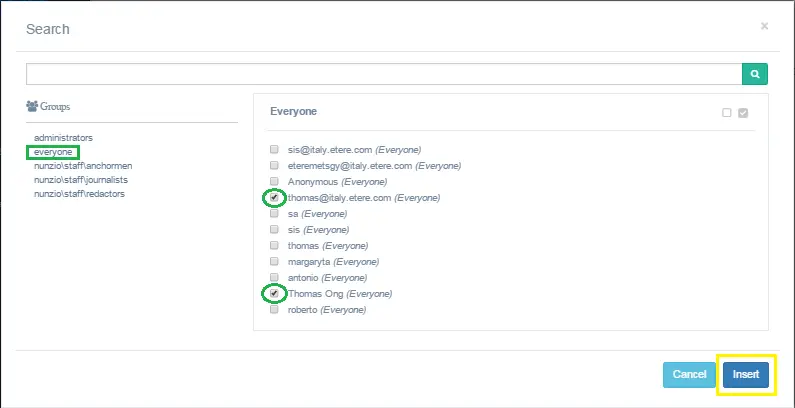
- Next, select a user "Group" from the left panel to display the users grouped under the selected group on the right panel.
Search
- Select the intended users in the group to receive the messages. You can toggle between different user groups and select users from each group to receive the notifications.
Alternatively, when you are WITHIN a user group, you can use the "Select All" icon to select all users in the same group or the "Deselect All" icon to reset the selection.
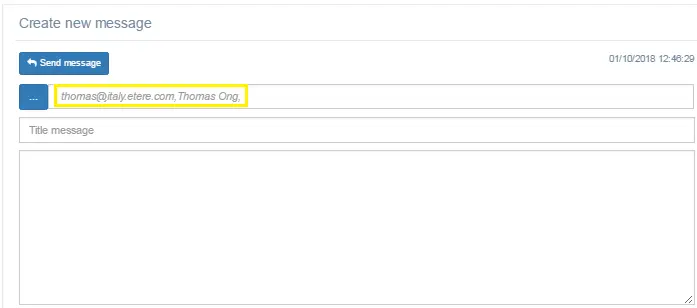
- When all desired users are selected, click the <Insert> button to confirm your selection. The selected recipients would be inserted into the text box, as shown in the image below.
Create New Message 2
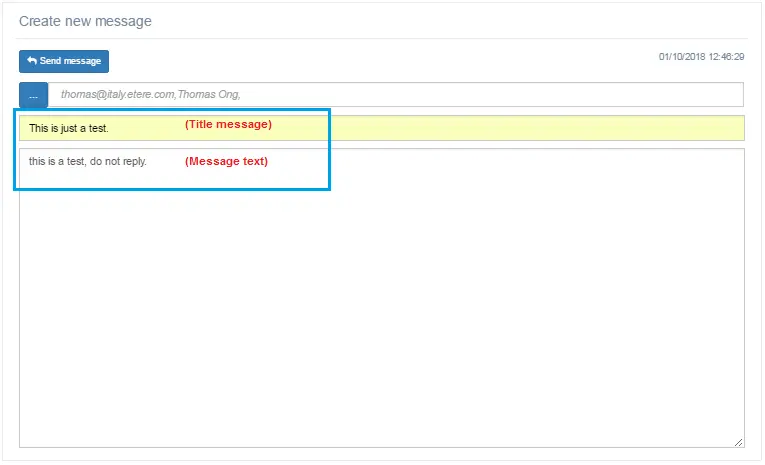
- In the <Title message> field, enter a subject title to identify the subject matter of the intended messages.
- DO NOT PRESS the <ENTER> key, ELSE the message will be sent without content.
Now, enter the content of the text messages in the blank field.
Create New Message 3
- Next, click the button to transmit the messages over the network to EtereWeb stations. If the transmission is successful, a popup message will be prompted for notification;
- You can view the messages you have sent recently in EtereWeb by simply clicking on the "Sent messages" section and locating the sent messages.
 Create_New_Message_1
 Search
 Create_New_Message_2
 Create_New_Message_3