84.2.6.9 Video Assist - Create and Open Snapshots
Create a snapshot of the broadcast schedule
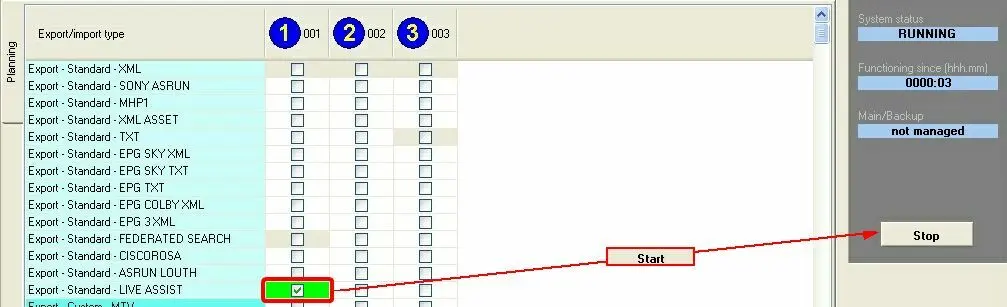
In order to use the Video Assist tool, broadcast schedules needs to be exported from the main system, this can be done by using the Video Assist Export feature of Etere F90 for exporting schedules from the Main server to the Video Assist server. This export can be performed either manually or automatically:
•Manually: Open the Etere F90 module, enable the 'Video Assist' export and launch it manually, just as shown below:
5031_Manually
•Automatically: Open the Etere F90 module, enable the 'Video Assist' export and start its automatic execution (according to the frequency set for the said export):
5032_Automatically
Please note that each time a new snapshot is created from Etere F90 (either manually or automatically), the clock alarm warn will be displayed in the top part of all Executive Editor instances of the Video Assist server to indicate operators that there's a new Video Assist schedule available.
Open a schedule snapshot
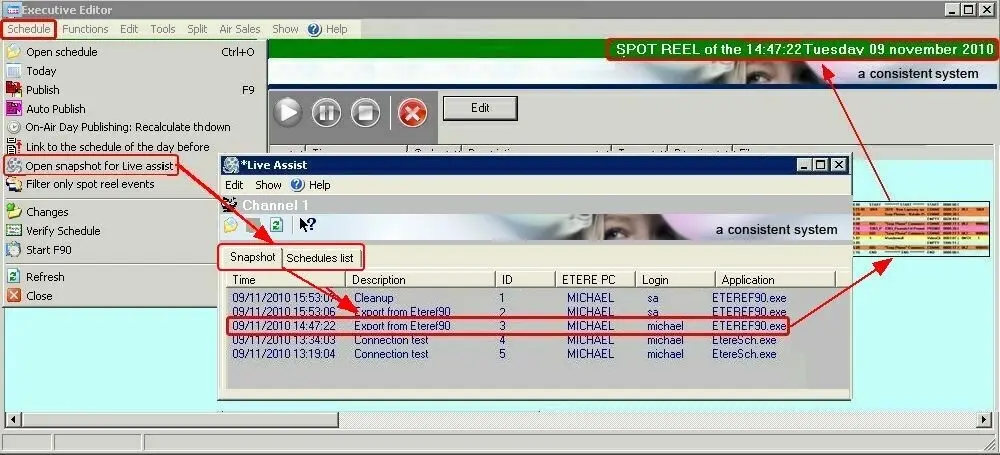
In order to open a certain snapshot, it is enough to go to the Executive Editor schedule menu and select the 'Open snapshot for Video Assist' option, a small window will allow to open the snapshots available in the two following tabs:
5033_Open_snapshot_for_Video_Assist
•Snapshot: Focused by default, in this tab it will be listed all the snapshots of the current open day,
•Schedules list: Here will be listed all the snapshots already loaded in the Video Assist server.
Snapshots are listed in descending order based on their creation time; displaying for each snapshot (besides its time), also its brief description, its identification progressive number, the Etere PC and Login account and the application used to create it (Etere F90 or Etere Scheduling). Moreover, by navigating to the Edit menu, it will be possible to set the maximum 'number of snapshots to show' in the list.
Independently of the tab from which snapshots are selected, they can be opened just by making double-click on it, after which, the snapshot will be loaded in the current schedule and the database's asset repository will be updated with all the events present in the snapshot.
Filtering events in the schedule
An important feature of Executive Editor permit operators to filter either:
•Schedule menu | Filter only Short Event Reel events: Use this option to REMOVE from the current schedule all those events which type doesn't have the 'short event reel' property enabled. Live events are also deleted with this option.
•Schedule menu | Filter only NON Short Event Reel events: Use this option to REMOVE from the current schedule all those events which type has the 'short event reel' property enabled. Please note that 'live' events are also filtered from the schedule since they are not managed in Video Assist schedules.
NB: Please note that in case the Video Assist is currently in play (not from the jog&shuttle), it won't be possible to filter events present in the playlist.
 5031_Manually
 5032_Automatically
 5033_Open_snapshot_for_Video_Assist