59.8.2.10 Resources map
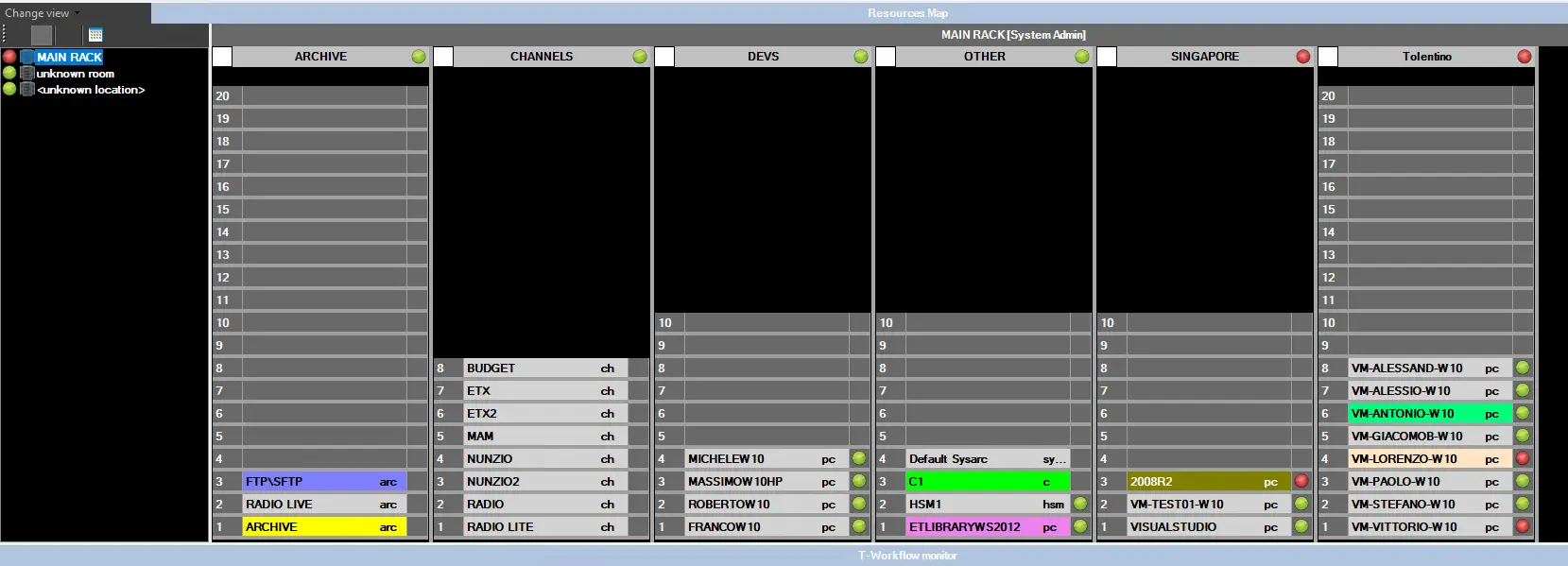
The Resources Map tool allows to specify where to allocate the various workstations used across the system, thus allowing to, for example, indicate the rack position of the workstation on which an error has occurred.
Due to the SNMP capabilities of the Monitoring Console, in case a rack/device has SNMP errors messages, a red balloon will point out this issue; otherwise, if there are no errors a green balloon will be displayed:
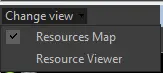
Change_View
Resources Map
Moreover, it's worth mentioning that the Resource Map is available from the following modules with the following capabilities:
▪ Monitoring Console: All users can view racks but only system admins (with Supervisor rights) are allowed to modify the devices in the racks. User with Supervisor rights is allowed to perform the tasks below and save the changes:
- Edit rack parameter in Rack View
- Move devices by dragging them between racks
Users without Supervisor rights can only view the devices in the racks, the <Save> button would be disabled.
▪ Resources Editor: All users can view and edit racks through the "View location" function.
Note: In case the SNMP database has either not been set or has been wrongly set, a red bar will be displayed in the Resources Map informing that either the "snmp database is not configured" or that the system "cannot open the database [name-of-wrong-database]".
 Resources_Map
 Change_View