9.2.4.7 How to use Upload Manager
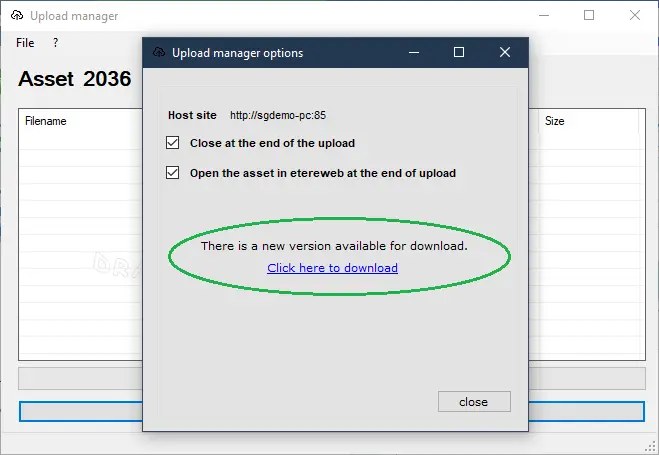
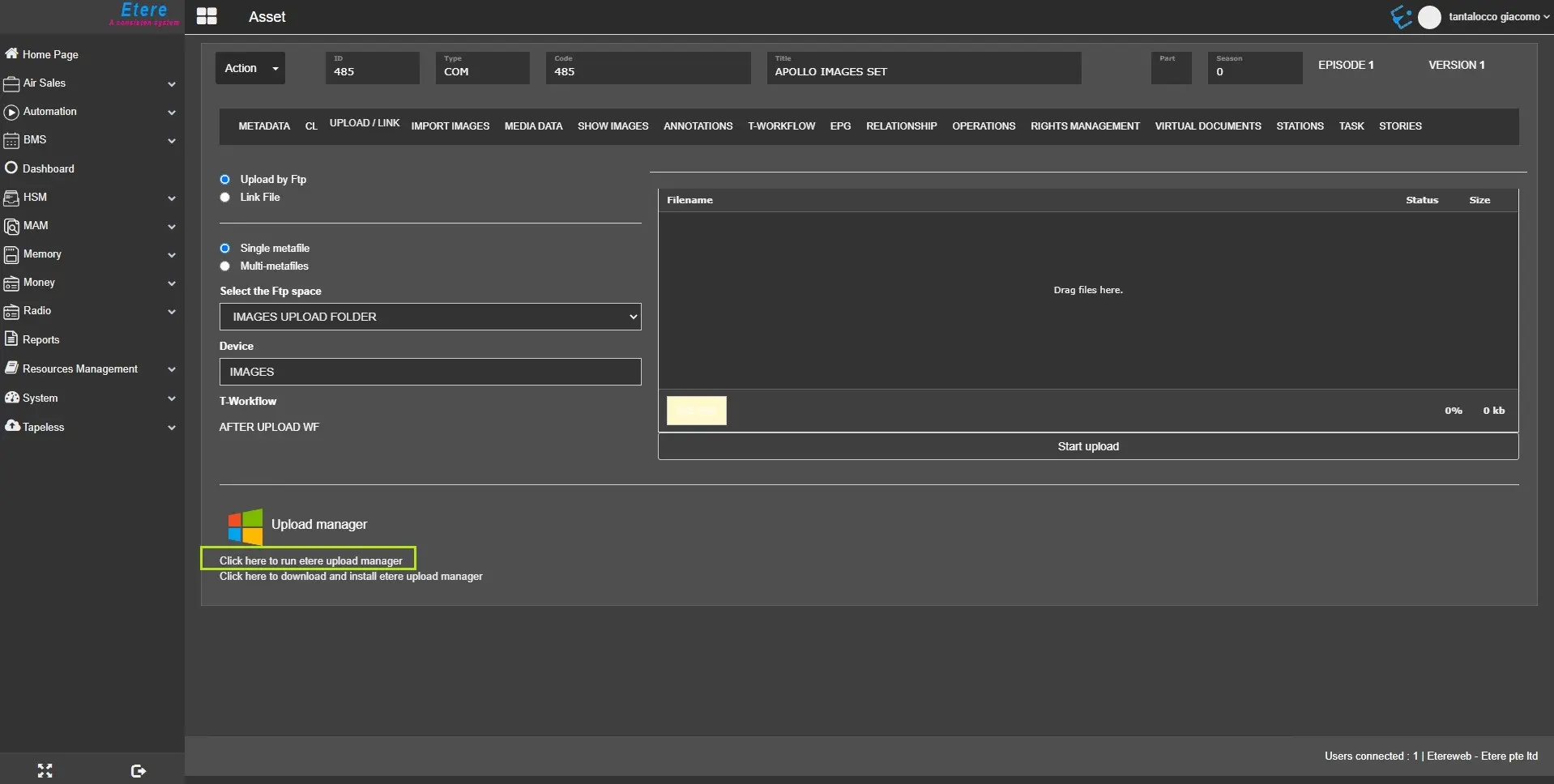
Once the Upload Manager is installed, click “Click here to run Etere Upload Manager” to launch the uploading dialogue for the selected asset.
run_upload_manager
upload_manager
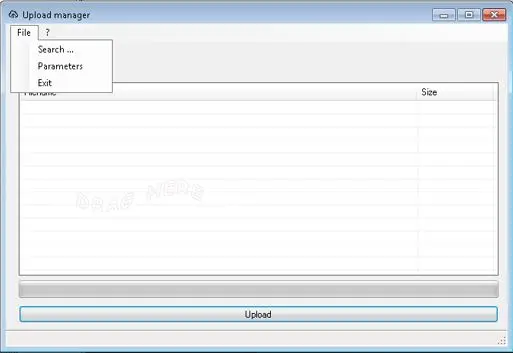
Before uploading, click on the File menu to view the available features.
File_menu
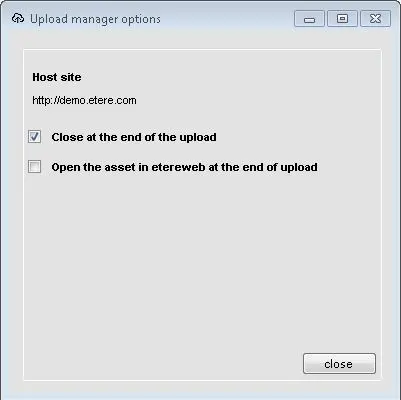
Select the Parameter function to determine the options to manage the Upload Manager.
Parameter
Select an option and close the Parameter setup.
Next, select the Search function from the File menu to locate the file to upload.
select_Search_function
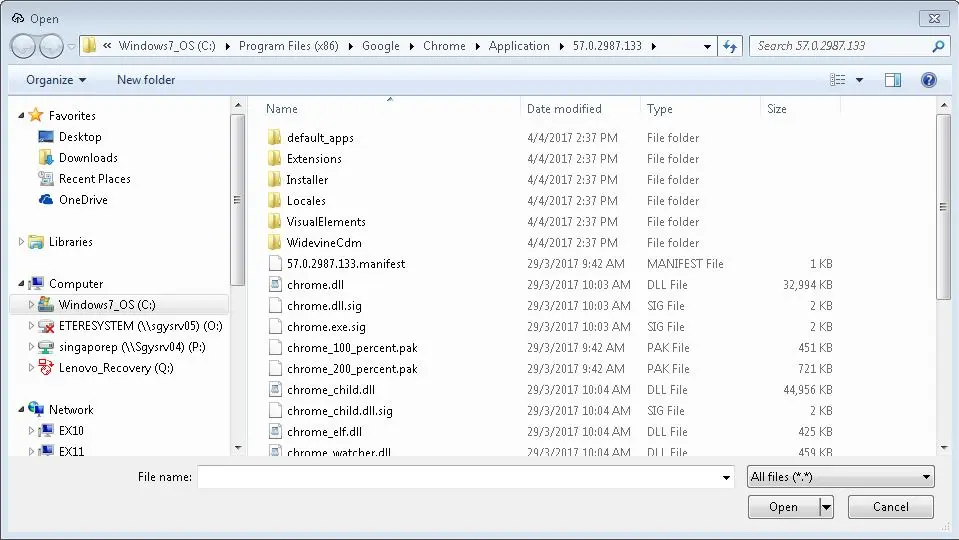
From File Explorer, select the desired file to be uploaded to EtereWeb and click <Open> to confirm the file selection.
Alternatively, you can drag and drop the file into Upload Manager.
File_Explorer
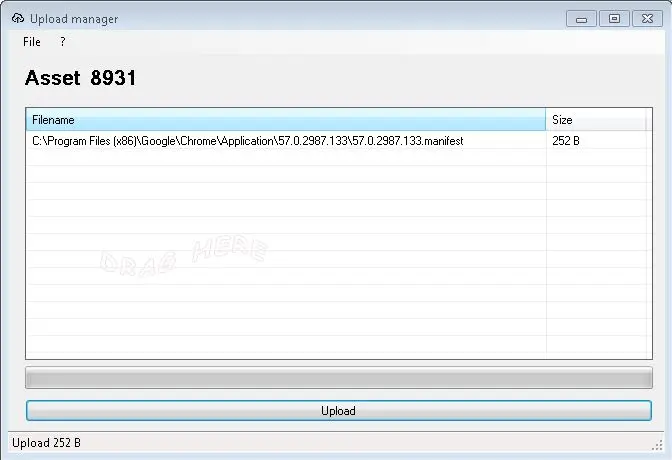
In Upload Manager, the selected file is ready for uploading; click the < Upload> bar to upload the file into EtereWeb. If the file already exists in the destination folder, the file would be over-written.
By default, the file is uploaded via TLS (Transport Layer Security) authentication when the connection is established. If TLS is unavailable, the file will be uploaded via common FTP.
WARNING: If the Upload Manager remains active although the file is uploaded successfully, you can automatically add a registry key to close Upload Manager at the end of the file upload.
In [Computer \ HKEY_CURRENT_USER \ Software \ EtUploadManager], add a DWORD key value “CloseEndUpload” and set the value to “1”.
 upload_manager
 File_menu
 Parameter
 select_Search_function
 File_Explorer
 run_upload_manager