91.7.2 Radio Live Director - Schedule
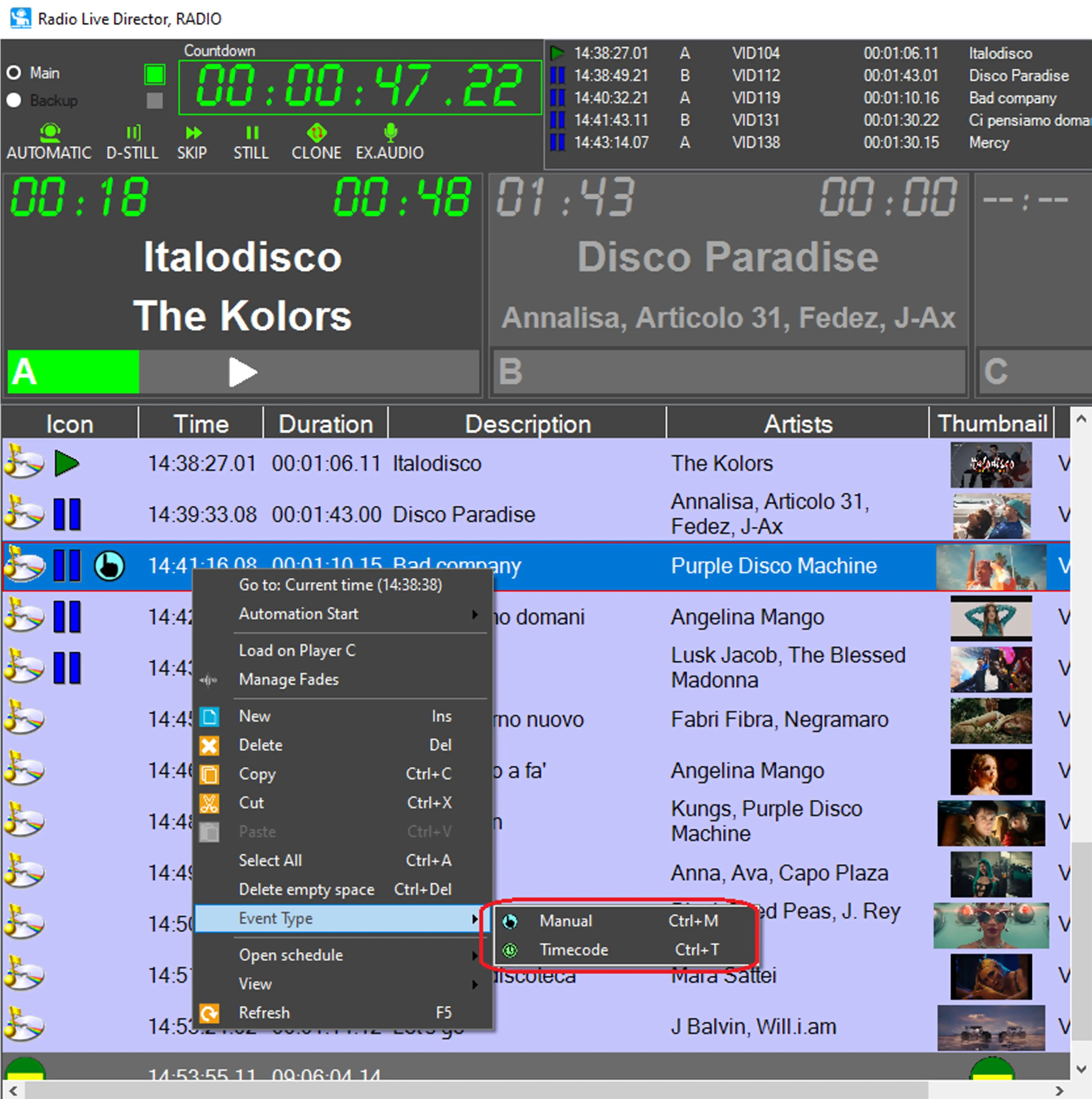
In this section it's possible to create and edit the daily schedule, through its contextual menu. Right-clicking on the schedule the following options are available:
CONTEXT MENU
Go to: Current time (XX:XX:XX): Go to the schedule time corresponding to the workstation system time.
Automation Start:
- Immediate start at the beginning of the event: Start the selected event, recalculating the scheduled time as the workstation time.
- Start at scheduled time: Start the selected event when the scheduled time matches the workstation time.
Load on Player C: Preview the event or group of events on a separate player (player C). This function can be launched, for one or more assets, also from the Asset search form, right-clicking on the selected assets and selecting the Preview option. However, to control the preview it's necessary to close the form first.
Manage Fades: Open the Manage Fades editor. See chapter 91.7.2.1 Audio Editor - Fades Management for detailed information.
New (Ins): Open "Assets Search" window, from there the user can search the desired assets, then drag and drop them to the schedule. It's possible to use the full-text search to retrieve the assets to add.
Delete (Del): Delete the selected event (or events) from the schedule.
Select all (CTRL+A): Select all events of the schedule.
Delete Empty Space (CTRL+Del): In the schedule selection, delete only the empty spaces.
Event Type: Select the event type of the selected event or events, choosing between Manual (CTRL+M) or Timecode (CTRL+T).
Open Schedule: Open the current onair schedule, the schedule of the day before (Yesterday), the daily schedule (Today) or the schedule of the day after (Tomorrow).
View:
- Onair event always on top: Visualize the schedule with the first element as the onair element.
- Group in cluster: Group commercial events in cluster or visualize them exploded.
- Icon size: Choose the size of the icons in the schedule.
Refresh (F5): Refresh the schedule and display any possible change not yet visualized.
Beside these functions, it's also possible to MOVE the events with a drag&drop.
CARTWALL
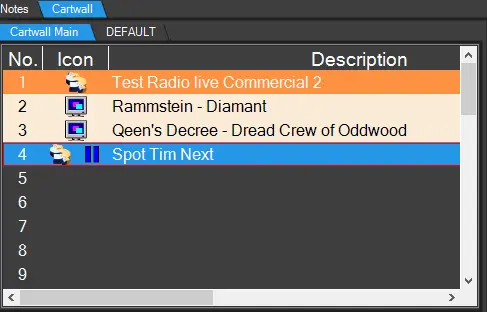
In this section , Cartwalls pre-configured from Radio Live Playout can be used to play assets on player C
PLAYER C
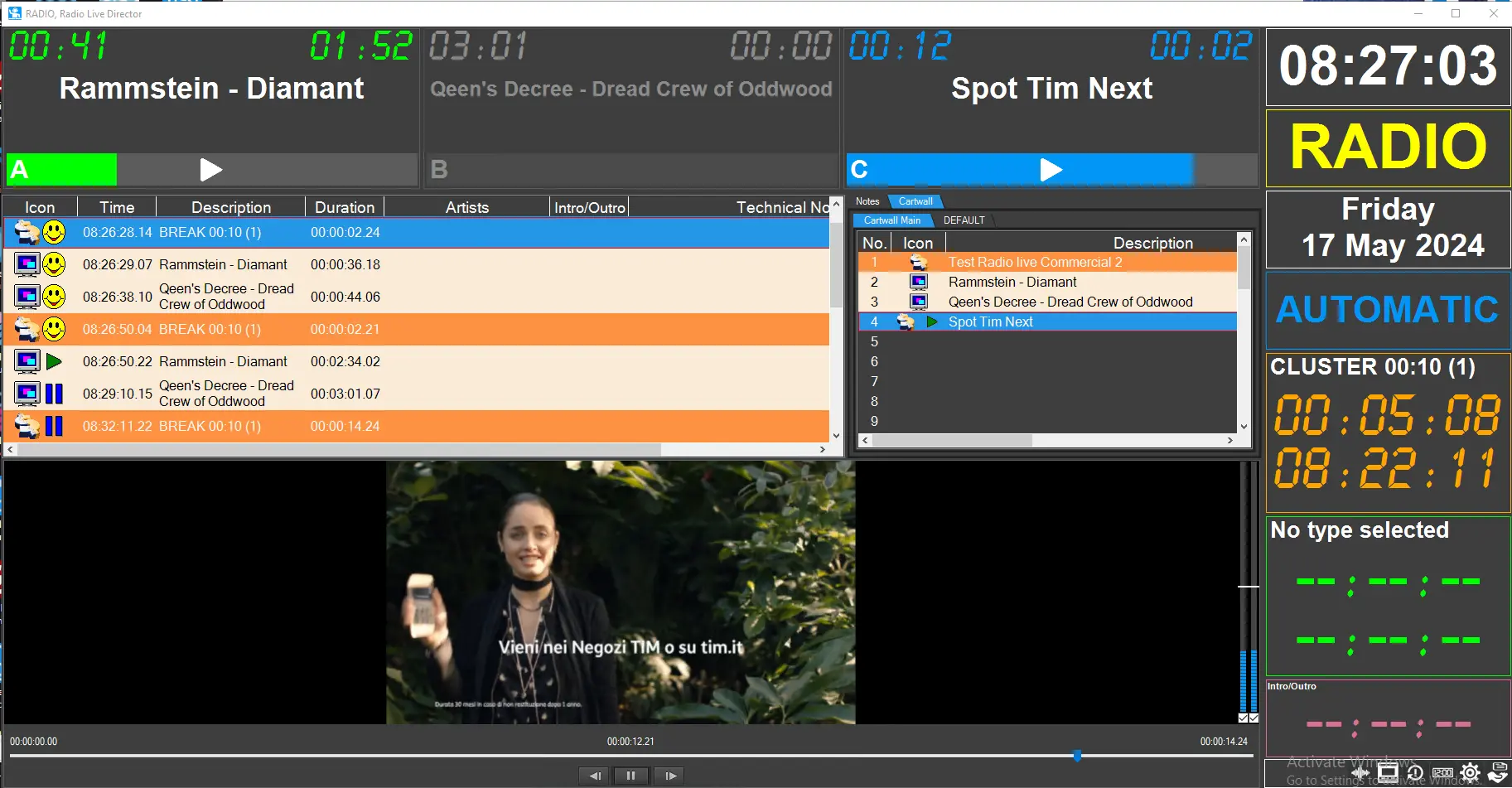
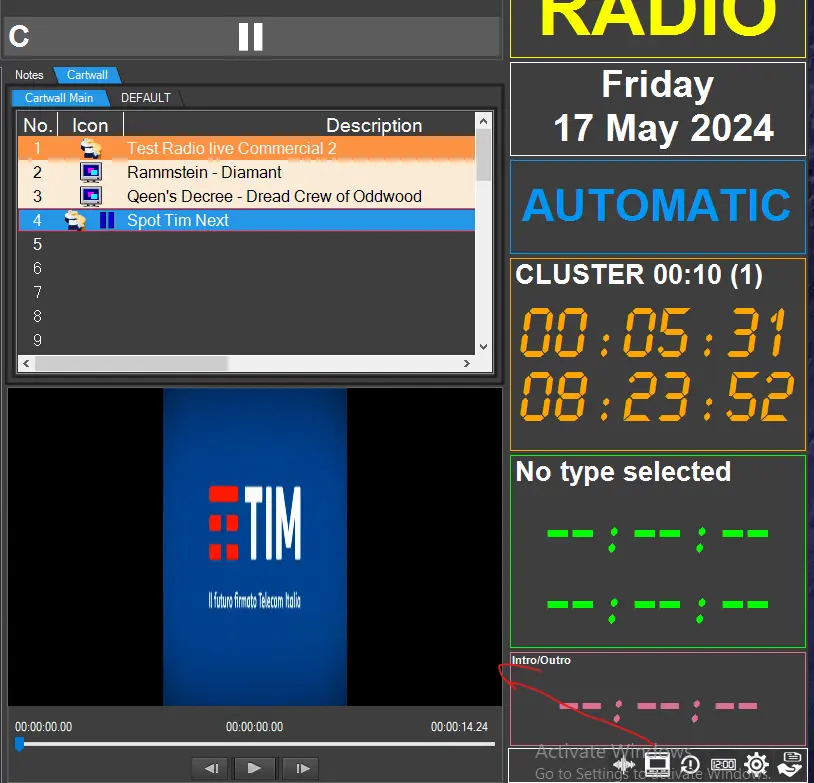
When Player C is enabled through Settings > Player C, this section visualizes the clip(s) loaded from an event or group of events using the function Load on Player C in the contextual menu. By clicking more times on player C button on bottom right corner, player C position can be changed form lower section to under the schedule, or under the cartwall section
NOTES
Visualizes what is written in the two fields of Secondary Events > Notes tab. Above the notes, the event is identified by its scheduled time and description.
The font of the text can be customized in the Notes tab of Radio Live Director's parameters. See chapter 91.7.1.0 Radio Live Director Parameters.
 context_menu
 director_cartwall
 radio_live_director
 player_C_resizable