------------------ WINDOWS APPS ------------------
50.1 GUI
Etere's Graphical User Interface (GUI) has a default dark look improved to give you a professional interface with fewer distractions and more focus towards productivity. The high contrast will help to work on any light condition from dark master control rooms to well-lit editing rooms:
Skins can be set in Etere Configuration > Settings > Basic > Etere Skin, where a broad set of colored layouts are available.
The main menu of all Etere desktop applications now features icons just like any smartphone. This menu allows a very intuitive location of modules where you can move across using both keyboard arrows and mouse.
MENUS
The right part of the window holds the main menu, which displays items depending on what is selected in the left sidebar:
Start
This menu shows the applications contained in the module. Applications can be hidden if the related right is disabled or if they're not included in the purchased license.
This menu shows the applications contained in the module. Applications can be hidden if the related right is disabled or if they're not included in the purchased license.
Tools
Save logs - Open the save logs form which allows to insert some useful information and extract the logs of the module from the logs folder. The saved logs must be sent to Etere Support team for the analysis of the issue.
Restart application - Restart the module with the current station selecting also the working year or restart it and change the station.
Open new instance - Same as the Restart application button, but it allows to open another instance of the same module.
Shortcuts - Allows to assign keyboard shortcuts for most of the functions of the menus.
Install folder - Open the path C:\Program Files (x86)\Etere.
Data folder - Open the path C:\Users\[username]\AppData\Local\Etere, where [username] corresponds to the current user.
Temp folder - Open the path C:\Users\[username]\AppData\Local\Temp\Etere, where [username] corresponds to the current user.
Log folder - Open the path C:\Users\[username]\AppData\Local\Etere\Log, where [username] corresponds to the current user. Station-specific logs are saved in the corresponding "user.xxx" folder.
Debugging On/Off - Activates the debug console at the next restart. It is useful to have more details about the queries and operations performed by the module, but it's advised to let Etere Support activate it and only for debug purposes.
Save logs - Open the save logs form which allows to insert some useful information and extract the logs of the module from the logs folder. The saved logs must be sent to Etere Support team for the analysis of the issue.
Restart application - Restart the module with the current station selecting also the working year or restart it and change the station.
Open new instance - Same as the Restart application button, but it allows to open another instance of the same module.
Shortcuts - Allows to assign keyboard shortcuts for most of the functions of the menus.
Install folder - Open the path C:\Program Files (x86)\Etere.
Data folder - Open the path C:\Users\[username]\AppData\Local\Etere, where [username] corresponds to the current user.
Temp folder - Open the path C:\Users\[username]\AppData\Local\Temp\Etere, where [username] corresponds to the current user.
Log folder - Open the path C:\Users\[username]\AppData\Local\Etere\Log, where [username] corresponds to the current user. Station-specific logs are saved in the corresponding "user.xxx" folder.
Debugging On/Off - Activates the debug console at the next restart. It is useful to have more details about the queries and operations performed by the module, but it's advised to let Etere Support activate it and only for debug purposes.
Help
Support - Open the login page of www.etere.com. Once logged in, a user can contact Etere Support through the reserved area.
Website - Open the Etere website's homepage.
About - Open a small window with some useful information about the installed version, license and contact links.
Note: From Etere 34.2 version, the About form slightly changes when the module is a 64-bits application, compared to 32-bits ones, and according to the language set in Etere Configuration > Settings > System (for 32-bits apps) or in Etere Configuration > Personal data > Web and rights tab (for 64-bits apps).
Support - Open the login page of www.etere.com. Once logged in, a user can contact Etere Support through the reserved area.
Website - Open the Etere website's homepage.
About - Open a small window with some useful information about the installed version, license and contact links.
Note: From Etere 34.2 version, the About form slightly changes when the module is a 64-bits application, compared to 32-bits ones, and according to the language set in Etere Configuration > Settings > System (for 32-bits apps) or in Etere Configuration > Personal data > Web and rights tab (for 64-bits apps).
When accessing Etere modules, set your monitor display setting to 1920 * 1080 resolution to view the entire layout. Select the "Scale and Layout" setting to 100% in Windows Display Settings if you are using a laptop.
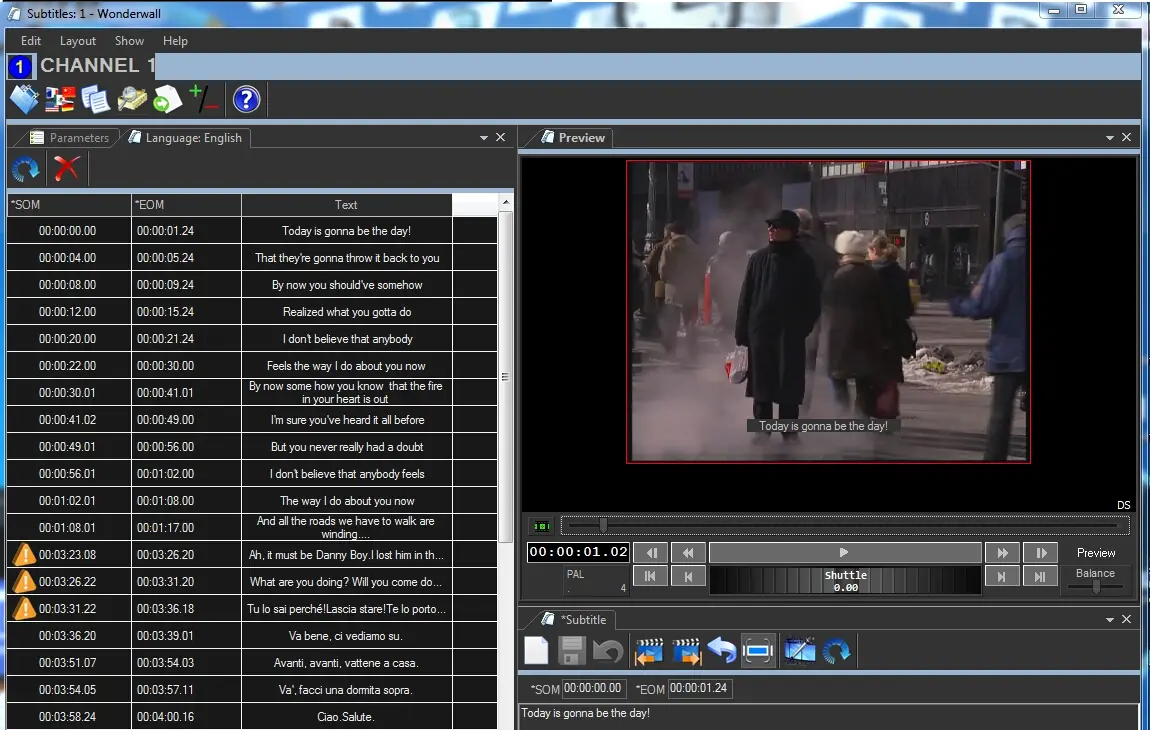 Graphical User Interface
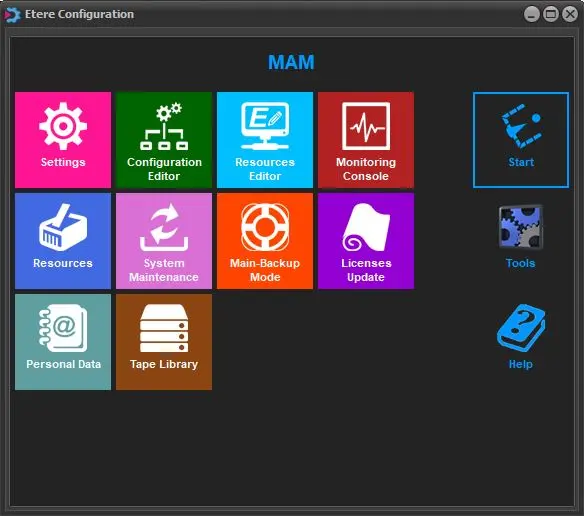 Etere MAM menu
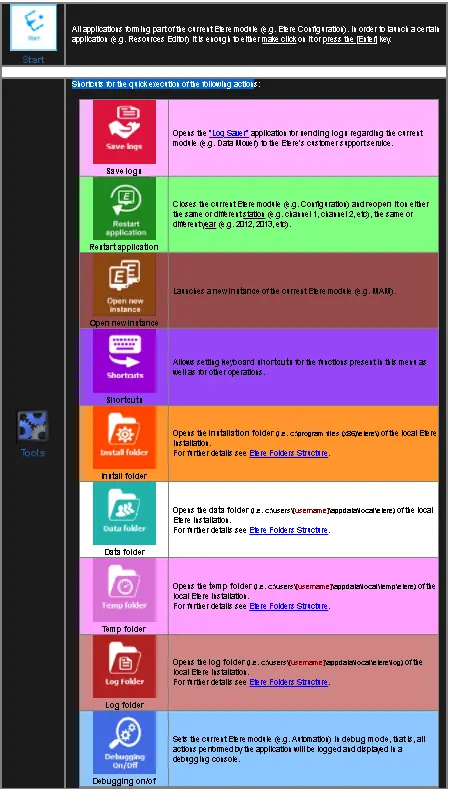 Shortcuts for the quick execution of the following actions
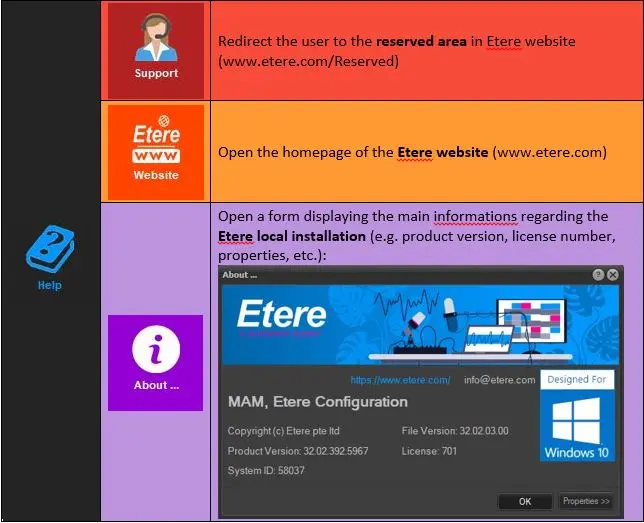 Shortcuts for accessing help information from the following places