84.12.7 Broadcast a Live event
A live event is an event without media support; the only input needed to broadcast a live event is the video router or master control channel to switch; therefore, automation must control either the video router or the Master Control. A live event is shown in the schedule with colored balloons in a square icon.
1.Create a new asset in Etere Scheduling | Asset form,
2.Go into the 'Info' tab and click on the "LIVE" icon and select the video router input channel to switch to broadcast during the event, as well as its duration,
3.Apply the changes
4.Add the event in the schedule and publish it.
5.Once on-air, automation will automatically switch the video router on the channel we put in the asset form. At the end of the event, automation will switch back if the following event has a different output channels setting from the one on air;
6.Live events are usually set as 'Manual' events (duration set in the asset form can change once the event is broadcasted), however, by default Live event's property is set to 'Timecode'.
NB: Automation sets all the manual events in "D-Still" (delayed still). This means that the operator must click on the "Skip" button to broadcast the following event. To set the manual property to a scheduled event, go to the asset form, select the code, go into the Properties | Event property, and set the manual property.
Live assets with linked child asset
From Etere version 33.2.182.6699, it's possible to schedule LIVE assets with a linked child asset and display a warning in case the link to the child does not exist.
To do so, the LIVE asset's type must have the property Link asset to live enabled.
link_asset_to_live_prop
Also, the warning is disabled by default, so in case user wants to manage live events in this way, it must be enabled.
warning_no_asset_linked
warning_no_asset_linked_schedule
To remove the warning, it's necessary to open the live asset in Media Library, browse to Relationships tab, click on the button Add link to child and select the asset to link.
add_link_to_child_button
NB: It's possible to see the linked asset even in the Daily Runs report, adding the Linked asset column. See "Daily Runs" page in Etere Configuration > Reporting services chapter for more information.
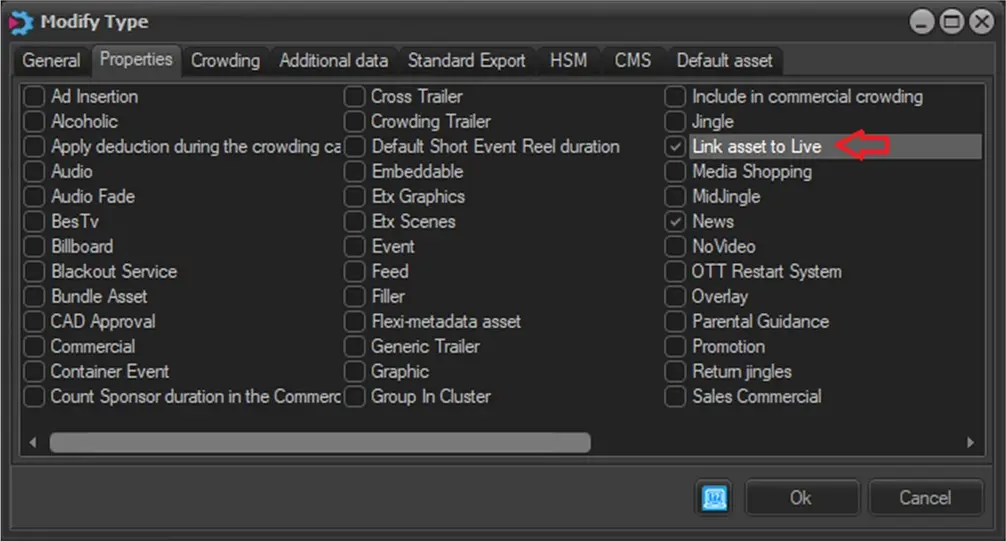 link_asset_to_live_prop
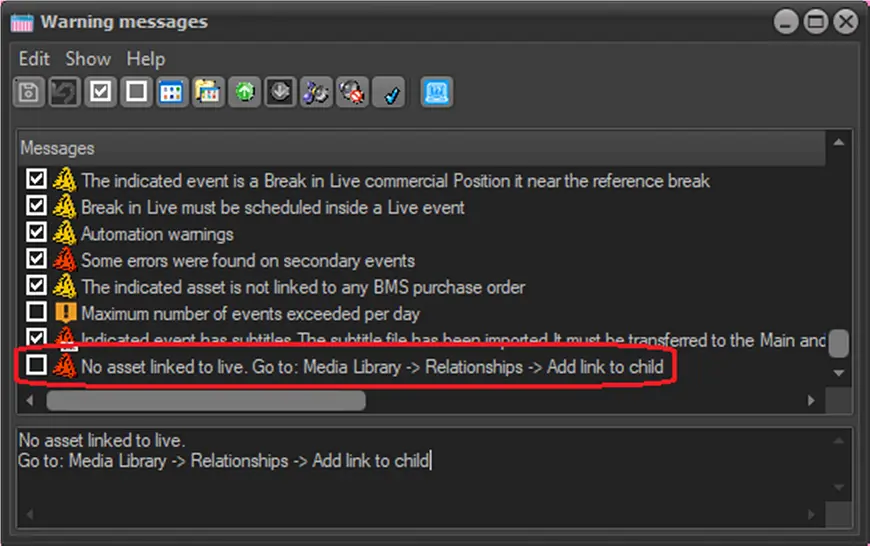 warning_no_asset_linked
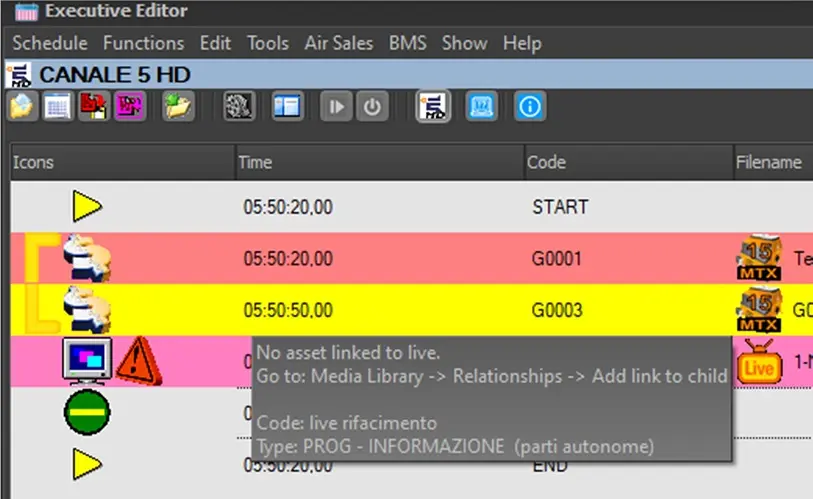 warning_no_asset_linked_schedule
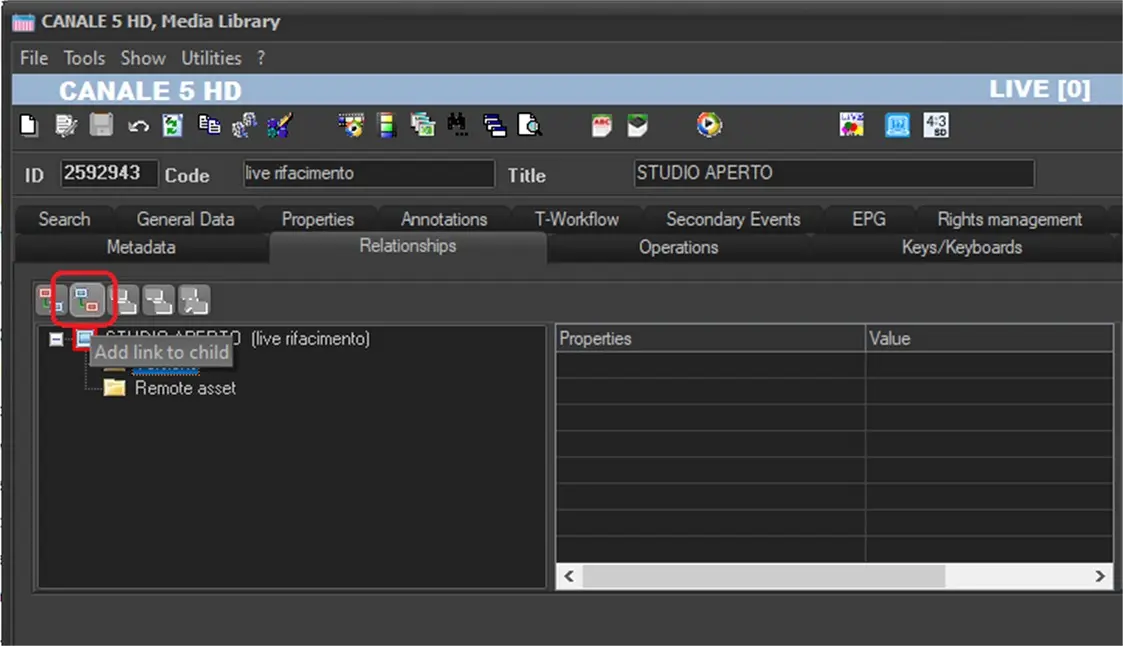 add_link_to_child_button