91.7.2.1 Audio Editor - Fades Management
Radio Live Director allow to manage the transitions between audio files through the function Manage Fades.
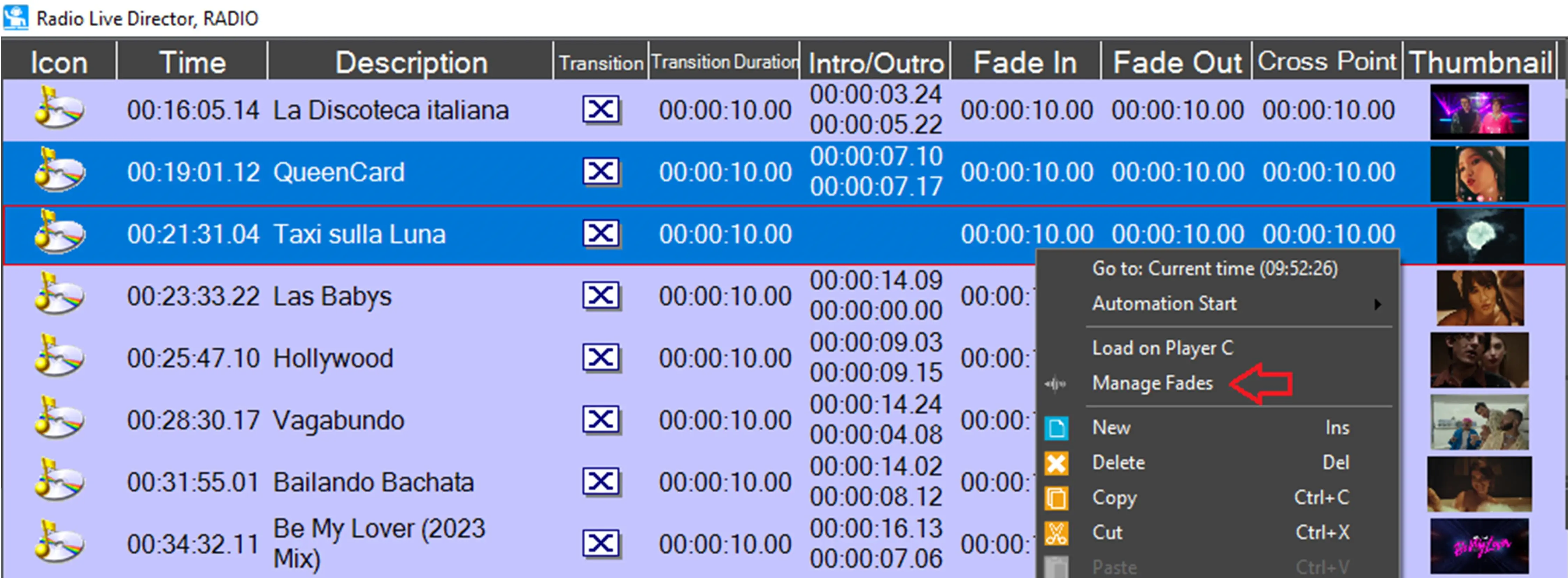
To access the fades management window, it's enough to select one or more assets in Radio Live Director schedule, right click on them and select Manage Fades.
contextual_menu
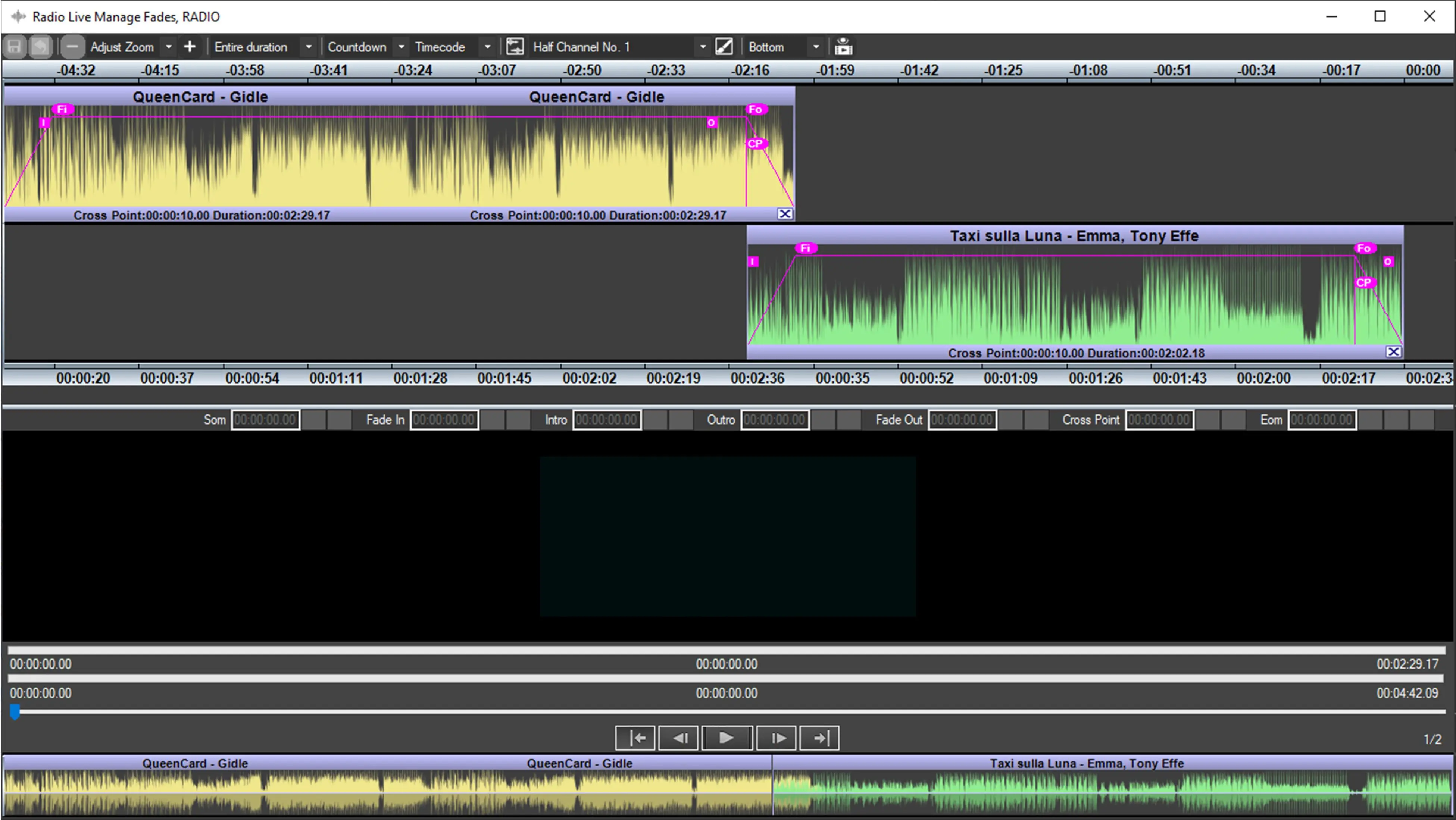
the following form will open:
manage_fades
Preliminary Considerations
Audio Wave Form
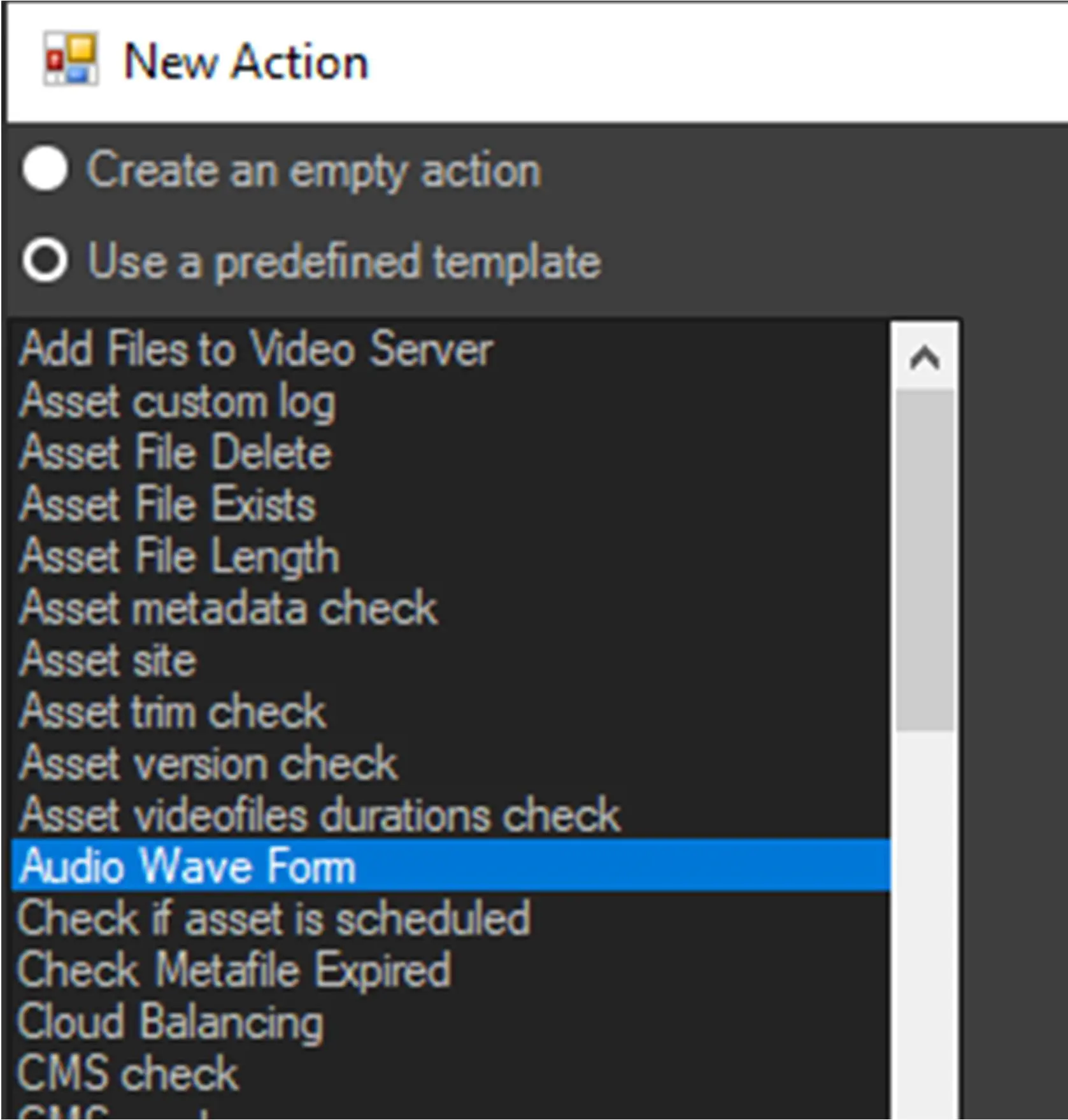
In order to see the audio files' waveform in Manage fades, it must be generated with the workflow action Audio Wave Form.
audio_wave_form_action
Radio Live Director Columns
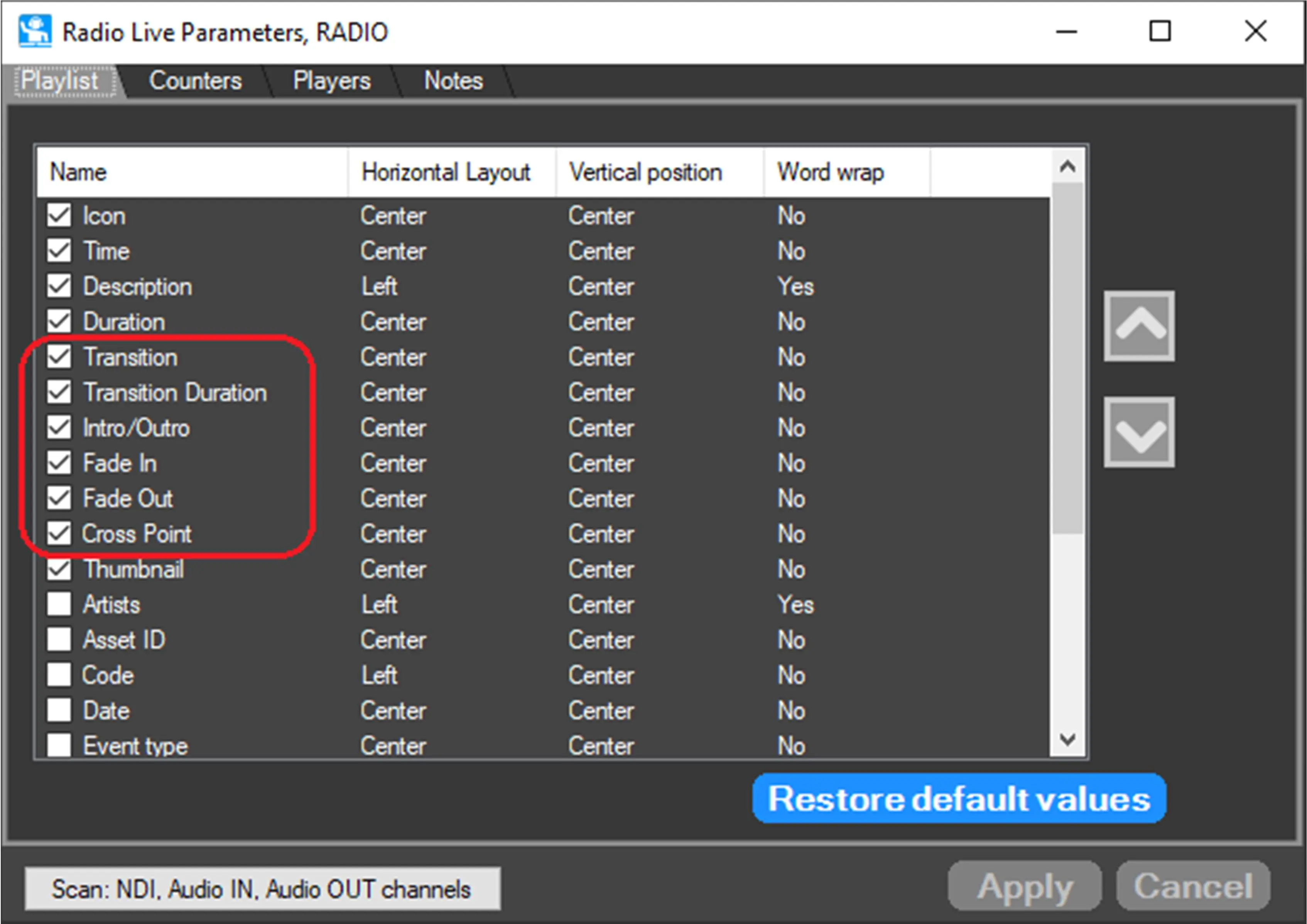
The following columns can be added to the schedule, to allow users to see fades information:
additional_columns
Manage Fades Form
The form consists of the following sections:
Toolbar
Save: Save the changes. In case the user tries to close the form without saving, a confirmation message will be prompted.
Undo: Revert the changes.
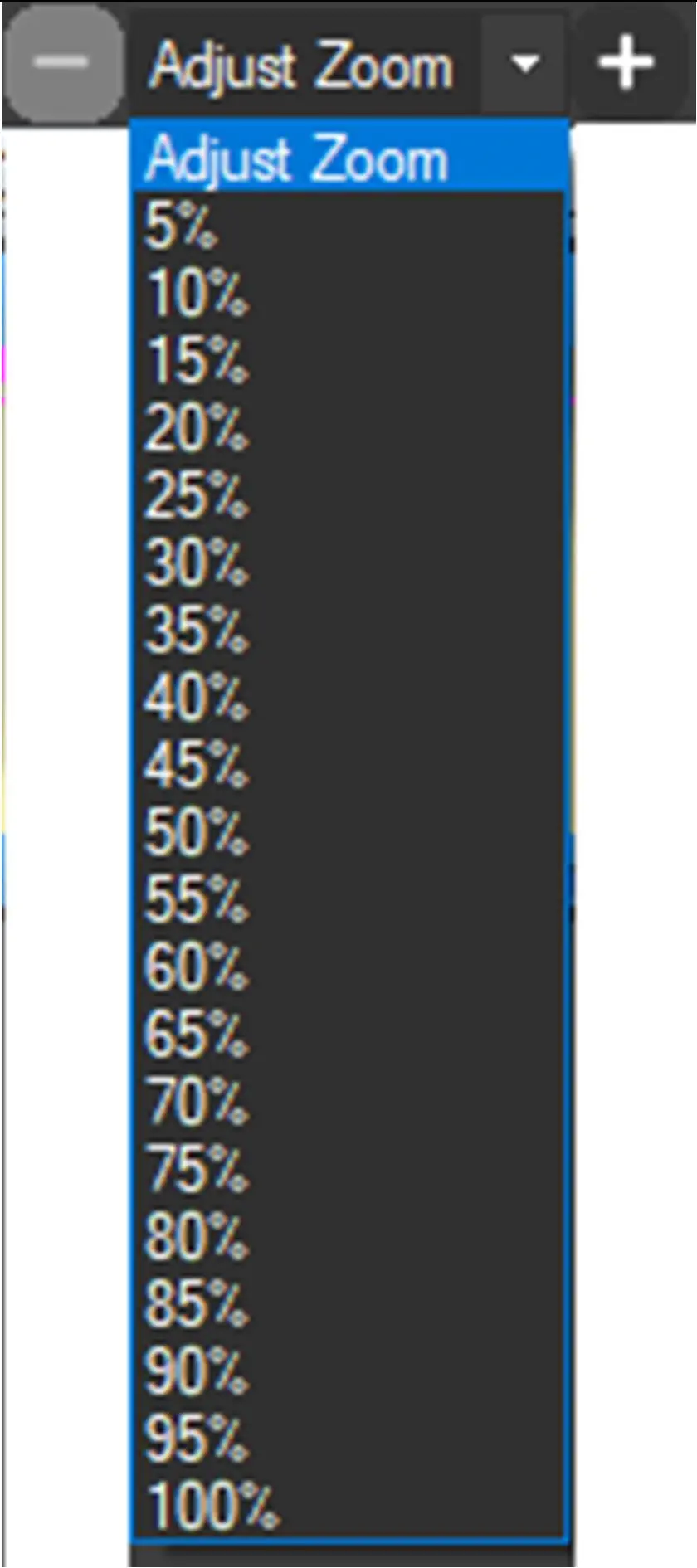
Adjust zoom: Allow to set the zoom of the waveforms. The value "Adjust zoom" stretches the timeline to fit the width of the form. With [+] and [-] buttons it's possible to increase and reduce the zoom step-by-step, otherwise select one of the values in the droplist.
adjust_zoom
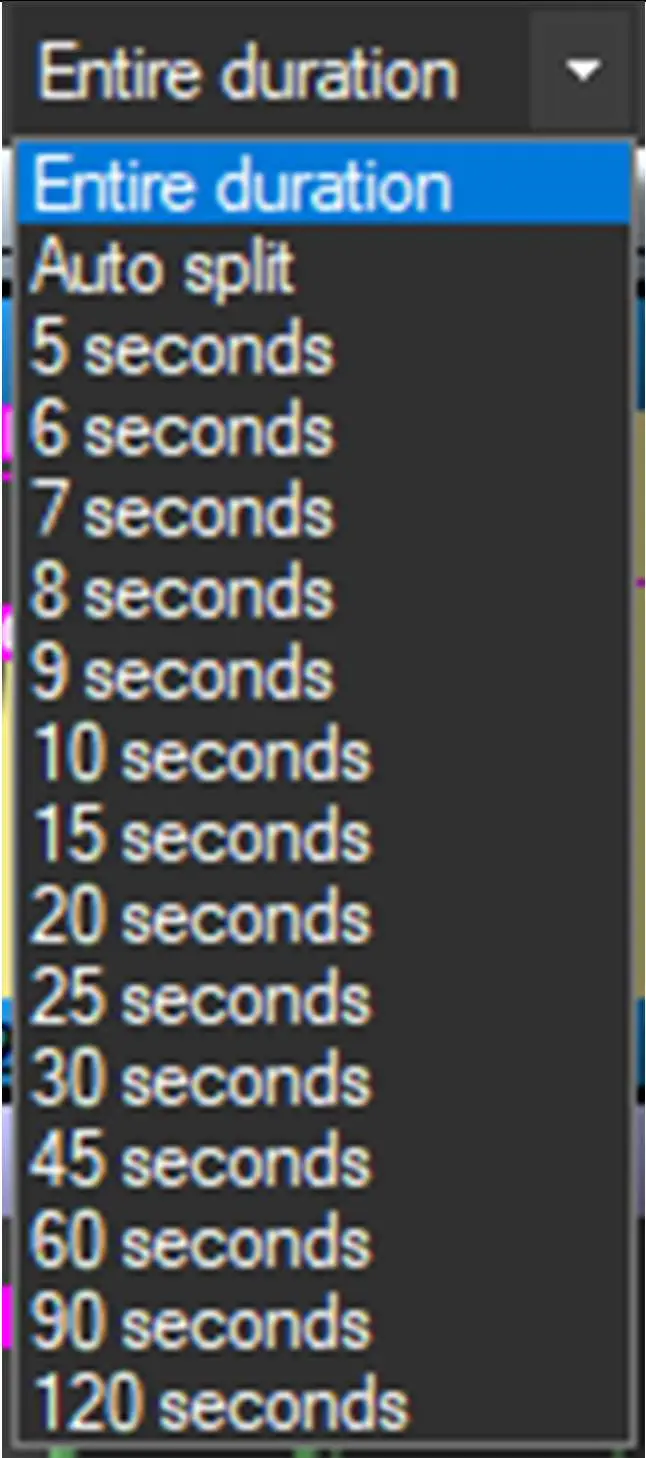
Segments: It is possible to split the events into two parts, so you only have the first and last part. “Auto split” chooses the minimum length necessary to display all the data of the events present in the timeline.
segments_droplist
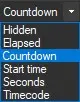
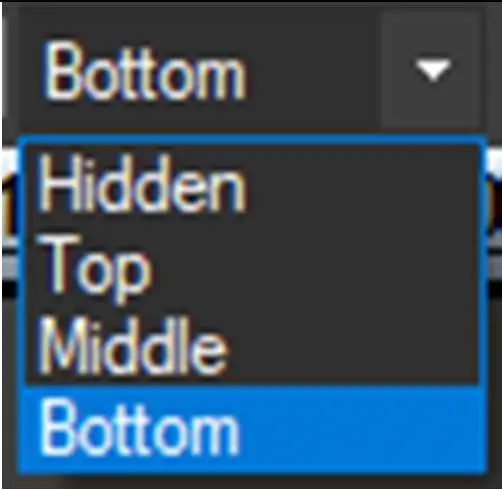
Timeline top and timeline bottom: This option allow to choose what to display at the top and the bottom of the timeline, or hide them. The toolbar contains 2 identical droplists: the one on the left controls the timeline top, the one on the right controls the timeline bottom.
timeline_top_bottom
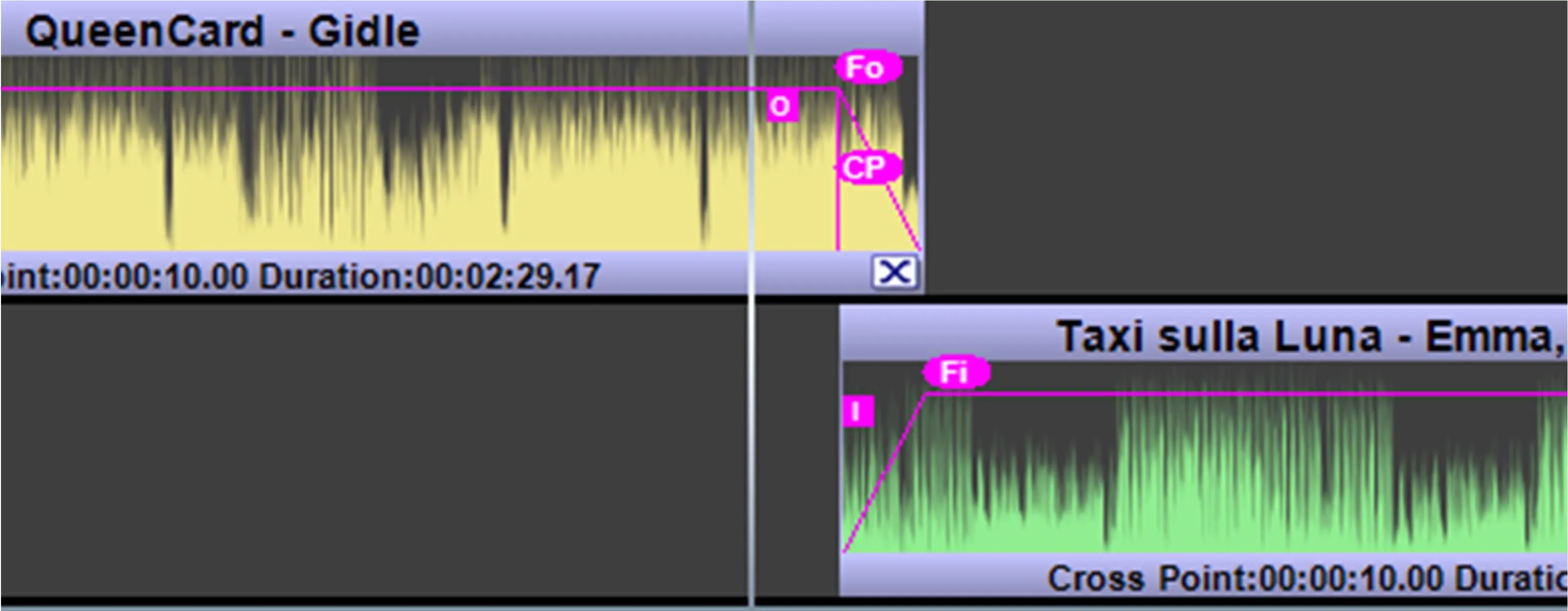
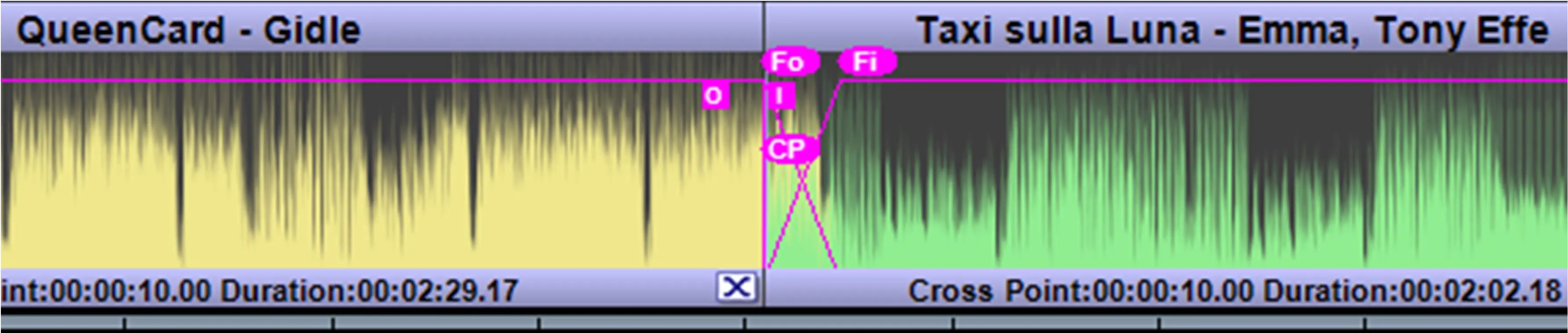
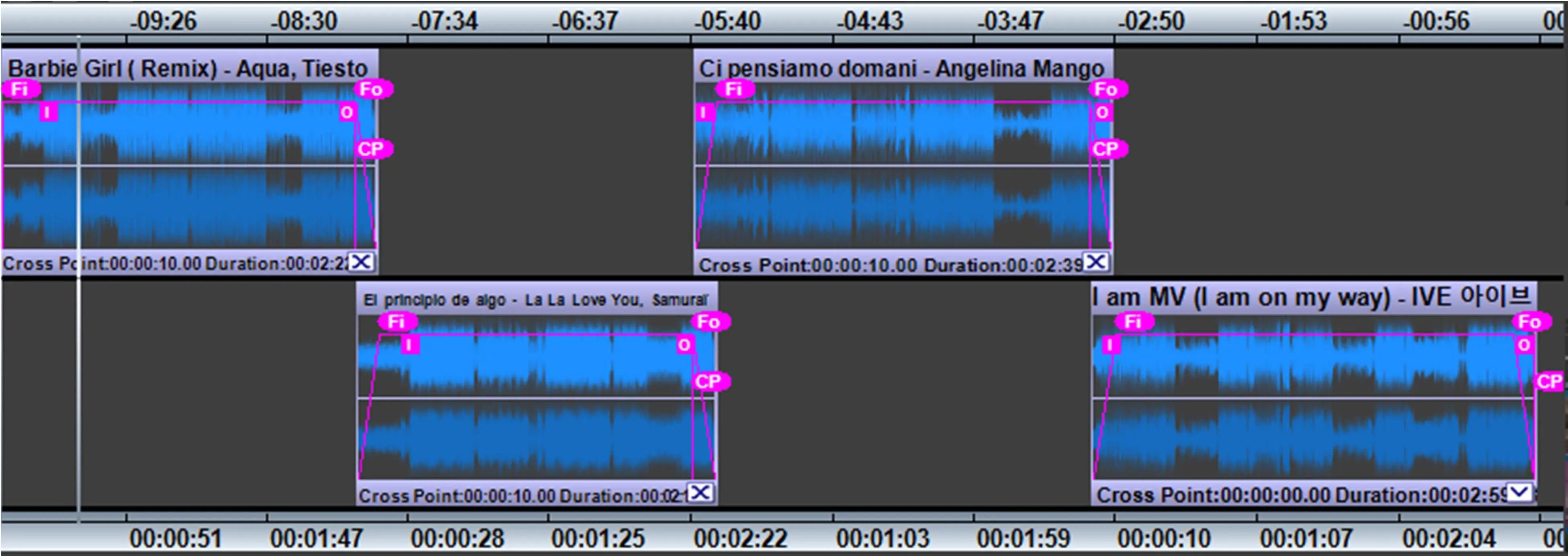
Two lines: This button let you to see the events in two different lines or in a single line.
two_lines_button
two_lines_view
single_line_view
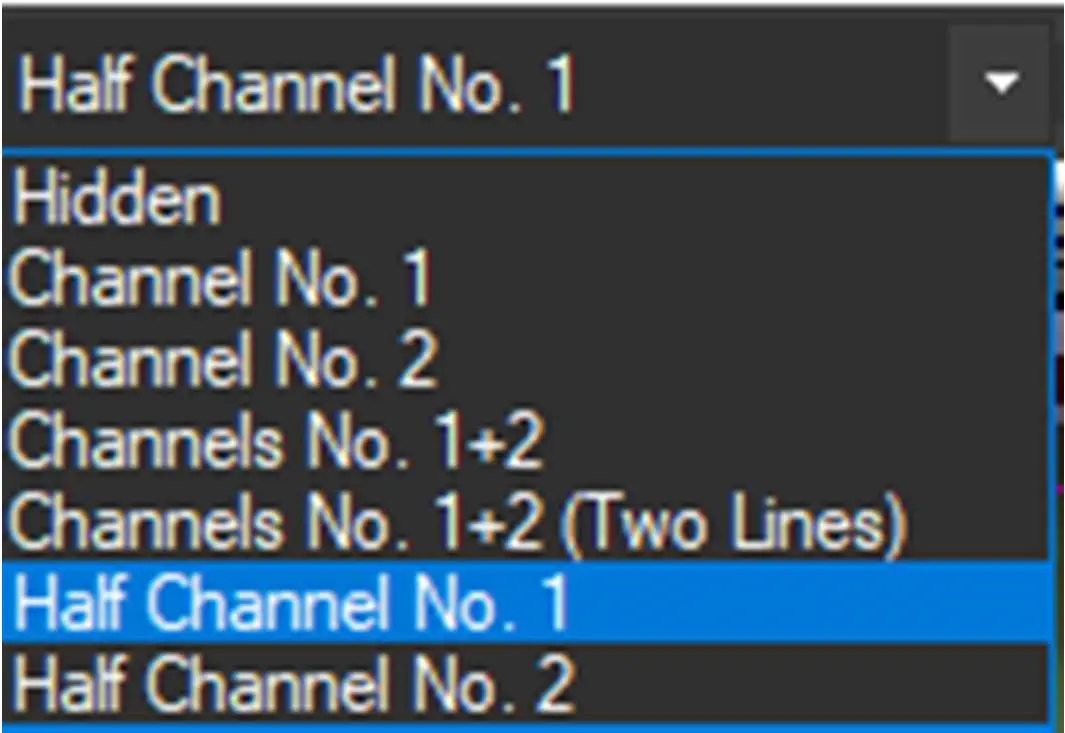
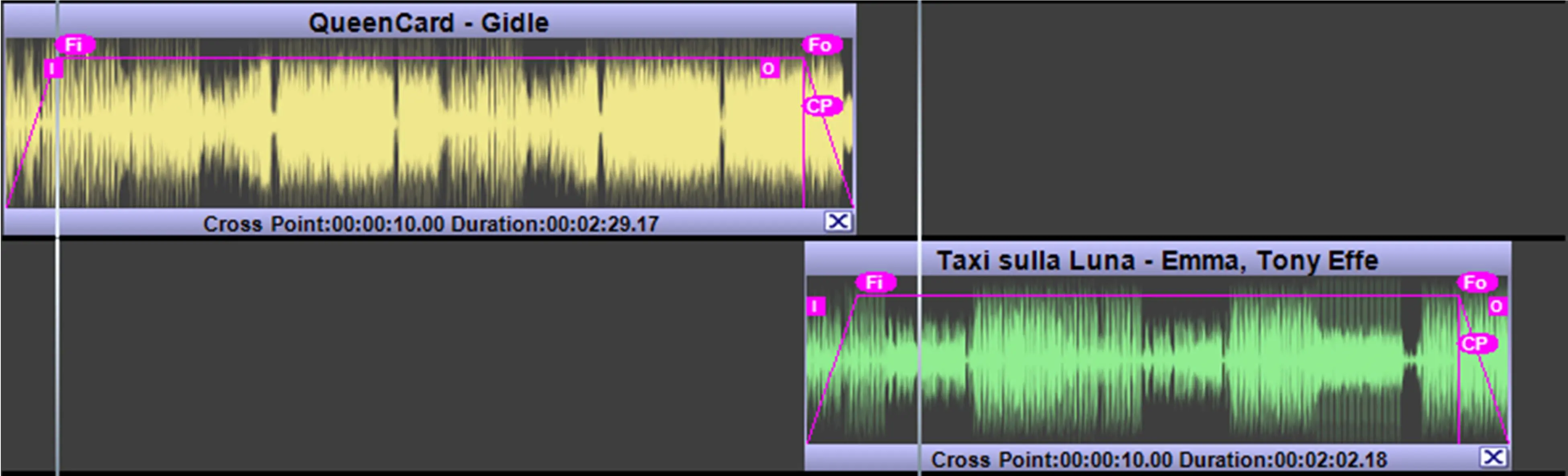
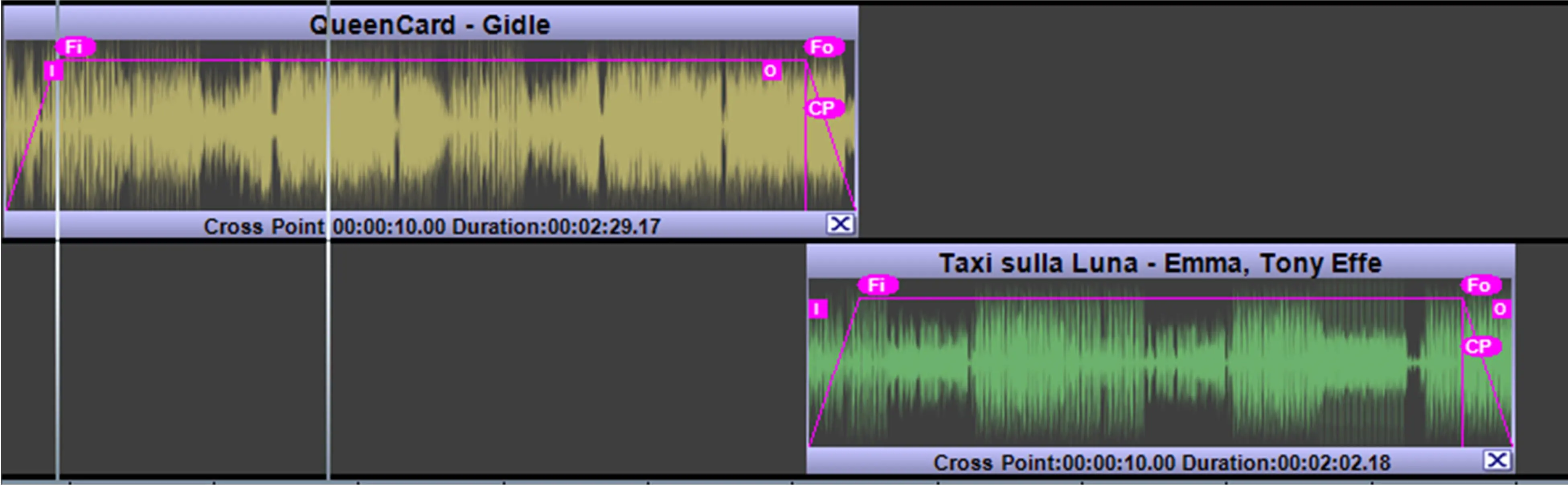
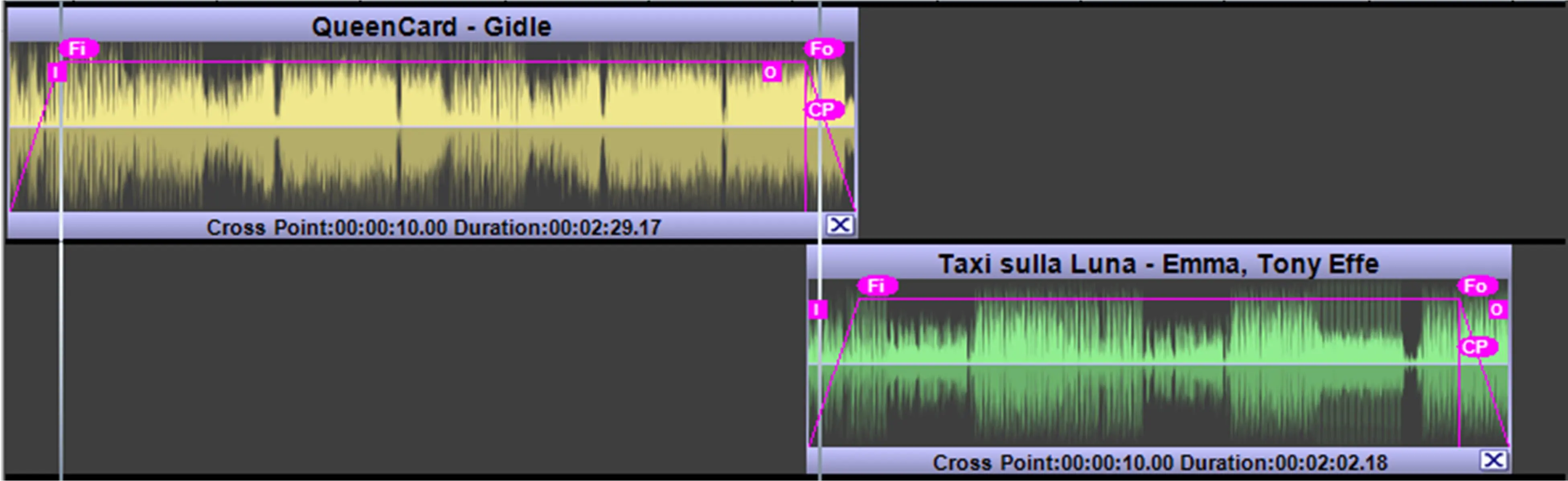
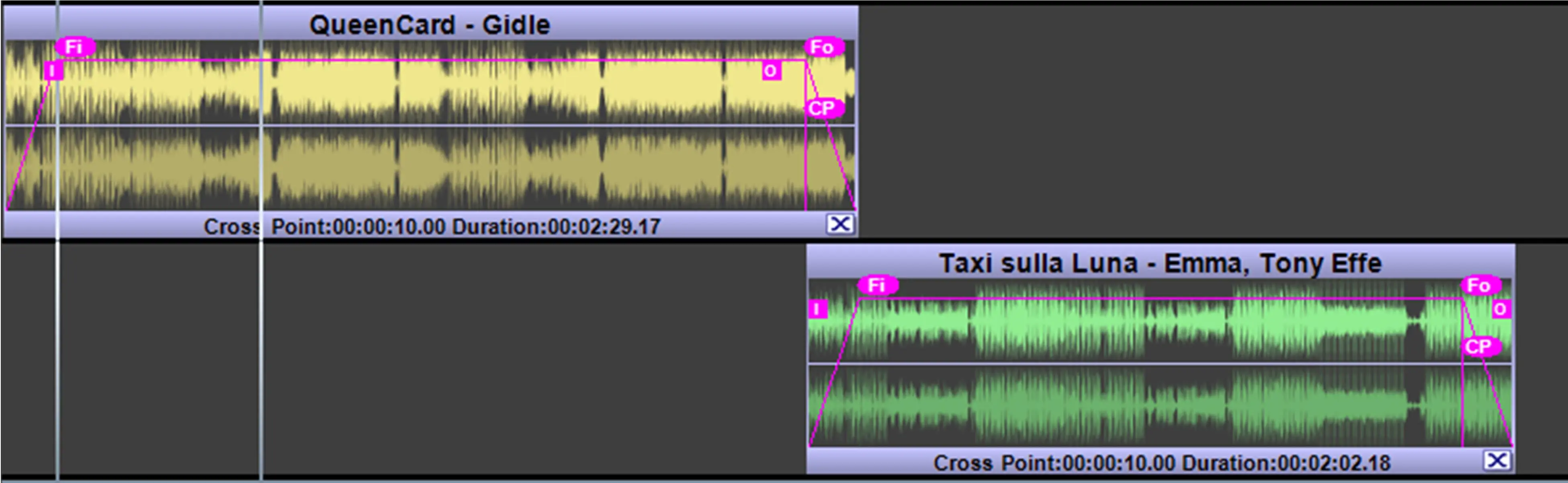
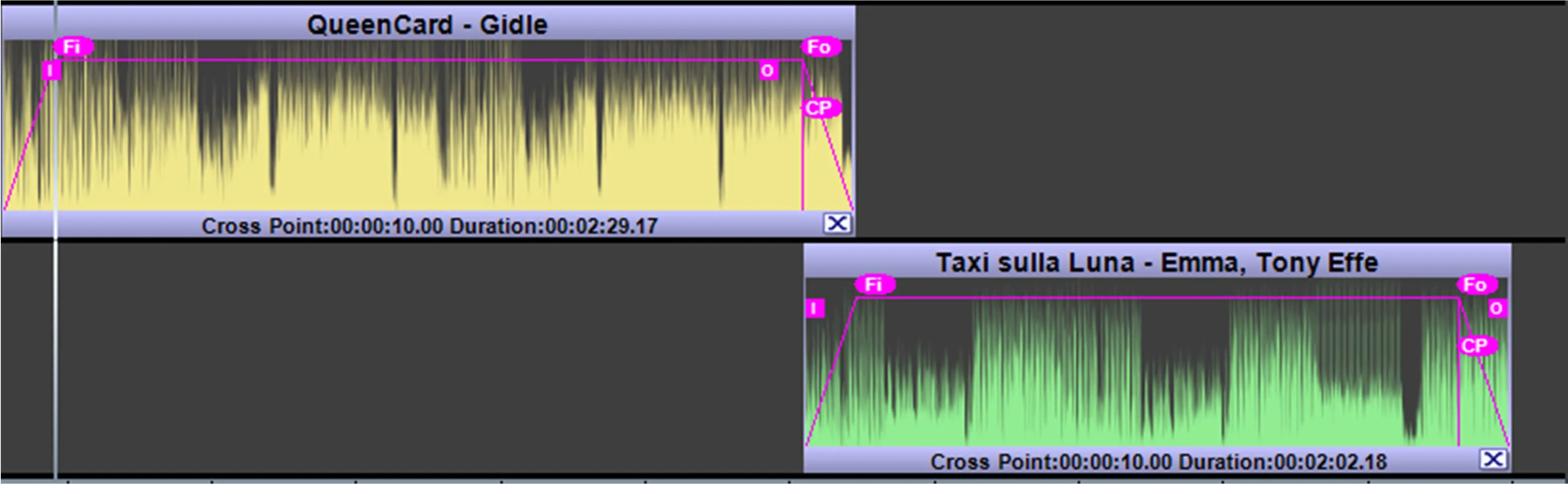
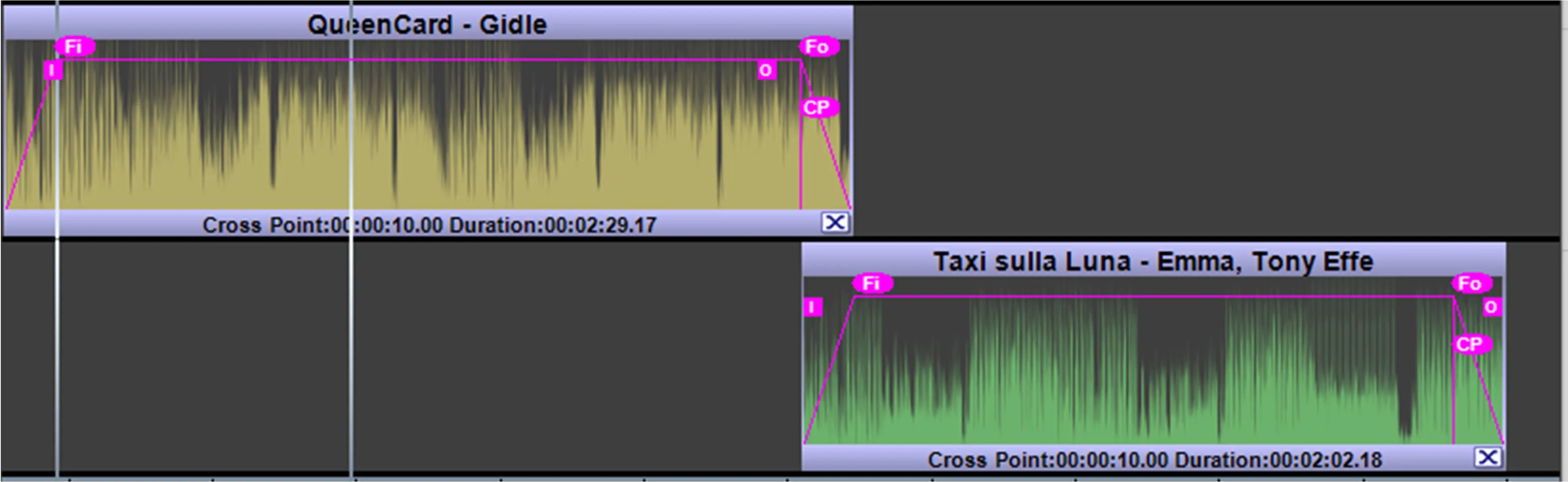
Wave form: It is possible to view the wave form in different modes, listed below:
waveform_modes
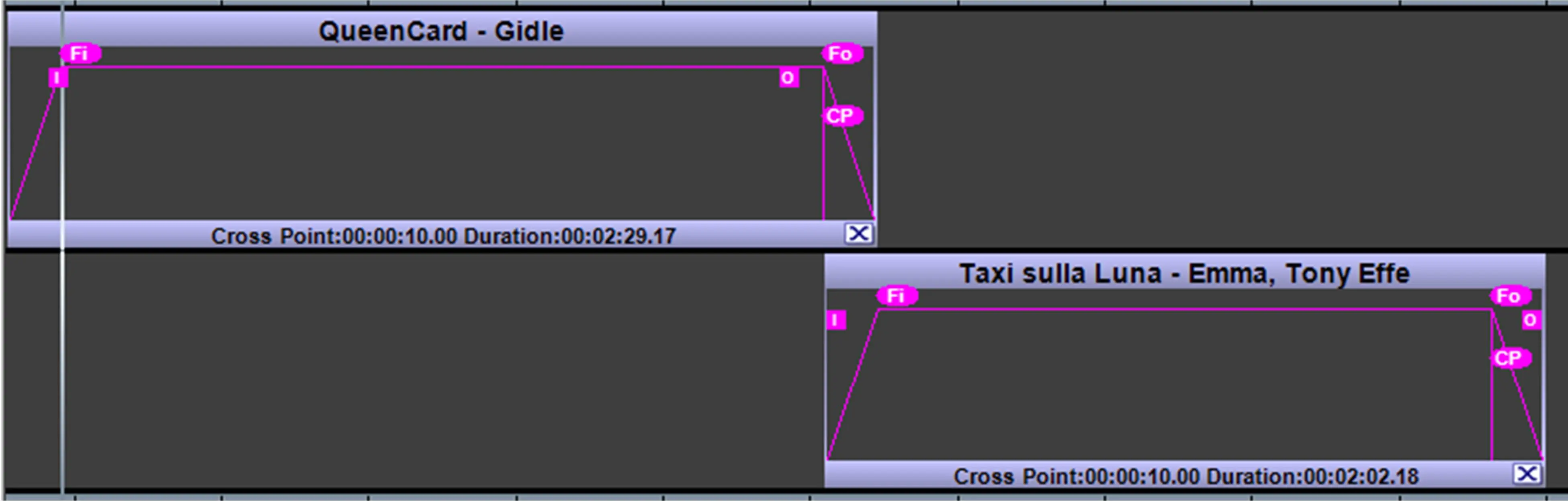
hidden
channel_no_1
channel_no_2
channels_no_1+2
channels_no_1+2_twolines
half_channel_no_1
half_channel_no_2
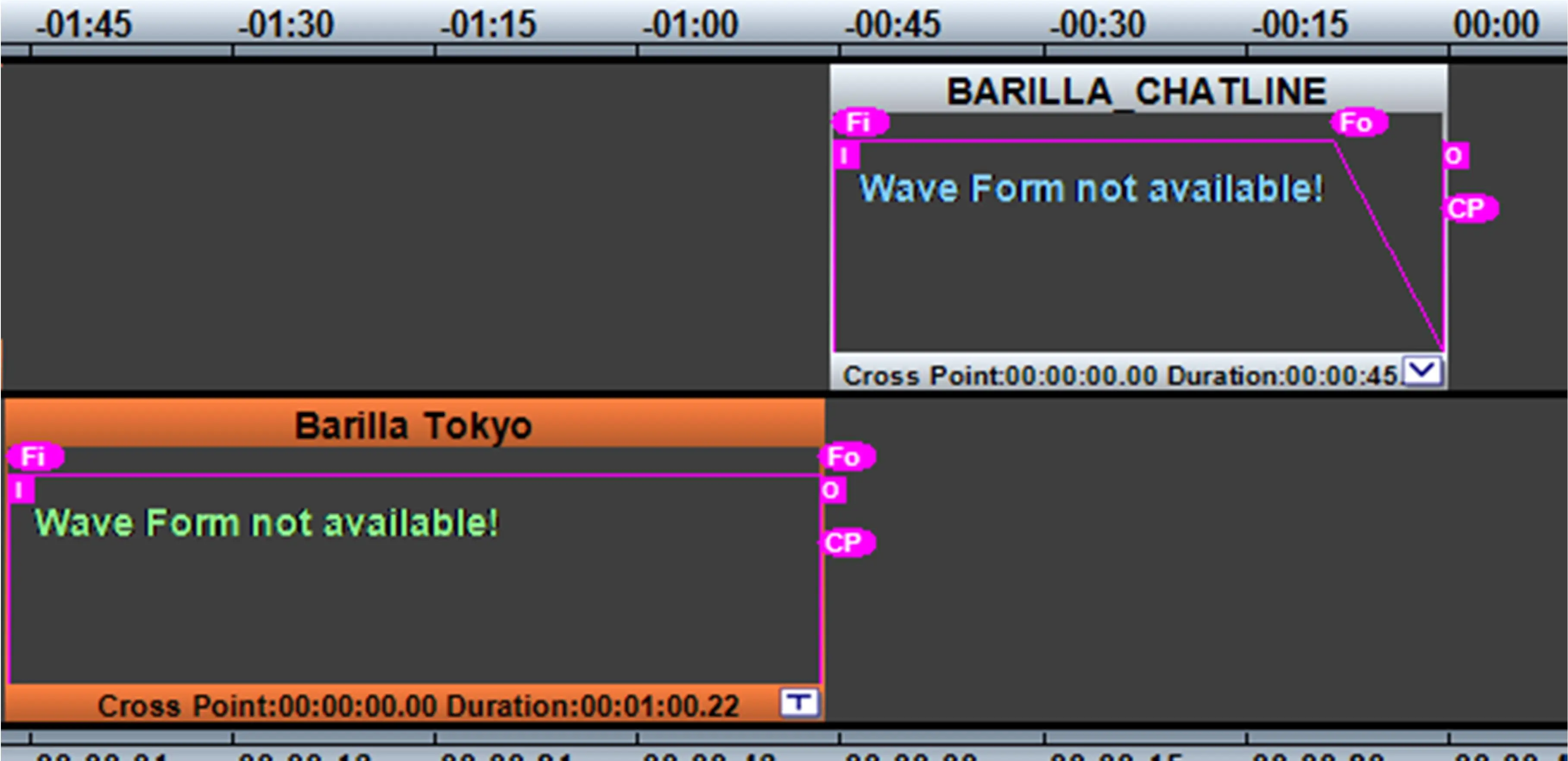
If Wave Form is not available a message will be displayed.
waveform_unavailable
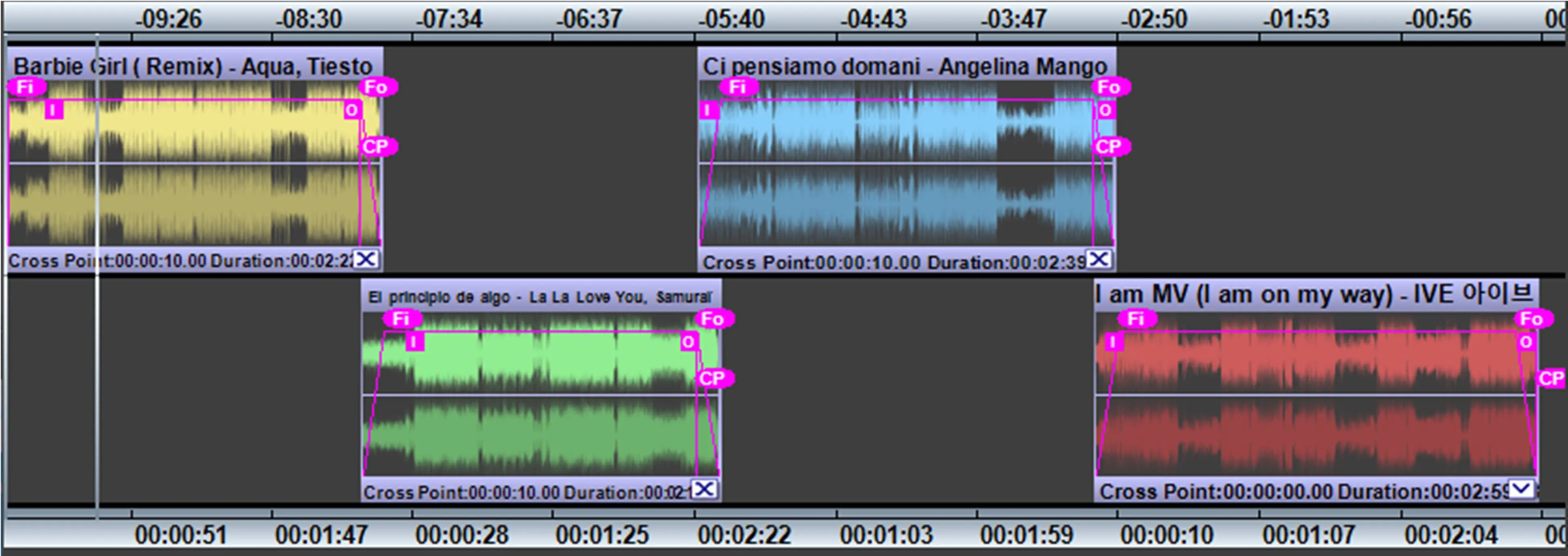
Different colors: It is possible to display the waveforms with different colors or all with the same color.
different_colors
same_color
Thumbnail waveform: You can position the Thumbnail Wave Form in top, middle or bottom position, or hide it completely.
thumbnail_waveform_options
thumbnail_waveform
Cursor always on top: With this button enabled, the timeline will move according to the position of the player.
cursor_always_on_top
Timeline and Waveforms
This is the main area of the window, where the user can actually edit the fades of the selected assets.
Moving the mouse on the top and bottom timelines you can see the cursor.
With a click of the mouse, you can move the player at position. With a double click the player starts. With a click on the Title of the event you can select it.
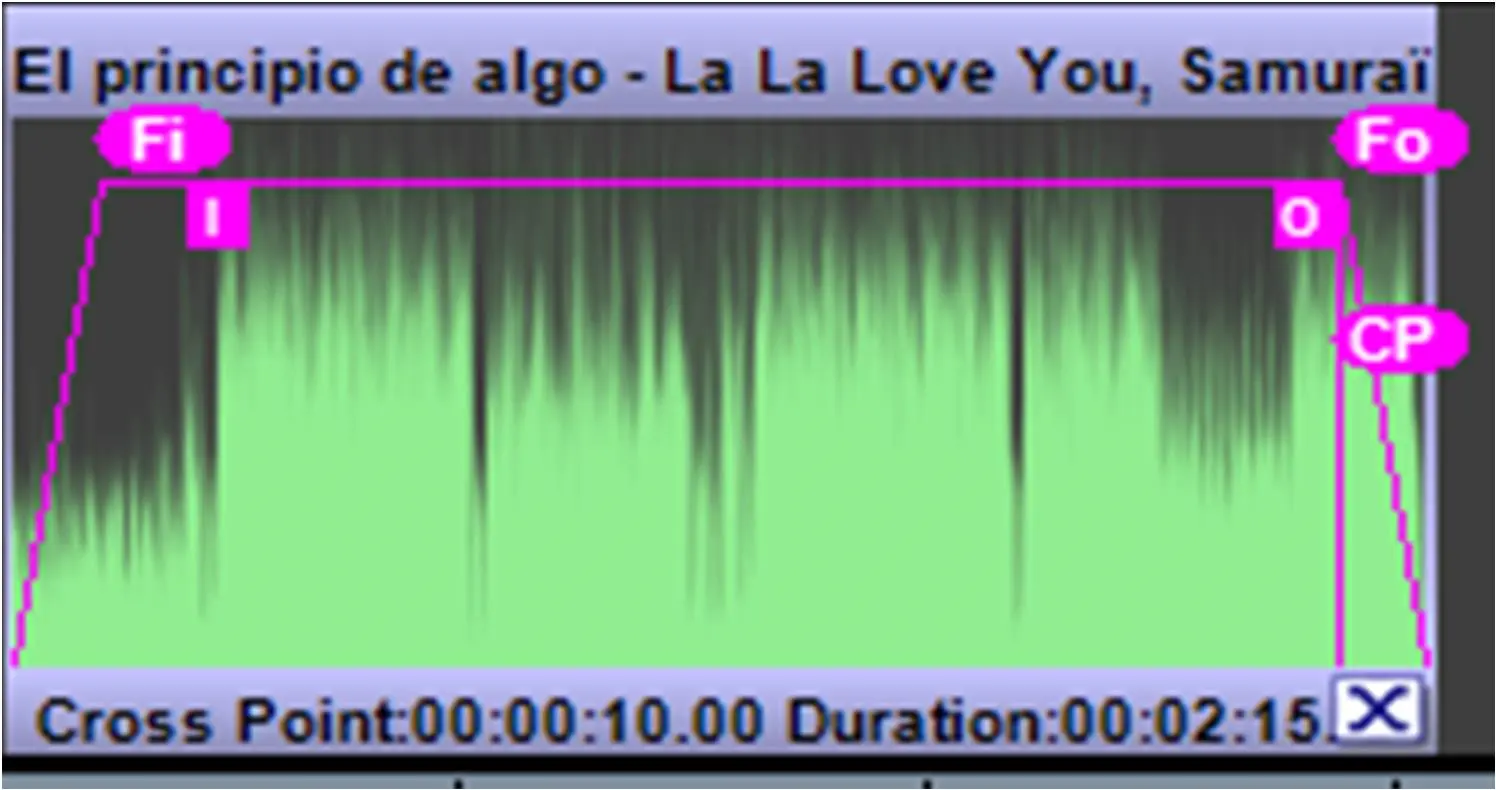
fade_labels
Fi = Fade In
I = Intro
O = Outro
Fo = Fade Out
CP = Cross Point
You can drag over these labels to move and change the values.
In the bottom right there is the icon of the transition: MIX, VFADE, FADE&TAKE, TAKE&FADE, CUT
Fields to edit
To use this section you need to select the wave form clicking on the Title bar. As written above, most of the following parameters are also editable by dragging their related icons in the waveform:
fields_to_edit
SOM: Start of the clip
Fade In (Fi icon): Set the end of the fade in
Intro (I icon): Set the end of the intro
Outro (O icon): Set the start of the outro
Fade Out (Fo icon): Set the start of the fade out
Cross Point (CP icon): This label lets you define the starting time where the two clips start overlapping, the setting is applied to the selected clip against the previous clip (so it is valid for clips starting from the second).
EOM: End of the clip
These buttons have the same color of the wave form. This makes it easier to understand which event is selected.
move_player_to_timecode
acquire_player_position
set_event_physical_end
Player
The lower section is dedicated to the preview of the selected clips. The upper bar shows the progress of the playing clip, the lower one shows the progress of the whole timeline.
Right below, there is the timeline cursor, the playback controls and it's indicated which clip is playing out of the total of the clips, in the lower-right corner.
 audio_wave_form_action
 additional_columns
 contextual_menu
 manage_fades
 toolbar
 adjust_zoom
 segments_droplist
 timeline_top_bottom
 two_lines_button
 two_lines_view
 single_line_view
 waveform_modes
 hidden
 channel_no_1
 channel_no_2
 channels_no_12
 channels_no_12_twolines
 half_channel_no_1
 half_channel_no_2
 waveform_unavailable
 different_colors
 same_color
 thumbnail_waveform_options
 thumbnail_waveform
 cursor_always_on_top
 fade_labels
 fields_to_edit
 move_player_to_timecode
 acquire_player_position
 set_event_physical_end