72.19.9 Scheduled Media Check
The Scheduled Media Check utility check all scheduled media stored in video server across all the events presented in the On-air Automation schedules within a specific time. For video server resource, you can refer to parameter settings in scheduled video file check in the Ingest module.
Check criteria
Check criteria
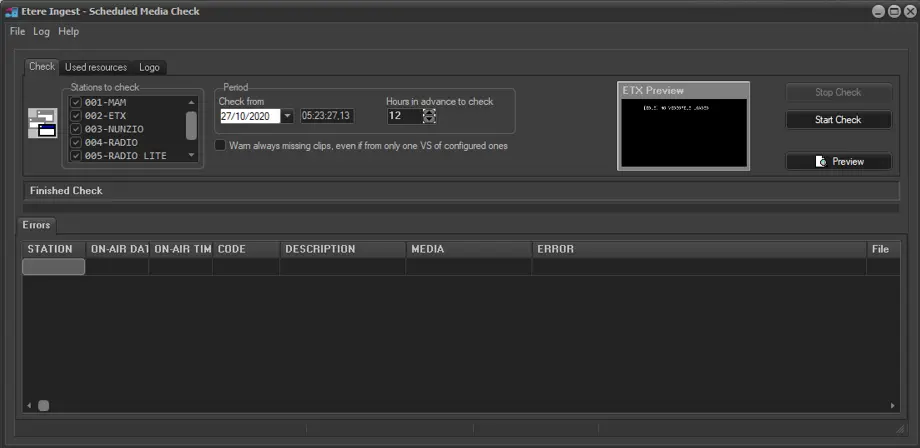
Check tab
Stations to check - Select the available stations to be included in the media check process.
Period - •Check from: The scheduled media check should start from the date and time specified in the parameter.
•Hours in advance to check: In addition, the media check should start in advance from the specific hours stated here.
Warn always missing clips, even if from only one VS of configured ones - If there are clips always missing during the media check, log warning message to alert user, even those clips are from one of the configured video server.
Video server resources
Video server resources
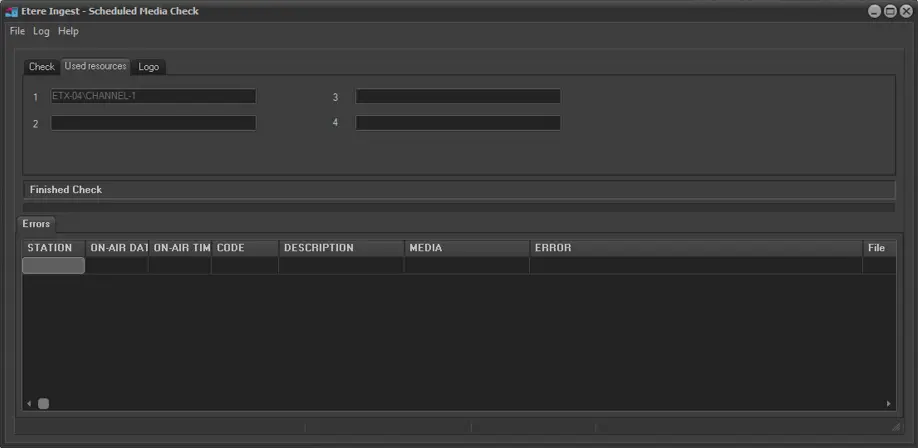
Used Resources tab
1, 2, 3, 4 - Specify the video server resources to be checked.
Logo Resources
Logo Resources
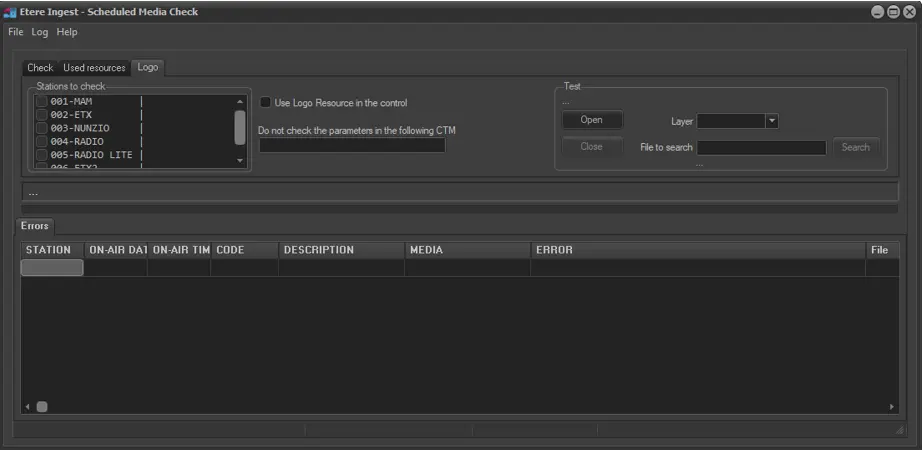
Logo tab
Stations to check - Select the available stations and its Logo resources (and layer) to be included in the media check process.
Use Logo Resource in the control - Enable this option to use the logo resource in the control. The logo resource is configured in the Ingest module, you can refer to the Settings tab to define the Logo Resource.
Do not check the parameters in the following CTM - Enter the parameters that you do not want to be checked during the media check process, this feature allows you to bypass those parameters that are missing in the CTM or does not require to be checked.
Test - The Test panel enable you to open the Logo resource and search for a file to perform a trial run before checking the actual media.
Click the <Start Check> button to begin the media check if all other parameters are configured. A media check report would be generate for each channel. Any secondary event found in the report would be indicated with a "+" sign.
Check
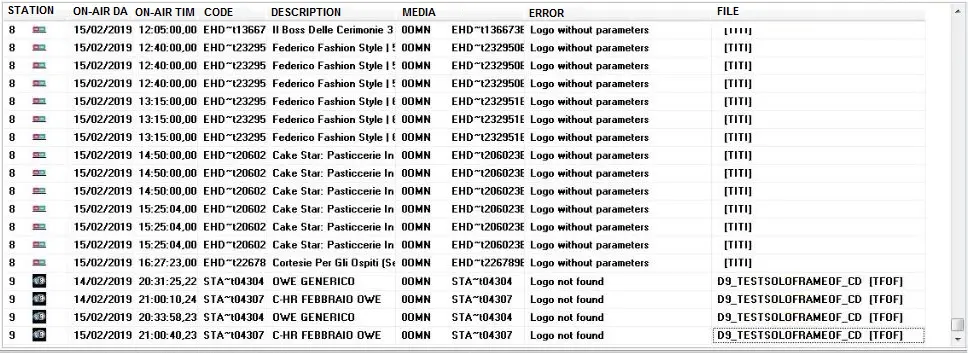
When you preview the (non-editable) media check report, the following information are captured:
•Station: Indicate the station name (issuer)
•On-air date: indicate the date when media file was on-aor
•On-air time: Indicate the time when media file was on-air
•Code: Asset code
•Description: A short description of the error
•Media: The supported media found during media check
•Error: The error itself (refer to below topic "Errors Description Legends")
•File: If present, it indicate the missing material during the media check process
•Notes: It contains the value of the descriptive graphics and content of the missing graphic object in Code field. You can right-click on value and copy the content information to notify the customer.
Errors Description Legends:
•Performed checks includes the following ones:
Logical Checks (performed on the database)
Problem - If on the schedule the media is missing
Error reported : "Missing Support"
Problem - If Time code_OUT = 0
Error reported : "EOM = 0"
Problem - If the DURATION = 0
Error reported : "DURATION = 0"
Problem - If the DURATION>(TCOUT-TCIN)
Error reported : "DURATION > (TC_OUT-TC_IN)"
Problem - If the video file is in copy by Media Manager, or the copy is terminated from less than 1 minute
Error reported : "In Copy by Media Manager. Impossible to check"
Problem - If the video file has not been found on the video server
Error reported : "Missing resource to control"
Problem - If the length of the video filename exceeding the limit (see automation restrictions)
Error reported : "Filename longer than maximum limit"
•If the event does not register any problem, the video file is physically checked in the video server:
Physical Checks (performed in the video server)
Problem - If the video file doesn't exist
Error reported : "Videofile not found"
Problem - If one can't read the video file data
Error reported : "I cannot read the Marks in the videofile"
Problem - If the physical duration = 0
Error reported : "Video file with EOM = 0"
Problem - If the TIMECODE_IN is not inside the TC of the video file
Error reported : "SOM out of range"
Problem - If the TIMECODE_OUT is not inside the TC of the video file
Error reported : "EOM out of range"
Problem - If the videoserver is unable to CUE the video file
Error reported : "Cannot cue video file"
NB: Since LIVE events doesn't have a linked media, they are not included in this check even if they are present in the automation schedule.
 Check_criteria
 Logo_Resources
 Video_server_resources
 Check
Check