9.2.4.12 Annotations
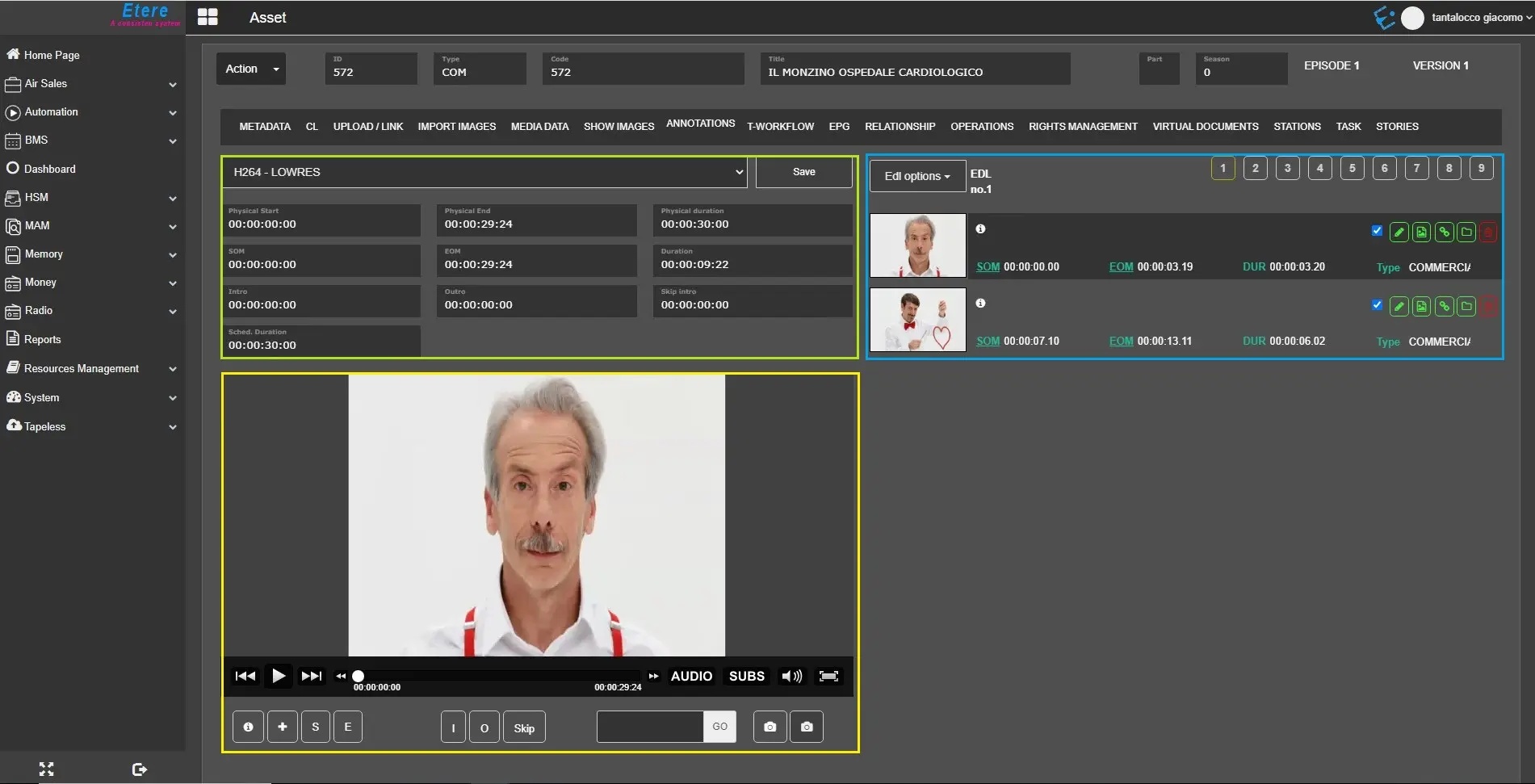
The Annotation tab consists of 3 areas of information:
- The section in the top-left corner (in red in the image above) allows the user to select the metafile and set the marks.
If the asset has EDL configured, the values in INTRO, OUTRO and SKIP INTRO are invisible until the material to be played is selected.
If the asset has no EDL, all values are visible.
WARNING: Among the marks, the "Skip intro" box is only visible if Etere license ET0204 is in the workstation.
- The section in the top-right corner (boxed in blue in the image above) contains the EDLs and the asset segments, with the related marks, type and picon. Details can be modified or deleted, and the user can perform actions on elements from the menu EDL options (see the paragraph below for more information about the actions).
- The section at the bottom (in yellow in the image above) allows the user to preview the selected metafile, create new segments, and view the metafile's info. See the paragraphs below for detailed information.
annotations_tab
FILE SELECTION AND FILE INFO
The top-left panel allows the user to select the video file, view the file information and load the associated EDLs.
In the selected file text box, only the codec and codec description are displayed; the file name and Lowres information would be invisible.
The file information available are physical duration, SOM and EOM and its time, Intro and Outro, and scheduled duration.
The Intro field indicates the singing start time in the song, whereas Outro indicates the singing end time in the music, both in "hh:mm: ss. ff" format. These fields are visible only if Etere license ET0085 is in the workstation.
ETERE PLAYER
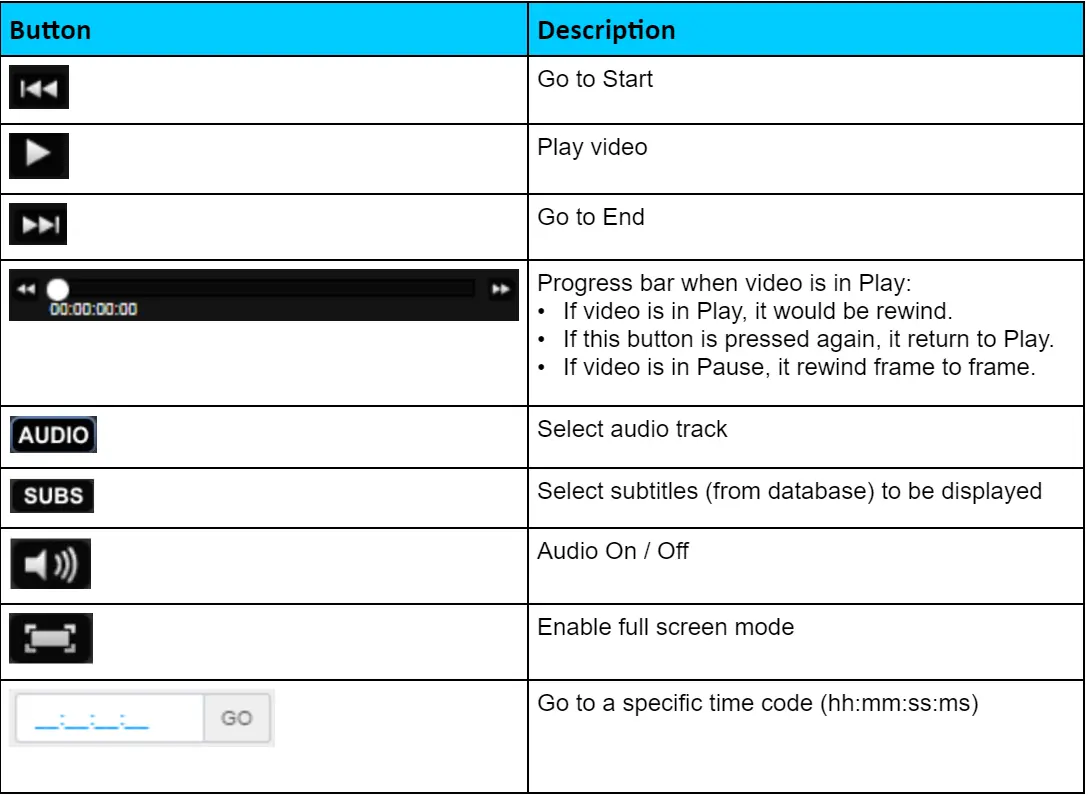
Etere Player is present in the bottom-left panel. The function keys would be available when the video file is fully loaded.
It is possible to PLAY/PAUSE the preview, FASTFORWARD/BACKWARD, adjust volume and opening a fullscreen preview of the media.
AUDIO and SUBS buttons allow to choose the audio track to reproduce in case of multitrack audio media (only one at time) and to choose language of subtitles to be shown (if existing on database for that asset).
Audio track selection is available only enabling on Chrome or Edge the flag "Experimental Web Platform Features"
EDL OPTIONS
edl_Options
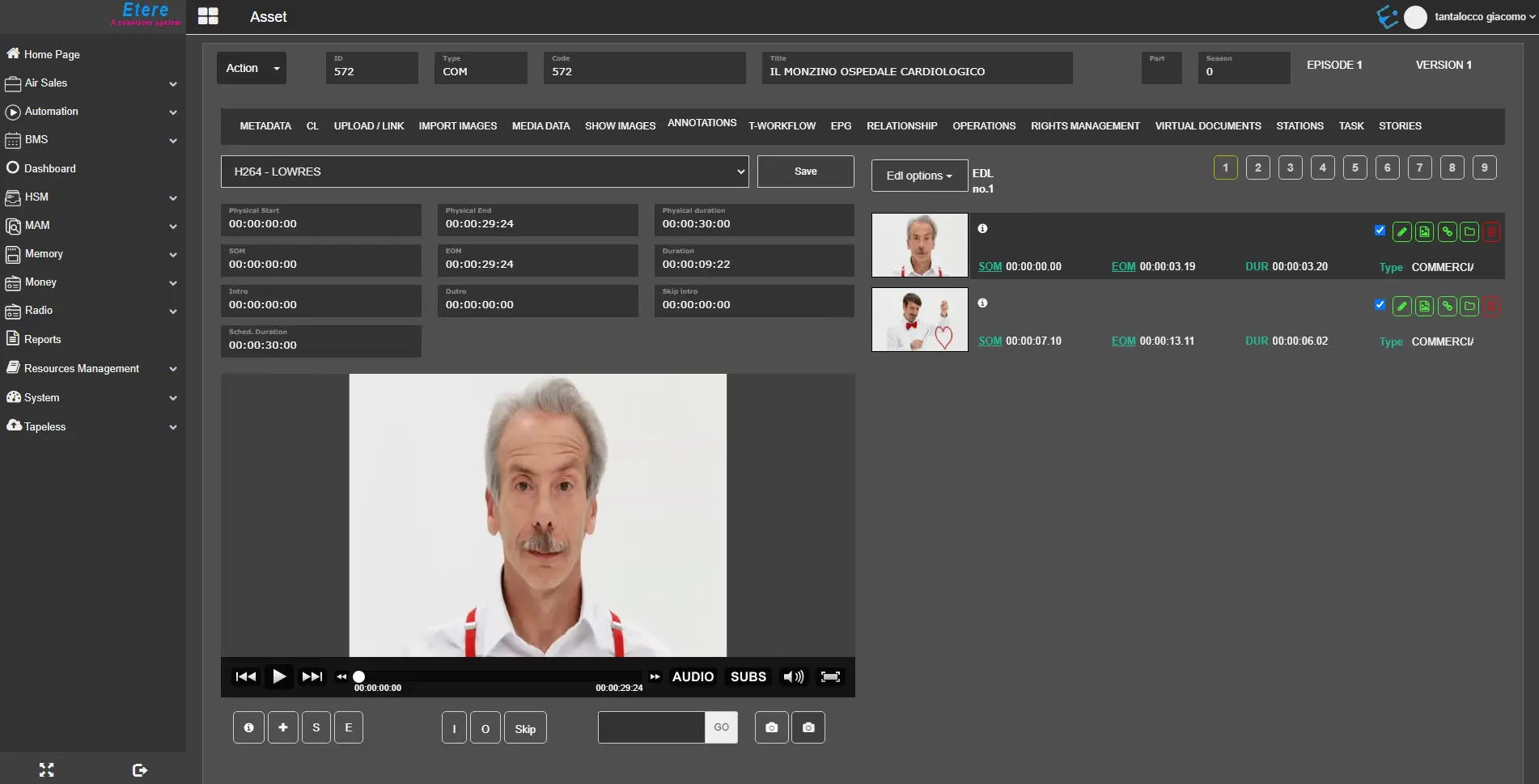
On the right panel, it allows the selection of EDL (from EDL 1 -9) to be managed by clicking the EDL numbering buttons at the right corner.
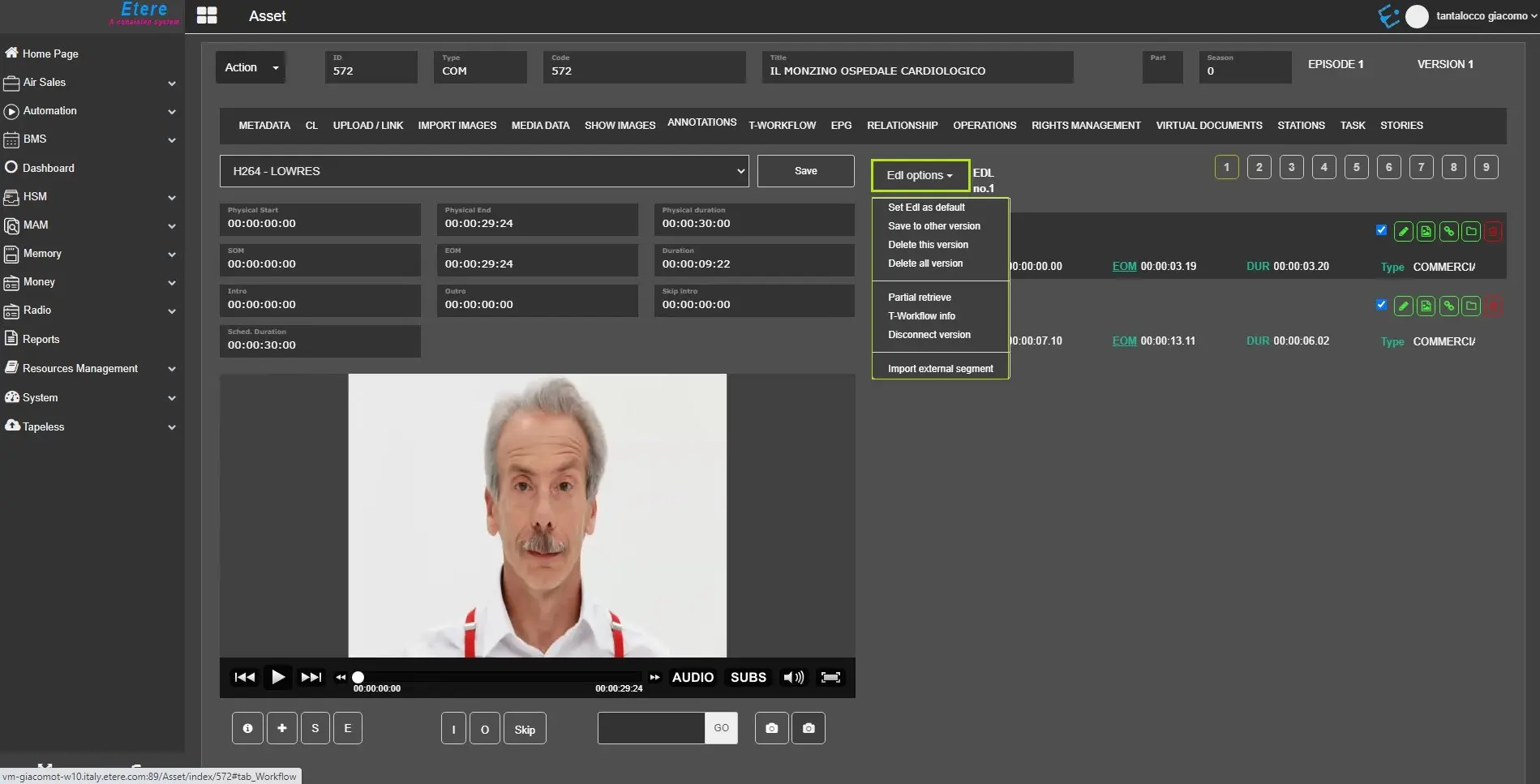
From the <EDL Options> green button, you can select one of the actions from the drop-down list:
Etere_Player_button
- Set EDL as the default: Copy all instructions in the selected EDL to EDL #1 and use them as default settings.
- Save to another version: Save the current EDL to another EDL version.
- Delete this version: Delete the instructions in this EDL version.
- Delete all version: Delete the instructions in all EDL versions.
- Partial retrieve: Retrieve one or more segments from the current EDL into a new asset.
In Windows IE Browser settings, you must ensure that "Popup Blocker" is not blocking (disabled) the popup window for selecting the workflow to run after the retrieval.
- Print current EDL: Preview and print the asset in the current EDL.
- Workflow info: Display all defined T-workflows to check the status of the selected segment.
- Disconnect version: Disconnect from the EDL version.
- Import External Segments: Import segments from external assets.
EDL COLOUR CODE
The EDL numbering buttons are indicated with colour codes for easy management:
- yellow: currently selected EDL version;
- black: EDL with segments;
- white: no EDL configured
edl_pagination_tab
EDL MANAGEMENT
EDL Funtions
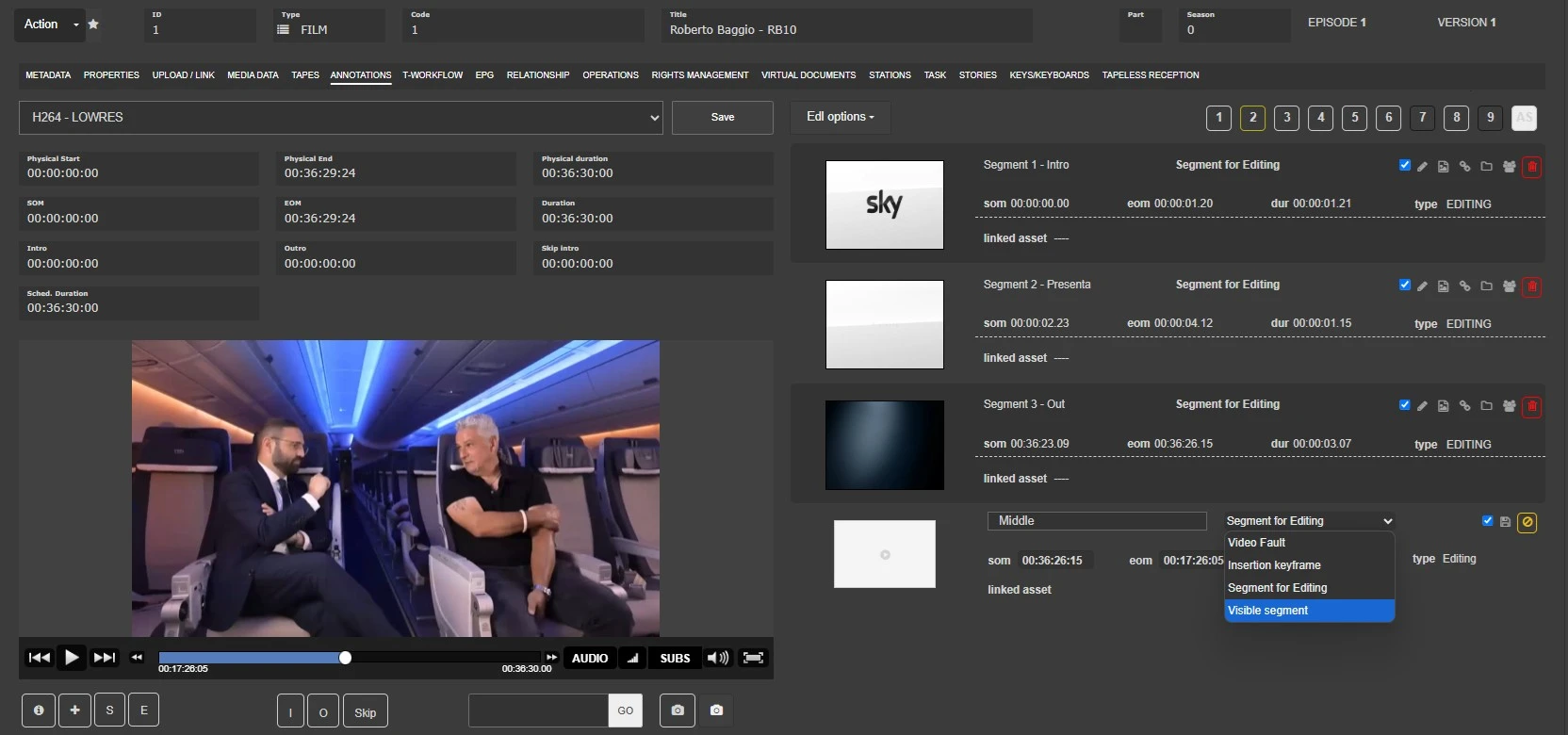
- Insert new segment: Based on the EDL colour code described above, you can insert a new segment to any EDL and specify the marks (SOM, EOM) of the segment, the segment description and the type of segment:
- Upon completion, click the sign icon to save the segment and prepare for a new segment.
- If the segment creation is incomplete, e.g. SOM or EOM is blank, the subsequent "+" sign icon will not take effect when you attempt to save the segment.
You can insert a segment without the presence of a metafile.
Here is a list of the types of segments that users can create:
Manual Video Fault: A video segment manually marked by the operator as defective to identify, for example, an audio or video issue detected during preview.
Insertion Keyframe: A video segment consisting of a single keyframe, marked to indicate a point where an asset can be exploded (i.e. divided into parts) within the broadcast schedule, for example to insert advertisements.
Editing Segment: A video segment marked to indicate that editing is required before the asset can be considered valid (e.g. approved for transmission).
Visible Segment: A video segment marked as suitable for transmission (i.e. free of video faults) and therefore eligible to be exploded within the broadcast schedule for subsequent playout. Visible segments can either be manually inserted by the operator or automatically generated during the content-check process as scene changes (i.e. transitions between consecutive frames containing different images).
Note1: Visible segments can also be used either to calculate the commercial crowding of an asset (only scene change segments are considered for crowding calculations) or to define suitable portions of content that do not contain inappropriate material (e.g. censored scenes).
Note2: Assets whose EDL#1 contains video-segmentation instructions (i.e. visible, fault, or black segments) are displayed with a warning during scheduling, informing the operator that the asset should be exploded according to the EDL instructions to ensure correct transmission.
Note3: An EDL may consist of either Insertion Keyframes and Video Faults, or Visible Segments and Editing Segments.
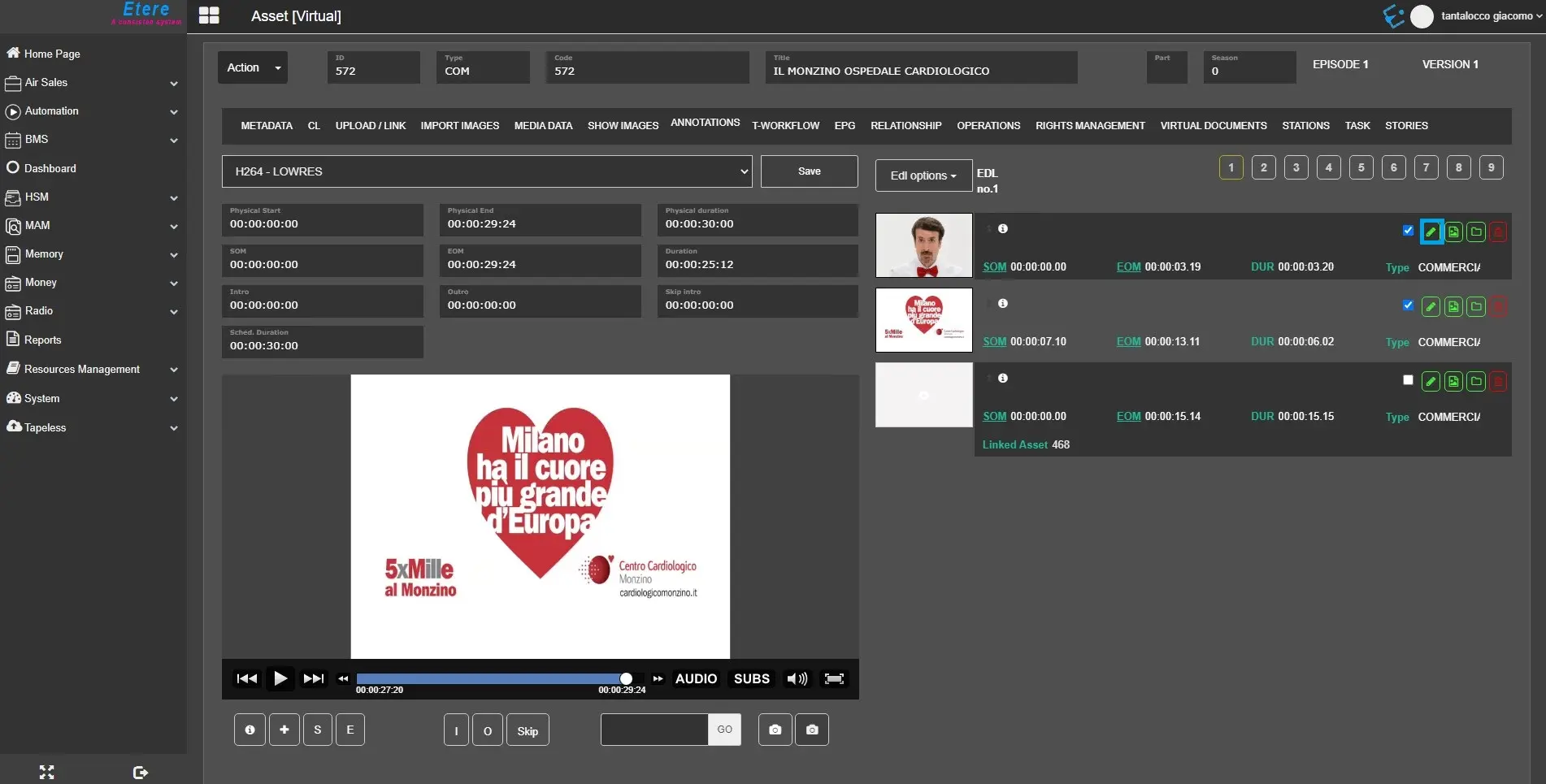
- Edit segment: Within the EDL version, you can edit the segment by clicking on the button to open the segment for editing.
The (cancel) button is visible only during editing, allowing you to undo the changes made to the segment.
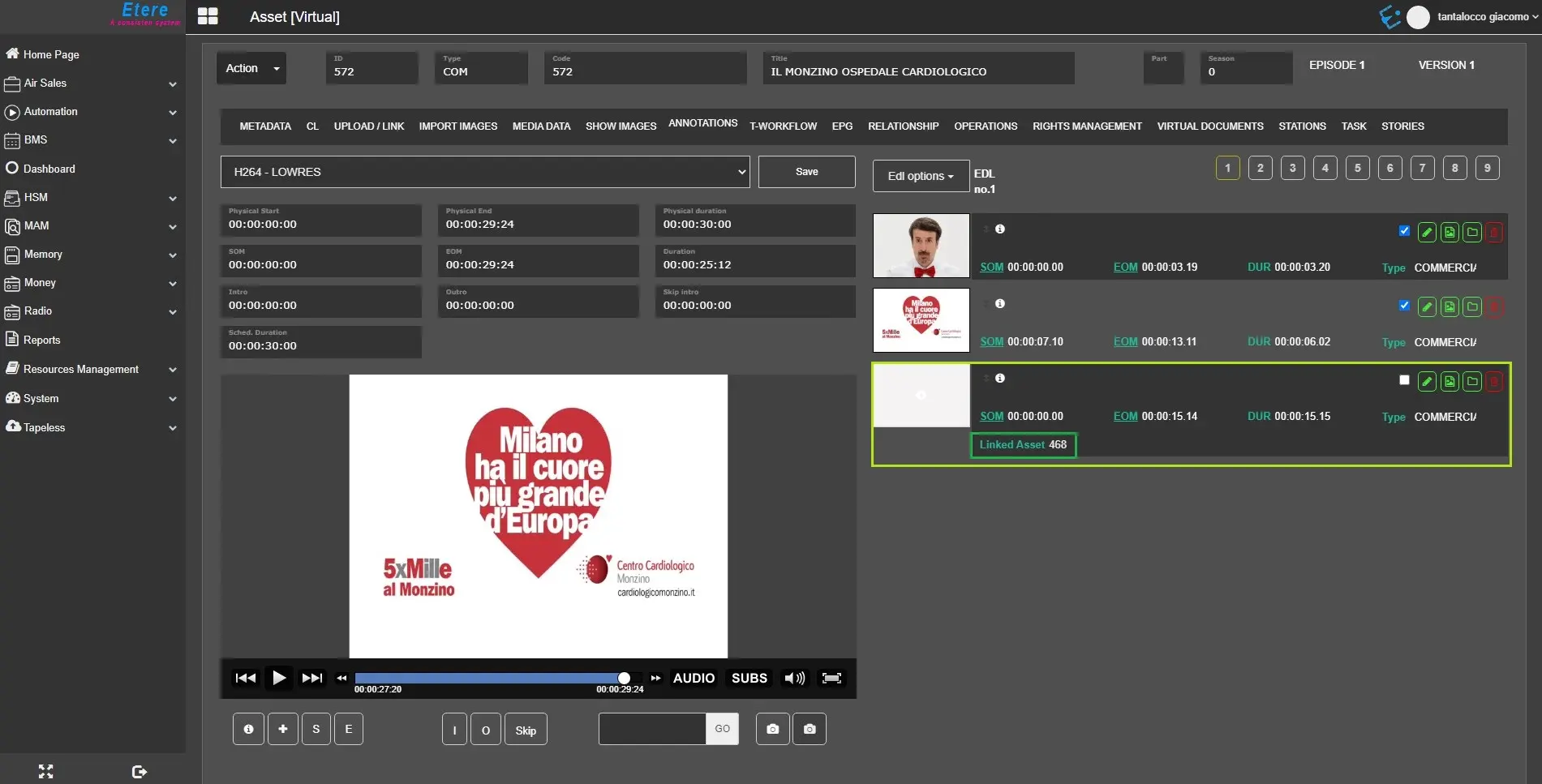
Linked_asset
In the segment, if assets are linked from partial retrieval, it would be indicated as a "Linked asset" if the data is present.
segment_editing
- Delete segment: To delete a segment from a selected EDL, click the button to remove it from the selected EDL version.
WARNING: In EDL, the segment description is displayed in white. You can edit the segment's colour with the customised colour scheme during the EtereWeb setup;
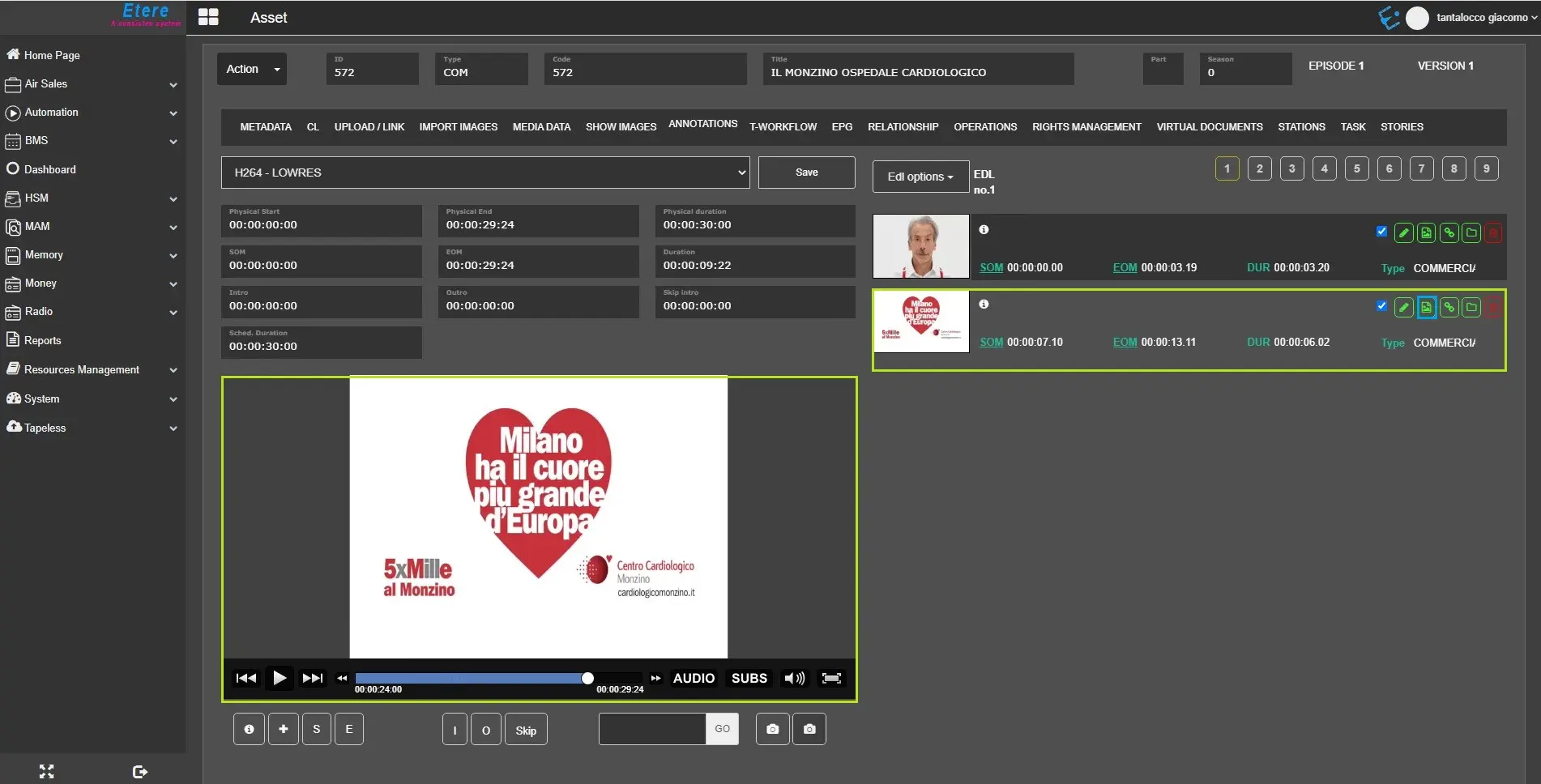
Acquire a Picon to assign to any given segment: is possible to assign a thumbnail for each segment using the related button on the segment edit. It will save the current image from the Web Player to the segment thumbnails.
generate_picon
WARNING:If you access EtereWeb with a small screen laptop, set the screen resolutions as 1024 * 768 pixels to view all the control functions.
ADVANCED STORY
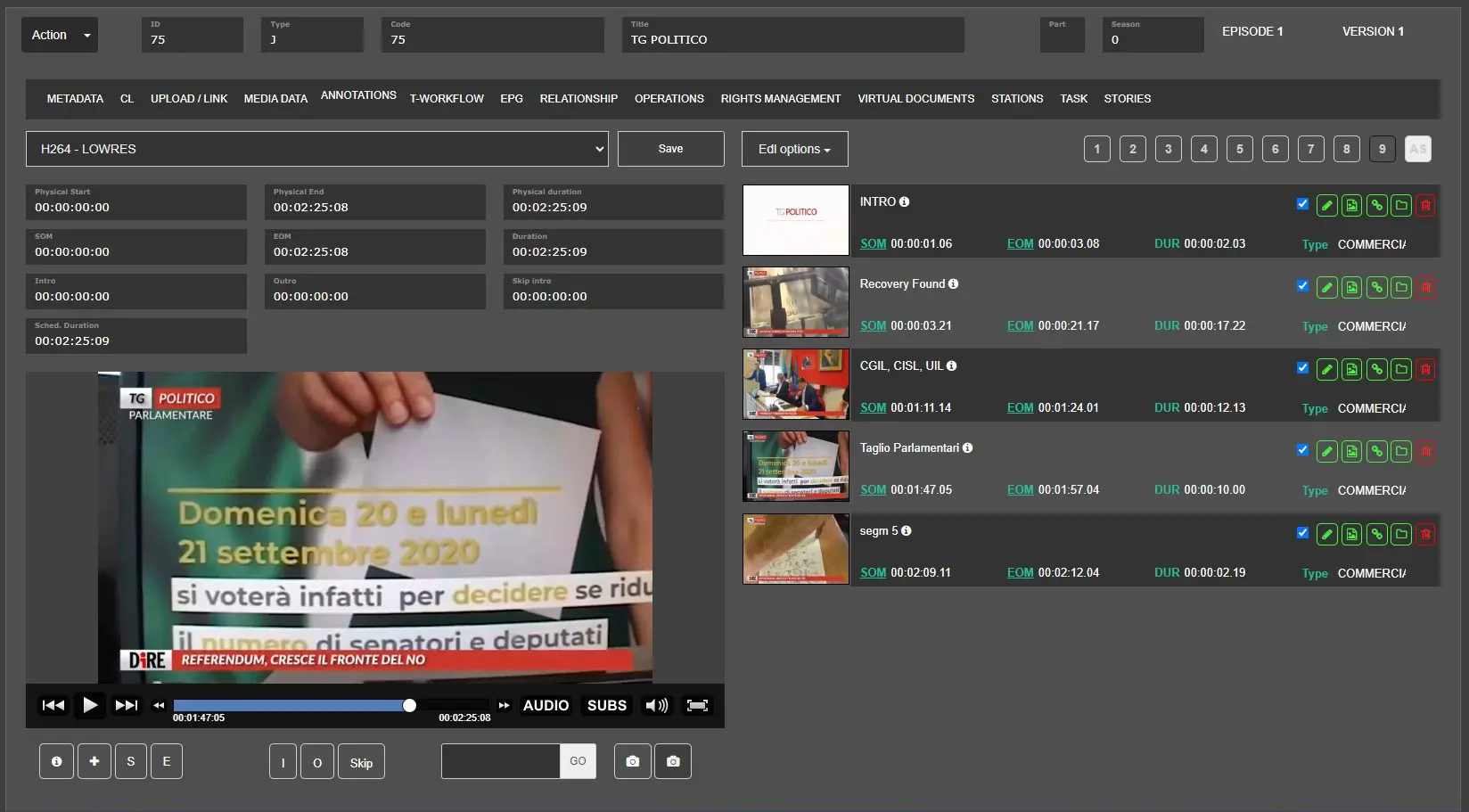
Since the Etere330332_BETA version another EDL level has been added called AS -> Advanced Story.
Advanced_Story
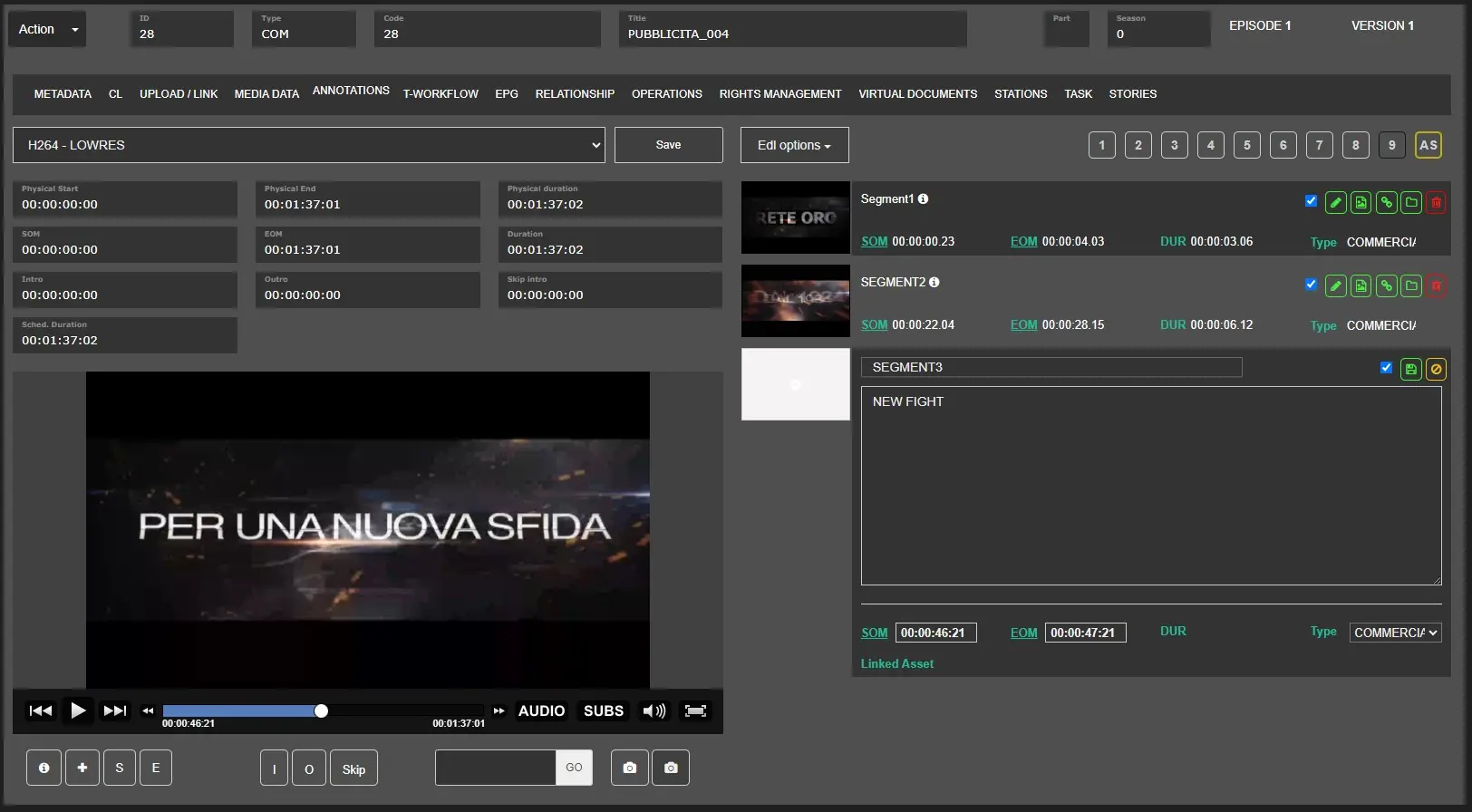
In this new level the user can create segments, as he does for the others, then he will have to add the following information:
Title: is the title of the segment just created.
Text box: it is the field where the operator can write the text he needs.
SOM: is the Start of media set in this segment just created.
EOM: is the End of media set in this segment just created.
Type: Is the Type of the segment just created.
Once the operator have filled the correct information must click on button SAVE to really create the segment.
Add_New_Story_Segment
Once the segment has been created, the THUMBANIL is automatically taken from the first frame of the segment.
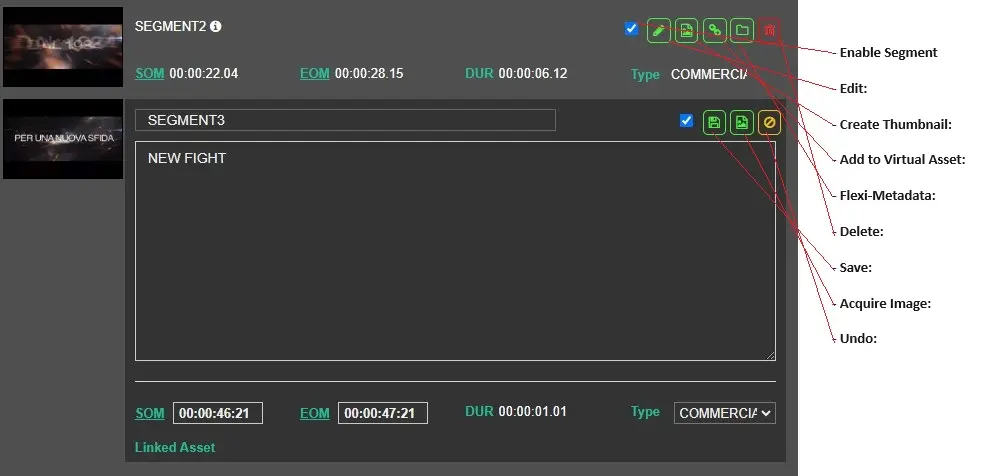
Once the segment has been created, the operator can work on it using the following buttons:
Enable Segment: usable to enable or not a segment already created.
Edit: usable to open the form to modify a segment already created.
Create Thumbnail: usable to import on segment the thumbnail and if it is clicked the system imports from the fist frame of the segment the thumbanil.
Add to Virtual Asset: usable to add the segmet to the virtual asset.
Flexi-Metadata: Usable to open the form to fill the flexi -metadata available.
Delete: Usable to delete the segment selected.
Save: Usable to save the modify done in the segment opened.
Acquire Image: Usable to import in the segmet the image usable like thumbnail.
Undo: Can be used to undo the last change.
Segment_Buttons
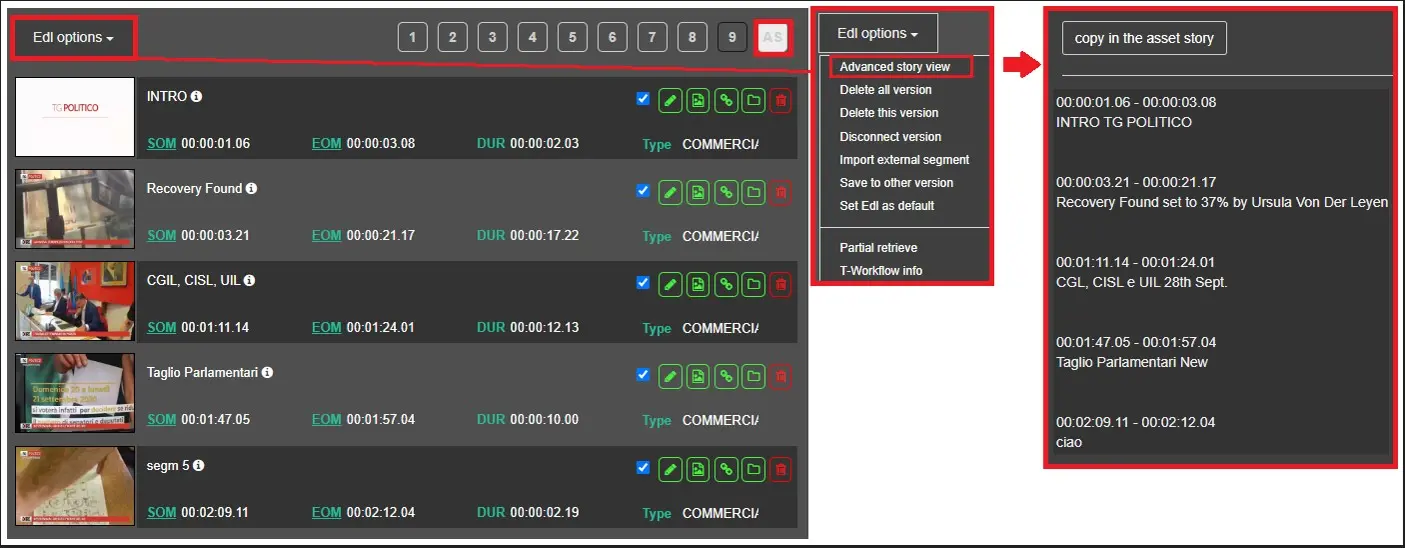
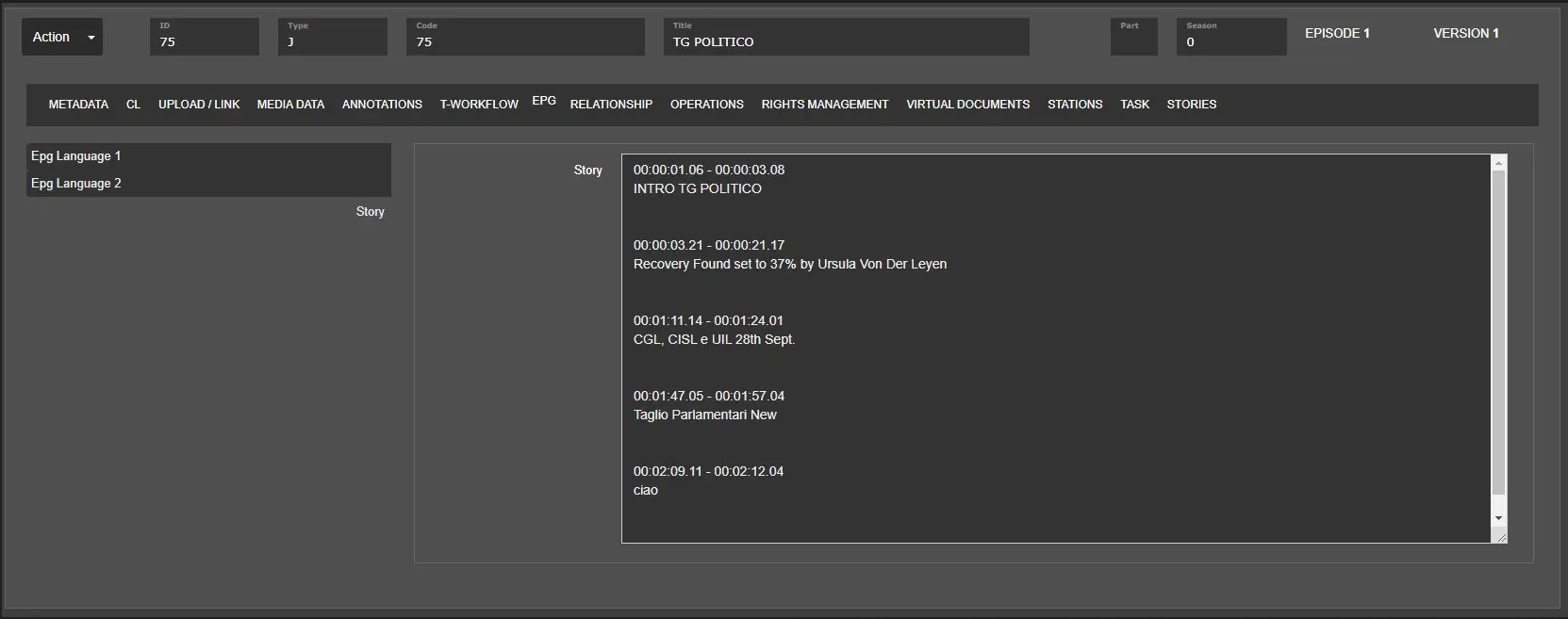
Once the segments have been created and saved in the AS level, you can use the Advanced Story View button to see all the segments in a single window. In this window, as well as seeing them, we can also use the "Copy in the asset story" button to copy all the data entered in the EPG->STORY field.
View_Advanced_Story
EPG_STORY_FILLED
 Etere_Player_button
 Segment_TYPEs
 annotations_tab
 edl_options
 edl_pagination_tab
 generate_picon
 linked_asset
 segment_editing
 Advanced_Story
 Add_New_Story_Segment
 Segment_Buttons
 View_Advanced_Story
 EPG_STORY_FILLED