51.3.1.3 Cloud-device paths
This list allows you to add, edit or remove the paths on which video files are stored. Below is a list of all the path-specific parameters that can be set.
NB: Before selecting the cloud device, you must be granted "Allowed" access to the devices in the node CLOUD-DEVICES for WEB users, and the related media folder must be enabled.
GENERAL
8942_AS_serv_CD_GENERALS
Path: Select a directory from the meta devices list. The sub-folders in the directory would not be scanned.
NB: Metadevices are set in Configuration > Resources Editor > Tools >Configure > Cloud-device.
NB: The cloud-device path with "id_path" = 0 is not allowed in the list.
Codec: Specify the codec (e.g. MPG, WMV, etc.) to be assigned to files found in the path.
When to process: Specify when the synchronisation of files in this path will start. Possible values are:
- Always: Activesync service loops continuously until it is stopped manually, but still waiting for the amount of time set in the Loop creation parameter between a loop and the next one.
- List of times: Write one or more times separated by a ';' (e.g., 06:00; 10:30; 17:45). Activesync service will scan the files only at these times.
Filters of files to exclude: Enter the names of files to ignore when synchronising files from this path.
Semicolons can specify and separate multiple filters: *.MOV; *.AVI.
NB: Filters can also be entered for all meta-device paths, as previously explained.
T-Workflow to launch when a media is associated with an asset: Select the workflow to launch every time Active Sync links a file to an asset from this specific path.
Default new assets type: Insert the type (e.g. COMM, NEWS, TRAILER, etc.) assigned as default type to assets created by Etere Active Sync when synchronising from this specific path.
Create new assets: If enabled, a new asset will be automatically created for found files unrelated to an asset (i.e. whose name doesn't match any asset code). The following options will become available:
• Rename files based on their asset ID: The new asset will be created with an automatic asset ID. The file will be renamed into this ID before linking it to the asset.
Example: It's found a file named "Mister_Simon_Diamond_stole_your_soul.MPG", a new asset is created with ID=5370, and the file is renamed as "5370.MPG" before being linked.
• Not search in Original filename: If enabled, it bypasses the search of the original filename during synchronisation. Combining the "Rename file based on their asset ID" option allows you to create new assets with duplicated file names in the target system. This option is disabled by default.
• Rename files based on asset ID (VTVSpecial): Files will be renamed based on the asset ID. Files must be named as StationID_ProgramType_Title.MXF, so the asset code will be StationID_ProgramType_DDMMYY_EtereID.
Conditions:
Files are imported only if these conditions are met:
▪ Files must have an MXF extension; otherwise, they will be ignored
▪ The STATIONED and PROGRAMTYPE must be present in the filename. If one is missing, the file will be renamed with the extension.BAD (files won't be imported, and an error will be displayed)
▪ The STATIONED must correspond to one of the customer's licensed stations (e.g. VTVCab1, VTVCab2); otherwise, if the station is different (e.g. MimoTV), the file will be ignored
Example: It's found a file named VTVCAB1_FILM_BEN-UR.MXF, a new asset will be created (e.g. ID=10000) with type=FILM, TITLE=BEN-UR, CODE= VTVCAB1_FILM_100414_10000 and the video file will be renamed as the ID (e.g. 10000.MXF).
• Rename files based on the first 32 chars.: If the name of files (without extension) is greater than 32 characters, the new asset will be created with an automatic ID and a CODE generated with the leading 32 characters of the filename; in case the CODE already exists, a new one will be developed with the leading 17 characters plus a '000' suffix. If the new code also exists, the numeric suffix will be increased (001, 002...) until a non-existing code is found. The file will be renamed into this CODE before linking it to the asset.
Example: It's found a file named Mister_Simon_Diamond_stole_your_soul.MPG, a new asset is created (e.g. ID=5370 & CODE=Mister_Simon_Diamond), the file is renamed with the asset CODE (e.g. Mister_Simon_Diamond.MPG) before being linked.
NB: The above feature is only possible if the "Filenames = Code" is defined in the Ingest Section in Etere's Configuration module.
• Rename files based on a unique name: The new asset will be created with an automatic UNIQUE ID (used as the asset's CODE). The file will be renamed with a randomly generated UNIQUE ID with a fixed length of 20 characters before linking it to said asset. Example: It's found a file named Mister_Simon_Diamond_stole_your_soul.MPG. A new asset is created using a UNIQUE ID as code (e.g. ID=5370 & CODE=02BD000000000000014B), and the file is renamed with the asset CODE (e.g. 02BD000000000000014B.MPG) before being linked.
• Keep the original copy: If any of the renaming options is selected, the renamed file will be a copy of the original file kept in the meta device. For example, this option is helpful to avoid errors with meta devices used by other applications/systems different from ActiveSync.
NB: Keeping original and renamed files double-occupied the storage space.
• Asset code renaming: If any of the renaming options is selected, indicate if the new asset's code should be created as unique names or following Etere rules.
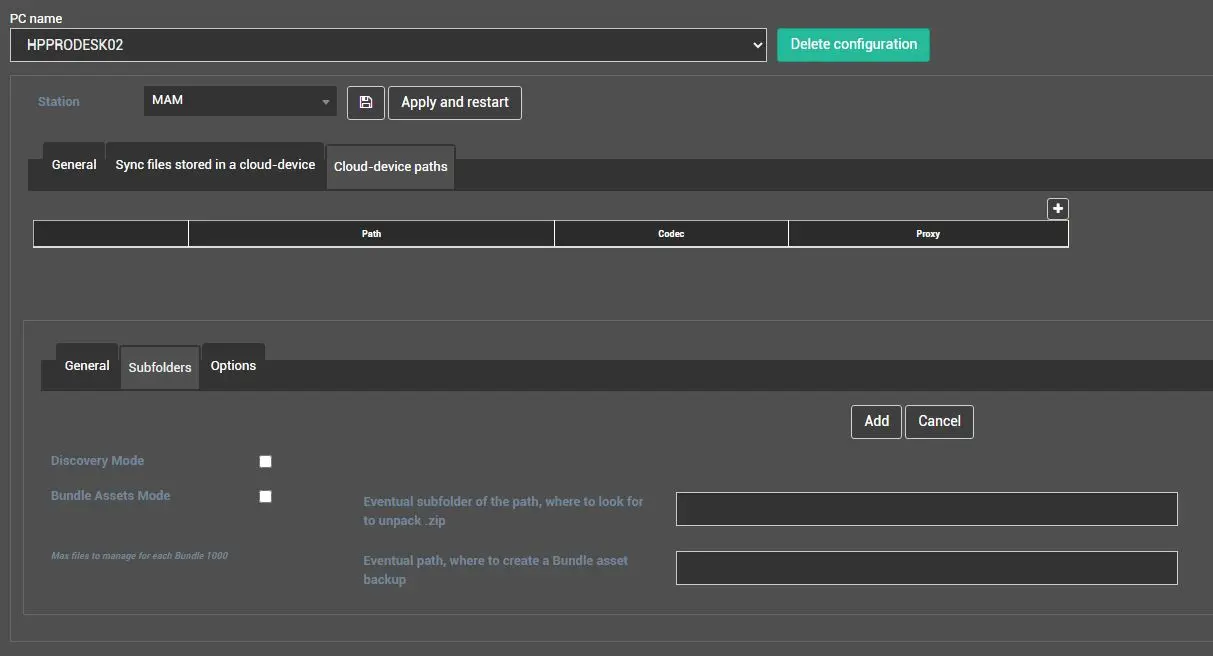
SUBFOLDERS
8940_AS_serv_CD_SUBFOLDERS
ActiveSync service can search on sub-folders, according to the selected mode, considering that each sub-folder has assets:
▪ Discovery mode
▪ Bundle assets mode
More information about the two modes can be found in the chapters 51.1.3.0 Bundle Asset Mode and 51.1.3.2 Discovery Mode.
NB: In the case of enabling one of these modes, renaming options will be automatically disabled, as well as their related options (code creation and copykeeping). To select the modes, the parameter Create new assets must be enabled.
Eventual subfolder of the path, where to look for to unpack .zip: This parameter helps track the bundle asset ".zip" file in the File System; you can define a subfolder for storing the bundle asset "zipped" file and separate it from the bundle assets, which are permanently attached to the root folder. In this case, you can quickly locate the bundle asset zipped files in the sub-folder and archive them if they are no longer required.
Eventual path, where to create a Bundle asset backup: This parameter allows you to create a backup way for storing the bundle assets in the file system.
OPTIONS
8941_AS_serv_CD_OPTIONS
Do not process files older than this number of days: Set the maximum past days from the date video files must be synchronised. To process all video files without checking the date, set this value to '0'.
Process the video file only if the descriptive file (.xml) exists: If enabled, video files found by Etere ActiveSync will be synchronised into the Etere system only if they are accompanied by descriptive files, which data will be imported into Etere's related assets (e.g. mark in, duration, description, etc.). When the import is completed successfully, the extension of the descriptive file will be renamed to ".done001".
NB: If the duration is retrieved from descriptive files, enabling the "do not calculate the physical duration of files" option is advised to speed up the Sync.
Import descriptive files also if no file exists: if enabled, descriptive files (.xml) will always be imported even if the corresponding video files are missing.
Always launch the workflow if the descriptive file exists, also when updating: If enabled, the post-association workflow will be launched, besides when a new media is associated, also when an existing media (i.e. already linked to the asset) is updated with the information retrieved from the descriptive file (.xml). If disabled, the T-workflow will be launched only when a new media is associated.
Use the descriptive file only to read the ASSET CODE without importing data: If enabled, ActiveSync will import only the ASSET CODE from the descriptive file. Other data will be ignored.
When linking files, do not consider the following suffix: When connecting the file to an asset, this parameter allows you to bypass the suffix in the file name by specifying the suffix to be ignored. For example, if "HD" is entered in this parameter, a file named "123456HD.mp4" would be searched and linked as "123456.mp4" without considering the suffix "HD" in the file. By default, this parameter contains no value.
Create the Asset Code based on the first n characters of the file: This parameter allows the calculation of the asset code attributed to the new asset based on the filename's first "n" number of characters. The remaining part, separated by an underscore ('_'), which will be ignored, will be used to set the asset title.
• The value entered must exceed nine characters.
• Enter the value "0" to ignore this parameter.
• If the asset already exists, the file would be linked to the same asset.
• If the asset file name is shorter than the characters set in this parameter, the file will be skipped.
NB: If the Asset Code based on the first n chars of the file option is enabled, the option Insert code name in the asset form's description field in the General tab must be disabled to achieve expected results.
Manage files Metadata: If enabled, this option allows the import of the file's metadata in Etere DB's fields. Metadata is managed
only if a new asset is created and the file is an MP3 audio file.
This function imports the following metadata:
Title - Imported in the asset title.
Album - Imported in the flexy-metadata "RL_Album"
Performer - Imported in the artist's role 'Performer'. If the artist does not exist, it will be created. If the role does not exist, it will be created.
Composer - Imported in the artist's role 'Composer'. If the artist does not exist, it will be created. If the role does not exist, it will be created.
Publisher - Imported in the artist's role 'Publisher'. If the artist does not exist, it will be created. If the role does not exist, it will be created.
Genre - Imported in the asset field General data > Genre. If the genre does not exist, it will be created.
Year - Imported in the asset field General data > Production date. If this metadata has no information about the exact month and day, the date written in the field will be set to the 1st of January as default.
VTVAsset custom import: If enabled, descriptive files provided with video files will be imported into the Etere database through the VTV Asset XML import.
NB: If using this import, the parameter "Process the video file only if the descriptive file (.xml) exists" must be enabled, and the parameter "Create new assets" must be disabled.
Import Custom Mediaset STL: If enabled, the following additional parameters will become selectable, allowing the custom import of STL files:
• Search in following days: Number of future days where the assets to be scanned by Active Sync are scheduled.
• Extension files to process: Extension of the files to be managed (e.g., STL) written without the dot ('.').
• Path of the broadcast files: Path where the files to be sent on air are stored.
 AS_serv_CD_GENERALS
 AS_serv_CD_OPTIONS
 AS_serv_CD_SUBFOLDERS