91.4.3 Cartwall
A Cartwall is an interface composed by a set of buttons which users can associate assets to. It has been integrated in Etere Radio Live Playout allowing users to quick-preview assets even while the playlist is being broadcasted.
In this page is described how to use it and the available functions.
Create a cartwall
By default, a cartwall named "DEFAULT" is already present in Radio Live Playout, but users can create new cartwalls, according to their needs, and customize them.
First, browse to the tab Cartwall placed right under the schedule, then select the tab with the same name in the right panel and click on [New] button.
A new cartwall next to the default one will appear and its name will be ready to be changed.
create_cartwall
Link assets to cartwall buttons
Before using the cartwall, assets have to be linked to its buttons. To do so, search them using the Asset Search tab, near the On Air Schedule tab, then drag & drop them to the desired buttons.
The name displayed on the buttons will be the title of the linked asset.
link_assets_to_cartwall
Clicking on one of the buttons, the player will be opened and the preview of the file will start.
Buttons customization
On the right-bottom side of Radio Live Playout window, in the same panel used to rename cartwalls, the tab Key allows to customize the button selected, setting the following parameters:
buttons_customization
Leave description of Media Library: If disabled, the field becomes editable and the user can enter a new description for the selected button, otherwise the description would be taken from the asset's title.
Leave Som and Eom of Media Library: If disabled, the user can modify SOM and EOM fields, allowing the preview of a custom section of the file. The following buttons help the user to set both timecodes:
- Read the device position for SOM\EOM: Reads the timecode referred to the position of the cursor in the player and set the same timecode as SOM or EOM.
- Move device to SOM\EOM: Reads the timecode set in SOM and EOM fields and moves the player's cursor to the same point.
- Play first\last 5 seconds of the story: Allow the preview of the first or last part of the file, for a duration of 5 seconds. If the file lasts less than 5 seconds, these buttons start the play of the whole file.
If enabled, Radio Live Playout will take the marks defined in Media library.
Leave default colors: If disabled, the user can specify custom colors for both the background and the text of the button, otherwise the button is displayed with blue background and white text.
NB: All the above described parameters by default are enabled.
Once done, click on Save button to confirm and apply the modifications.
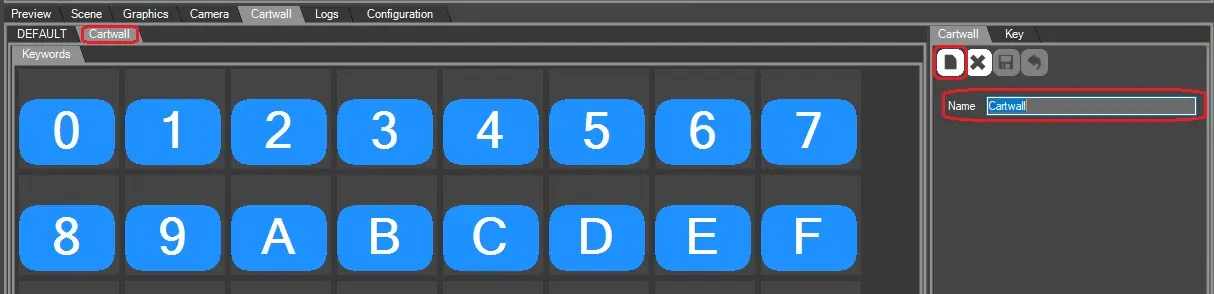 create_cartwall
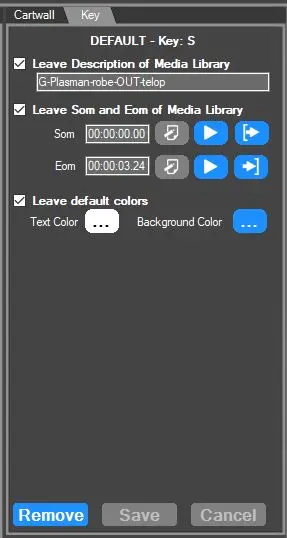 buttons_customization
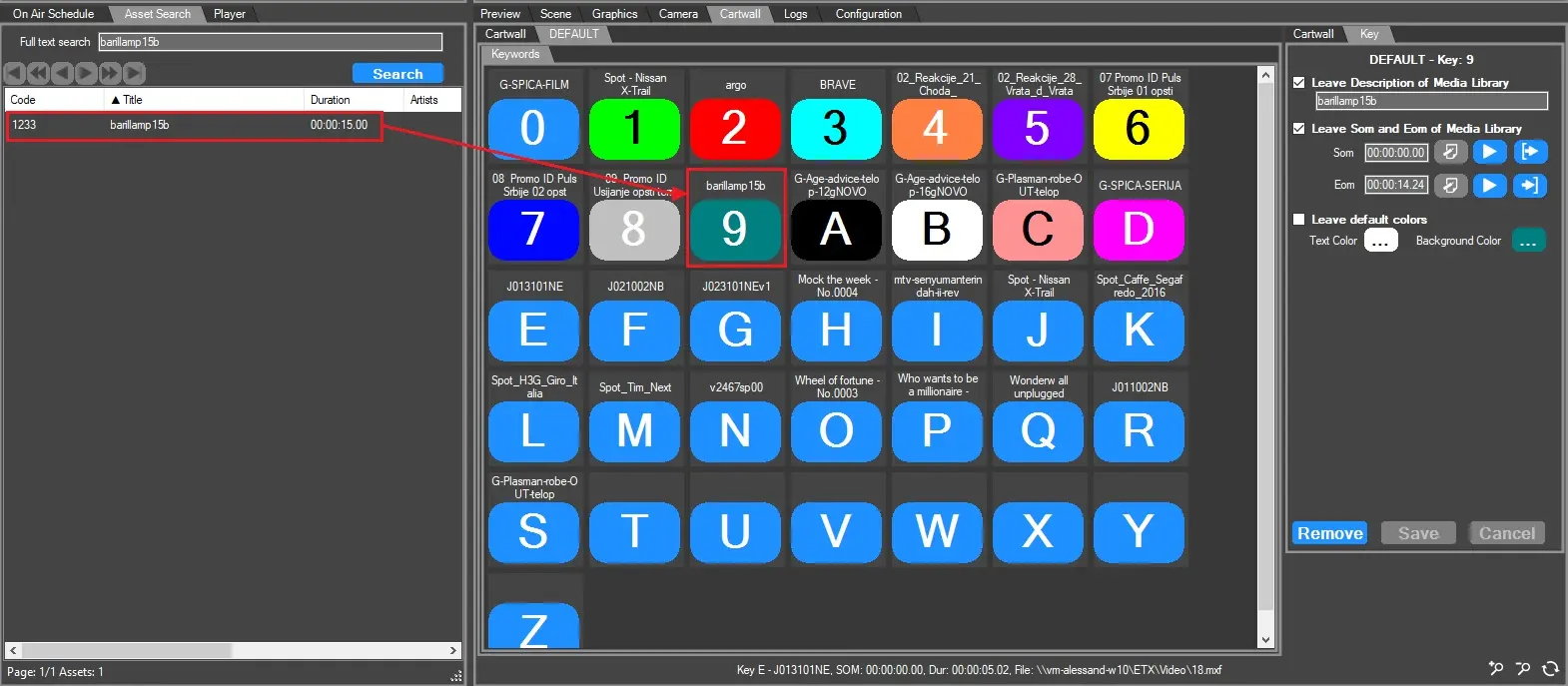 link_assets_to_cartwall