9.2.4.13 T-Workflow
The T-Workflow TAB enables management of the current Etere T-workflow attached to the asset. You can click on any T-workflow listed on the left panel and view the T-workflow information, e.g. workflow status, actions in T-workflow, etc, on the right panel.
When a new asset is added/created in Media Library, the default T-workflow is triggered automatically to manage the new asset.
WARNING: All completed T-workflows will not be available in the selection list.
T-workflow
ADD WORKFLOW AND DELETE WORKFLOW
Add_Workflow_and_Delete_Workflow
add_workflow
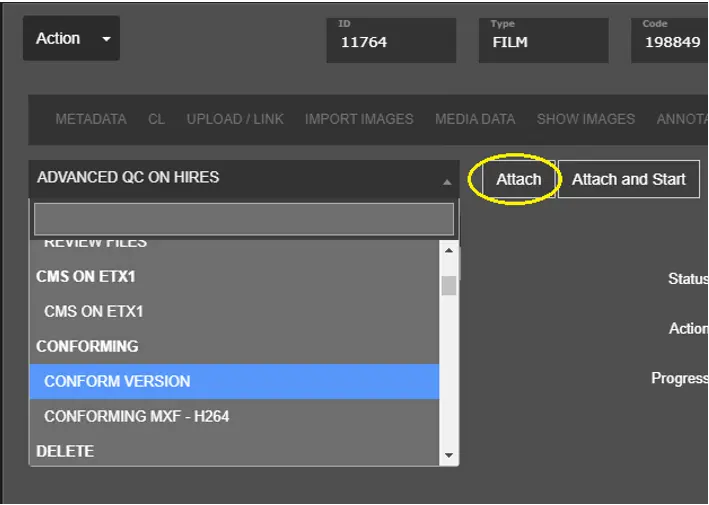
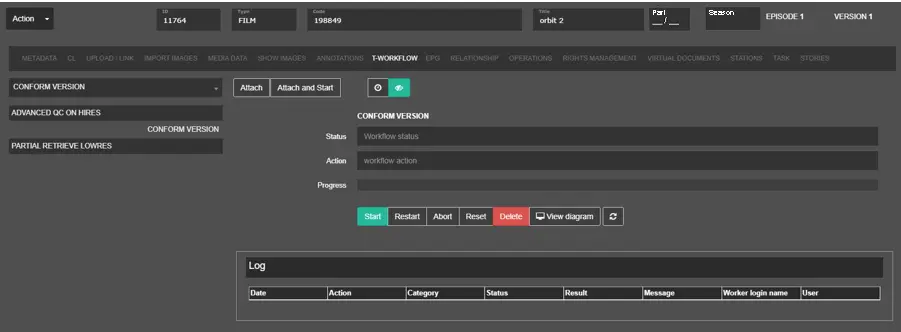
The selected T-workflows are displayed in the left panel in the Workflow tab. To add a new T-workflow, click the down arrow key, select the T-workflow name to be added to the list, and click the Attach button. The actions illustrated adding T-workflow "CONFORM VERSION" to the list.
To delete the T-workflow, simply click on T-workflow "CONFORM VERSION" on the left panel and click the Delete EtereWeb_ML_Del_Workflow button to remove it from the list.
WORKFLOW INFORMATION
When you click on one of the T-workflow in the left panel, the T-workflow information is displayed in the right panel:
- Status: The current status of the T-workflow; it can be active, completed, aborted, etc. The colour displayed in the column is dictated in the T-workflow itself.
- Action: It shows the current operation performed in the T-workflow.
- Progress: It displays the processing progress of the T-workflow action. This is only available for Data Mover action.
WORKFLOW MANAGEMENT
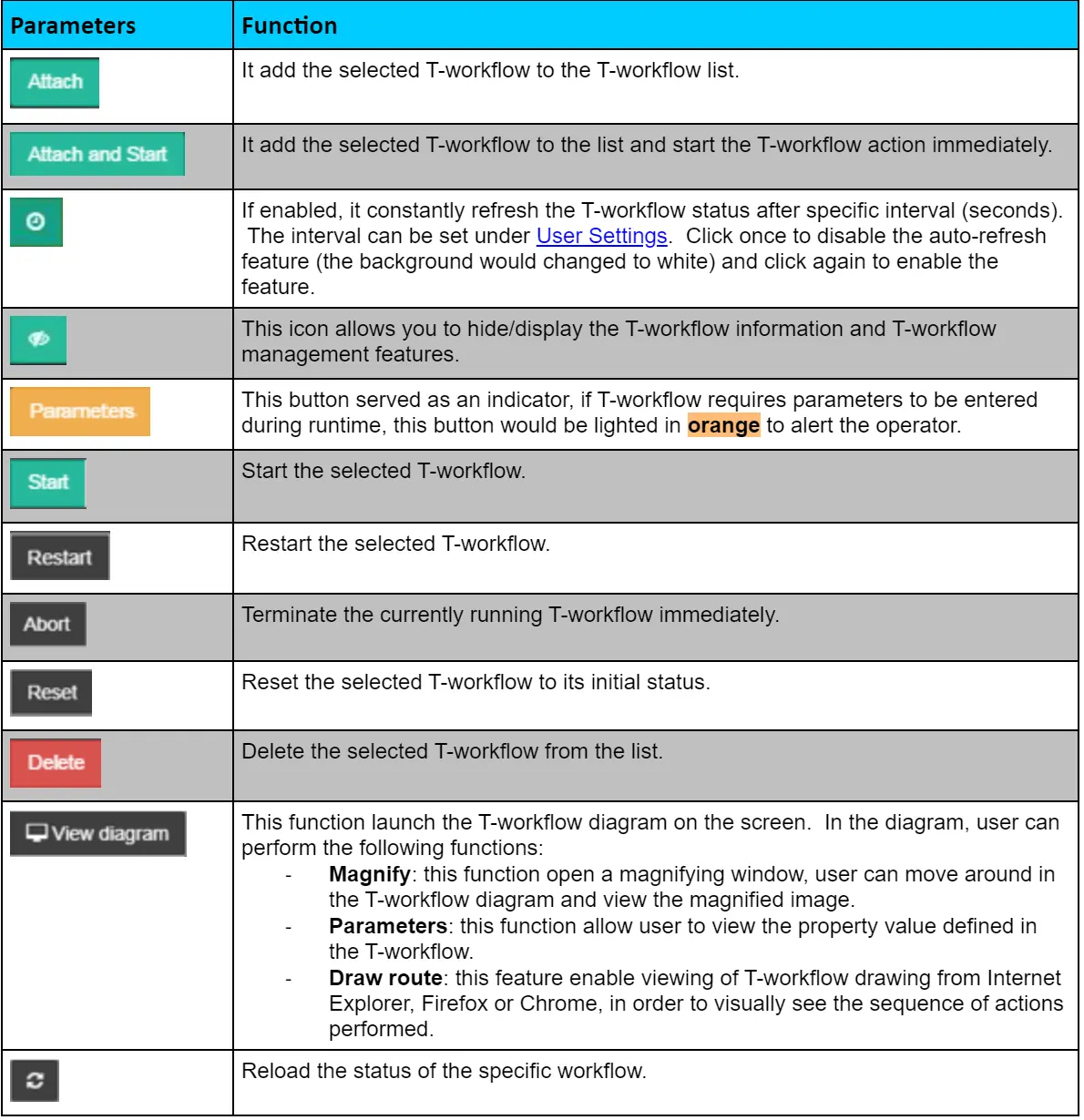
Managing workflow in EtereWeb has been simplified by selecting the buttons deployed in the user interface. The actions that can be performed on T-workflow are listed in the table.
buttons_in_user_interface
- Attach: It adds the selected T-workflow to the T-workflow list.
- Attach and Start: It adds the selected T-workflow to the list and starts the T-workflow action immediately.
- Reload each 0 seconds: If enabled, it constantly refreshes the T-workflow status after a specific interval (seconds). The interval can be set under User Settings. Click once to turn off the auto-refresh feature (the background will be changed to white) and click again to enable the feature.
- Show/hide Workflow Completed: This icon allows you to hide/display the T-workflow information and T-workflow management features.
- Start: Start the selected T-workflow.
- Restart: Restart the selected T-workflow.
- Abort: Terminate the currently running T-workflow immediately.
- Reset: Reset the selected T-workflow to its initial status.
- Delete: Delete the selected T-workflow from the list.
- View diagram: This function launch the T-workflow diagram on the screen. In the diagram, the user can perform the following functions:
- Magnify: this function open a magnifying window; the user can move around in the T-workflow diagram and view the magnified image.
- Parameters: this function allows the user to view the property value defined in the T-workflow.
- Draw route: this feature enables viewing T-workflow drawing from Internet Explorer, Firefox or Chrome to see the sequence of actions performed visually.
- Reload: Reload the status of the specific workflow.
LOG INFORMATION
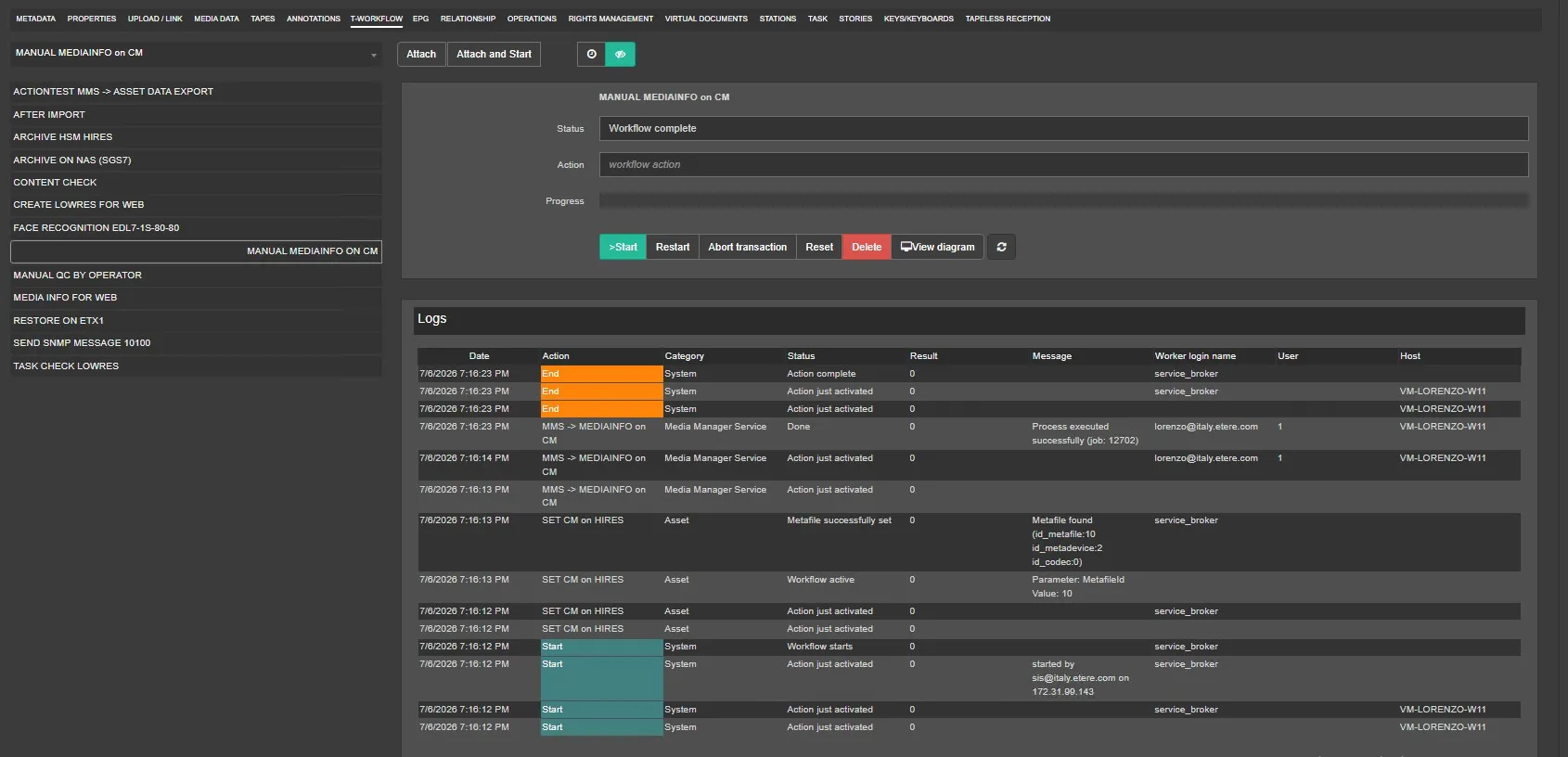
The Log section in the user interface contains detailed information on T-workflow actions performed.
Log_Information
- Date: It captured the date T-workflow operated.
- Action: The T-workflow action was executed.
- Category: The various category the T-workflow is defined under.
- Status: The status of the T-workflow action.
- Result: The outcome of the T-workflow action. Result "0" indicate the T-workflow was completed successfully; other than "0", the brief description of the results would be displayed in the Message column. You can move the cursor over the message to read the details information.
- Message: A brief description of the T-workflow result if the result is other than "0".
- Worker Login name: User profile's name who executed the T-workflow. Automatic database actions are referred to as "service_broker.'
- User: It displays the user name of the login user account.
- Host: It displays the host name of the workstation from which the action was performed.
 Add_Workflow_and_Delete_Workflow
 add_workflow
 buttons_in_user_interface
 T-WORKFLOW_WEB