59.3.8.4 XSLT Editor
The XSL Transformations section allows the creation of custom XSLT schemas to be subsequently used to export and import from and into the Etere database:
3730_XSL_Transformations
Note: The XSLT Editor supports scripting compatible with .Net framework 3.5 up to Etere version 27.5. From Etere version 28.1 onwards, you must install .NET Framework 4.5.
Transformation is mainly managed through the following functions:
Function: Refresh
Description: Updates the Transformation List, retrieving all information from the database.
Function: New
Description: Creates a new transformation.
Function: Save
Description: Save all changes made on the current transformation.
Function: Save as
Description: Create a new transformation as a copy of the current one.
Function: Delete
Description: Removes the current transformation from the database.
Function: Test
Description: The current transformation generates a new XML document from a given XML file.
Refer to the "Sample Transformation" chapter for an illustrative example of this operation.
Function: Filter
Description: Filter the Transformation List to display only transformations matching (name, category or description) the given string.
For instance, everyday operations can be performed as follows:
Create a new transformation
1. Press the New button
2. Give the new schema a name, description and categories
3. Enter the code related to the XSLT schema in the bottom box
4. Press the Save button
Modify an existing transformation
1. Search and open the transformation to be modified by double-clicking on it
NB: Listed transformations can be ordered by clicking a particular column (name, category 1, category 2, description).
2. If required, change the name, description and categories
3. Change the code related to the XSLT schema in the bottom box
4. Press either the Save button or the Save as a button
Default transformations
By default, the following XSLT transformations are available:
Default transformation: ET_GENERIC_EXPORT_1
Description: A simple example of transforming data exported by Etere's "XML Asset Full Export" function.
Category 1: system
Category 2: etere. Asset.export1
Default transformation: ET_EVENTVIEW_TO_HTML
Description: An example to transform all XML system events performed by the "Log Saver" into an HTML page.
Category 1: system
Category 2: etere.event view
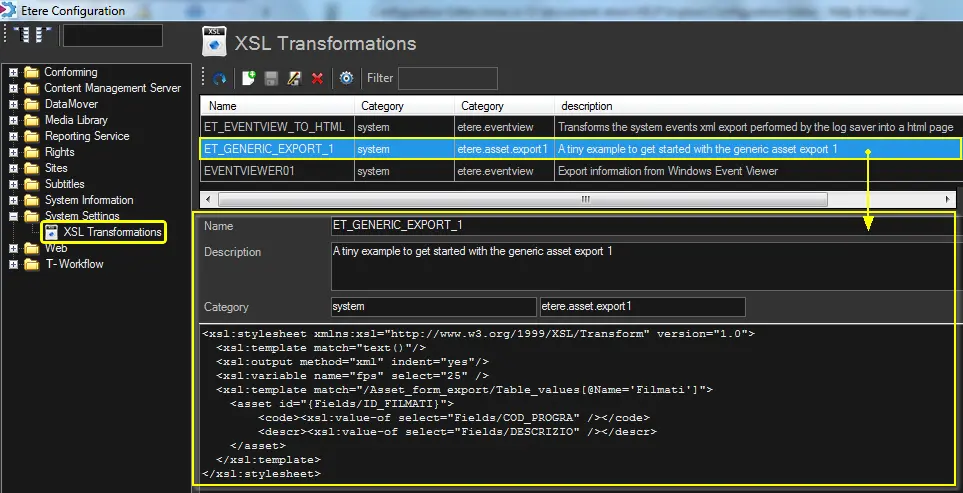 XSL_Transformations