79.8.3 Loading and interact with Nunzio Rundowns
Once the first configuration has been completed according to Customer needs, we can starts loading any Nunzio Rundown we've create relying on Etere Nunzio.
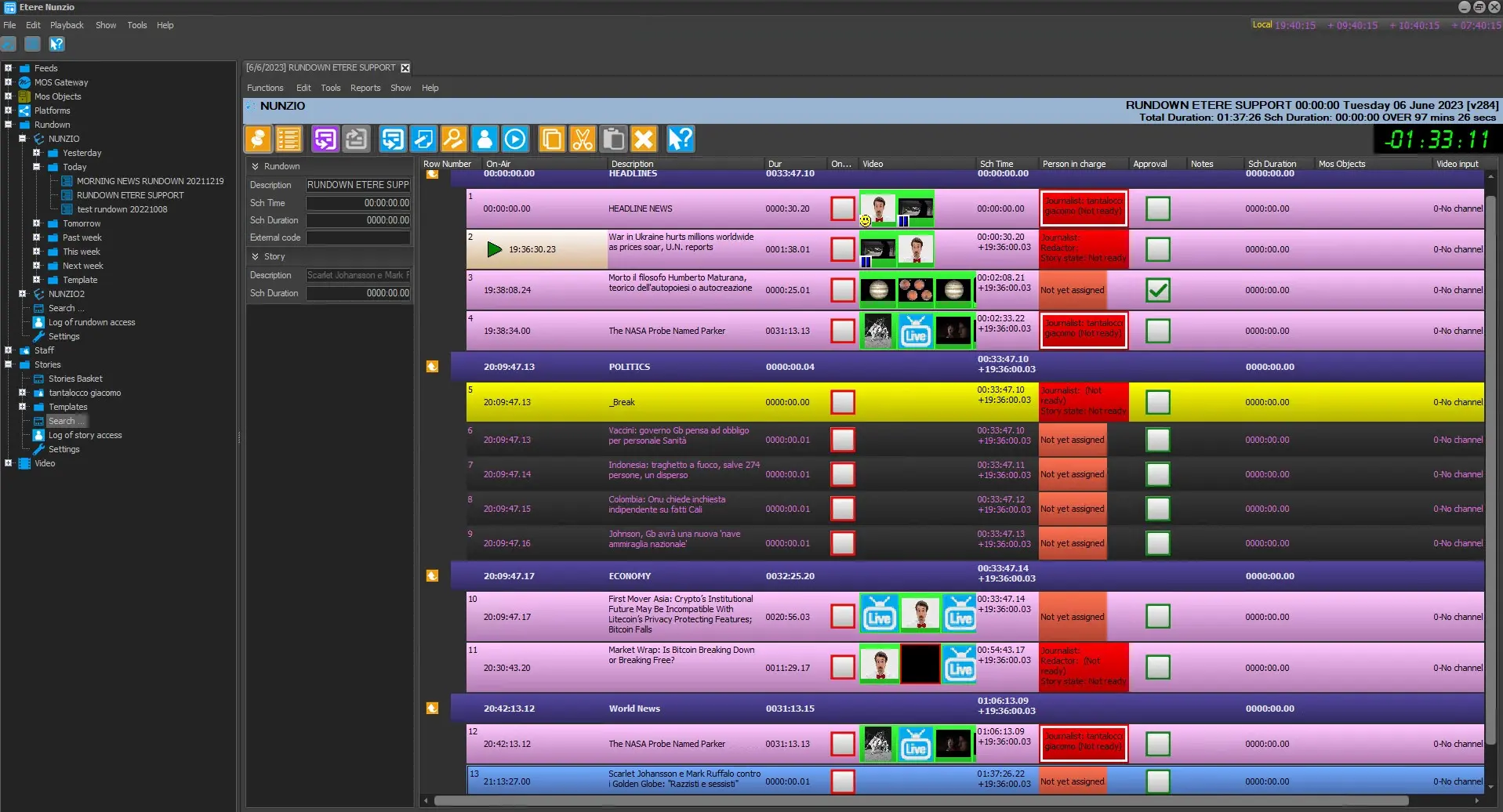
First Thing first, we need to set the given Rundown as Approved and MOS Active. By default, Nunzio Rundown are nor Approved or MOS Active, so we need to set it as required.
not_approved_not_active
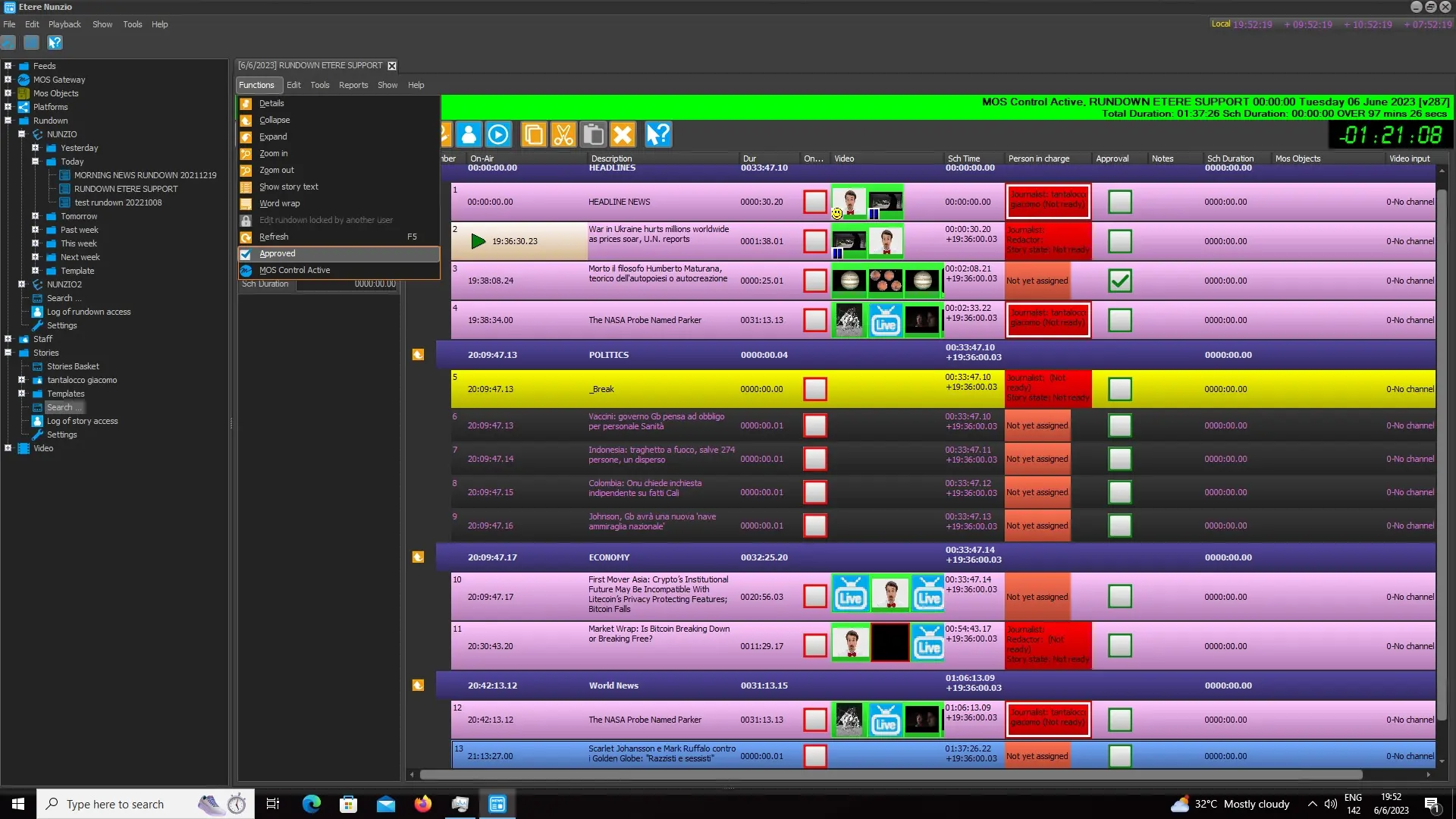
In order to Approve and MOS Activate any Nunzio Rundown we must open up Nunzio Content Management and go to:
Functions > Approved
Function > MOS Control Active
approve_mos_control_menu
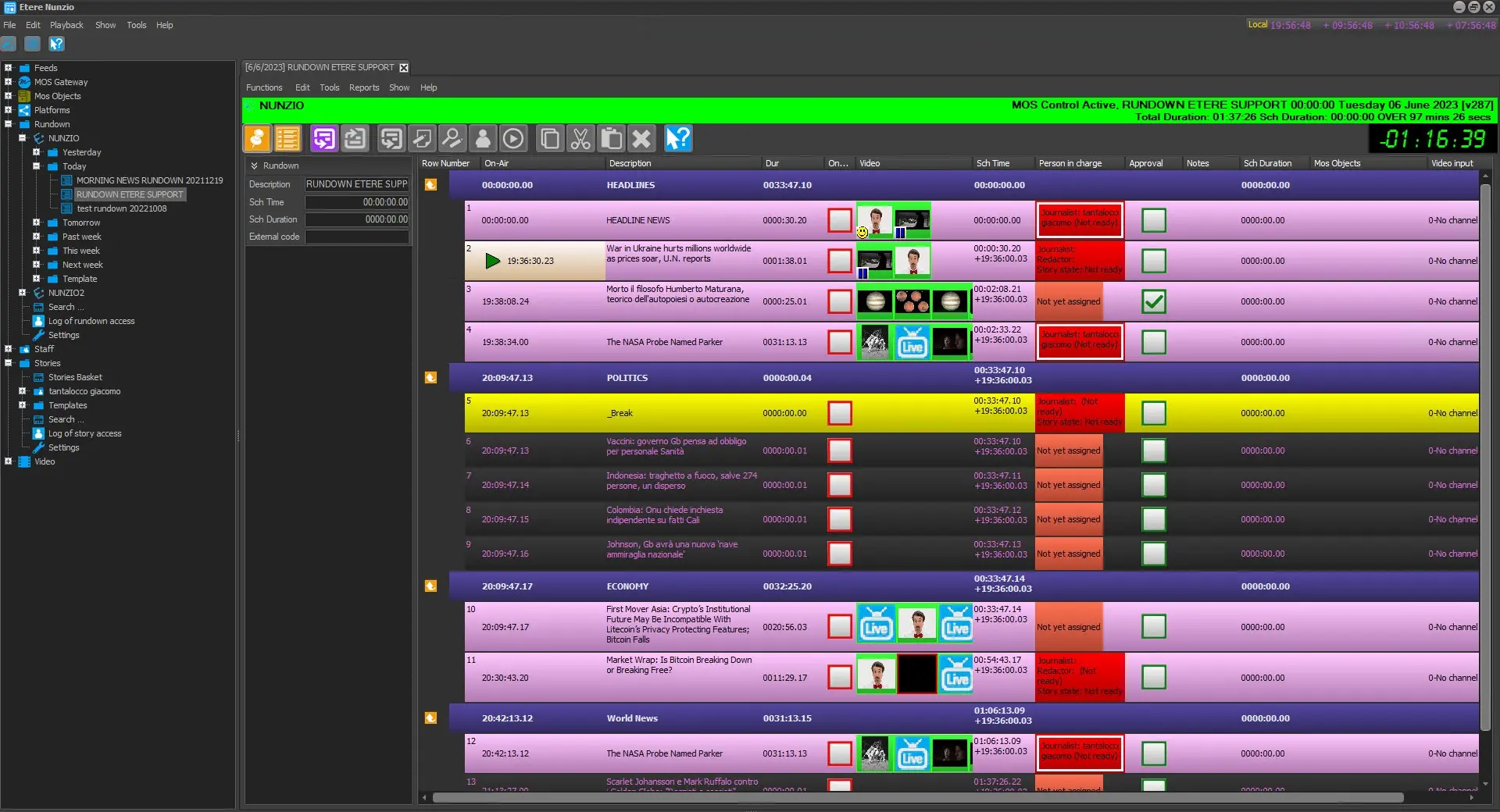
Etere Nunzio distinguish the rundown status by changing the banner color accordingly:
. GREY: the Rundown is nor Approved or MOS Activated;
. ORANGE: the Nunzio Rundown has been correctly Approved;
. LIGHT GREEN: the Nunzio Rundown has been correctly Approved and/or MOS Activated.
Once the Nunzio Rundown has been completed, approved and MOS Activated, we can start recalling it into our Etere Nunzio GFX Interface.
nunzio_rundown_approved_active
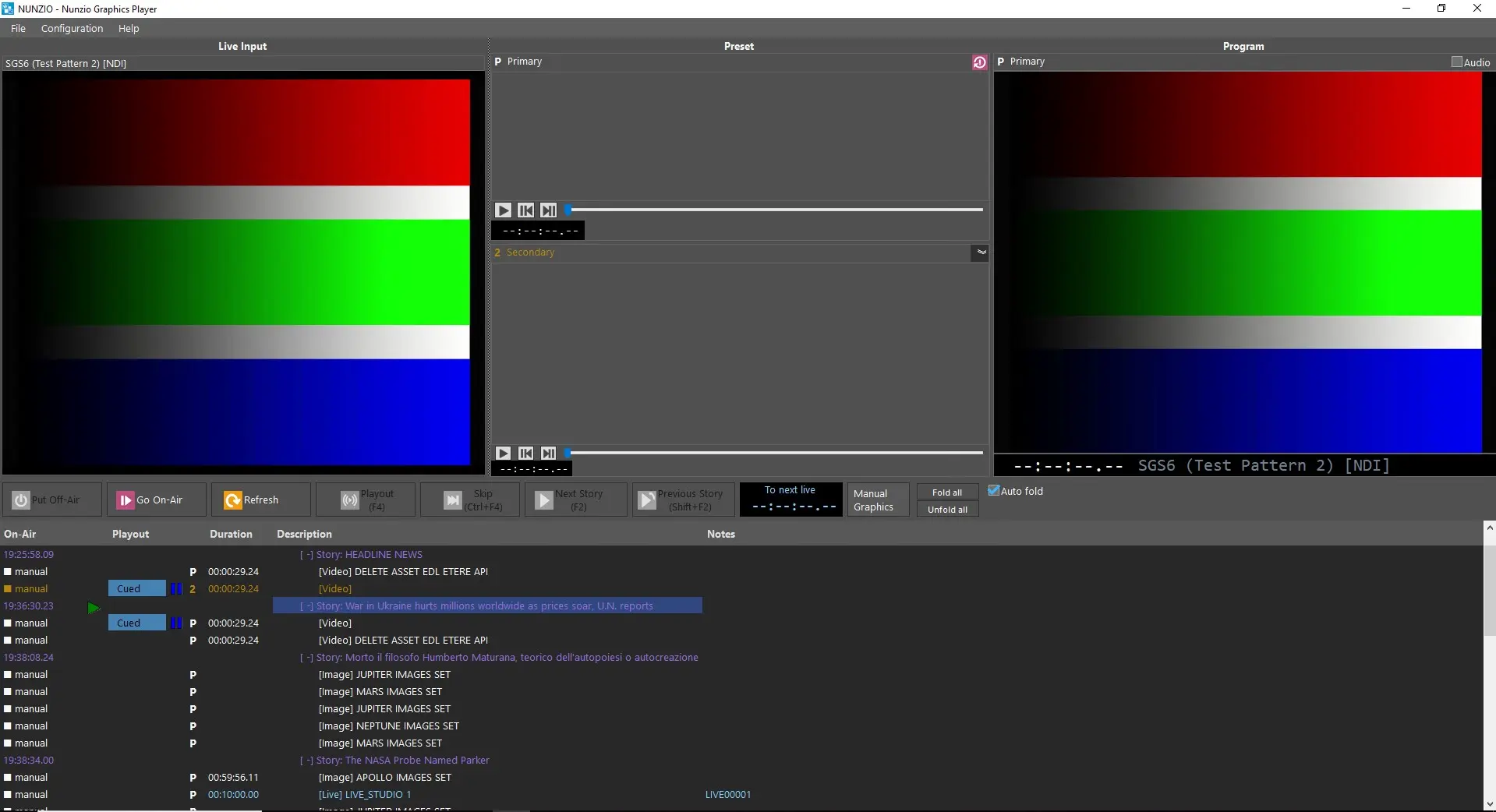
If we are going to open up Nunzio ETX Playout, we will find the previously activated rundown up and ready to be aired.
nunzio_gfx_ready
As you can see from the screenshot above, the previously activated Rundown is loaded and is ready to be aired.
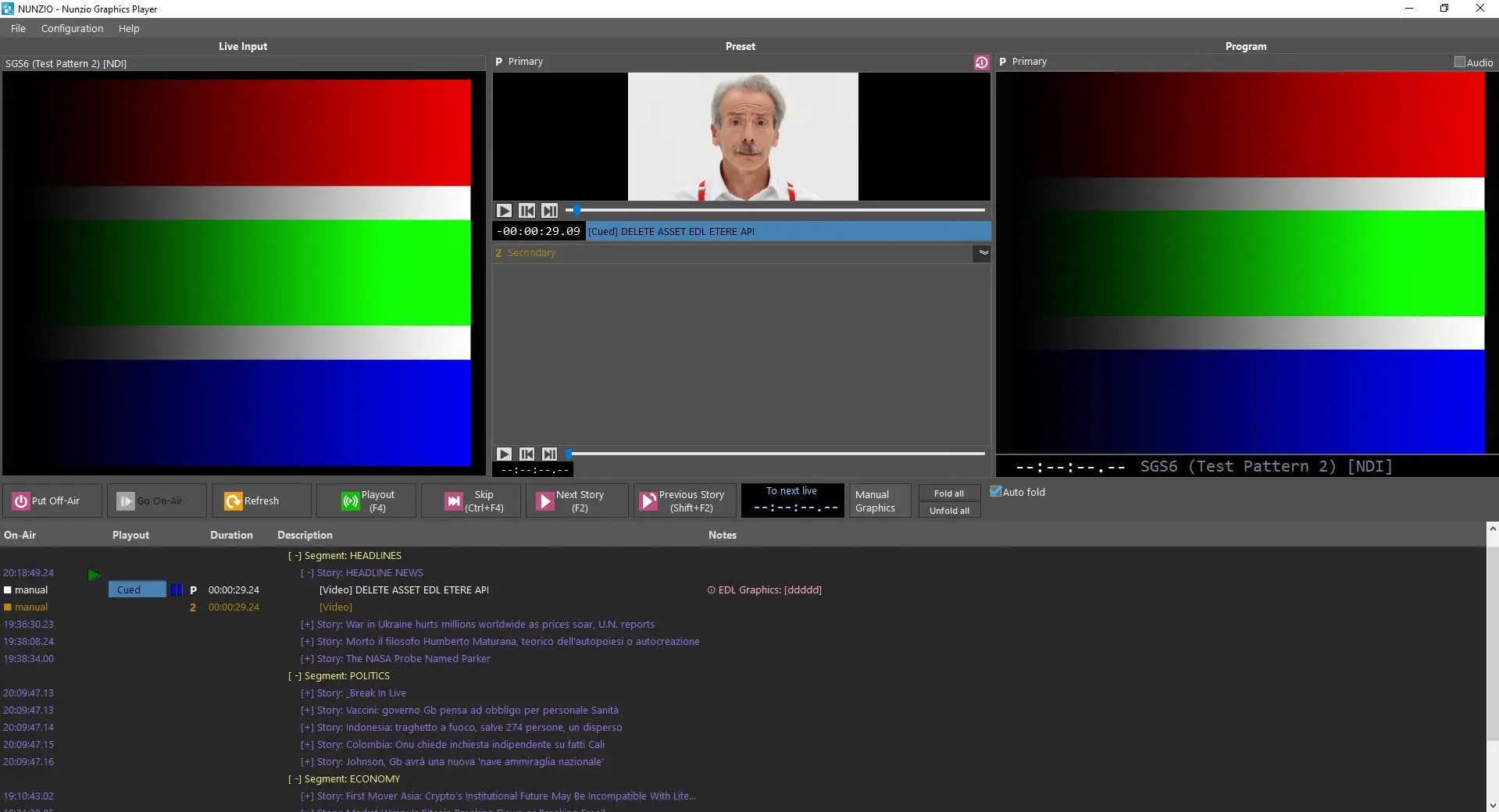
In order to air it, we must first select any given story from where we want to start our news, then press the Go On-Air button.
nunzio_gfx_on_air
At this point our Nunzio Rundown is ready to be aired, story by story, depending on the site needs.
From here, we can start using all the related Nunzio ETX Playout Functions, such as playout commands, Primary and Secondary Video playout and GFX insertion and so on.
NUNZIO ETX PLAYOUT COMPONENTS
Nunzio ETX Playout is made up of basically five sections:
1. LIVE INPUTS:
2. PRESET:
3. PROGRAM:
4. PLAYOUT CONTROLS:
5. RUNDOWN MANAGEMENT:
LIVE INPUTS
In Etere Nunzio ETX Playout is possible to have multiple feeds in input, either SDI or NDI.
From the configuration form, is possible to add any desired feed just by adding them into the configuration form.
add_multiple_feeds
Once we set the desired parameters, we can press the APPLY button. Once done, the system will shows all the inserted feeds.
insert_2nd_feed
We can add as many as sources as we want. It worth mention that if in presence of NDI, bandwidth may play a significant role.
add_multiple_feeds_2
Once applied, the application need to be restarted.
restart_application
Once restarted, we will have the situation showed in the image below.
multiple_lives_feeds
PRESET(PRIMARY AND SECONDARY VIDEO FRAMES)
Primary Video Frames
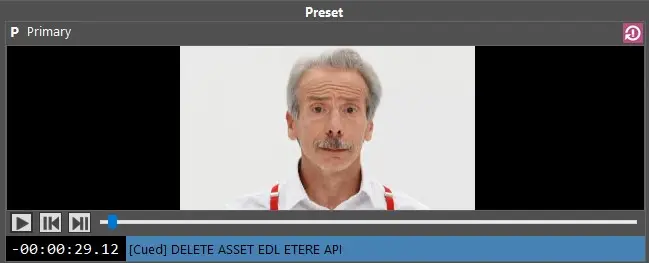
The given frame would allows Newsroom Playout Operators to easily play the main stories videos off air. Once any given story is loaded into the GFX Player, it would be possible to access its primary video content, and check it out before the on-air process.
Available Playout Commands:
Play: starts the Primary Video Playback;
Backward frame by frame: perform the frame by frame backward;
Forward frame by frame: perform the frame by frame forward;
Shuttle: allows the Newsroom playout operators to easily move within any position of the given video;
Counter: Video Countdown;
Asset Status and Description: Asset status within the Nunzio GFX Player Rundown list and Asset Title/Description.
Reset: reset the Video position to its Starts.
primary_video_frame_controls
Secondary Video Frames
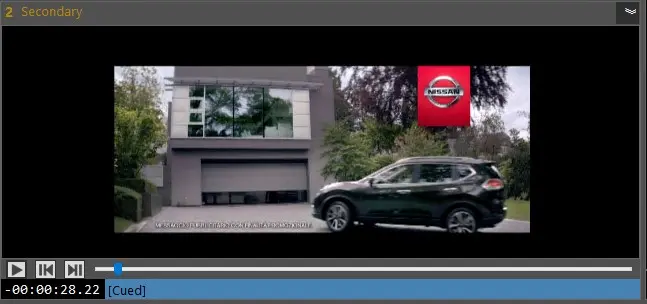
Same behavior as Primary Videos, the Secondary ones allows the operators to easily investigate all the available Secondary content before its On-Air process.
Available Playout Commands:
Play: starts the Primary Video Playback;
Backward frame by frame: perform the frame by frame backward;
Forward frame by frame: perform the frame by frame forward;
Shuttle: allows the Newsroom playout operators to easily move within any position of the given video;
Counter: Video Countdown;
Asset Status and Description: Asset status within the Nunzio GFX Player Rundown list and Asset Title/Description.
secondary_video_frame_controls
PROGRAM
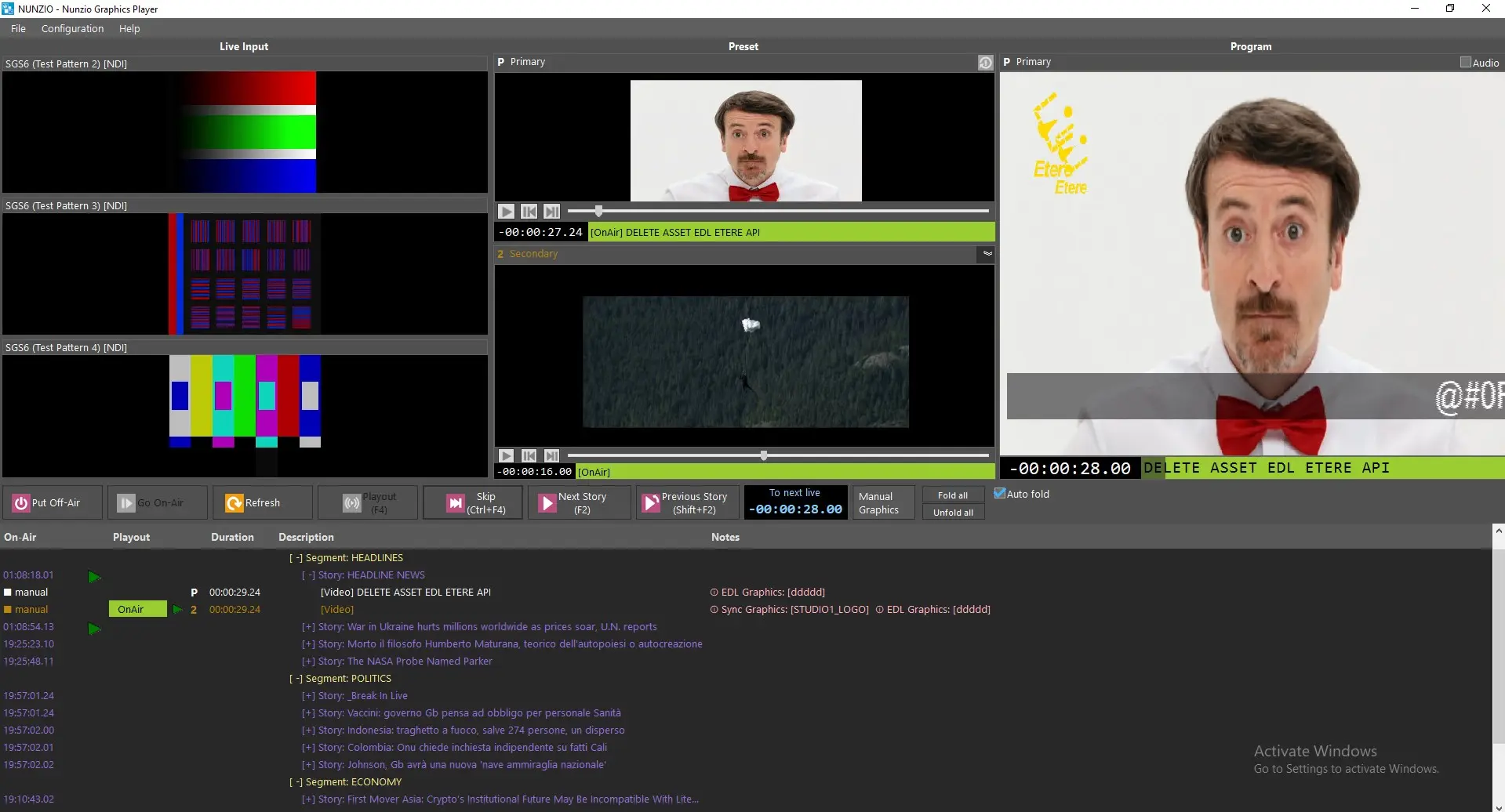
Depending on the Nunzio Playout Status, the program section represent:
IDLE: it will list the first available Live Source configured in Configuration > Setup;
PLAYOUT: it will show what is actually airing.
program_onair
Right below the Preview Frame, we have:
1. Playout Counter: Countdown Counter to the end of the current material;
2. Asset Title: it will show the Title of the airing material.
PLAYOUT COMMANDS
. Put Off-Air: it will allows the Newsroom Operators to easily unmount the Nunzio Rundown and put it Off-Air;
. Go On-Air: it will allows the Newsroom Operators to easily mount the wanted Nunzio Rundown. Rundowns must be Approved and MOS Active in order to be set as On-Air status;
. Refresh: the given command will refresh the Nunzio ETX Playout Rundown List.
. Playout(F4): it will start the playout of the given video related to any given story;
. Skip(Ctrl+F4): it will allows the Newsroom Operators to easily Skip any story from the Nunzio Rundowns;
. Next Story(F2): it will allows the Newsroom Operator to move to the next Story on the Rundown list;
. Previous Story(Shift+F2): it will allows Newsroom Operators to easily move to the Previous Story on the Nunzio Rundown list;
. Manual Graphic: it will allows Newsroom Operators to manually send any available GFX to the Nunzio Playout Output;
. Fold All: will fold all the available stories within the Nunzio Rundown;
. Unfold All: it will unfold all the available stories within the Nunzio Rundown.
 not_approved_not_active
 approve_mos_control_menu
 nunzio_rundown_approved_active
 nunzio_gfx_ready
 nunzio_gfx_on_air
 primary_video_frame_controls
 secondary_video_frame_controls
 program_onair