84.2.1.4 Remote control panel
As described in chapter 56.2.2.1 Remote Control Panel, the playback of Etere Automation can be also controlled from Executive Editor.
This is one of the key features of Executive Editor, which makes the management and the monitoring of the playout system more accessible and reliable.
By default the remote control panel is hidden, but it can be displayed from the Show menu, enabling the option Remote Control.
It counts of 3 sections, that are described in this chapter.
Automation status
At the top are displayed the statuses of the Master and Clone (if activated) automations, in bars positioned respectively at the left side and at the right side of the window. The text in each bar and its color, describe the automation status, as well as the availability of the related onair path:
• Green: Running. The automation is currently playing as Main.
• Yellow: Running. The automation currently playing as Clone.
• Blue: Idle. Automation is opened, but is not playing yet.
• Red: Error. There is an issue in Automation or in the UDP communication with Executive editor or the onair path is not accessible.
A double click on these bars, allows to disable the publish for the related automation. The bar will display the message PUBLISH OFF.
The automation status is also displayed in a small box at the left of the counters, along with the status of the connected devices. Here it's possible to switch the control from the main automation to the backup one and viceversa.
To recognize each automation, the text reflect what it's set in Automation settings > General > Short description.
Counters
The Remote Control Panel, features up to three counters, which can be customized through the contextual menu.
Choose first which of the 3 counters has to be modified, then set the following options:
Counter type: Select what information the counter should display.
- None: Disable the Counter.
- Countdown: Show the time remaining to the next event.
- Elapsed: Display the elapsed time of the current event.
- Live: Show the remaining time to the next live.
- Fixed: Display the remaining time to the next fixed event.
- Intro: Show the remaining time to the next intro.
- Timecode: Display the timecode of the current event.
- Current time: Show the current windows time.
- Types/Break: If the next event has a type which is different from the currently on-air event, it will display the remaining time to the first event of the next group; otherwise (if the next event has the same type of the current on-air event), it will display the remaining time till the end of the entire group of events of the same type (types are selected in the Settings | Parameters tab).
Counter size: Choose the size of the counter, among Large, Medium or Small.
Foreground color: Select the color of the numbers in the counter. By default it's green.
Automation commands
At the bottom, the remote panel shows all the commands that can be launched from Executive Editor to control Automation.
Please refer to chapter 56.2.1.7 Automation Commands for more information.
The only command that is present only in the Remote control panel from Executive editor is the command REMOTE SKIP. See below for information about how does it work.
Note: The skip command works differently if launched from automation or from Executive Editor. In the first case, it will affect only the automation's playlist where it's launched; if launched from Executive Editor, the command will be propagated to main automation, then to backup automation and both playlists will be affected. In order to avoid desync issues between main and clone, it's advisable to always skip from Executive Editor.
Remote skip
Executive Editor and Automation exchange messages and send commands using UDP protocol, but from Etere version 35.1, it's possible to send the skip command through TCP/IP.
Follow these steps to enable the Remote Skip function.
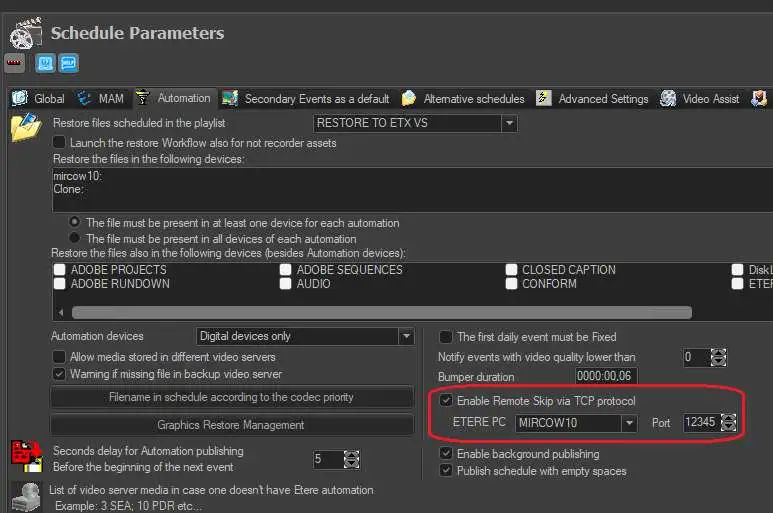
1. In Etere Configuration > Settings > Schedule parameters, enable the appropriate function as shown in the image.
enable_remote_skip
2. Select the PC where Executive Editor is installed and the TCP port where the remote control is listening for the command.
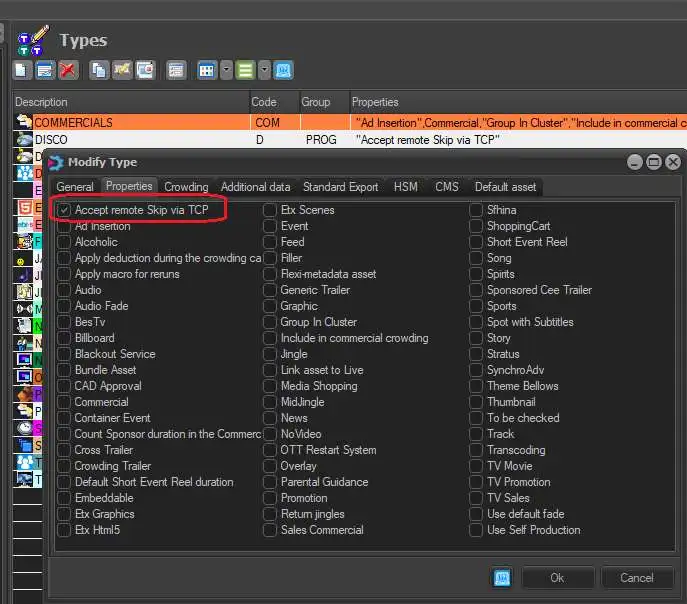
3. In Etere Configuration > Settings > Types assign the property to accept the remote skip.
remote_skip_property
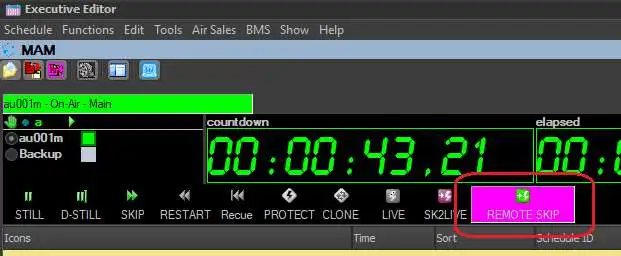
4. In the remote control of Executive Editor will be available a new button: “REMOTE SKIP”. Click the button to enable Remote Skip Mode. The button will start blinking and the skip command will be sent via TCP/IP.
remote_skip_button
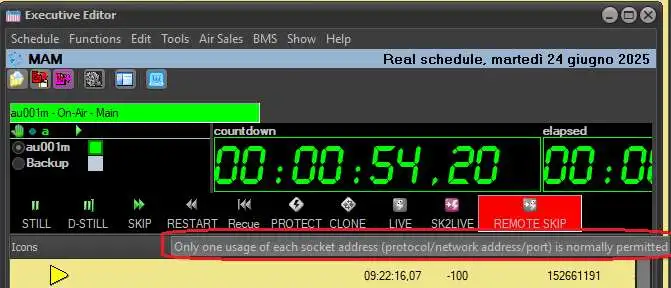
If multiple instances of Etere Scheduling are opened, from the second instance the REMOTE SKIP button will show an error.
The reason is that only the first instance can open the TCP socket.
If the first instance is closed, the second one will open the socket within 10 seconds.
remote_skip_error
When automation's playback approaches the end of the event, Etere disables the remote control panel buttons.
So, in case the remote skip is performed on a manual event that is getting close to its end, the remote control panel proceeds in this way:
1. If the remote skip has not been performed due to the disabled command, it waits 3 seconds.
2. Then, if the button becomes active again, a check to see if the event can be skipped is performed.
3. In case of a positive result, it launches the remote skip not done previously. Instead, if automation began playing a timecode event in the meantime, which type does not allow the remote skip, the latter won't be done.
 enable_remote_skip
 remote_skip_property
 remote_skip_button
 remote_skip_error