72.19.8 Video Server Media Check
This function is used to detect, list and solve possible errors and incongruences regarding video files stored in a Video Server (e.g.: media which have not been linked to an asset form or vice versa).
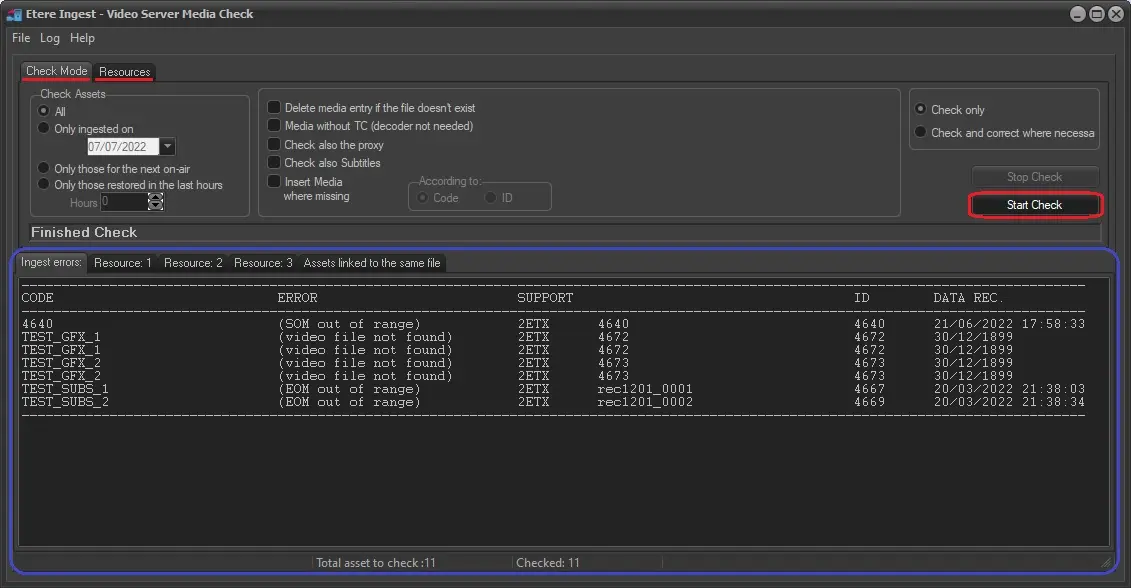
In order to use this feature, you need to previously define its parameters, please refer to the chapter Configuring Video Server File Check for detailed guidance. Once launched, the application's main window will be opened:
VideoServer File Check
Setting Check Options
By setting the parameters placed in this window you will be able to custom detect (and in some cases solve) errors encountered during the checking:
•On the top left of the window you have a check assets filter to select which assets need to be controlled, for example, all the assets, assets ingested on a specific date, assets scheduled to be On Air soon, or just files restored to the videoserver in the last 'X' hours.
•In the top middle of the window, you can set some self-explanatory functions to fix possible discrepancies between the asset form and its assigned video file:
•Delete media entry if the video file doesn't exist: Allows you to delete the asset form's 'media' field if it is not present in the videoservers,
•Media without TC (decoder not needed): Tick off this option if video files to be checked are '0 based' (marker's timecode is based on the timeline's first frame being 00:00:00:00, that is, its SOM is 0), it will improve the searching speed by keeping the decoder idle.
•Check also the proxy: If you have configured the relative proxy resource, this parameter will enable also the check of proxy files,
•Check also subtitles: Extend the checking to the subtitles,
•Insert media where missing: Permits filling the asset form's 'media' field, in case it is empty and a video file named as the asset's Code or ID is present in the video server,
•In the top right is located a control that can be run in:
•Check only: mode (which will return only the result at the bottom of the page),
•Check and correct where necessary: (useful for example in the case where someone has deleted the files directly in the videoserver without using Etere Ingest).
Detecting and Solving Errors
Once you have set all the relevant parameters and clicked o the 'Start Check' button, all errors and incongruences will be listed In the bottom of the window, where are located seven tabs, through which the check process takes place:
•Ingest errors: In this tab are listed all the assets found with errors (e.g.: wrong physical duration, etc).
•Resource 1, 2 and 3: Those three tabs will display all video files present in Video Servers 1, 2 and 3 respectively, which have not been linked in archive. By making right-click on the video files you are able to delete them from the Video Server.
•Assets linked to the same video file: This section will warn you of redundant links pointing to the same video file.
•Creating Asset forms from High Resolution files: Here it is possible to create asset forms for video files which are not linked to any asset form but are present in the Video Server. For a more custom creation set the parameters which are available on the bottom right side:
•Check Event type: If specified, takes into account the event type,
•Video Server TC not connected: If ticked off, it will improve the searching speed by keeping the decoder idle. Use this option if video files to be checked are '0 based' (its SOM is zero),
•Insert code name also in the description field of the asset form: Insert the video file name in the asset form's description, otherwise it is blank,
•If the asset form exists, update media data: Allows you to update physical data as SOM (start of message) and DUR (duration) in case the asset form already exists,
•Update media entry if the video file doesn't exist: Perform a reverse checking which consist in verify (after the creation of the asset) that the video file mentioned in the 'media' field exists in the video server.
Creating asset forms from Proxy files: As in the previous function, here it is also possible to create asset forms, but in this case based on the proxy files (which are not linked to any asset form) stored in the selected meta device. You can optionally set some parameters as to insert the video file name in the description field of the new asset form or delete its 'media' field if the high-resolution video file is not present in the video server.
Once you have selected all the relevant options, just click on the 'Create asset forms' button to start the process.
 VideoServer_File_Check