70.2.2.2 Migrating from Etere 21 or lower
Since the release of Etere 22 the license codes used to identify HSM Libraries have changed. In these terms, in case of upgrading your system from a previous version (Etere 21 or lower) it will be required to also update your license to continue using your existing HSM resources.
Updating the license and related resources an easy and quick operation that only takes the following steps:
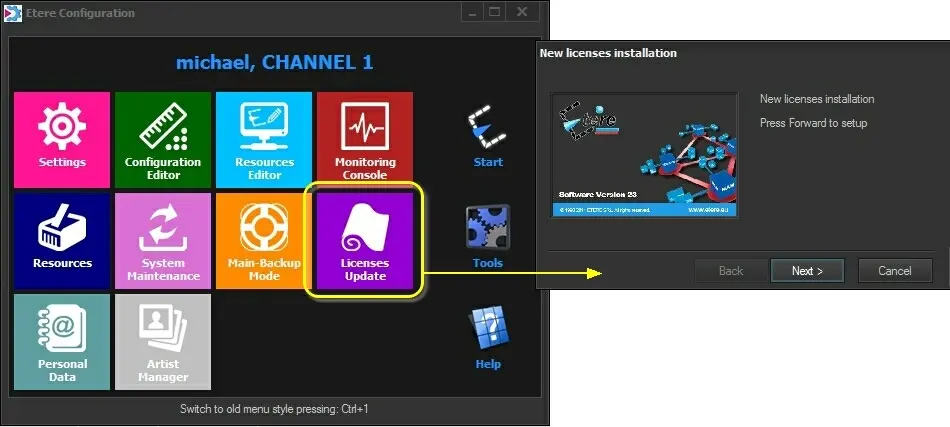
1.Open the "Etere Configuration > Licenses Update" tool. Load the updated license (including the HSM Libraries) provided to you by the Etere customer service:
Etere Configuration - Licenses Update
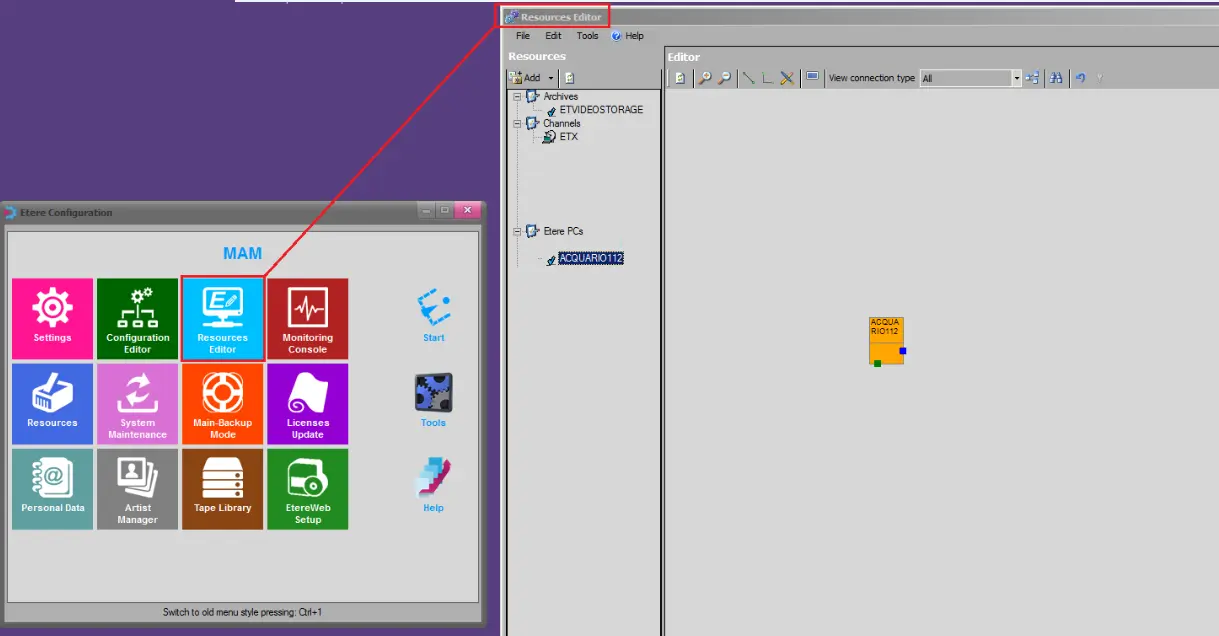
2.Open the "Etere Configuration > Resource Editor", a new small window will be displayed asking for the existing HSM resource(s) to be associated to the updated license(s):
Resource Editor
Current resources - Select the resource to be kept into the system.
Available licenses - Select the license to which the resource will be associated in order to be kept.
3.Use the following buttons to complete the action:
Update with new license - Confirms the association between a "current resource" and an "available license".
Delete the resource - Removes definitively the selected "current resource" (i.e. because lacking of a license, because no more used, etc).
NB: Please note that all non-empty tapes and media pools related to the resource will be kept; instead, empty tapes will be set as "unclassified system storage" and empty media pools will be deleted.
Abort - Restarts the migration process, cancelling all previous associations.
4.The next time HSM Robotics will be launched, it will automatically detect and load all licensed HSM Libraries.
 Etere_Configuration_-_Licenses_Update
 Resource_Editor