59.2.12 Icons
The Icons section display all icons used and managed across all Etere applications.
Icons
The toolbar menu allows you to perform the following functions:
New - This function adds a new icon to the list. You would be prompted to give a name to the new icon and provide the path to the icon image file. Using the [Ctrl + N] control key, you can also launch this function.
Delete - Click on an icon and select this function key to delete the selected icon.
Edit - You can use this function to change the icon name or select a different image file to replace the icon. This function can be triggered using the [Ctrl + M] control key.
To replace the icon with a customised icon, you can put the custom icon in the icon repository and name the icon the same name as the icon to be replaced.
Icon Size - This function works similarly to Windows Explorer, where you can display all icons in details view, listing view or tiles view.
View All - This function display all available icons used in all Etere applications.
Help - A self-explanatory function icon.
Notes: It is recommended to use images with 256 colours to reduce the file size.
Replacing Default Icons
You can customise the default icons (e.g. icon names starts with AUDIO_string) simply by right-clicking on the icon and selecting the “Edit” function or using the control key (Ctrl + M) to modify the properties. The new icon must have the same name with 32x32 resolution.
Replacing Station Icon
You can also modify or replace the station icon during the initial startup of the application.
Replacing_Station_Icon
From the “Select Station” startup menu, right-click the station name (channel name) icon and select “Change icon” to launch the Icons settings (as described at the beginning of this section) and pick a replacement icon from the list. The changes would take effect immediately.
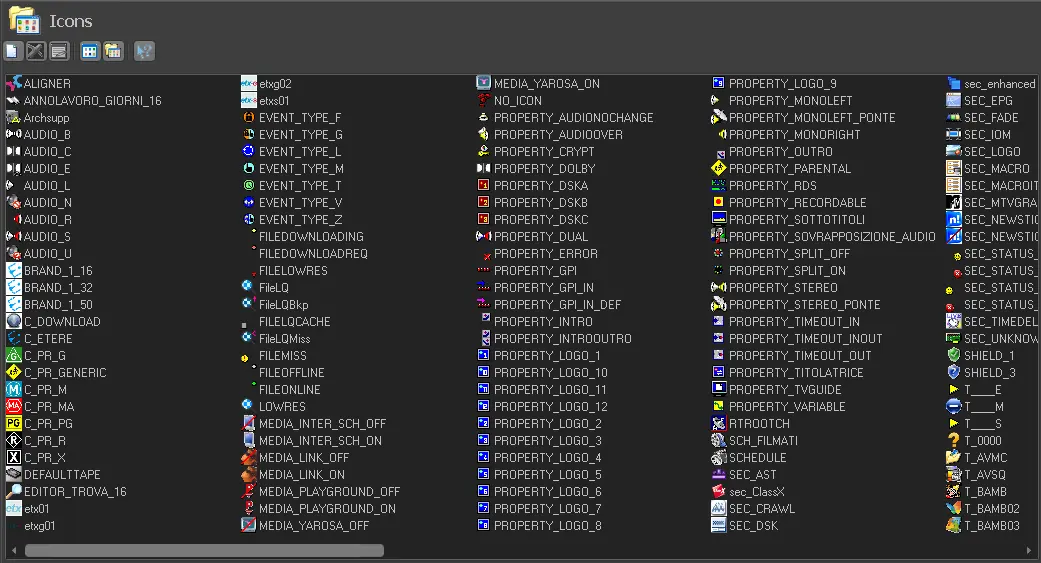 Icons
Icons
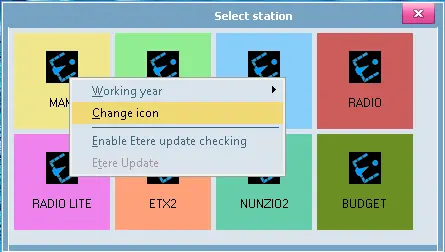 Replacing_Station_Icon