204.2.2.3 How to copy and upload the Etere system resources
In order to copy and upload the Etere system resources just follow the procedure described below:
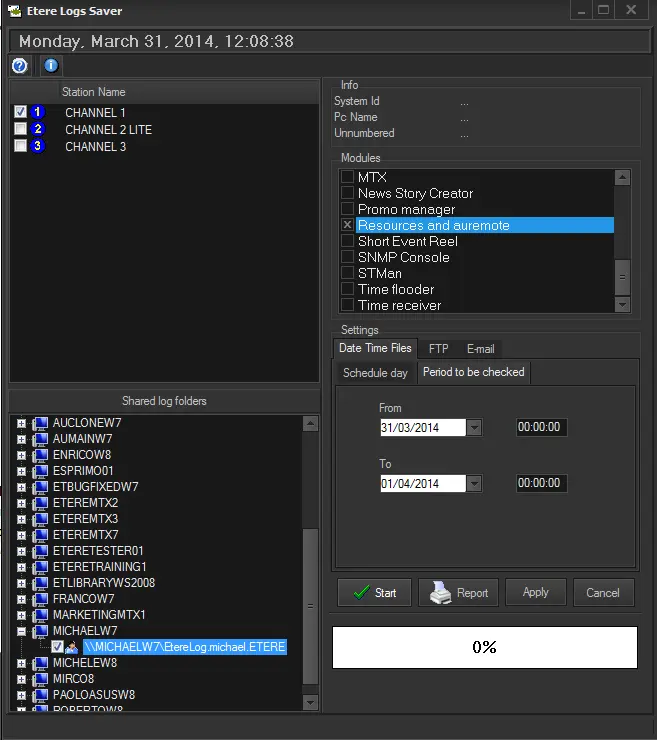
1.Open the Logs Saver tool, select the station (or stations) and shared folder, then check the "Resource and AuRemote" option:
Logs_howto_sendresources01
"Resources and auremote" includes logs on automation devices (resource directory) and initialization parameters (auremote.ini)
2.Press [Start] button to create one zip file for each selected station.
Logs Saver would look for "auremote.ini" files in both main and clone on-air paths (configured in Etere Configuration > Settings > Onair) for each station selected. Any auremote file found will be copied in the zip file, in the following path:
Resources and auremote, uXXX, [user]@ [PC name], [YYYY-MM-DD] [HH-MM-SS] \ [AU PC name] \ etereau \ user.00X
where,
uXXX and user.00X - The user corresponding to the station selected in step 1.
[user] - The user who logged in at the PC and launched the export.
[PC name] - The PC where Logs Saver is running.
[YYYY-MM-DD] [HH-MM-SS] - Data and time of the log export operation.
[AU PC name] - The name of the PC where the auremote file is copied from.
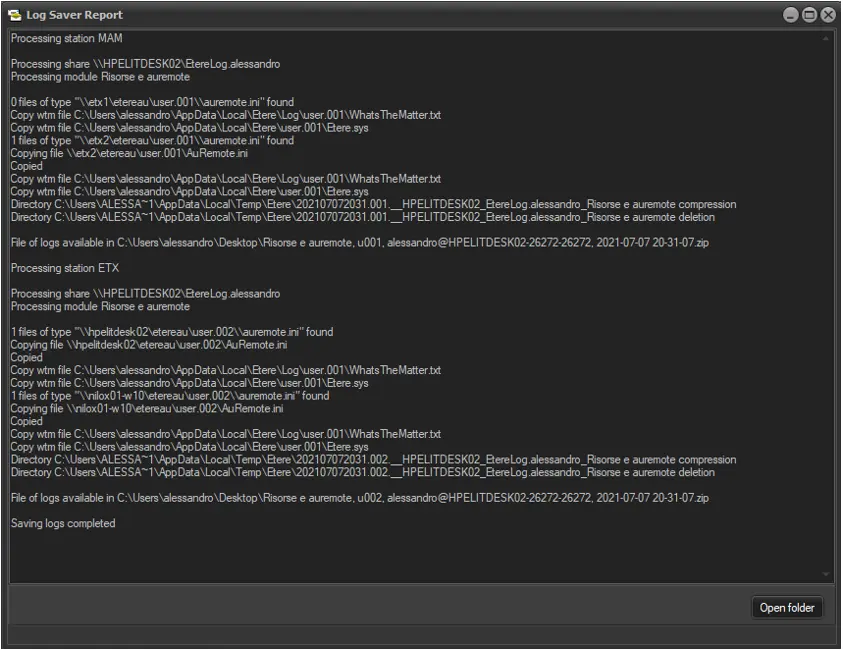
3.At the end of export, a report would be displayed.
Logs_saver_report
If the Logs Saver cannot find any "auremote.ini" file in the path configured, a message would be written in the report:
0 files of type “[onair path main or backup]\\auremote.ini" found
In this case no sub-folders would be created.
You can click on the [Open folder] button to view the path where the logs are saved.
 Logs_howto_sendresources01
 Logs_saver_report