62 Etere Camera Control
The Etere Camera Control allows preset configuration for cameras available on the network. Configuration is persisted in the Etere Database in the “inifiles” table (Params.ini/Cameras/Configuration).
Application Startup
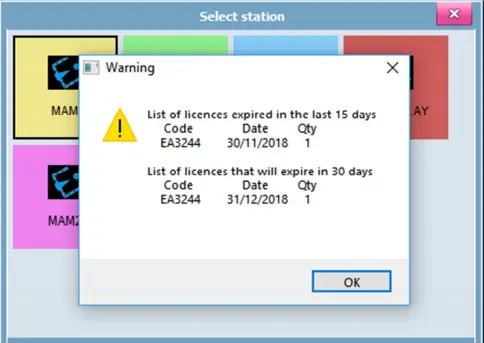
You can start Etere Camera Control by executing “Etere.CameraControl.exe” and selecting a station to launch the application.
Select station
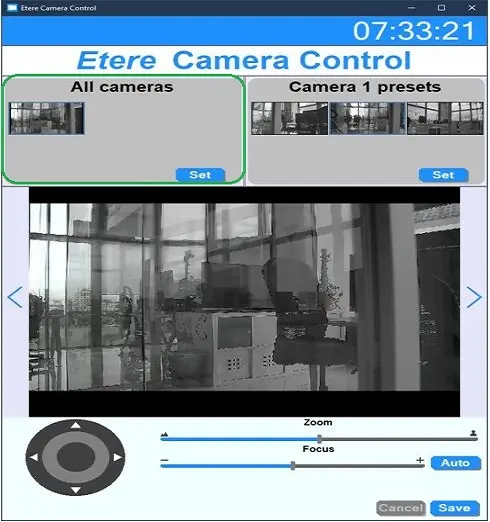
When Etere Camera Control is launched, the program will search all available network cameras and display each tile in the “All cameras” group.
Etere Camera Control 1
From the “All cameras” group, there are a few functions available:
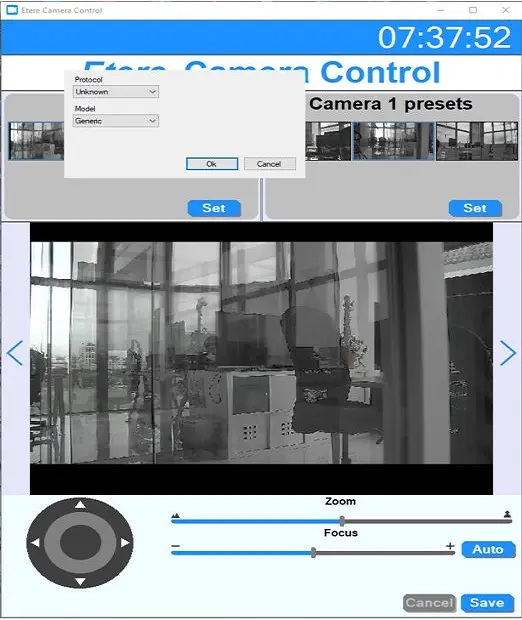
Etere Camera Control 2
•By right-clicking on any tile in the “All cameras” group, you can modify the parameters of the selected camera.
•By double-clicking on any blank space in the “All cameras” group, you can insert a camera not detected during the startup.
• Remove the non-detectable camera by dragging and dropping the camera tile in the lower space within the “All cameras” group.
•By selecting a camera tile in the “All cameras” group and clicking the [Set] button, the “Camera X Presets” (where the X indicate the camera number) group would be enabled (on the right panel) that allows the definition of presets for the selected camera.
Camera X Presets
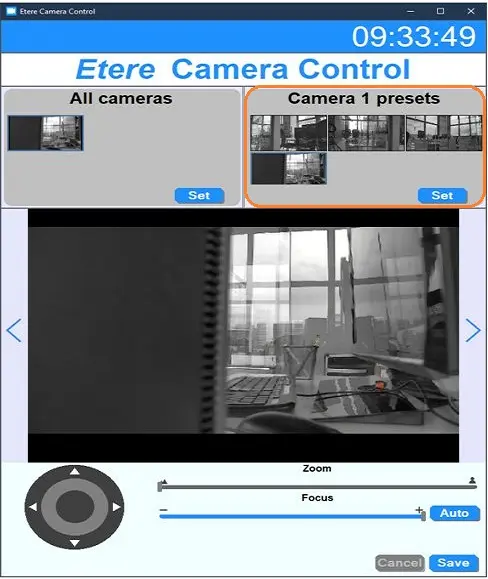
The “Camera X Presets” group allows to define the presets for the selected camera.
Etere Camera Control 3
•You can double-click on any blank space in the “Camera X Presets” group to add a new preset tile. The new preset tile would be displayed in black.
•By selecting a tile in the “Camera X Presets” group and clicking the [Set] button, you can edit the selected preset in the “Camera X Preset Y” group.
•To remove a preset, drag and drop the preset tile in the lower space within the “Camera X Presets” group.
Camera X Preset Y
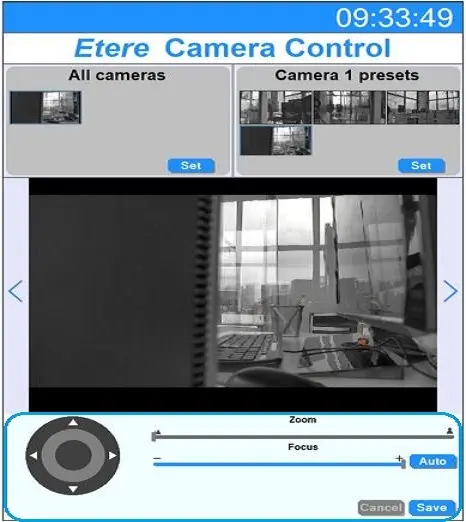
In this group, you can modify the preset scale with simple tools.<
Etere Camera Control 4
•Set the camera positions using the small circle and drag to the desired position between the white arrows.
•On the right panel, set the zoom and focus point by moving the position bar.
•When the preset scale is confirmed, click the [Save] button to save the camera setting for the selected preset.
 Select_station
 Etere_Camera_Control_1
 Etere_Camera_Control_2
 Etere_Camera_Control_3
 Etere_Camera_Control_4