59.2.22 Reports Editor
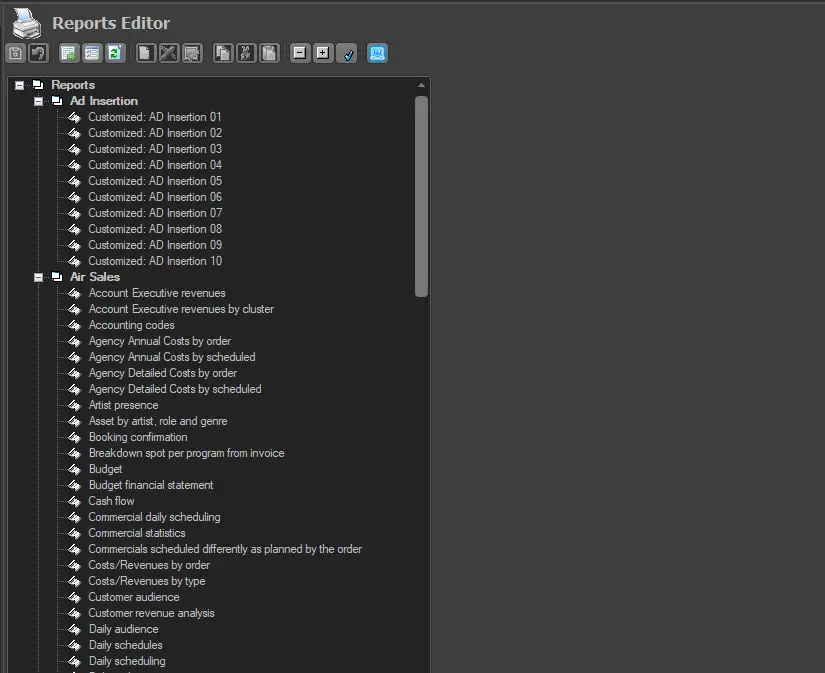
The "Reports Editor" section provides organisation and visualisation of all the reports included in the Etere Reports module; it is possible to customise the categories and sub-categories used for displaying reports across the Etere modules.
The main interface of the "Reports Editor" section is composed of a Global Reports Tree. This tree-like structure reflects the layout of the report used for displaying the reports provided in the Etere Reports module:
Reports_Editor
The Global Reports Tree contains all the reports available for the current system, which can be modified through the use of standard functions such as:
Icon_&_name
Save (Ctrl-S): Save all changes performed in the Global Reports Tree into the system's database.
Undo (Ctrl-Z): Reverts changes made to the Global Reports Tree layout.
Load (Ctrl-L): Loads all new reports in the Etere repository folder into the system.
Default parameters: Configure the default template to be used when sending emails. See Managing reports.
Refresh (F5): Updates changes in the database.
New (Ctrl-N): Creates a new sub-category within the current category.
Delete (Del): Removes the selected category from the Global Reports Tree.
Rename (F2): Change the name of the currently selected category.
Cut (Ctrl-X): Puts the selected category into the clipboard.
Paste (Ctrl-V): Places a previously cut category (in clipboard) into the selected category.
Please note that alternatively to the copy/paste function, the Reports Editor allows using the drag and drop mouse technique.
Collapse (Ctrl-PgUp): Collapse all categories of the Global Reports.
Expand (Ctrl-PgDn): Expands all categories of the Global Reports.
Restore: Restores the Global Reports Tree to its default layout.
Email: This section allows configuring the specific templates (subject and body) to be included each time an email is sent in a particular report. See Email information.
Managing reports
Reports can be moved between categories using the copy/paste function or the drag and drop mouse technique.
Default parameters
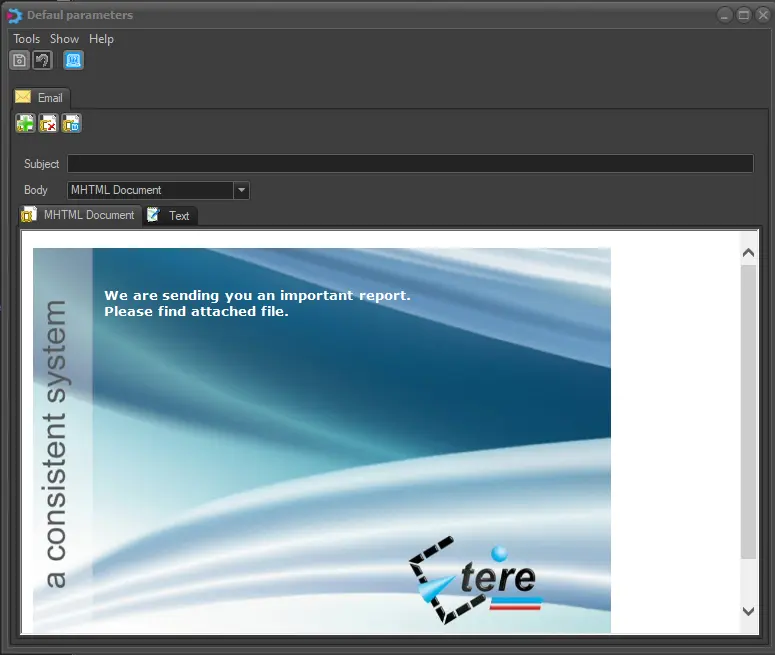
This form allows to define the default template to be used when sending emails; this information can be set by compiling the fields described below and pressing the [Save] button:
Default_parameters
Import - Browse and select the "MHTML Document" (containing text and images) created using any common document processor (e.g. MS Word) and intended to be used as the body template.
NB: The template provided by Etere can be found in Etere's installation directory (e.g. C:\program files (x86)\Etere\) and is named EtereReport.mht.
Save - Export the current template as a MHTML document (e.g. EtereReport.mht).
Remove - Remove the currently loaded template.
Subject - Enter a brief text for the email subject.
Body - Insert the email body in MHTML (text and images) or TXT (plain text) format.
Email information
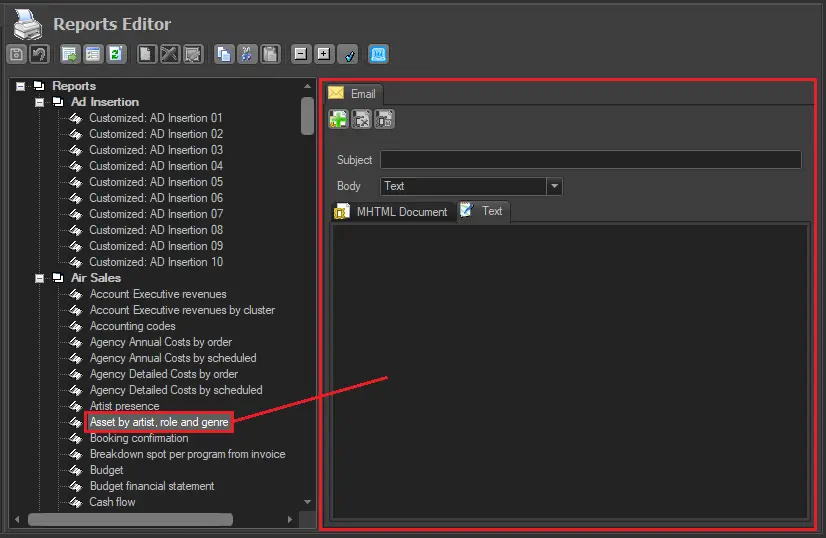
Define the information in the email every time it is delivered via the Email Server.
Email_information
Parameters available in this area include:
•Subject: Enter a brief text for the email subject.
•Body: Insert the email body in either MHTML (text and images) or TXT (plain text) format.
Moreover, the [Import] button allows importing text and images into the "MHTML Document" area.
 Reports_Editor
 Default_parameters
 Email_information
 Icon_&_name